

iHaku iTAG Trackerin käyttöopas


http://www.qrtransfer.com/iSearching.html

https://play.google.com/store/apps/details?id=com.lenzetech.isearchingtwo

https://itunes.apple.com/cn/app/isearching/id
Apple, APP Store, iPhone, iPad ja iPod touch ovat Apple Inc:n tavaramerkkejä.
Google play on Google Inc:n tavaramerkki. Kaikki muut tässä käytetyt tavaramerkit ovat vastaavien omistajiensa omaisuutta.
Tämä opas on suunniteltu auttamaan sinua ymmärtämään täysin, kuinka tuotetta käytetään hyödyksesi.
ALOITTAMINEN
Käynnistä sovellus älypuhelimellasi. Käytä hetki tarkistaaksesi opetusohjelmasivun ja älä unohda napauttaa Salli ottaaksesi sovelluksen ilmoitukset käyttöön.

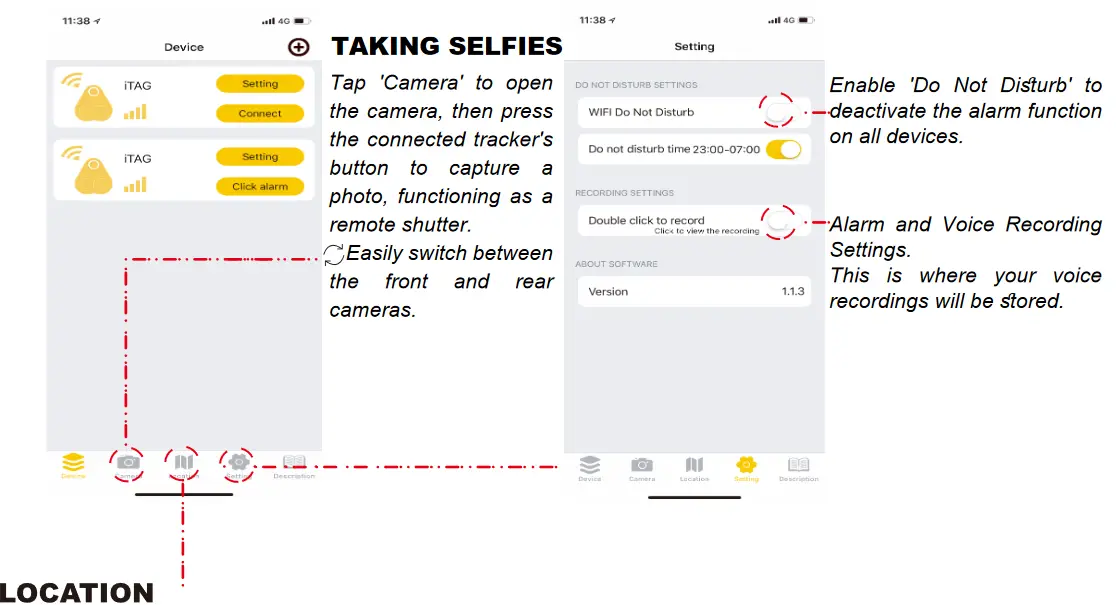
Sijaintihistoria: Kun pysäköit autosi, paina seurantalaitteen painiketta merkitäksesi nykyisen sijaintisi kartalle. Paikanna ajoneuvosi napauttamalla Sijaintihistoria.
Kadonnut historia: Jos kadotat seurantalaitteen, löydät sen vaivattomasti "Kadonneista historiasta". Kartalle pudotetaan automaattisesti merkki, joka antaa sinulle seurantalaitteen sijainnin. Napauta vain 'Lost History' päästäksesi tietueeseen.
AKUN VAIHTO
Pariston tyyppi: CR2032
CR2032 on yleinen vakiokokoinen paristotyyppi, mikä helpottaa sen ostamista ja vaihtamista.
Akun vaihtamiseksi avaa yksinkertaisesti jäljittimen painike, joka toimii akun kanteena

FCC:n varoituslauseke: Muutokset tai muunnokset tähän yksikköön, joita vaatimustenmukaisuudesta vastaava osapuoli ei ole nimenomaisesti hyväksynyt, voivat mitätöidä käyttäjän oikeuden käyttää laitetta. Tämä laite on testattu ja sen on todettu noudattavan luokan B digitaalisille laitteille asetettuja rajoituksia FCC-sääntöjen osan 15 mukaisesti. Nämä rajoitukset on suunniteltu tarjoamaan kohtuullinen suoja haitallisia häiriöitä vastaan kotiasennuksessa. Tämä laite tuottaa, käyttää ja voi säteillä radiotaajuista energiaa, ja jos sitä ei asenneta ja käytetä ohjeiden mukaisesti, se voi aiheuttaa haitallisia häiriöitä radioviestintään.
Ei kuitenkaan ole takeita siitä, ettei häiriöitä tapahdu tietyssä asennuksessa. Jos tämä laite aiheuttaa haitallisia häiriöitä radio- tai televisiovastaanottoon, mikä voidaan määrittää sammuttamalla ja käynnistämällä laite, käyttäjää kehotetaan yrittämään korjata häiriöt yhdellä tai useammalla seuraavista toimenpiteistä:
– Suuntaa tai siirrä vastaanottoantenni uudelleen.
– Suurenna laitteen ja vastaanottimen välistä etäisyyttä.
– Liitä laite pistorasiaan, joka on eri piirissä kuin se, johon vastaanotin on kytketty.
– Pyydä apua jälleenmyyjältä tai kokeneelta radio-/TV-teknikolta.
Tämä laite on FCC-sääntöjen osan 15 mukainen. Käyttöä koskevat seuraavat kaksi ehtoa: (1) tämä laite ei saa aiheuttaa haitallisia häiriöitä ja (2) tämän laitteen on hyväksyttävä kaikki vastaanotetut häiriöt, mukaan lukien häiriöt, jotka voivat aiheuttaa ei-toivottua toimintaa.
FCC:n säteilyaltistuslausunto
Laitteen on arvioitu täyttävän yleiset RF-altistusvaatimukset. Laitetta voidaan käyttää kannettavassa altistustilassa ilman rajoituksia.
Asiakirjat / Resurssit
 | iTAG Tracker |
Viitteet
- Käyttöopasmanual.tools
khó cài đặt
How do I set up and install the iSearching iTAG Seuraaja?
Setting up the iSearching iTAG Tracker involves a few simple steps. Please follow this guide to get started:
If you continue to have trouble, ensure the CR2032 battery is fresh and properly installed by opening the button cover.
Read the full Q&A page
Não tem recurso de apagar histórico localização no aplicativo ISearching V.2.7.0
How can I delete the location history in the iSearching app version 2.7.0?
Based on the iSearching iTAG Tracker manual, there is no specific instruction provided for deleting or clearing the Sijaintihistoria or Lost History records within the app interface. The manual only describes how to access these records by tapping the respective buttons.
If you are trying to remove a specific device's history, you may try to delete the device itself from the app by sliding the device name to the left in the device list. Please note that this may remove all settings associated with that specific tracker. If the app version 2.7.0 does not provide a direct 'clear' or 'delete' button within the History menus, the data may be stored locally; clearing the app cache or data in your smartphone's system settings might remove the history, but use caution as this will also log you out and reset your paired devices.
Read the full Q&A page
Hi, I was looking to use these on my pets, however it appears that you have to push the button to lock the location in? If my pet gets out and runs away and its out of Bluetooth range then how do I find it? it looks like this is more of a place holder than a tracking tool. Please advise.
Kiitos
Kiitos
How does the iSearching iTAG tracker work if my pet goes out of Bluetooth range?
The iSearching iTAG is a Bluetooth-based tracker with a range of approximately 25 metriä (75 jalkaa). It does not have built-in GPS for real-time long-distance tracking. However, it offers two features to help if your pet goes out of range:
As you noted, the manual mentions pressing the button to mark a location (Location History), but this is a manual feature typically used for parking. For a lost pet, the 'Lost History' pin is dropped automatically at the point of disconnection. Please be aware that if the pet continues to move after the Bluetooth connection is lost, the app will only show where they olivat when the signal dropped, not their current live position.
Read the full Q&A page
Weird how they say you can call or use their dogital chat that never tells you anything useful, but they dont give you an option to call. My drop down menu never comes up. What a waste of money
How do I access the drop-down menu to add devices in the iSearching app?
mukaan iHaku iTAG Trackerin käyttöopas, the drop-down menu is located in the top-left corner of the app's main screen. If the menu is not appearing, please try the following steps:
If the interface remains unresponsive, try restarting the app or your smartphone to refresh the display elements.
Read the full Q&A page