1. Johdanto
The Zebra ZQ220 Plus is a versatile mobile thermal printer designed for on-the-go professionals. This portable device offers reliable, high-quality receipt and label printing capabilities, making it suitable for various applications including retail, hospitality, and field services. Featuring Bluetooth 5.0 connectivity and a durable design, the ZQ220 Plus ensures efficient operation in diverse working environments. Its thermal printing technology eliminates the need for ink or toner, simplifying maintenance.
2. Turvallisuustiedot
- Read all instructions before operating the printer.
- Älä altista tulostinta äärimmäisille lämpötiloille, suoralle auringonvalolle tai korkealle kosteudelle.
- Use only Zebra-approved accessories and power sources.
- Avoid dropping the printer or subjecting it to severe impacts.
- Pidä tulostin loitolla vedestä ja muista nesteistä.
- Älä yritä purkaa tai korjata tulostinta itse. Ota yhteyttä pätevään huoltohenkilöstöön.
3. Pakkauksen sisältö
Varmista, että pakkauksessa on kaikki tarvittavat osat:
- Zebra ZQ220 Plus Mobile Thermal Printer
- Ladattava akku
- USB-latauskaapeli
- Pika-aloitusopas
- Sample Thermal Paper Roll
4. Tuote ohiview
Familiarize yourself with the components of your ZQ220 Plus printer.

Kuva 4.1: Etuosa View of the ZQ220 Plus Printer
This image displays the front of the ZQ220 Plus printer, highlighting its compact design. The top panel features an LCD display and three control buttons: Power, Settings, and Connectivity. The paper output slot is visible below the control panel.
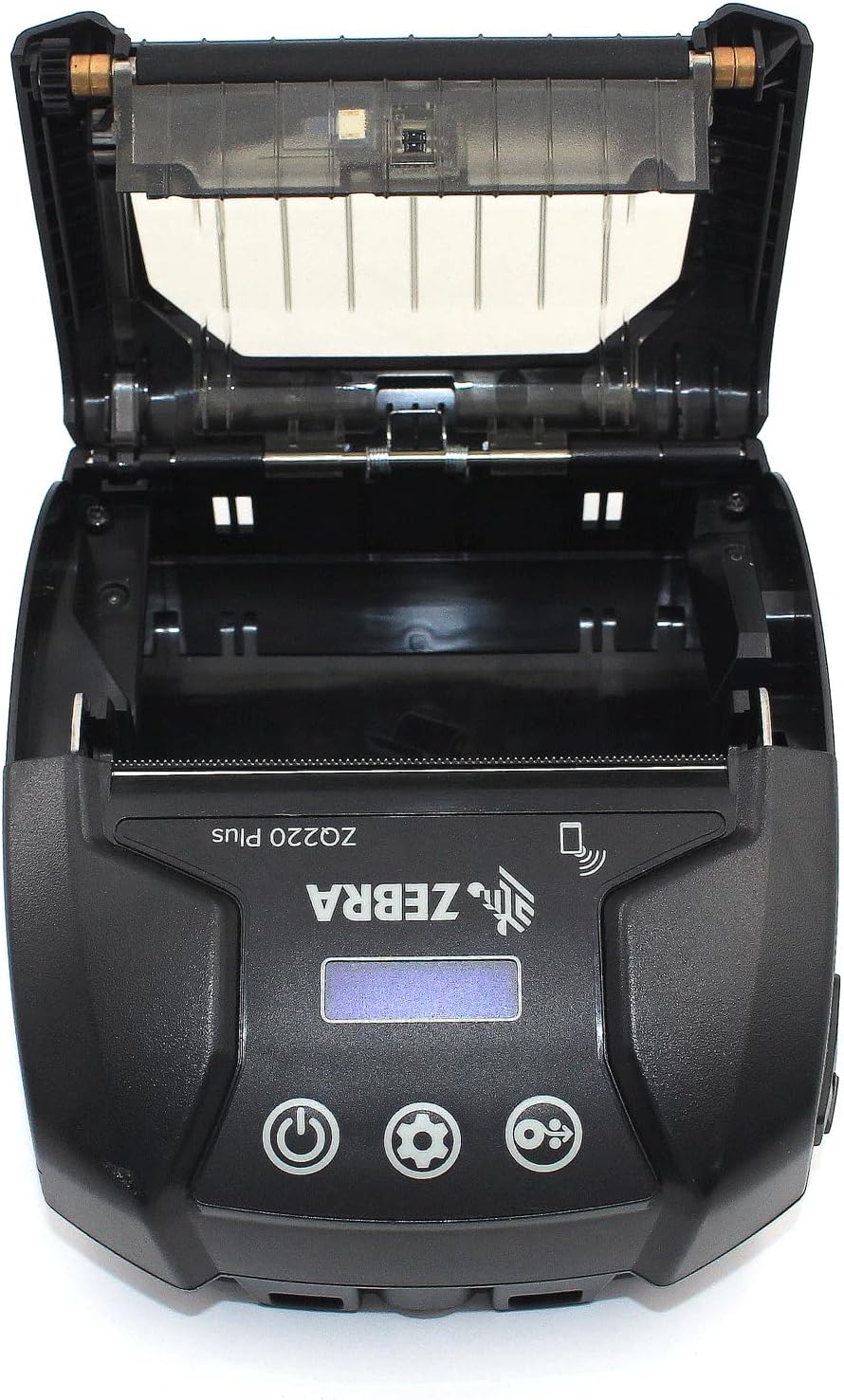
Figure 4.2: Media Compartment Open
This image shows the printer with its top cover open, providing access to the media compartment. The thermal printhead is visible, along with the spindle for loading paper rolls. This view is essential for understanding how to load printing media.

Figure 4.3: Media Roll Insertion
This image demonstrates the media loading process. The side view with the cover open clearly shows how a roll of thermal paper is placed into the printer's media bay, ensuring correct alignment for printing.
5. Asennus
5.1. Akun asennus
- Varmista, että tulostimen virta on katkaistu.
- Locate the battery compartment cover on the back or bottom of the printer.
- Open the cover and insert the rechargeable battery, ensuring the contacts align correctly.
- Sulje paristolokeron kansi kunnolla.
5.2. Tulostusmateriaalin lisääminen
- Open the media compartment cover (refer to Figure 4.2).
- Place the thermal paper roll into the compartment with the leading edge feeding from the bottom of the roll.
- Pull a small amount of paper past the printhead.
- Close the media compartment cover firmly until it latches.
5.3. Ensimmäinen käynnistys ja lataus
- Connect the USB charging cable to the printer and a power source (e.g., USB wall adapter, vehicle USB port).
- Allow the battery to fully charge before first use. The charging indicator light will show the status.
- Press and hold the Power button until the printer powers on. The LCD display will illuminate.
6. Tulostimen käyttö
6.1. Bluetooth-pariliitos
- Ensure the printer is powered on and within range of your host device (smartphone, tablet, etc.).
- On your host device, navigate to the Bluetooth settings and enable Bluetooth.
- Etsi available devices. The printer will appear as 'ZQ220 Plus' or a similar identifier.
- Select the printer from the list to initiate pairing. If prompted, enter the default PIN (usually '0000' or '1234').
- Once paired, the Bluetooth icon on the printer's display will indicate a successful connection.
6.2. Tulostus
- Ensure the printer is paired with your host device and has sufficient media loaded.
- Open your printing application (e.g., ZLabel Designer Mobile App for Android or iOS, or other compatible software).
- Select the ZQ220 Plus as your target printer within the application.
- Initiate the print command from your application. The printer will begin printing the document or label.
6.3. USB-lataus
The ZQ220 Plus supports simple USB charging. Connect the printer to any standard USB power source using the provided USB cable. This allows for convenient charging in vehicles or from portable power banks.
7. Huolto
7.1. Tulostimen puhdistaminen
- Ulkopuoli: Pyyhi tulostimen ulkopinta pehmeällä,amp kangas. Älä käytä voimakkaita kemikaaleja tai hankaavia puhdistusaineita.
- tulostuspää: Periodically clean the thermal printhead using a printhead cleaning pen or a cotton swab lightly dampened with isopropyl alcohol. Ensure the printer is off and cool before cleaning. Allow to dry completely before use.
- Levyrulla: Puhdista telan rulla nukkaamattomalla liinalla dampened with isopropyl alcohol to remove paper dust or adhesive residue.
7.2. Varastointi
When not in use for extended periods, store the printer in a cool, dry place, away from direct sunlight and extreme temperatures. Remove the battery if storing for several months to prevent discharge or damage.
8. Vianmääritys
| Ongelma | Mahdollinen syy | Ratkaisu |
|---|---|---|
| Tulostin ei käynnisty | Alhainen tai tyhjä akku Improperly installed battery | Lataa akku Asenna akku oikein |
| Ei tulostusjälkeä | No paper loaded Paperi on ladattu väärin Printhead dirty or damaged | Load thermal paper Reload paper correctly Puhdista tulostuspää |
| Huono tulostuslaatu | Dirty printhead Akku vähissä Väärä mediatyyppi | Puhdista tulostuspää Lataa akku Ensure correct thermal media is used |
| Ei voi muodostaa yhteyttä Bluetoothin kautta | Bluetooth ei ole käytössä laitteessa Printer not in pairing mode Kantaman ulkopuolella | Enable Bluetooth on host device Ensure printer is discoverable Move device closer to printer |
| Printer stops during operation | Akku vähissä Paperitukos Ylikuumeneminen | Lataa akku Clear any paper jam Allow printer to cool down |
9. Tekniset tiedot
| Ominaisuus | Erittely |
|---|---|
| Mallin nimi | ZQ220 PLUS |
| Tulostustekniikka | Suora lämpö |
| Tulostusresoluutio | 203 DPI (pistettä tuumalla) |
| Suurin tulostusnopeus (yksivärinen) | 20 ppm |
| Supported Media Widths | 80 mm (3.14 tuumaa), 76.2 mm (3 tuumaa), 58 mm (2.28 tuumaa) |
| Yhteydet | Bluetooth 5.0, USB |
| Akun kapasiteetti | 2500 mAh |
| Muisti | 8 Mt |
| Kestävyysluokitus | IP54 (resistance to dust and liquids) |
| Tuotteen mitat (S x L x K) | 3.15 cm x 2.25 cm x 3 cm |
| Tuotteen paino | 4 unssia (0.25 lbs) |
| Mukana olevat komponentit | Printer, Battery, USB Cable |
10. Takuu ja tuki
10.1. Takuutiedot
The Zebra ZQ220 Plus Mobile Thermal Printer comes with a Rajoitettu valmistajan takuu. Please refer to the warranty card included with your product or visit the official Zebra websivustolta löydät yksityiskohtaiset ehdot vakuutusturvasta, kestosta ja korvausmenettelyistä.
10.2. Tekninen tuki
For technical assistance, troubleshooting beyond this manual, or service inquiries, please contact Zebra customer support. Contact information can typically be found on the official Zebra websivustolla tai tuotedokumentaatiossa.


