1. Johdanto
This manual provides essential information for setting up, operating, maintaining, and troubleshooting your Lenovo ThinkPad E14 G7 laptop. Please read this guide thoroughly to ensure proper use and to maximize the performance and longevity of your device.
The ThinkPad E14 G7 is a powerful and versatile laptop featuring an Intel Core 5 210H processor, a 14-inch WUXGA IPS touchscreen display, 16GB DDR5 RAM, and a 512GB NVMe SSD, running on Windows 11 Pro.
2. Asennus
2.1 Laatikon purkaminen ja alkutarkastus
Carefully remove all components from the packaging. Verify that all items listed in the "What's in the Box" section are present. Inspect the laptop for any physical damage before proceeding.
- Lenovo ThinkPad E14 G7 Laptop
- Verkkolaite
- Asennusopas
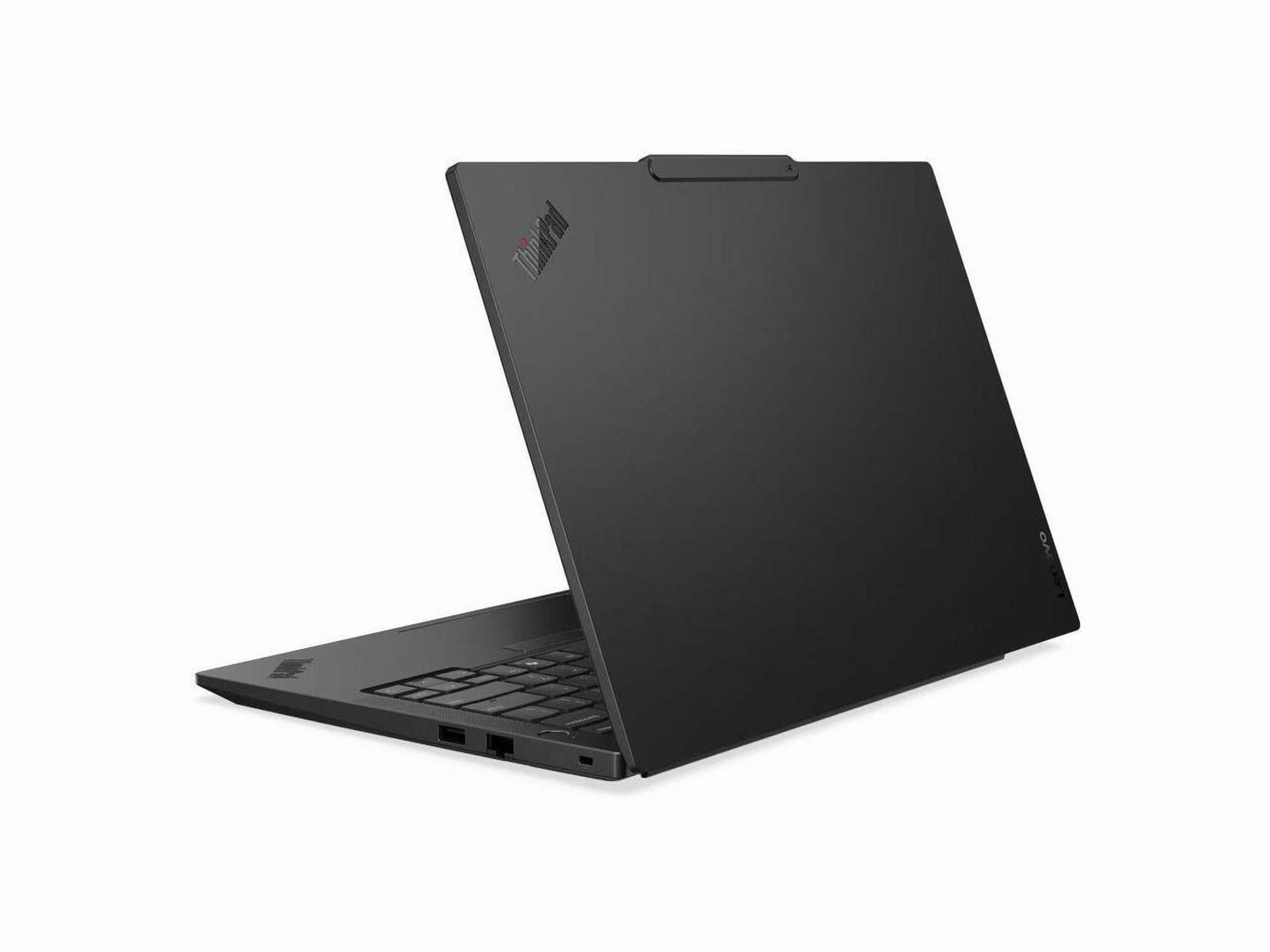
Image of the Lenovo ThinkPad E14 G7 laptop, showcasing its sleek design and 14-inch display.
2.2 Virran kytkeminen
Connect the AC power adapter to the laptop's power input port and then plug the adapter into a wall outlet. It is recommended to fully charge the battery before initial use.
2.3 Alkukäynnistys ja Windowsin asennus
Press the power button to turn on the laptop. Follow the on-screen instructions to complete the Windows 11 Pro setup process. This includes selecting your region, language, creating a user account, and connecting to a Wi-Fi network.
2.4 Oheislaitteiden liittäminen
Utilize the available ports to connect external devices such as a mouse, keyboard, external monitor, or USB drives.
- USB 3.0 Portit: Tavallisille USB-laitteille.
- Thunderbolt 4 -portti: Nopeaan tiedonsiirtoon, virransyöttöön ja näyttölähtöön.
- HDMI 2.1 portti: Ulkoisten näyttöjen tai projektorien liittämistä varten.
- Ethernet Port (Gigabit LAN): Kiinteää verkkoyhteyttä varten.
- Ääniliitäntä: Kuulokkeille tai ulkoisille kaiuttimille.
3. Kannettavan tietokoneen käyttö
3.1 Näytön ominaisuudet
Your ThinkPad E14 G7 features a 14-inch WUXGA (1920 x 1200) IPS touchscreen display. The IPS technology provides wide viewing angles, and the touchscreen functionality allows for intuitive interaction with Windows 11 Pro.
3.2 Näppäimistö ja kosketuslevy
The integrated keyboard provides a comfortable typing experience. The touchpad supports multi-touch gestures for navigation. Refer to the Windows 11 Pro documentation for detailed gesture controls.
3.3 sormenjälkilukija
For enhanced security and convenient login, configure the integrated fingerprint reader through Windows Hello settings in Windows 11 Pro.
3.4 Langaton yhteys
The laptop supports Wi-Fi 6E for high-speed wireless internet access and Bluetooth 5.3 for connecting wireless peripherals such as headphones or mice.
- Yhdistäminen Wi-Fi-verkkoon: Napsauta tehtäväpalkin Wi-Fi-kuvaketta, valitse verkkosi ja anna salasana.
- Bluetooth -laitteiden pariliitos: Go to Windows Settings > Bluetooth & devices, and follow the instructions to pair a new device.
4. Huolto
4.1 Kannettavan tietokoneen puhdistaminen
- Näyttö: Käytä pehmeää, nukkaamatonta liinaa kevyesti dampvedellä tai näytönpuhdistusliuoksella. Älä suihkuta nestettä suoraan näytölle.
- Näppäimistö ja runko: Pyyhi pinnat pehmeällä liinalla. Pinttyneeseen likaan käytä hieman kuivaa liinaa.amp voidaan käyttää miedolla saippualla kostutettua liinaa varmistaen, ettei nestettä pääse aukkoihin.
- Portit: Puhdista pöly porteista varovasti paineilmalla.
Sammuta kannettava aina virta ja irrota se pistorasiasta ennen puhdistamista.
4.2 Akun hoito
To prolong battery life, avoid extreme temperatures and allow the battery to discharge partially before recharging. For long-term storage, charge the battery to approximately 50% and store the laptop in a cool, dry place.
4.3 Ohjelmistopäivitykset
Regularly check for and install Windows updates and Lenovo driver updates to ensure optimal performance, security, and compatibility. You can find Windows updates in Settings > Windows Update, and Lenovo updates via the Lenovo Vantage application or Lenovo's support websivusto.
7. Takuu ja tuki
7.1 Tuotetakuu
For detailed information regarding your product's warranty, please refer to the warranty document included with your laptop or visit the official Lenovo support websivusto. Takuuehdot voivat vaihdella alueittain.
7.2 Tekninen tuki
Jos kohtaat ongelmia, joita ei voida ratkaista tämän oppaan vianmääritysohjeiden avulla, ota yhteyttä Lenovon tekniseen tukeen. Yhteystiedot ja lisäresurssit löytyvät Lenovon viralliselta tukisivustolta. websivusto:
https://support.lenovo.com