Johdanto
This manual provides detailed instructions for the Redragon S156 Wireless Gaming Keyboard and Mouse combo. This product offers versatile connectivity, customizable features, and ergonomic design for an enhanced computing experience. Please read this manual thoroughly before use to ensure proper operation and to maximize the product's capabilities.
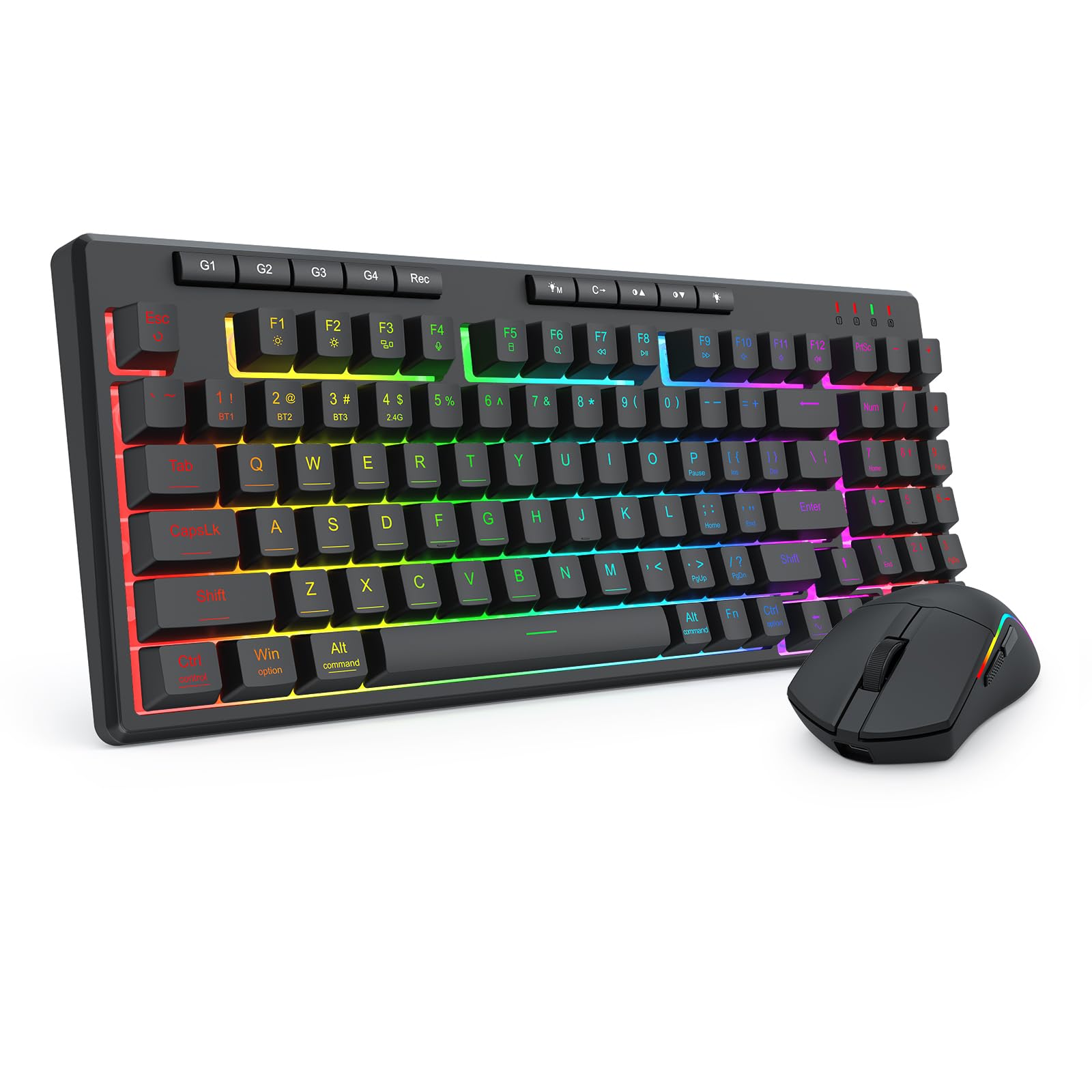
Figure 1: Redragon S156 Keyboard and Mouse in a typical gaming setup.
Pakkauksen sisältö
Ennen asennuksen aloittamista varmista, että pakkauksessa on kaikki tarvittavat osat:
- Redragon S156 Wireless Gaming Keyboard
- Redragon S156 Wireless Gaming Mouse
- 2.4 GHz: n USB-vastaanotin
- USB-C latauskaapeli
- Käyttöopas (tämä asiakirja)

Figure 2: Contents included with the Redragon S156 product.
Asennus
Laitteiden lataaminen
Ensure both the keyboard and mouse are fully charged before initial use. Connect the provided USB-C cable to the charging port on each device and to a powered USB port on your computer or a USB wall adapter. The charging indicator will show status (refer to device for specific light behavior).
Connectivity Options (Tri-Mode)
The Redragon S156 supports three connection modes: 2.4GHz Wireless, Bluetooth (BT1/BT2/BT3), and Wired (USB-C).

Figure 3: Tri-mode connectivity options for multiple devices.
2.4 GHz: n langaton yhteys
- Paikanna 2.4 GHz:n USB-vastaanotin.
- Liitä vastaanotin tietokoneen vapaaseen USB-porttiin.
- Käynnistä näppäimistö ja hiiri. Niiden pitäisi muodostaa automaattisesti yhteys vastaanottimeen.
Bluetooth-yhteys
The keyboard and mouse can connect to up to three different Bluetooth devices (BT1, BT2, BT3).
- Turn on the keyboard/mouse and switch to a desired Bluetooth channel (e.g., BT1).
- Activate Bluetooth on your device (PC, Mac, smartphone, tablet).
- Etsi new Bluetooth devices and select "Redragon S156 Keyboard" or "Redragon S156 Mouse" from the list.
- Suorita pariliitos loppuun noudattamalla näytön ohjeita.
Langallinen USB-C-yhteys
Connect the USB-C cable directly from the keyboard/mouse to your computer's USB port. The devices will function in wired mode and charge simultaneously.

Figure 4: Mouse connectivity options.

Figure 5: Mouse connected via USB-C for wired operation and charging.
Käyttöohjeet
Näppäimistön toiminnot
RGB-taustavalo
The keyboard features multiple built-in RGB lighting modes and effects. Use the dedicated keys (often Fn + specific keys) to cycle through modes, adjust brightness, and change colors. Refer to the keyboard's function key legends for specific controls.

Figure 6: Keyboard lighting customization options.

Figure 7: Keyboard software interface for backlight customization (Windows only).
Makropainikkeet (G1–G4)
The keyboard includes dedicated macro keys (G1-G4) for instant command execution. These can be programmed directly on the keyboard without software.
- Paina [Tallennus] button to start macro recording.
- Paina yhtä [G1-G4] avaimet ammattilaisen valitsemiseenfile tallennusta varten.
- Kirjoita näppäinsarja, jonka haluat tallentaa.
- After finishing the macro key recording, press [Tallennus] uudelleen tallentaaksesi makron.

Figure 8: On-the-fly macro recording instructions.
Hiiren toiminnot
DPI-säätö
The mouse features adjustable DPI settings up to 10000 DPI for precision control. Use the dedicated DPI button on the mouse to cycle through preset DPI levels.
Programmable Buttons and RGB Customization
The mouse buttons and RGB lighting can be customized using the Redragon software. This software allows for adjusting DPI, polling rate, assigning macros, and customizing RGB effects.

Figure 9: Customizable gaming mouse buttons.

Figure 10: Mouse software for customization (Windows only; not supported in Bluetooth mode).
Huolto
Puhdistus
To maintain optimal performance, regularly clean your keyboard and mouse. Use a soft, dry cloth to wipe surfaces. For stubborn dirt, a slightly damp voidaan käyttää miedolla saippualla kostutettua liinaa varmistaen, ettei nestettä pääse laitteeseen. Vältä voimakkaita kemikaaleja tai hankaavia materiaaleja.
Akun kesto ja lataus
The keyboard features a 4000mAh battery, offering extended use. The mouse provides up to 200 hours of battery life on a full charge. For best battery longevity, avoid fully discharging the devices frequently. Recharge when the low battery indicator appears.

Figure 11: Keyboard battery capacity and estimated usage time.

Figure 12: Mouse ultra-long battery life indication.
Vianetsintä
Yhteysongelmat
- Laite ei muodosta yhteyttä: Ensure the device is powered on and in the correct connection mode (2.4GHz, BT1/2/3). For 2.4GHz, ensure the USB receiver is securely plugged in. For Bluetooth, ensure your host device's Bluetooth is enabled and the pairing process is completed.
- Ajoittainen yhteys: Move the devices closer to the receiver/host device. Avoid sources of interference such as other wireless devices or large metal objects. Ensure devices are charged.
Näppäimistö/hiiri ei vastaa
- Tarkista akun taso ja lataa tarvittaessa.
- Try switching to wired mode using the USB-C cable to rule out wireless issues.
- Käynnistä tietokone uudelleen.
- For the keyboard, ensure it is not in a locked mode (e.g., Num Lock, Caps Lock, Scroll Lock indicators).
RGB-valo ei toimi
- Ensure the backlight is turned on and brightness is adjusted.
- Selaa eri valaistustiloja nähdäksesi, toimivatko ne.
- If using software, ensure it is running and settings are applied correctly.
Tekniset tiedot
| Ominaisuus | Yksityiskohta |
|---|---|
| Merkki | Redragon |
| Malli | S156 |
| Yhteystekniikka | 2.4G langaton, Bluetooth (BT1/BT2/BT3), USB-C-langallinen |
| Näppäimistön tyyppi | Mechanical Feel Membrane Keyboard |
| Näppäimistön näppäimet | 94-key layout, 4 Macro Keys (G1-G4) |
| näppäimistön taustavalo | RGB Backlit (multiple modes) |
| Näppäimistön akku | 4000 mAh |
| Hiiren DPI | Jopa 10000 XNUMX DPI (säädettävä) |
| Hiiren paino | 61g (Ultra-lightweight) |
| Hiiren akunkesto | Jopa 200 tuntia |
| Yhteensopivat laitteet | Kannettava tietokone, tietokone, älypuhelin, tabletti |
| Käyttöjärjestelmän yhteensopivuus | Windows, Mac |
| Materiaali | Muovi |
| Tuotteen paino | 2.16 paunaa (yhteensä) |
| Pakkauksen mitat | 15.12 x 8.86 x 2.01 tuumaa |

Kuva 13: Näppäimistön mitat.

Figure 14: Keyboard height.
Takuu ja tuki
Takuutiedot
Redragon products are covered by a limited warranty against defects in materials and workmanship. The specific warranty period may vary by region and product. Please retain your proof of purchase for warranty claims.
Asiakastuki
For technical assistance, troubleshooting, or warranty inquiries, please visit the official Redragon website or contact their customer support team. Contact information can typically be found on the Redragon websivustolla tai tuotepakkauksessa.


