1. Johdanto
This manual provides detailed instructions for the setup, operation, maintenance, and troubleshooting of your NIIMBOT B1 Portable Thermal Label Printer. Please read this manual thoroughly before using the device to ensure proper function and longevity.

Image 1.1: The NIIMBOT B1 Label Maker shown with examples of printed labels for various applications.
2. Tuote ohiview
2.1 Pakkauksen sisältö
Varmista, että pakkauksessasi on kaikki tarvittavat osat:
- NIIMBOT B1 Label Maker x1
- C-tyypin kaapeli x1
- Käyttöohje x1
- Roll label tape (50x30mm) x1 (pre-installed in some models)

Image 2.1: The NIIMBOT B1 Label Maker and its included accessories.
2.2 Tärkeimmät ominaisuudet
- 2-Inch Label Printing: Supports label widths from 20mm to 50mm (1-2 inches).
- Lämpötulostus: Ei vaadi mustetta tai väriainetta, mikä alentaa käyttökustannuksia.
- Automaattinen tarran tunnistus: For faster and easier printing.
- Liitettävyys: Compatible with iOS & Android smartphones via Bluetooth, and PC via USB.
- NIIMBOT App: Offers 10+ fonts/languages, 100+ borders, 1500+ symbols, barcodes, QR codes, icons, time stamps, pictures, photos, and OCR print functions.
- Kannettava muotoilu: Kompakti ja kevyt, joten se on helppo kuljettaa ja käyttää.
- Automaattinen virrankatkaisu: Customizable auto-off settings (15min, 30min, 60min, never) to conserve battery.
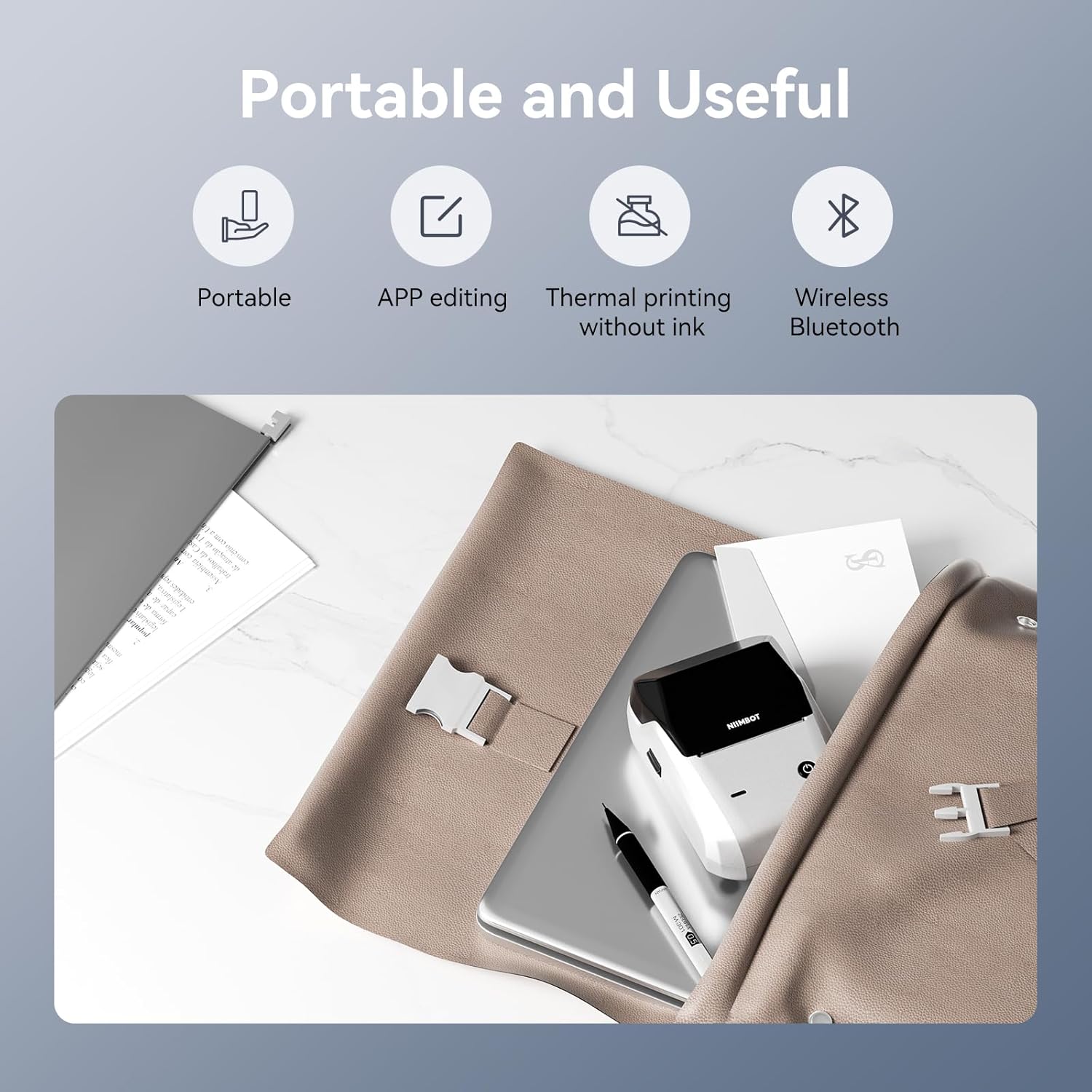
Kuva 2.2: ohiview of the NIIMBOT B1's portable and useful features.
3. Asennus
3.1 Tarranauhan lisääminen
- Rotate the side latch to open the tape slot.
- Load the label tape into the slot, ensuring the label side faces upwards.
- Adjust the guide plate to fit the label roll snugly.
- Close the tape slot, leaving a small portion of the label tape extending for smooth feeding.

Image 3.1: Proper installation of label tape in the NIIMBOT B1.
3.2 Sovelluksen asennus ja yhteyden muodostaminen
The NIIMBOT B1 requires the NIIMBOT app for smartphone operation.
- Download the NIIMBOT app from the App Store (iOS) or Google Play Store (Android). Etsi "NIIMBOT".
- Varmista, että puhelimesi Bluetooth on käytössä.
- Open the NIIMBOT app and click "Connect" to search for nearby devices.
- Select your B1 printer from the list (e.g., B1-XXXXXX) to pair. If prompted for a pairing code, enter 0000 or 1234.
- Once connected, the app will automatically identify the label tape in the printer.

Image 3.2: NIIMBOT App download and connection process.
3.3 PC Connection (Windows)
For PC connectivity, you will need to download the driver from the official NIIMBOT websivusto.
- Vieraile virallisessa NIIMBOTissa website and download the B1 printer driver for Windows 7/10.
- Install the driver on your PC.
- Connect the NIIMBOT B1 printer to your PC using the provided USB Type-C cable.
- Open the NIIMBOT desktop software to begin printing.

Image 3.3: Connecting the NIIMBOT B1 to a PC via USB.
3.4 Quick Start Video Guide
Watch this video for a quick visual guide on setting up and using your B1 Label Maker.
Video 3.4: A quick start guide demonstrating the initial setup and basic operation of the NIIMBOT B1 Label Maker.
4. Käyttöohjeet
4.1 Tarrojen luominen ja muokkaaminen
- In the NIIMBOT app, select a template or create a new label.
- Use the various editing tools to add text, images, icons, barcodes, QR codes, and other elements.
- Customize font styles, sizes, alignment, and other layout options.
- The app supports features like OCR (Optical Character Recognition) for converting images to text.

Image 4.1: The NIIMBOT App interface for creating and editing labels.
4.2 Tarrojen tulostaminen
- After designing your label, click the "Print" button in the app.
- Adjust the number of copies and print density as needed.
- Vahvista tulostusasetukset ja aloita tulostus.
- The printer will automatically feed and print the labels. Gently tear off the printed labels.

Image 4.2: Smartphone printing process with the NIIMBOT B1.
4.3 Merkkivalon merkitykset
Understand the status of your printer through its indicator light:
- Salaman sininen: Laiteohjelmistopäivitys on käynnissä.
- Tasainen sininen: Printer is in standby mode.
- Vilkkuu vihreänä: Printer is actively printing.
- Tasainen vihreä: Bluetooth is successfully connected.
- Punainen salama: Printer is charging.
- Tasainen punainen: Cover is open, out of paper, or low battery.

Image 4.3: Guide to the NIIMBOT B1 indicator light statuses.
4.4 Käyttö esimamples
The NIIMBOT B1 is versatile for various labeling needs:
- Kotikäyttö: Kitchen labels, gift labels, kids' item labels, trip item labels.
- Liikekäyttö: Beauty & personal care, DIY item labels, mail labels, perfume labels, bakery food labels.

Kuva 4.4: Esim.amples of NIIMBOT B1 usage for home organization.

Kuva 4.5: Esim.amples of NIIMBOT B1 usage for small businesses.

Kuva 4.6: Esim.amples of labels for bakery and food products.
Video 4.7: Demonstration of the NIIMBOT B1 Label Maker's ease of use for various labeling tasks.
Video 4.8: Esitysasing the multipurpose capabilities of the NIIMBOT B1 Label Maker for different applications.
5. Huolto
5.1 Tulostuspään puhdistaminen
Tulostuspään säännöllinen puhdistus varmistaa optimaalisen tulostuslaadun.
- Sammuta tulostin ja irrota virtajohto.
- Avaa etikettilokero.
- Pyyhi tulostuspää varovasti vanupuikolla kevyesti dampisopropyylialkoholilla.
- Allow the print head to dry completely before closing the compartment and turning on the printer.
5.2 Akun hoito
- Lataa tulostinta säännöllisesti, vaikka sitä ei käytettäisikään usein, akun kunnon ylläpitämiseksi.
- Avoid exposing the printer to extreme temperatures.
- Käytä lataamiseen ainoastaan mukana toimitettua Type-C-kaapelia.
6. Vianmääritys
6.1 Yleiset ongelmat ja ratkaisut
| Antaa | Mahdollinen syy | Ratkaisu |
|---|---|---|
| Tulostin ei käynnisty | Akku vähissä; Virtapainiketta ei painettu tarpeeksi kauan | Lataa tulostin; Paina virtapainiketta 3 sekuntia. |
| Ei voi muodostaa yhteyttä Bluetoothin kautta | Bluetooth off on phone; Printer not in pairing mode; App permissions | Ensure Bluetooth is on; Restart printer; Check app permissions for nearby devices. |
| Huono tulostuslaatu | Dirty print head; Incorrect print density; Low battery | Clean the print head (see 5.1); Adjust print density in the app; Charge the printer. |
| Tarrat eivät syöty oikein | Incorrect label installation; Guide plate not adjusted | Reinstall label tape correctly (see 3.1); Adjust the guide plate to fit the label roll. |
| Tietokone ei tunnista tulostinta | Driver not installed; Faulty USB cable | Install the correct PC driver (see 3.3); Try a different USB cable. |
7. Tekniset tiedot
| Ominaisuus | Yksityiskohta |
|---|---|
| Mallin nimi | B1 |
| Tulostustekniikka | Lämpö |
| Yhteydet | Bluetooth, USB |
| Suurin tulostustarkkuus | 203 dpi |
| Suurin tulostusnopeus (yksivärinen) | 15 mm/s |
| Suurin mediakoko | 2 tuuma (50 mm) |
| Yhteensopivat laitteet | Smartphone (Android & iOS), PC (Windows 7/10) |
| Tuotteen paino | 1.1 puntaa (499 grammaa) |
| Tuotteen mitat | 5.5" S x 3.5" L x 2.5" K |
| Akku | 1 A paristo vaaditaan (mukana) |
| Erityiset käyttötarkoitukset | Labeling for Small Business Product Price/Address, School and Office Files Classification, Home Supplies Organization, Personal Item Identification, Name Tags and Warehouse |
8. Takuu ja tuki
8.1 Takuutiedot
The NIIMBOT B1 Label Printer comes with a 1-year warranty coverage. Please retain your proof of purchase for warranty claims.
8.2 Asiakastuki
For further assistance, technical support, or warranty inquiries, please contact NIIMBOT customer service through their official websivustolla tai tuotepakkauksen mukana toimitetuissa yhteystiedoissa.


