1. Johdanto
This document serves as a comprehensive guide for the Dell Precision 7540 Mobile Workstation. It provides detailed instructions for initial setup, operation, maintenance, and troubleshooting to ensure optimal performance and longevity of your device. The Dell Precision 7540 is a powerful mobile workstation designed for demanding professional tasks, featuring a 15.6-inch Full HD IPS display, a 9th Generation Intel Core i7-9850H processor, 32GB of DDR4 RAM, and a 512GB NVMe PCIe Solid State Drive.

Figure 1: Dell Precision 7540 Laptop (Closed View)
2. Mitä laatikossa on
Upon unboxing your Dell Precision 7540, please verify that all the following items are included:
- Dell Precision 7540 Laptop
- AC-sovitin
- Akku
- Dokumentaatio (mukaan lukien tämä käyttöohje)
- Webnokka-akseli (integroitu)
3. Asennus
3.1 Ensimmäinen käynnistys
- Connect the AC adapter to the power port on the laptop and then to a power outlet.
- Avaa kannettavan tietokoneen kansi.
- Paina virtapainiketta, joka sijaitsee yleensä näppäimistön oikeassa yläkulmassa.
- Suorita Windows 10 Homen asennus loppuun noudattamalla näytön ohjeita.
3.2 Oheislaitteiden liittäminen
The Dell Precision 7540 offers a variety of ports for connecting external devices:
- USB-A-portit: Connect USB devices such as mice, keyboards, or external storage.
- USB-C Thunderbolt 3 Ports: Nopeaan tiedonsiirtoon, videoulostuloon ja yhteensopivien laitteiden lataamiseen.
- HDMI 2.0 -lähtö: Liitä ulkoisiin näyttöihin tai projektoreihin.
- Mini DisplayPort 1.4 Output: Another option for connecting to external displays.
- 3.5 mm:n kuulokeliitäntä: Äänen ulostulo kuulokkeisiin tai ulkoisiin kaiuttimiin.
- RJ45 (Ethernet) -portti: Kiinteää verkkoyhteyttä varten.
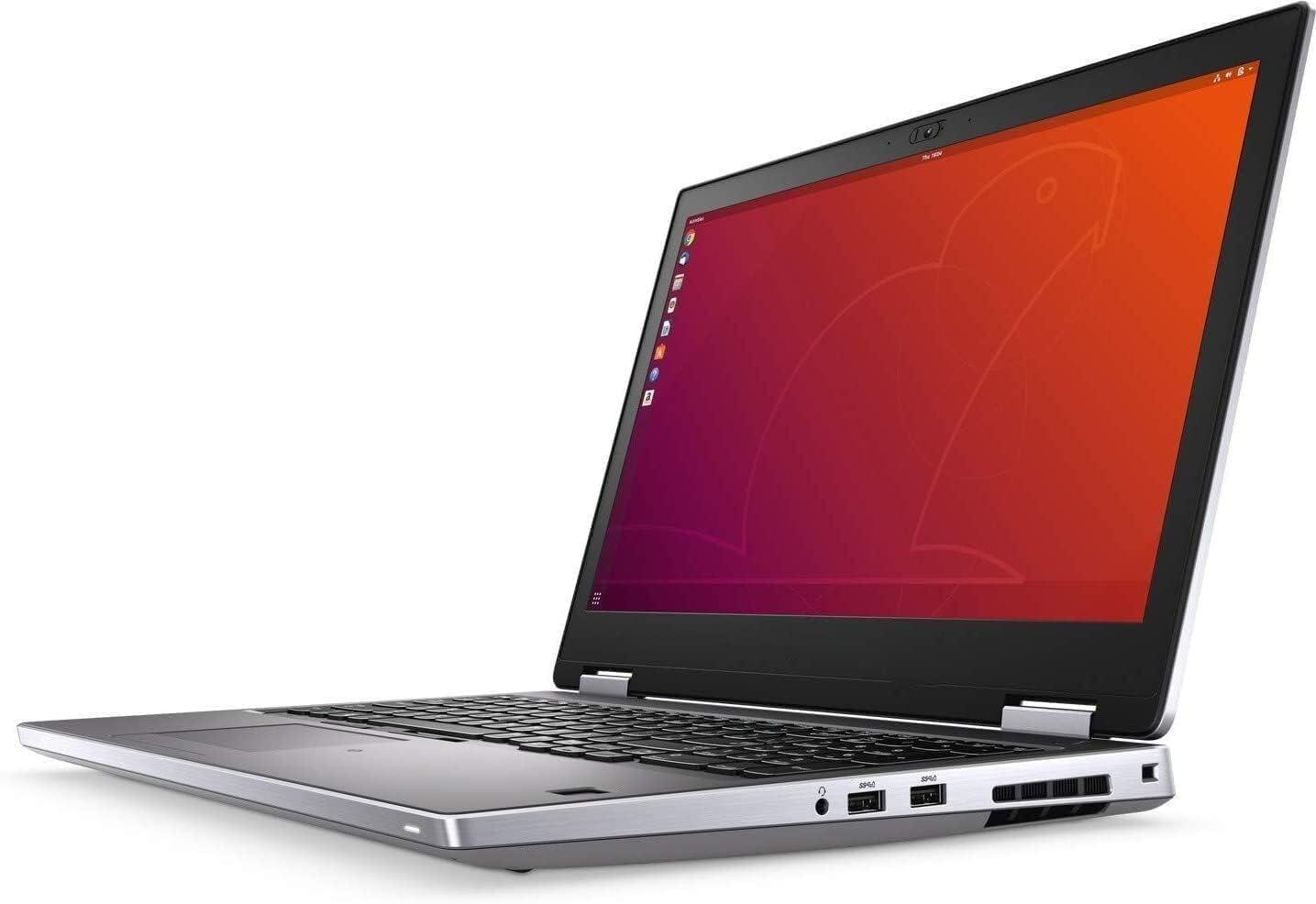
Kuva 2: Sivu View liitäntäporteilla
4. Käyttöohjeet
4.1 Näppäimistö ja kosketuslevy
The laptop features an Internal US English Dual Pointing Backlit Keyboard for comfortable typing in various lighting conditions. The touchpad supports multi-touch gestures for navigation.

Figure 3: Open Laptop View
4.2 Näyttö
The 15.6-inch UltraSharp FHD IPS (1920 x 1080) Anti-Glare, Non-Touch Display provides clear visuals. Adjust brightness and display settings through the Windows operating system.
4.3 Webnokka
The integrated camera and microphone are suitable for video conferencing and online communication.
5. Tekniset tiedot
| Ominaisuus | Yksityiskohta |
|---|---|
| Prosessori | 9th Generation Intel Core i7-9850H (6 Cores, 12 Threads, 2.60GHz, 4.60GHz Turbo, 12MB Cache) |
| Käyttöjärjestelmä | Windows 10 Home |
| Näyttö | 15.6" UltraSharp FHD IPS (1920 x1080) Anti-Glare, Non-Touch Display |
| Muisti | 32GB DDR4-muisti |
| Varastointi | 512GB NVMe PCIe Solid State Drive |
| Grafiikka | NVIDIA Quadro T2000 w/4GB GDDR5 |
| Yhteydet | Intel Wi-Fi 6 AX200 2x2 .11ax 160MHz + Bluetooth 5.1 |
| Portit | 2 x USB-A 3.0, 2 x USB-C Thunderbolt 3, 1 x HDMI 2.0, 1 x Mini DisplayPort 1.4, 1 x 3.5 mm Headphone Output, 1 x RJ45 |
| Akku | 6 Cell 97 WHr Long Life Cycle Lithium Ion Polymer Battery |
| Mitat (KxLxS) | 0.98 x 14.87 x 9.89 tuumaa (25 x 377.6 x 251.3 mm) |
| Paino | Starts at 5.56 lb (2.52 kg) |
6. Huolto
6.1 Puhdistus
- Puhdista näyttö ja ulkopinnat pehmeällä, nukkaamattomalla liinalla.
- Vältä kovien kemikaalien tai hankaavien materiaalien käyttöä.
- For the keyboard, use compressed air to remove dust and debris.
6.2 Ohjelmistopäivitykset
Regularly update your operating system and drivers to ensure security and optimal performance. Windows Update can be accessed through the Settings menu.
6.3 Akun hoito
To prolong battery life, avoid extreme temperatures and fully discharging the battery frequently. Store the laptop in a cool, dry place when not in use for extended periods.
7. Vianmääritys
7.1 Virtaongelmat
- Kannettava tietokone ei käynnisty: Ensure the AC adapter is securely connected and the power outlet is functional. Try a different outlet if necessary.
- Akku ei lataudu: Check the AC adapter and cable for damage. Ensure the battery is properly seated (if removable).
7.2 Näyttöongelmat
- Tyhjä näyttö: Connect an external monitor to check if the issue is with the laptop's display. Restart the laptop.
- Vilkkuva näyttö: Päivitä näytönohjaimen ohjaimet. Säädä näytön virkistystaajuutta Windowsin asetuksissa.
7.3 Suorituskykyongelmat
- Hidas suorituskyky: Sulje tarpeettomat sovellukset. Tarkista haittaohjelmien varalta. Varmista, että SSD-levyllä on riittävästi vapaata tilaa.
- Ylikuumeneminen: Varmista, että tuuletusaukot ovat tyhjät. Käytä kannettavaa tietokonetta kovalla ja tasaisella alustalla.
8. Takuu ja tuki
For warranty information and technical support, please refer to the official Dell support website or the documentation included with your product. Keep your product's serial number handy when contacting support.


