1. Johdanto
This manual provides comprehensive instructions for the iClever MD179 Multi-Device Wireless Mouse. It covers setup, operation, maintenance, and troubleshooting to ensure optimal performance and a seamless user experience. Please read this manual thoroughly before using the product.
2. Pakkauksen sisältö
Varmista, että pakkauksessasi on kaikki tarvittavat osat:
- iClever MD179 Wireless Mouse
- USB 2.4GHz Receiver (stored inside the mouse)
- USB-C latauskaapeli
- Käyttöopas (tämä asiakirja)
3. Tuote ohiview
Familiarize yourself with the mouse's components and controls:

Kuva 1: iClever MD179 Mouse Button Layout
- Hiiren oikeanpuoleinen painike: Standard right-click functionality.
- Vasen napsautuspainike: Standard left-click functionality.
- Scroll Wheel / Middle Click Button: Vieritys- ja keskipainikkeen napsautustoiminnoille.
- Eteenpäin-painike: Navigoi eteenpäin kohdassa web selaimet tai file explorers (Windows only).
- Takaisin-painike: Navigoi taaksepäin web selaimet tai file explorers (Windows only).
- DPI-vaihtopainike: Säätää kohdistimen herkkyyttä (DPI).
- Virtakytkin: Located on the bottom of the mouse to turn it on or off.
- 2.4GHz / Bluetooth 1 / Bluetooth 2 Channel Indicator: Displays the active connection mode.
4. Asennus
4.1 Hiiren lataaminen
Before initial use, fully charge the mouse.
- Connect the provided USB-C cable to the charging port on the front of the mouse and to a USB power source (e.g., computer USB port, USB wall adapter).
- Latauksen merkkivalo palaa latauksen aikana ja sammuu, kun akku on täyteen ladattu.
- A full charge typically provides up to 2 months of use, depending on usage.
- The mouse can be used wirelessly while it is charging.
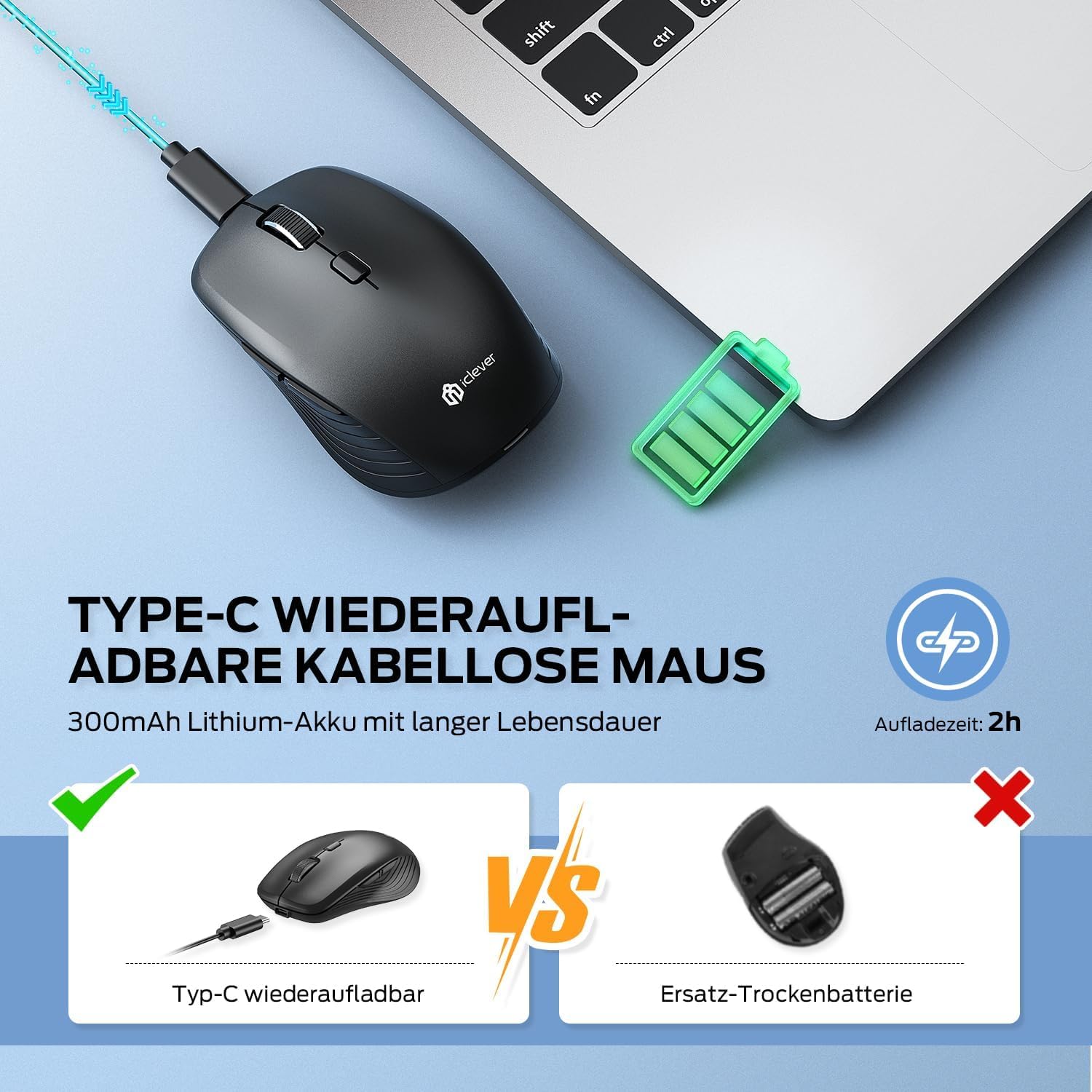
Kuva 2: USB-C Rechargeable Feature
4.2 Yhdistäminen 2.4 GHz:n langattomalla yhteydellä
For a stable and quick connection:
- Locate the USB 2.4GHz receiver. It is stored in a compartment under the magnetic top cover of the mouse. Gently lift the top cover to access it.
- Liitä USB-vastaanotin tietokoneesi vapaaseen USB-porttiin.
- Käynnistä hiiri pohjassa olevalla ON/OFF-kytkimellä.
- Switch the connection mode to 2.4GHz (refer to the channel indicator on the bottom).
- Hiiren pitäisi muodostaa yhteys automaattisesti.

Kuva 3: Yhteysasetukset
4.3 Yhdistäminen Bluetoothin kautta (BT1 / BT2)
The mouse supports two Bluetooth connections:
- Käynnistä hiiri pohjassa olevalla ON/OFF-kytkimellä.
- Switch the connection mode to either Bluetooth 1 (BT1) or Bluetooth 2 (BT2) using the channel switch button on the bottom. The indicator light will confirm the selected channel.
- Press and hold the channel switch button for 3-5 seconds until the indicator light flashes rapidly. This indicates the mouse is in pairing mode.
- On your device (PC, Mac, laptop, tablet), go to Bluetooth settings.
- Etsi "iClever MD179" or a similar name in the list of available devices and select it to pair.
- Toista nämä vaiheet toiselle Bluetooth-laitteelle, joka käyttää toista Bluetooth-kanavaa (BT2).

Kuva 4: Monilaiteyhteys
4.4 Laitteiden välillä vaihtaminen
Kytkettyjen laitteiden välillä vaihtaminen:
- Use the channel switch button on the bottom of the mouse to cycle between the 2.4GHz, Bluetooth 1, and Bluetooth 2 connections.
- The indicator light will confirm the currently active channel.
5. Käyttöohjeet

Kuva 5: Mouse in Use with Multiple Devices
5.1 DPI-säätö
Adjust the cursor sensitivity to match your preference or task:
- Press the DPI switch button (button 6 in Product Overview) to cycle through the available DPI settings: 800, 1200, 1600, and 2400 DPI.
- The indicator light may flash briefly to confirm the DPI change.
- Higher DPI settings result in faster cursor movement across the screen.
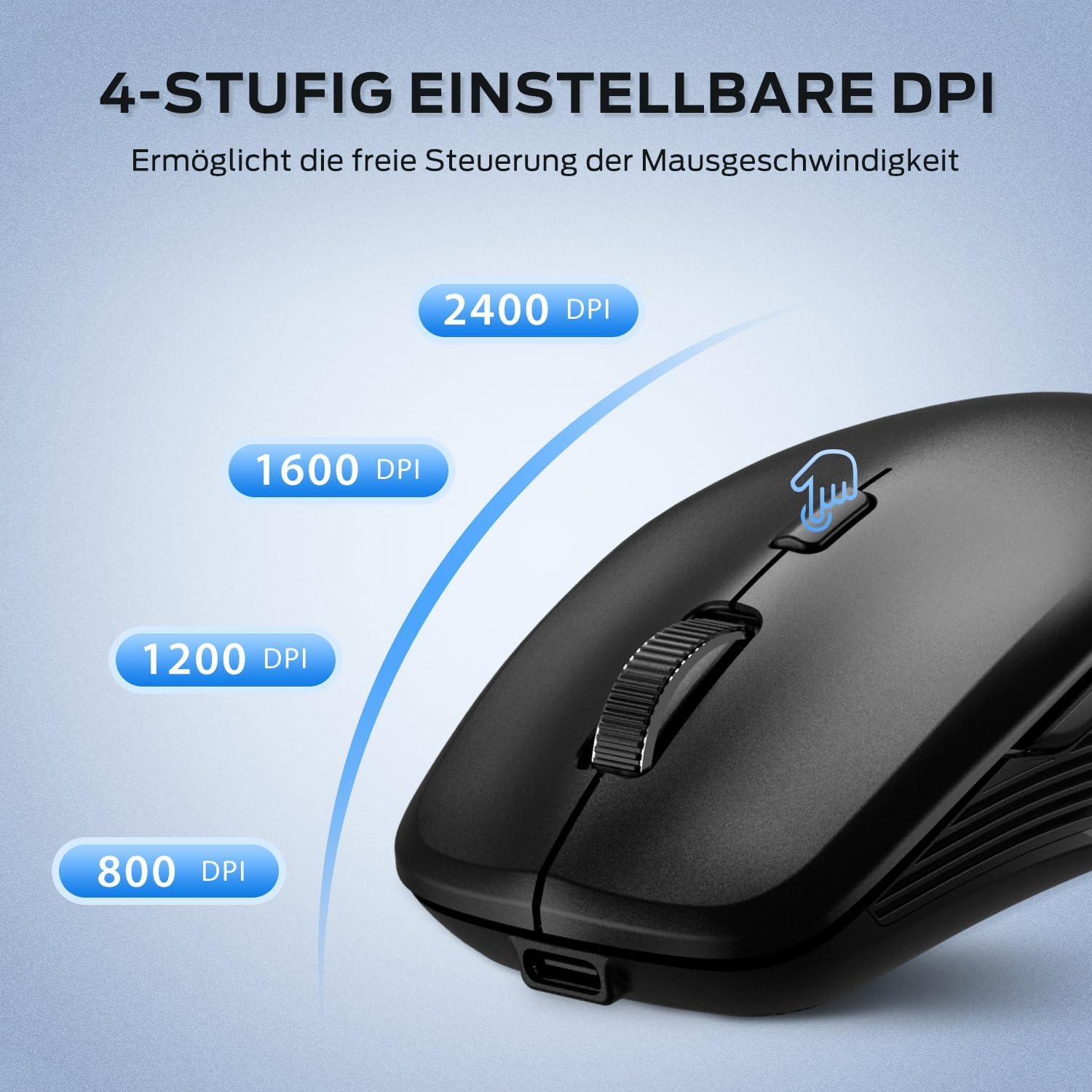
Kuva 6: Säädettävät DPI-asetukset
5.2 Hiljainen napsautustoiminto
The iClever MD179 mouse is designed with silent left and right click buttons to minimize noise, making it ideal for quiet environments such as libraries, offices, or late-night use at home.

Kuva 7: Silent Click Benefits
5.3 Sivupainikkeet (eteen-/taaksepäin)
The forward and back buttons (buttons 4 and 5 in Product Overview) provide convenient navigation in web selaimet ja file explorers. Please note that these buttons are primarily functional on Windows operating systems. Their functionality may vary or require specific software configuration on macOS or other operating systems.
5.4 Virranhallinta
The mouse incorporates features to optimize battery life:
- Automaattinen lepotila: The mouse will enter an automatic sleep mode after a period of inactivity to conserve power. Move the mouse or click any button to wake it up.
- On / off kytkin: For extended periods of non-use, it is recommended to turn off the mouse completely using the ON/OFF switch (button 7 in Product Overview) located on the bottom.
6. Huolto
6.1 Puhdistus
To keep your mouse in optimal condition:
- Pyyhi hiiren pinta varovasti pehmeällä, hieman kosteallaamp kangas.
- Vältä voimakkaiden kemikaalien, hankaavien puhdistusaineiden tai liuottimien käyttöä, sillä ne voivat vahingoittaa pintaa.
- Varmista, ettei nestettä pääse hiiren sisäisiin osiin.
- Periodically clean the optical sensor on the bottom of the mouse with a dry cotton swab to ensure accurate tracking.
6.2 Akun hoito
Proper battery care extends the lifespan of your mouse:
- Charge the mouse regularly and avoid letting the battery fully deplete frequently.
- If storing the mouse for an extended period, charge it to approximately 50% and turn it off using the power switch.
- Avoid exposing the mouse to extreme temperatures, which can affect battery performance.

Kuva 8: USB-vastaanottimen tallennustila
7. Vianmääritys
If you encounter issues with your iClever MD179 mouse, refer to the following common solutions:
- Hiiri ei vastaa:
- Varmista, että hiiri on päällä ON/OFF-kytkimellä.
- Tarkista akun varaustaso ja lataa hiiri tarvittaessa.
- For 2.4GHz connection: Verify the USB receiver is securely plugged into a working USB port and the mouse is set to 2.4GHz mode. Try a different USB port.
- For Bluetooth connection: Ensure Bluetooth is enabled on your device, the mouse is in the correct Bluetooth mode (BT1/BT2), and it is paired correctly. Try removing the mouse from your device's Bluetooth list and re-pairing it.
- Käynnistä tietokone tai laite uudelleen.
- Kohdistimen liike on epätasaista tai hidasta:
- Puhdista hiiren pohjassa oleva optinen anturi.
- Varmista, että käytät hiirtä sopivalla alustalla (heijastamattomalla, läpinäkymättömällä).
- Adjust the DPI setting to a higher value using the DPI switch button if the cursor is too slow.
- Laitteiden välillä vaihtaminen ei onnistu:
- Ensure the channel switch button on the bottom of the mouse is pressed firmly.
- Verify that each device is correctly connected to its respective channel (2.4GHz, BT1, BT2).
8. Tekniset tiedot
| Ominaisuus | Kuvaus |
|---|---|
| Merkki | iClever |
| Malli | MD179 Bluetooth Mouse |
| Tuotteen mitat | 10.1 x 6.1 x 3.4 cm |
| Tuotteen paino | 70 grammaa |
| Käyttöjärjestelmän yhteensopivuus | Windows, macOS, ChromeOS |
| Laitteistoalusta | Linux, Mac, PC |
| Yhteensopivat laitteet | PC, tabletti |
| Erikoisominaisuudet | Wireless, Silent Click, Multi-Device Connectivity |
| Virtalähde | Akkukäyttöinen (ladattava USB-C:n kautta) |
| Yhteystekniikka | Bluetooth, 2.4 GHz:n langaton |
| Liiketunnistintekniikka | Optinen |
| Käsien suuntautuminen | Molempikätinen |
| DPI-asetukset | 800 / 1200 / 1600 / 2400 DPI |
| Akun kapasiteetti | 300 mAh litium |
9. Takuu ja tuki
iClever products are designed for reliability and performance. For detailed warranty information, technical support, or service inquiries, please visit the official iClever websivustolta tai ota yhteyttä suoraan heidän asiakastukeen. Säilytä ostokuitti takuuvaatimuksia varten.


