1. Johdanto
The NELKO P110 is a portable Bluetooth thermal label printer designed for various labeling needs in home, office, and small business environments. It connects wirelessly to your Android or iOS smartphone via Bluetooth 4.0, allowing you to create and print custom labels using the dedicated "Qlabel" application. This device utilizes thermal printing technology, eliminating the need for ink or toner cartridges.
2. Mitä laatikossa on
Upon unboxing your NELKO P110 Label Maker, please verify that all components are present:
- NELKO P110 Label Printer
- 1 Roll of Thermal Labels (40x30 mm)
- USB-latauskaapeli (tyyppi C)
- Käyttöopas / Pika-aloitusopas

Image: Contents of the NELKO P110 package, including the label maker and a roll of labels.
Video: Yliview of the items included in the NELKO P110 Label Maker package.
3. Asennus
3.1. Tarrojen lataaminen
- Slide to open the paper bin cover.
- Take out the paper holder from inside the printer.
- Load the label paper roll onto the paper holder, ensuring the printing side faces down.
- Insert the label paper tab into the buckle of the paper holder.
- Place the assembled paper holder back into the paper bin.
- Gently rotate the paper roll to retract any excess paper, leaving approximately 2mm of paper outside the machine.
- Sulje paperisäiliön kansi tiiviisti.

Image: Visual instructions for loading the thermal label roll into the printer.
3.2. Laitteen käynnistäminen
Press and hold the power button located on the front of the device until the screen illuminates and displays "Welcome P110".

Image: The NELKO P110 Label Maker powered on, showing the welcome message.
4. Sovelluksen asennus ja Bluetooth-yhteys
4.1. Downloading the "Qlabel" App
The "Qlabel" app is essential for operating your NELKO P110. You can download it using one of the following methods:
- Method 1: Scan QR Code: Use your smartphone's camera to scan the QR code provided in the Quick Start Guide or on the product packaging.
- Method 2: Search App Store: Open your device's app store (Google Play Store for Android or Apple App Store for iOS) and search for "Qlabel".

Image: A smartphone displaying the Qlabel app download page, next to the label maker.
4.2. Yhdistäminen Bluetoothin kautta
- Varmista, että Bluetooth on käytössä älypuhelimellasi.
- Open the "Qlabel" app.
- Navigate to the "Me" section or a similar connection setting within the app.
- Select "Connect machine" and choose "P110" from the list of available Bluetooth devices.
- Once connected, a Bluetooth icon will appear on the P110's display.
Video: Demonstrates the process of connecting the NELKO P110 Label Maker to an Android mobile device via Bluetooth.
Video: Illustrates how to connect the NELKO P110 Label Maker to an iOS mobile device via Bluetooth.
5. Käyttöohjeet
5.1. Tarrojen luominen ja muokkaaminen
The "Qlabel" app offers a wide range of customization options:
- Mallit: Choose from various pre-designed templates for different categories (e.g., home, office, business, creative).
- Mukautettu suunnittelu: Tap "New" to create a label from scratch.
- Teksti: Add text, customize fonts (20+ available), sizes, and alignment.
- Symbolit ja kuvakkeet: Incorporate symbols (300+ emojis, 200+ materials) and icons to enhance your labels.
- Viivakoodit ja QR-koodit: Luo ja lisää viivakoodeja tai QR-koodeja.
- Other Elements: Add tables, dates, figures, pictures, shapes, and lines.

Image: The Qlabel app interface showcasing multiple custom print templates and design elements.
5.2. Tarrojen tulostaminen
- After designing your label, click the "Preview" button to review se.
- Click the "Print" button.
- In the print setup screen, you can adjust the number of copies, print density, and horizontal/vertical offsets.
- Confirm settings and click "Print" to send the label to the printer.
Video: A detailed operation tutorial for the NELKO P110 Label Maker, demonstrating label creation and printing.
6. Käyttöskenaariot
The NELKO P110 Label Maker is versatile and suitable for a wide range of applications:
- Kotiorganisaatio: Label storage bins, pantry items, spice jars, and personal belongings.
- Toimistokäyttö: Järjestää files, folders, cables, and office supplies.
- Pienet yritykset Create product labels, price tags, barcode labels, address labels, and shipping labels.
- Luovat projektit: Design custom labels for gifts, crafts, and special occasions.
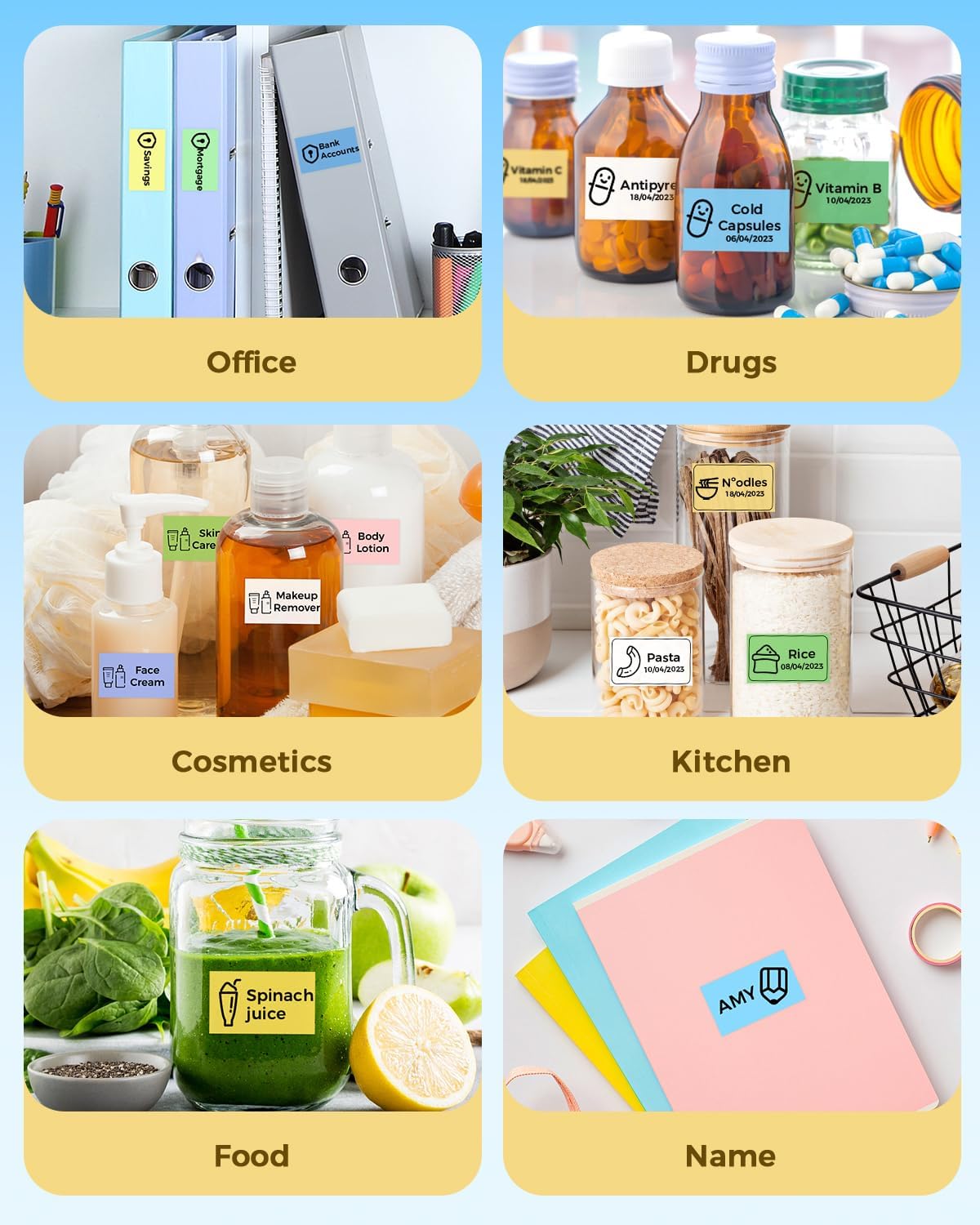
Kuva: esimamples of NELKO P110 labels used for organizing items in office, kitchen, and personal care.
Video: A brief demonstration of the NELKO P110 Label Maker in various practical applications.
7. Huolto
To ensure optimal performance and longevity of your NELKO P110 Label Maker, follow these maintenance guidelines:
- Puhdistus: Pyyhi tulostimen ulkopinta säännöllisesti pehmeällä, kuivalla liinalla. Vältä voimakkaiden kemikaalien tai hankaavien materiaalien käyttöä.
- Tulostuspään hoito: If print quality degrades, gently clean the thermal print head with a cotton swab lightly dampisopropyylialkoholilla käsitelty. Varmista, että tulostin on sammutettu ja täysin kuiva ennen käyttöä.
- Varastointi: Säilytä tulostinta viileässä, kuivassa paikassa, poissa suorasta auringonvalosta ja äärimmäisistä lämpötiloista.
- Akku: Lataa laitetta säännöllisesti, vaikka sitä ei käytettäisikään usein, akun kunnon ylläpitämiseksi.
8. Vianmääritys
If you encounter issues with your NELKO P110, try the following solutions:
- Tulostin ei muodosta yhteyttä: Ensure Bluetooth is enabled on your phone and the printer. Restart both devices and try connecting again through the "Qlabel" app.
- Huono tulostuslaatu: Check if the label roll is inserted correctly with the printing side down. Clean the print head as described in the Maintenance section. Adjust the print density settings in the "Qlabel" app.
- Labels Not Feeding Correctly / Printing Offset: Ensure the label roll is properly seated in the paper holder and the paper holder is correctly installed in the bin. Calibrate the paper position if necessary (refer to app settings or quick start guide).
- Laite ei käynnisty: Ensure the battery is charged. Connect the printer to a power source using the provided USB cable.
For further assistance, please refer to the official support resources.
9. Tekniset tiedot
| Ominaisuus | Yksityiskohta |
|---|---|
| Mallin nimi | NELKO P110 Label Maker |
| Merkki | Nelko |
| Yhteystekniikka | Bluetooth |
| Tulostustekniikka | Lämpö |
| Yhteensopivat laitteet | Älypuhelimet (Android, iOS) |
| Suurin mustavalkoinen tulostustarkkuus | 300 dpi |
| Suurin mediakoko | 1.1 x 5.9 inches (Supports 20mm-50mm width labels) |
| Tulostimen lähtö | Single color (Black text) |
| Tuotteen paino | 1.12 puntaa (0.51 kiloa) |
| Tuotteen mitat | 5.11" S x 2.4" L x 3.3" K |
| Paristot | 1 litiumpolymeeriakku (mukana) |
10. Takuu ja tuki
The NELKO P110 Label Maker comes with a limited warranty. For detailed warranty information and support, please visit the official NELKO support page or contact customer service.
Virallinen tukisivu: https://www.nelkoprint.com/pages/support


