1. Johdanto
This manual provides essential instructions for setting up, operating, and maintaining your Huawei H158-381 5G CPE Pro 5 Router. Please read this guide thoroughly before using the device to ensure proper functionality and safety.
2. Pakkauksen sisältö
Varmista, että tuotepakkauksessa on kaikki seuraavat osat:
- Huawei H158-381 5G CPE Pro 5 -reititin
- 12V 3A virtalähde
- Pikaopas (tämä käsikirja)
3. Tuote ohiview
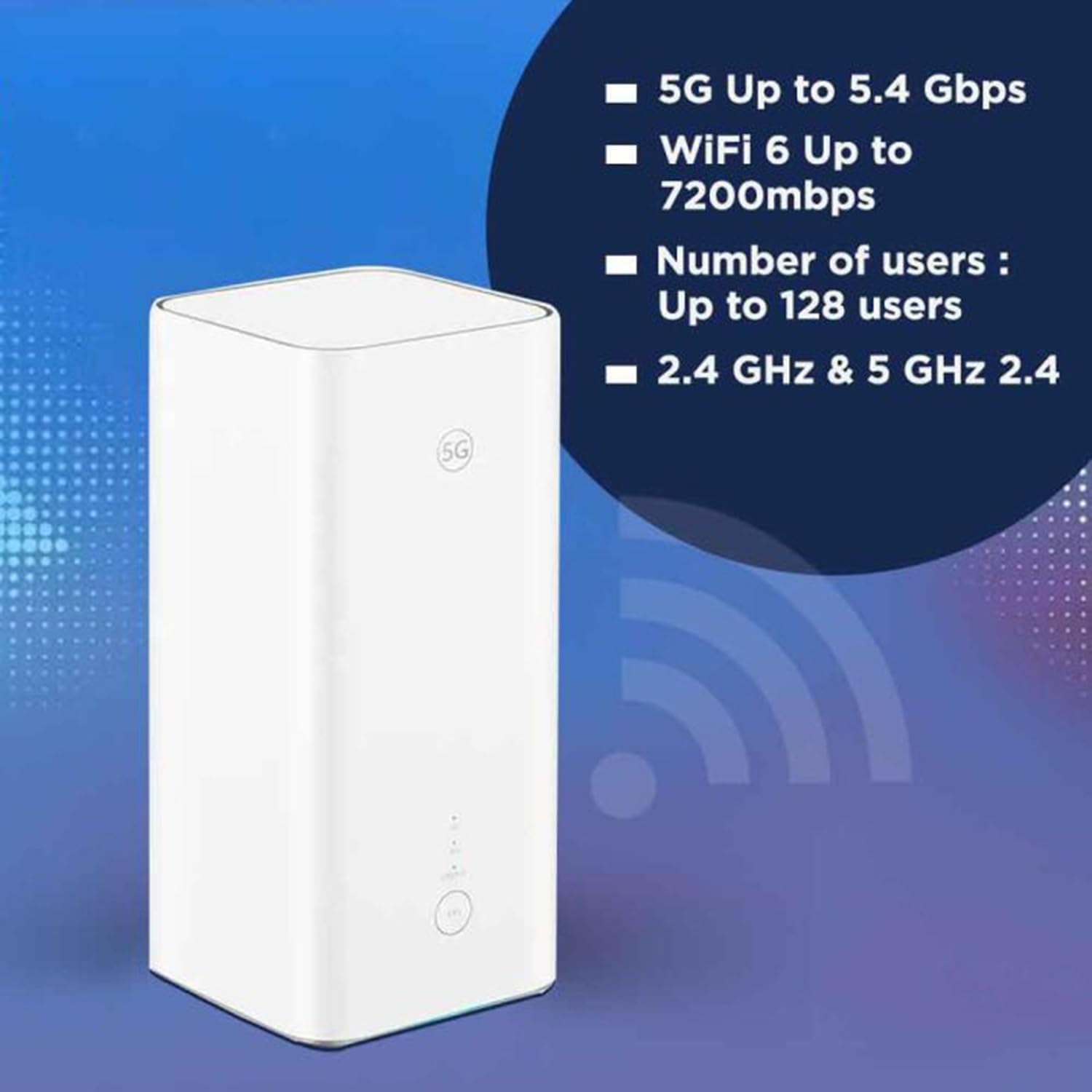
The Huawei H158-381 5G CPE Pro 5 Router is a high-performance wireless router designed for advanced internet connectivity. It supports both 5G and 4G networks, offering high-speed data transmission and robust Wi-Fi capabilities.
Tärkeimmät ominaisuudet:
- 5G and 4G Network Compatibility: Supports 5G frequencies in NSA and SA modes (n1/3/5/7/20/28/71/38/40/41/77/78/79) and 4G bands (B1/3/5/7/8/18/19/20/26/28/32/34/38/39/40/41/42/43). Note: 2G and 3G are not supported.
- Nopea data: Achieves download speeds up to 5.4 Gbps and upload speeds up to 500 Mbps on 5G (network dependent).
- Wi-Fi 6 (AX7200): Provides Wi-Fi speeds up to 7200 Mbps across 2.4 GHz and 5 GHz bands, supporting up to 128 connected users.
- WPA3-suojaus: Enhanced wireless security protocol for a safer network.
- Nano-SIM-korttipaikka: For mobile broadband connectivity.
- Integrated 5G NR Antenna: Features a 12 dBi internal antenna for optimized signal reception.
- Ethernet-portit: Includes 2 Ethernet ports for wired connections.
Fyysiset komponentit:


4. Asennusopas
4.1 SIM -kortin asennus
- Locate the Nano-SIM card slot on your router.
- Insert a Nano-SIM card into the slot. Ensure the SIM card is correctly oriented according to the diagram near the slot.
- Tärkeää: It is recommended to disable the PIN code of your SIM card using a mobile phone before inserting it into the router for a smoother setup process.
4.2 Virtaliitäntä
- Connect the provided 12V 3A power adapter to the router's power input port.
- Liitä verkkolaite sopivaan pistorasiaan.
- The router will automatically power on. Wait for the status indicators to stabilize.
4.3 Alkukokoonpano
Once powered on, the router will attempt to connect to the mobile network. You can access the router's web interface or use the dedicated mobile application for further configuration, such as changing Wi-Fi names and passwords.
5. Käyttöohjeet
5.1 Laitteiden yhdistäminen Wi-Fin kautta
- Etsi laitteellasi (älypuhelin, kannettava tietokone, tabletti) käytettävissä olevia Wi-Fi-verkkoja.
- Select the Wi-Fi network name (SSID) corresponding to your router. The default SSID and password are usually found on a label at the bottom of the router.
- Anna Wi-Fi-salasana pyydettäessä.
- Laitteesi pitäisi nyt olla yhteydessä internetiin.
5.2 Laitteiden yhdistäminen Ethernetin kautta
The router features two Ethernet ports for wired connections:
- Connect one end of an Ethernet cable to an Ethernet port on the back of the router.
- Connect the other end of the Ethernet cable to the Ethernet port on your device (e.g., computer, gaming console, smart TV).
- Laitteen pitäisi muodostaa automaattisesti langallinen verkkoyhteys.
6. Lisäominaisuudet
6.1 Ulkoisen antennin tuki
The Huawei H158-381 router supports external 5G antennas to enhance signal reception. To utilize this feature:
- Install your external 5G antennas according to their respective instructions.
- Connect the external antennas to the designated external antenna ports on the router.
- Open the router's management application (e.g., Deco app), navigate to Advanced > External Antennas, and activate the external antennas option.
- When activated, the external antennas will replace a portion of the internal antennas for signal reception.
6.2 Tuoteyhteenvetovideo
Katso tämä video saadaksesi nopean yleiskuvanview of the Huawei H158-381 5G CPE Pro 5 Router's features and benefits.
Video 6.1: A product summary video showcasing the Huawei H158-381 5G CPE Pro 5 Router's design and core functionalities.
7. Tekniset tiedot
| Ominaisuus | Erittely |
|---|---|
| Merkki | HUAWEI |
| Valmistaja | HUAWEI |
| Sarja | H158-381 |
| Tuotteen mitat | 10.3 x 10.3 x 22.6 cm; 915 g |
| Tuotteen mallinumero | H158-381 |
| Väri | Valkoinen |
| Yhteystyyppi | Wi-Fi |
| Langaton tyyppi | 802.11ax |
| Ethernet-porttien lukumäärä | 2 |
| Voitage | 12 volttia |
| Käyttöjärjestelmä | RouterOS |
| Mukana paristot | Ei |
| Taatut ohjelmistopäivitykset asti | 23. toukokuuta 2025 |
| Mallin nimi | H158-381 |
| Erikoisominaisuudet | WPS |
| Taajuuskaistaluokka | Kaksikaistainen |
| Langaton tiedonsiirtostandardi | 802.11ax |
| Yhteensopivat laitteet | Game console, tablet, personal computer, smartphone, smart television, streaming device, security camera, printer, smart thermostat |
| Suositellut tuotteen käyttötarkoitukset | Koti, Liiketoiminta |
| Mukana olevat komponentit | Manual, 12V 3A Charger, Router H158-381 |
| Liitäntätekniikka | Ethernet, Wi-Fi |
8. Huolto
Reitittimen pitkän käyttöiän ja optimaalisen suorituskyvyn varmistamiseksi ota huomioon seuraavat huoltovinkit:
- Sijoitus: Aseta reititin keskeiselle paikalle, kauas esteistä ja muista elektronisista laitteista, jotka voivat aiheuttaa häiriöitä.
- Puhdistus: Pidä reititin puhtaana ja pölyttömänä. Käytä puhdistamiseen pehmeää, kuivaa liinaa.
- Laiteohjelmistopäivitykset: Regularly check for and install firmware updates to benefit from improved performance, security, and new features. This can usually be done through the router's web käyttöliittymä tai mobiilisovellus.
- Ilmanvaihto: Ensure the router has adequate ventilation to prevent overheating. Do not cover ventilation openings.
9. Vianmääritys
Jos reitittimessäsi on ongelmia, kokeile seuraavia vianmääritysvaiheita:
- Ei Internet-yhteyttä:
- Tarkista, onko SIM-kortti asetettu oikein ja aktivoitu.
- Ensure the router is powered on and all indicator lights are functioning as expected.
- Restart the router by unplugging it from the power source, waiting 30 seconds, and plugging it back in.
- Verify your mobile data plan is active and has sufficient data.
- Hidas Wi-Fi-nopeus:
- Paranna signaalin voimakkuutta siirtymällä lähemmäs reititintä.
- Vähennä kytkettyjen laitteiden tai kaistanleveyttä kuluttavien toimintojen määrää.
- Tarkista muiden elektronisten laitteiden aiheuttama häiriö.
- Harkitse ulkoisten antennien käyttöä, jos signaalin voimakkuus on jatkuvasti heikko.
- Reitittimen asetuksiin ei pääse käsiksi:
- Varmista, että laitteesi on yhdistetty reitittimen Wi-Fi-verkkoon tai Ethernet-kaapelilla.
- Verify you are entering the correct IP address (usually 192.168.8.1 or 192.168.1.1) in your web selain.
- Vahvista, että käytät oikeaa järjestelmänvalvojan käyttäjätunnusta ja salasanaa.
If problems persist, consult the official Huawei support websivustolla tai ota yhteyttä asiakaspalveluun saadaksesi lisäapua.
10. Takuu ja tuki
Takuutiedot löytyvät tuotteen mukana toimitetusta takuukortista tai käymällä HUAWEI:n virallisella verkkosivustolla. website. Technical support and customer service contact details can also be found on the HUAWEI support portal.