1. Johdanto
Kiitos ostoksestasiasing the Yifeng Wireless Keyboard. This keyboard offers versatile connectivity options, supporting both 2.4 GHz USB wireless and Bluetooth connections. It is designed for multi-device use, allowing simultaneous pairing with up to four devices and quick switching between them. Featuring a comfortable scissor-switch mechanism and an integrated stand, it enhances productivity across various platforms including Windows, iOS, and Android devices.
2. Turvallisuustiedot
- Älä altista näppäimistöä nesteille tai äärimmäisille lämpötiloille.
- Avoid disassembling or attempting to repair the device yourself.
- Pidä poissa lasten ulottuvilta.
- Käytä lataamiseen vain mukana toimitettua USB-kaapelia.
3. Pakkauksen sisältö
Tarkista, että kaikki osat ovat mukana:
- Yifeng Wireless Keyboard
- USB-latauskaapeli
- 2.4 GHz USB Receiver (may be stored in the keyboard's battery compartment)
- Käyttöopas (tämä asiakirja)
4. Asennus
4.1. 2.4 GHz USB Wireless Connection
- Locate the 2.4 GHz USB receiver. It is often stored in a dedicated slot on the keyboard.
- Kytke USB-vastaanotin tietokoneen tai laitteen vapaaseen USB-porttiin.
- Käynnistä näppäimistö virtakytkimellä (yleensä se sijaitsee näppäimistön sivulla tai takana).
- The keyboard should automatically connect to your device. If not, press the dedicated 2.4GHz connection key (often labeled with a '4' or '2.4G' icon) to activate pairing mode.
4.2. Bluetooth-yhteys
- Varmista, että näppäimistö on ladattu ja päällä.
- Pidä painettuna yhtä Bluetooth-kanavanäppäimistä (esim. Bluetooth 1, Bluetooth 2, tai Bluetooth 3) 3–5 sekuntia, kunnes merkkivalo vilkkuu osoittaen pariliitostilan.
- On your device (tablet, smartphone, PC), go to Bluetooth settings and enable Bluetooth.
- Etsi available devices. The keyboard should appear as "Yifeng Keyboard" or similar.
- Select the keyboard to pair. Follow any on-screen prompts, such as entering a pairing code.
- Kun pariliitos on muodostettu, merkkivalo lakkaa vilkkumasta ja palaa tasaisesti muutaman sekunnin.
4.3. Multi-Device Pairing
This keyboard supports connecting up to 4 devices simultaneously: one via 2.4 GHz USB and three via Bluetooth. Follow the steps above to pair each device to a different channel (2.4GHz, Bluetooth 1, Bluetooth 2, Bluetooth 3).
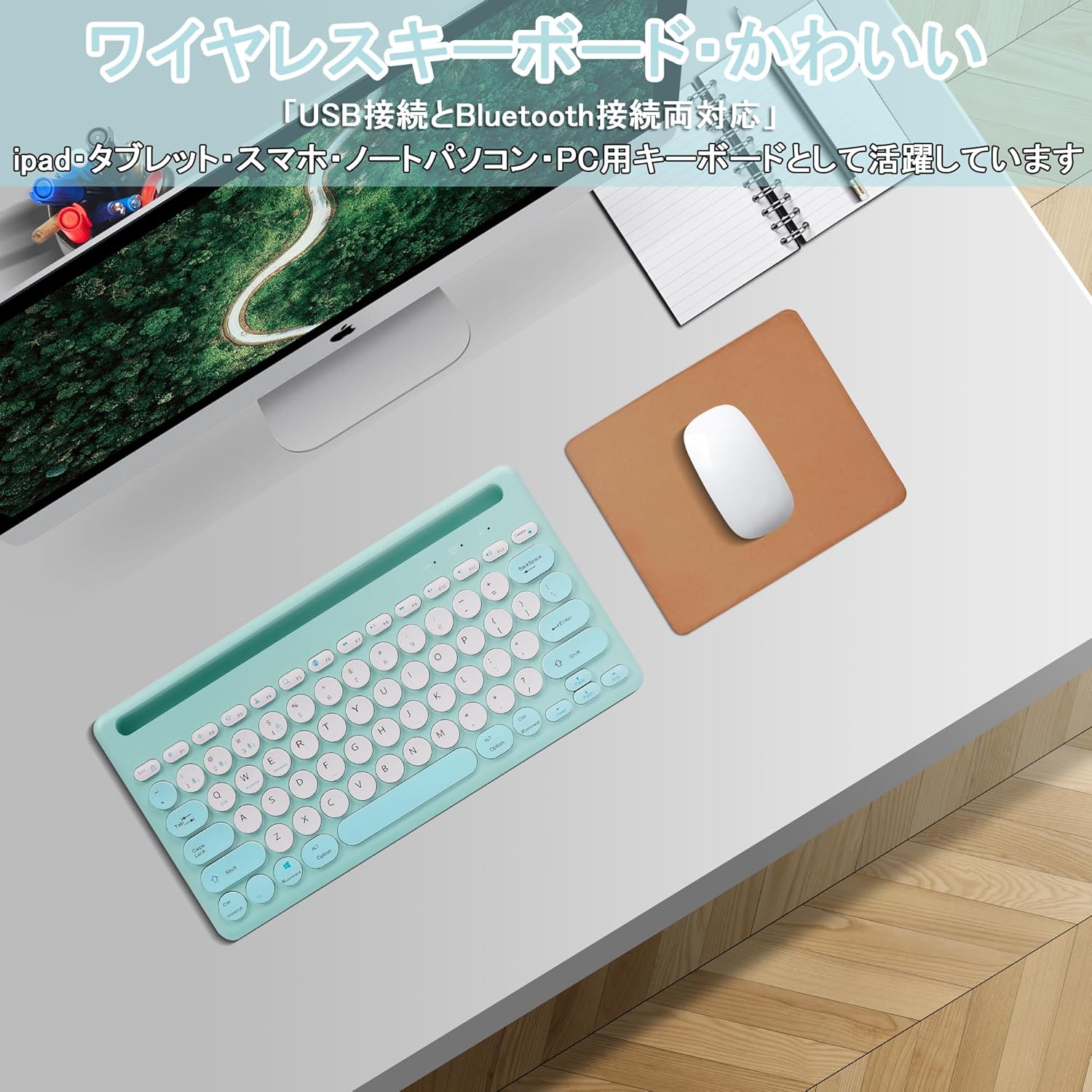
Image: The Yifeng Wireless Keyboard connected to a tablet, smartphone, and laptop, demonstrating its multi-device pairing capability.
5. Käyttöohjeet
5.1. Vaihtaminen yhdistettyjen laitteiden välillä
To switch between your paired devices, simply press the corresponding connection key:
- Paina Bluetooth 1 to switch to the first Bluetooth device.
- Paina Bluetooth 2 to switch to the second Bluetooth device.
- Paina Bluetooth 3 to switch to the third Bluetooth device.
- Paina 2.4 GHz key (often labeled with a '4' or '2.4G' icon) to switch to the USB wireless device.
5.2. System Compatibility Switching
The keyboard supports Windows, iOS, and Android operating systems. Use the dedicated system keys to optimize key functions for your current device:
- Paina Fn + Q iOS:lle.
- Paina Fn + W Androidille.
- Paina Fn + E Windowsille.
5.3. Näppäimistön lataaminen
The keyboard features a built-in rechargeable lithium-ion battery. A single full charge provides approximately 30 days of continuous use.
- Connect the included USB charging cable to the charging port on the keyboard.
- Kytke USB-kaapelin toinen pää USB-virtalähteeseen (esim. tietokoneen USB-porttiin tai USB-seinäsovittimeen).
- Latauksen merkkivalo palaa latauksen aikana ja sammuu, kun akku on täyteen ladattu.

Image: The Yifeng Wireless Keyboard connected to a power strip via its USB charging cable, indicating the rechargeable feature.
5.4. Integroidun jalustan käyttö
The keyboard includes an integrated stand slot at the top, designed to hold your tablet or smartphone upright. This allows for comfortable viewing and typing, making it ideal for document creation, chatting, or watching media while commenting.
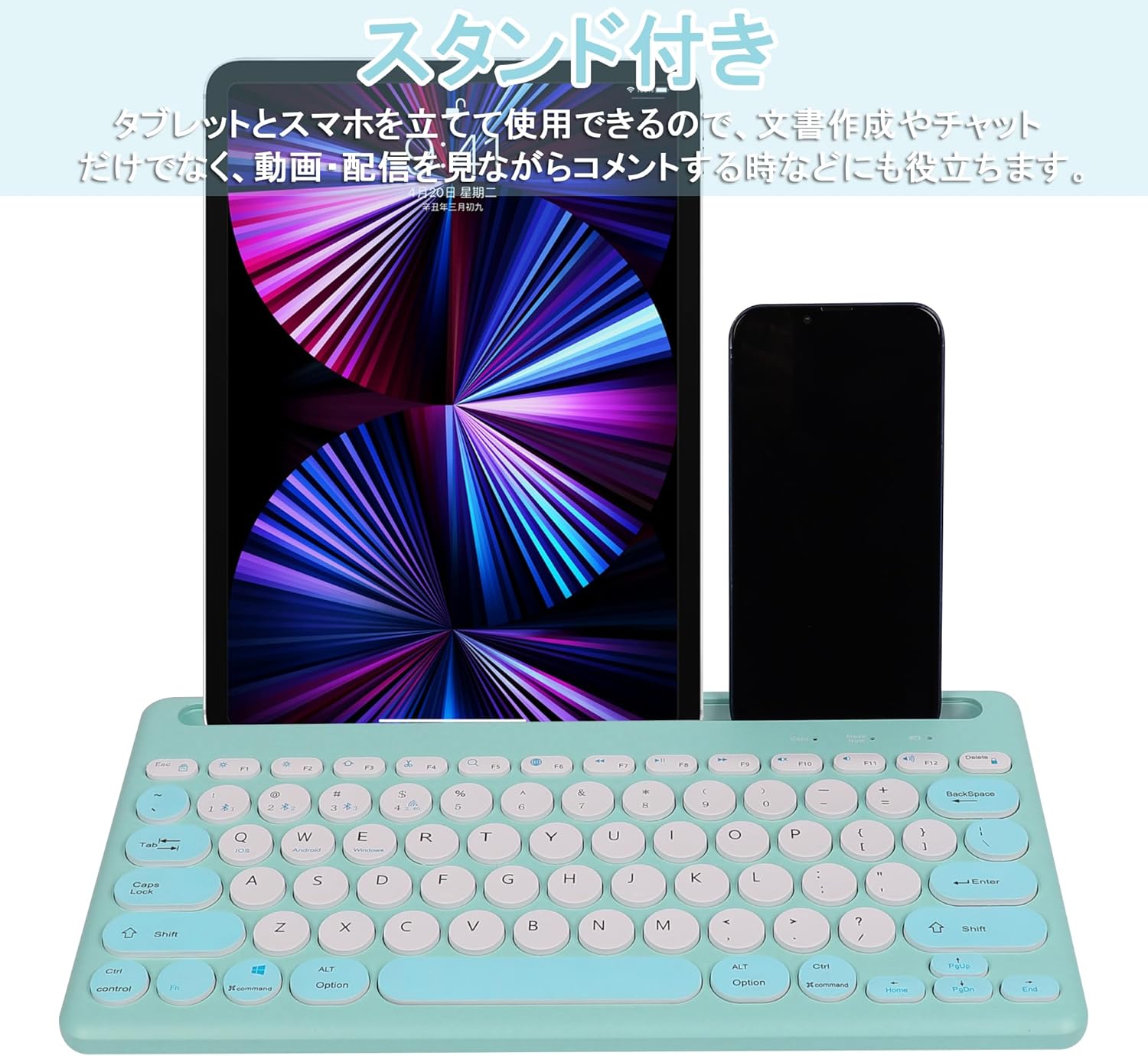
Image: The Yifeng Wireless Keyboard with a tablet and smartphone securely positioned in its integrated stand, demonstrating its utility for multi-device setups.
6. Huolto
- Clean the keyboard regularly with a soft, dry cloth. For stubborn dirt, a slightly damp kangasta voidaan käyttää varmistaen, ettei näppäimistöön pääse kosteutta.
- Vältä voimakkaiden kemikaalien tai hankaavien puhdistusaineiden käyttöä.
- Säilytä näppäimistöä viileässä ja kuivassa paikassa, kun sitä ei käytetä.
- The keyboard features anti-slip pads on the back for stable use. Ensure these pads are clean and intact for optimal stability.

Image: The underside of the Yifeng Wireless Keyboard, highlighting the four anti-slip pads designed for stable placement on various surfaces.
7. Vianmääritys
7.1. Näppäimistö ei muodosta yhteyttä
- Tarkista teho: Varmista, että näppäimistö on päällä ja että akussa on riittävästi virtaa.
- Korjaus: For Bluetooth, delete the keyboard from your device's Bluetooth list and attempt to pair again. For 2.4 GHz USB, try plugging the receiver into a different USB port.
- Vaihda kanavaa: Ensure you have selected the correct channel (Bluetooth 1/2/3 or 2.4GHz) for your device.
- Laitteen Bluetooth: Verify that Bluetooth is enabled on your device and that it is discoverable.
7.2. Näppäimet eivät vastaa
- Akun taso: Lataa näppäimistö, jos akun varaus on vähissä.
- Järjestelmätila: Ensure the keyboard is set to the correct operating system mode (Windows, iOS, Android) using Fn + Q/W/E.
- Häiriöt: Siirrä näppäimistö lähemmäs laitettasi ja kauemmas muista langattomista laitteista, jotka saattavat aiheuttaa häiriöitä.
7.3. Latausongelmat
- Kaapelin tarkistus: Ensure the USB charging cable is securely connected to both the keyboard and the power source.
- Virtalähde: Kokeile toista USB-porttia tai seinäsovitinta.
- Merkkivalo: If the charging indicator light does not turn on, the cable or power source may be faulty.
8. Tekniset tiedot
| Merkki | Yifeng |
| Mallinumero | AMWS0584A-L |
| Yhteystekniikka | Bluetooth, 2.4 GHz Wireless (USB) |
| Yhteensopivat laitteet | Tablets, Smartphones, PCs, Laptops (Windows, iOS, Android) |
| Näppäimistön asettelu | QWERTY (Yhdysvaltain asettelu) |
| Keskeinen mekanismi | Saksikytkin |
| Erikoisominaisuus | Rechargeable, Integrated Stand, Multi-Pairing (4 devices) |
| Akun tyyppi | 1 litiumioniakku (sisältyy toimitukseen) |
| Akun kesto | Approx. 30 days (per charge) |
| Mitat | 33.7 x 16.7 x 2.9 cm |
| Paino | 820 g |
| Mukana olevat komponentit | USB-kaapeli |
9. Takuu ja tuki
Tämän tuotteen mukana tulee a 1 vuoden laatutakuu from the date of purchase. In case of initial defects or malfunctions occurring within the warranty period, we offer return or exchange services.
Should you encounter any issues or require assistance, please contact us directly through your purchase platform:
- Mene luoksesi Tilaushistoria.
- Select the order for this product.
- Napsauta Ota yhteyttä myyjään.
Our support team will be happy to assist you.


