1. Johdanto
This manual provides detailed instructions for the installation, operation, and maintenance of your PowerColor Fighter AMD Radeon RX 6500 XT Gaming Graphics Card. Please read this manual thoroughly before installation to ensure proper setup and optimal performance.
2. Tuote ohiview
The PowerColor Fighter AMD Radeon RX 6500 XT is a gaming graphics card designed to deliver a robust gaming experience. It features 4GB of GDDR6 memory and is built on AMD RDNA 2 architecture.
Tärkeimmät ominaisuudet:
- Memory Speed: 18.0 Gbps
- Digital Max Resolution: 7680×4320
- Stream Processor: 1024
- Game Clock: 2650Mhz
- Boost Clock: 2820Mhz
Tekniset tiedot:
| Erittely | Arvo |
|---|---|
| Merkki | PowerColor |
| Sarja | PowerColor Fighter AMD Radeon RX 6500 XT |
| Tuotteen mallinumero | AXRX 6500XT 4GBD6-DH/OC |
| Grafiikka rinnakkaisprosessori | Näytönohjain: AMD Radeon RX 6500 XT |
| Näytönohjaimen RAM-koko | 4 Gt |
| Muistin nopeus | 18 GHz |
| GPU:n kellonopeus | 2650 MHz |
| Suurin näytön tarkkuus | 7680x4320 |
| Videolähtöliitäntä | 1 x HDMI 2.1, 1 x DisplayPort 1.4 |
| Tuotteen paino | 1.43 kiloa |
| Tuotteen mitat | 7.52 x 4.96 x 1.57 tuumaa |
3. Asennus ja käyttöönotto
3.1. Laitteiston asennus
Before installing your new graphics card, ensure your computer is powered off and unplugged from the wall outlet. It is recommended to wear an anti-static wrist strap to prevent damage from static electricity.
- Valmistele järjestelmäsi: Power down your computer and unplug all cables. Open your computer case.
- Poista vanha näytönohjain (jos sovellettavissa):
- Disconnect any display cables (HDMI, DisplayPort) from the old graphics card.
- Disconnect any PCIe power cables from the old graphics card.
- Unscrew the retention screws holding the old graphics card to the case.
- Carefully press the PCIe slot retention clip (usually at the end of the slot) and gently pull the old graphics card straight out of the PCIe slot.
- Asenna uusi näytönohjain:
- Etsi vapaana oleva PCIe x16 -paikka emolevyltäsi.
- Align the PowerColor Fighter RX 6500 XT with the PCIe slot. Gently push the card down into the slot until it is fully seated and the retention clip clicks into place.
- Secure the graphics card to the computer case with the retention screws.
- Connect the required 6-pin PCIe power connector from your power supply to the graphics card. This card requires a minimum 400W power supply.
- Yhdistä näyttö: Connect your monitor to one of the available display outputs (HDMI 2.1 or DisplayPort 1.4) on the graphics card.
- Sulje kotelo ja käynnistä: Sulje tietokoneen kotelo, kytke kaikki kaapelit takaisin ja käynnistä järjestelmä.

Image: The PowerColor Fighter AMD Radeon RX 6500 XT graphics card shown alongside its retail packaging.

Kuva: Ylhäältä alas -kuva view of the graphics card, highlighting its dual fan design and black shroud.

Kuva: Puoli view of the graphics card, showing the heatsink fins and the 6-pin PCIe power connector.

Image: The rear input/output panel of the graphics card, featuring one HDMI 2.1 port and one DisplayPort 1.4.
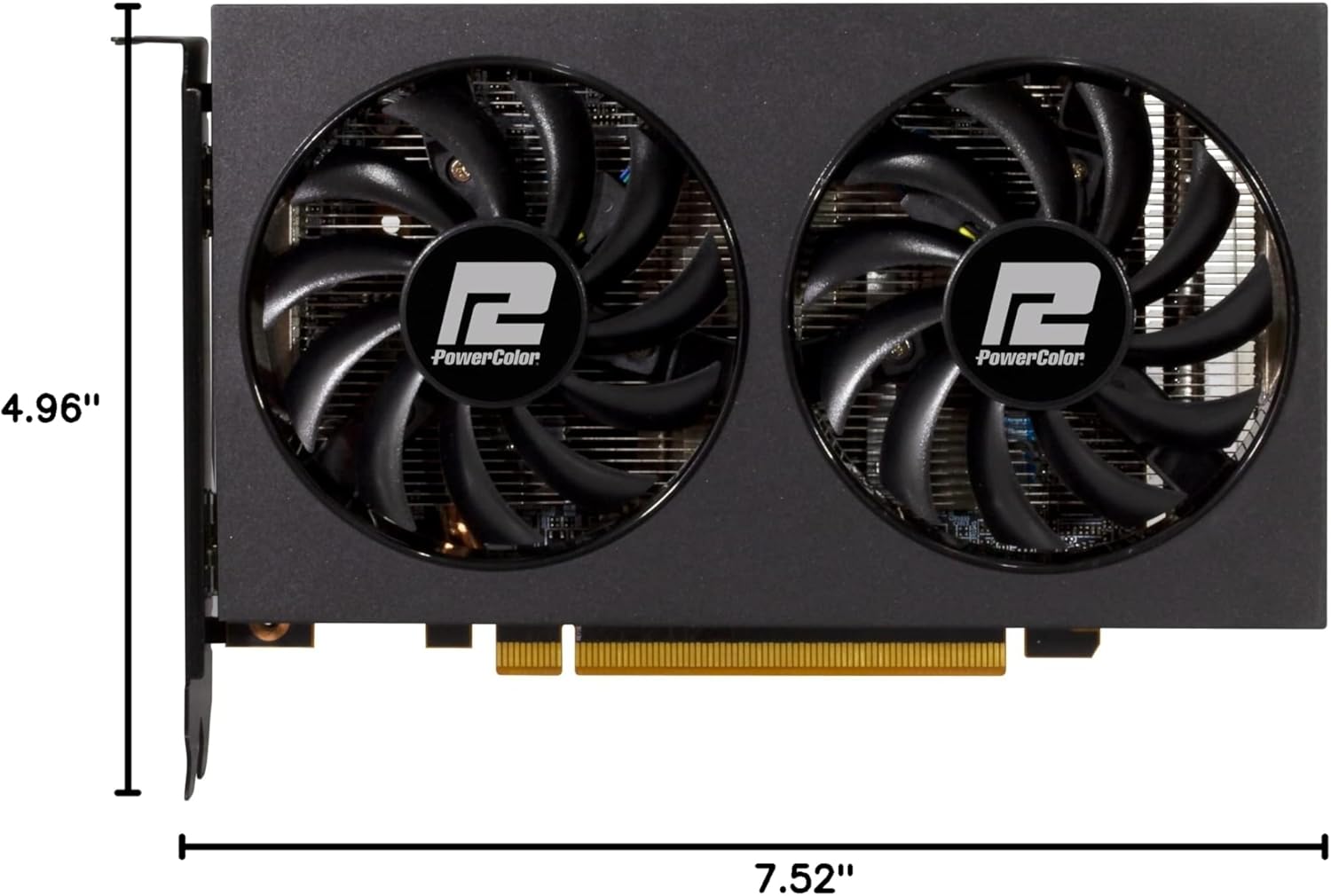
Image: A diagram illustrating the physical dimensions of the PowerColor Fighter RX 6500 XT graphics card.
3.2. Ohjaimen asennus
After successfully installing the hardware, you need to install the latest AMD Radeon Software drivers for optimal performance and access to all features.
- Lataa ajurit: Vieraile virallisella AMD:llä website (www.amd.com/support) and download the latest Radeon Software for your RX 6500 XT graphics card.
- Uninstall Previous Drivers (if applicable): If you had a previous graphics card (especially from a different manufacturer), it is highly recommended to uninstall its drivers using a clean-up utility like Display Driver Uninstaller (DDU) in Windows Safe Mode. This prevents potential conflicts.
- Install Radeon Software: Run the downloaded installer. Follow the on-screen prompts. It is often recommended to perform a 'Factory Reset' during installation to ensure a clean driver setup.
- Käynnistä järjestelmä uudelleen: Your system will likely require a restart after the driver installation is complete.
Video: Tuote-esittelyvideoasing the PowerColor Fighter AMD Radeon RX 6500 XT graphics card. This video provides a visual overview of the card's features and physical appearance.
4. Käyttöohjeet
Once the drivers are installed, you can access the AMD Radeon Software to configure your graphics card settings for optimal gaming and visual experience.
- Launch Radeon Software: Right-click on your desktop and select "AMD Radeon Software" or find it in your Start Menu.
- Home Tab: Tarjoaa ylityksenview of your system, driver status, and recently played games. You can check for driver updates here.
- Gaming Tab: Allows you to manage game profiles, adjust global graphics settings, and view game compatibility information.
- Graphics Tab: Fine-tune various graphics settings such as Radeon Anti-Lag, Radeon Chill, Radeon Boost, Image Sharpening, and Enhanced Sync to optimize performance and visual quality.
- Näyttö-välilehti: Configure display options including AMD FreeSync (if your monitor supports it) and adjust refresh rates. Enabling FreeSync can provide smoother, tear-free gaming. Ensure your monitor's refresh rate is set to its maximum supported value for the best experience.
- Performance Tab: Monitor GPU and CPU utilization, temperatures, and VRAM usage. This section also offers tuning options for overclocking or undervolting your GPU.
5. Huolto
Säännöllinen huolto auttaa varmistamaan näytönohjaimesi pitkän käyttöiän ja optimaalisen suorituskyvyn.
- Pölynpuhdistus: Puhdista tuulettimet ja jäähdytyselementti säännöllisesti pölystä paineilmalla. Varmista, että järjestelmä on sammutettu ja irrotettu pistorasiasta ennen puhdistamista.
- Ohjaimen päivitykset: Keep your AMD Radeon Software drivers updated to benefit from performance improvements, bug fixes, and new features.
- Lämpötilan valvonta: Use the Radeon Software's Performance tab or third-party tools to monitor GPU temperatures, especially during heavy loads, to prevent overheating.
6. Vianmääritys
Jos kohtaat ongelmia näytönohjaimen kanssa, katso seuraavat yleiset vianmääritysvaiheet:
- Ei näyttöä/musta ruutu:
- Ensure all power cables (24-pin ATX, 8-pin CPU, 6-pin PCIe) are securely connected.
- Varmista, että näytönohjain on kokonaan paikallaan PCIe-paikassa.
- Tarkista, että näyttökaapeli on kytketty näytönohjaimeen, ei emolevyn integroituun näytönohjainporttiin.
- Testaa mahdollisuuksien mukaan eri näyttökaapelilla tai näytöllä.
- Kuljettajaongelmat:
- Perform a clean reinstallation of the AMD Radeon Software drivers (refer to Section 3.2).
- Varmista, että Windows-käyttöjärjestelmäsi on ajan tasalla.
- Suorituskykyongelmat (alhainen FPS, nykiminen):
- Check GPU temperatures to ensure it's not throttling due to overheating.
- Verify that your game settings are appropriate for your hardware.
- Ensure AMD FreeSync is enabled in Radeon Software and on your monitor (if supported).
- Sulje tarpeettomat taustasovellukset.
- Järjestelmän epävakaus/kaatumiset:
- Varmista, että virtalähteesi (PSU) täyttää vähimmäisvaatimuksettage-vaatimus (suositus 400 W).
- Check for any loose connections inside your PC.
- Update your motherboard BIOS to the latest version.
7. Takuu ja tuki
For warranty information, technical support, or further assistance, please refer to the official PowerColor websivustolta tai ota yhteyttä heidän asiakaspalveluunsa. Säilytä ostokuitti takuuvaatimuksia varten.
PowerColorin virallinen Websivusto: www.powercolor.com


