1. Johdanto
This manual provides essential information for the installation, operation, and maintenance of your PowerColor Fighter AMD Radeon RX 6700 XT Gaming Graphics Card. Please read these instructions carefully before proceeding with installation to ensure proper functionality and to prevent damage to your system components.

Image 1.1: PowerColor Fighter AMD Radeon RX 6700 XT Graphics Card and its retail packaging.
2. Tuotteen ominaisuudet
- Videomuisti: 12GB GDDR6
- Suoratoistoprosessorit: 2560
- Pelikello: 2424 MHz
- Tehostuskello: 2581 MHz
- Muistin kello: 16 Gbps
- Muistiliitäntä: 192-bittinen
- Digitaalinen maksimiresoluutio: 7680x4320
- Powered by AMD RDNA 2 Architecture
- Supports Raytracing technology
- PCI Express 4.0 -liitäntä
- HDMI 2.1 Connectivity
- Features AMD Infinity Cache
3. Pakkauksen sisältö
Varmista, että pakkauksessa on kaikki tarvittavat osat:
- PowerColor Fighter AMD Radeon RX 6700 XT Graphics Card
- Pika-asennusopas (tämä asiakirja)
Note: Additional accessories such as driver CDs or power cables may vary by region or retailer. Drivers are typically downloaded from the official AMD websivusto.
4. Tekniset tiedot
| Ominaisuus | Erittely |
|---|---|
| Grafiikkaprosessori | Näytönohjain: AMD Radeon RX 6700 XT |
| Videomuisti | 12GB GDDR6 |
| Muistin nopeus | 16 Gbps |
| Suurin näytön tarkkuus | 7680x4320 |
| Käyttöliittymä | PCI Express 4.0 |
| Videolähtöliitäntä | DisplayPort, HDMI |
| Tuotteen mallinumero | AXRX 6700XT 12GBD6-3DH |
| Tuotteen paino | 1.44 kiloa |
| Tuotteen mitat (PxLxK) | 9.49 x 5.08 x 1.54 tuumaa |
5. Asennus ja asennus
5.1 Asennusta edeltävä tarkistuslista
- Virtalähde (PSU): Varmista, että virtalähteessäsi on riittävästi virtaatage (minimum 650W recommended) and the necessary 8-pin and 6-pin PCIe power connectors.
- Emolevy: Verify your motherboard has an available PCI Express x16 slot (preferably PCIe 4.0 for optimal performance).
- Tapauksen selvitys: Check your PC case for adequate space to accommodate the card's dimensions (9.49 x 5.08 x 1.54 inches).
- Ajurit: Download the latest AMD Radeon drivers from the official AMD webpaikka ennen asennusta.
5.2 Fyysinen asennus
- Virta pois: Sammuta tietokone kokonaan ja irrota virtajohto pistorasiasta.
- Avoin tapaus: Irrota tietokoneen kotelon sivupaneeli.
- Paikanna PCIe-paikka: Etsi emolevyltäsi vapaa PCI Express x16 -paikka.
- Irrota korttipaikkojen suojat: Irrota tarvittavat laajennuspaikkojen suojat tietokoneen kotelon takaosasta.
- Aseta näytönohjain: Kohdista näytönohjain varovasti PCIe-paikkaan ja paina sitä lujasti alaspäin, kunnes se on tukevasti paikallaan. Paikan pidikkeestä pitäisi kuulua napsahdus.
- Suojattu kortti: Fasten the graphics card to the case with screws or the case's locking mechanism.
- Liitä virta: Connect the 8-pin and 6-pin PCIe power connectors from your PSU to the corresponding ports on the graphics card. Ensure a snug fit.
- Sulje tapaus: Vaihda tietokoneen kotelon sivupaneeli.

Kuva 5.1: Edessä view of the PowerColor Fighter RX 6700 XT, showing the dual fan design.
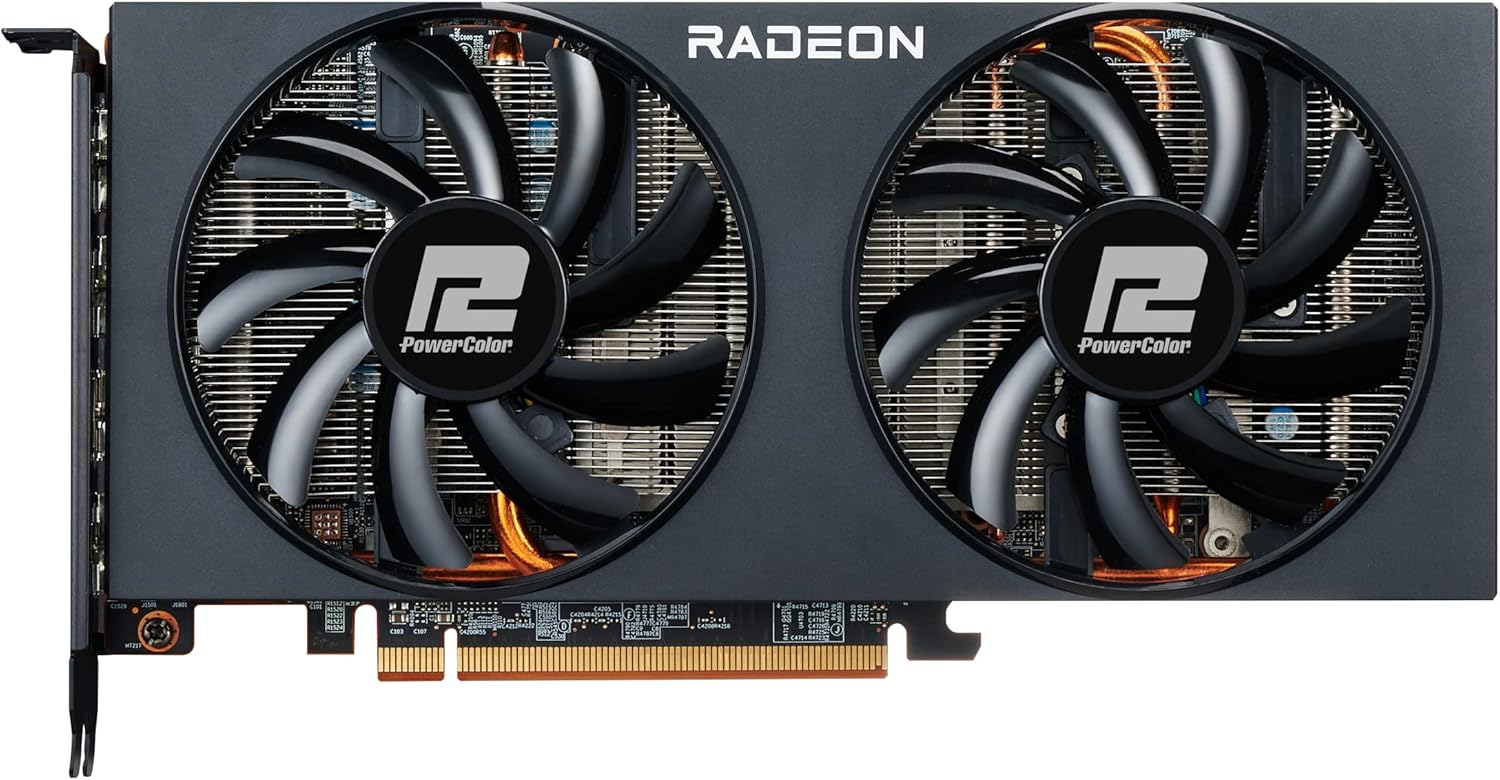
Kuva 5.2: Yläosa view of the graphics card, highlighting the PCIe power connectors.
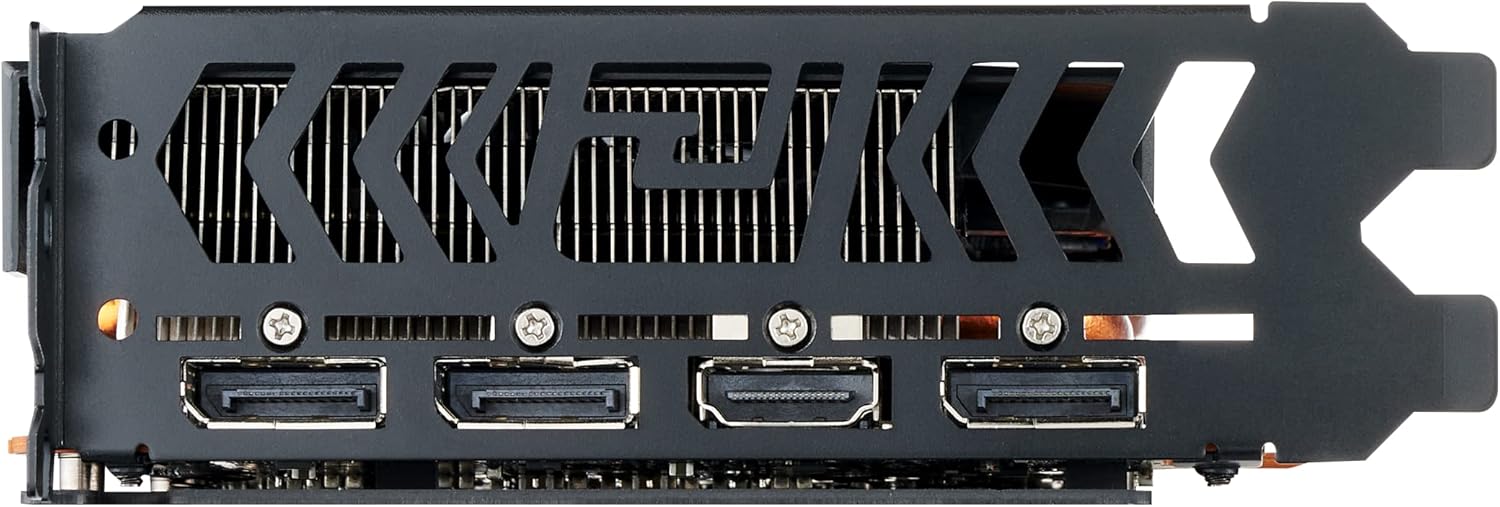
Kuva 5.3: Takaosa view of the graphics card, showing the DisplayPort and HDMI output interfaces.
5.3 Näytön liittäminen
Liitä näyttö(t) näytönohjaimeen DisplayPort- tai HDMI-kaapeleilla. Näytönohjain tukee useita näyttöjä.
6. Käyttöohjeet
6.1 Ohjaimen asennus
- Virta päälle: Kytke virtajohto uudelleen ja käynnistä tietokone.
- Alkuperäinen käynnistys: Your system may boot into a low-resolution display. This is normal before drivers are installed.
- Asenna ajurit: Run the AMD Radeon Software installer you downloaded earlier. Follow the on-screen prompts to complete the installation.
- Käynnistä uudelleen: Käynnistä tietokone uudelleen, kun ohjaimen asennus on valmis.
6.2 AMD Radeon Software
The AMD Radeon Software provides a comprehensive interface for managing your graphics card settings. Here you can:
- Adjust display resolution and refresh rates.
- Configure game-specific graphics settings.
- Seuraa näytönohjaimen suorituskykyä ja lämpötiloja.
- Päivitä ajurit.
- Access features like Radeon Anti-Lag, Radeon Boost, and FidelityFX Super Resolution (FSR).
7. Huolto
7.1 Puhdistus
Regular cleaning helps maintain optimal performance and longevity of your graphics card.
- Virta pois: Always power off your computer and unplug it before cleaning.
- Pölynpoisto: Use compressed air to gently blow dust from the heatsink fins and fan blades. Hold the fans in place to prevent over-spinning.
- Ulkopuoli: Pyyhi kortin ulkopinta pehmeällä, kuivalla ja antistaattisella liinalla.
7.2 Ohjelmistopäivitykset
Keep your graphics drivers updated to ensure compatibility with new games and applications, and to benefit from performance improvements and bug fixes. Check the AMD website regularly for the latest driver releases.
8. Vianmääritys
8.1 Ei näyttöä
- Varmista, että näytön kaapeli on kytketty kunnolla sekä näytönohjaimeen että näyttöön.
- Varmista, että näytönohjain on kokonaan paikallaan PCIe-paikassa.
- Check that all PCIe power connectors are properly attached to the graphics card.
- Varmista, että näyttösi on asetettu oikealle tulolähteelle.
- If using an integrated GPU, ensure your BIOS is configured to use the dedicated graphics card.
8.2 Performance Issues / Low FPS
- Varmista, että uusimmat näytönohjaimen ohjaimet on asennettu.
- Check GPU temperatures using monitoring software (e.g., AMD Radeon Software). High temperatures can lead to thermal throttling. Ensure adequate case airflow.
- Verify that your system meets the minimum requirements for the game or application.
- Säädä pelin grafiikka-asetuksia alempaan esiasetukseen.
- Confirm that your power supply unit (PSU) is providing stable and sufficient power.
8.3 Liiallinen tuulettimen melu
While some fan noise is normal under heavy load, excessive or unusual noise can indicate an issue.
- Pölyn muodostuminen: Clean the fans and heatsink as described in the Maintenance section.
- Fan Profile: Adjust the fan curve settings in the AMD Radeon Software or a third-party utility (e.g., MSI Afterburner) to find a balance between cooling and noise.
- Kotelon ilmavirtaus: Improve overall case airflow to reduce the need for aggressive fan speeds.
- Fyysinen este: Varmista, ettei mikään kaapeli tai muu komponentti häiritse tuulettimen lapoja.
8.4 Driver Crashes / Instability
- Perform a clean installation of the graphics drivers. Use AMD's cleanup utility to remove old drivers before installing new ones.
- Varmista, että käyttöjärjestelmäsi on täysin ajan tasalla.
- Tarkista mahdolliset ristiriitaiset ohjelmistot tai taustalla olevat sovellukset.
9. Takuu ja tuki
Takuutietoja ja teknistä tukea varten katso PowerColorin virallinen sivusto. websivustolta tai ota yhteyttä jälleenmyyjään. Säilytä ostokuitti takuuvaatimuksia varten.
For the latest drivers and additional support resources, visit the official AMD websivusto: www.amd.com/en/support