1. Johdanto
This manual provides detailed instructions for the setup, operation, maintenance, and troubleshooting of your MUNBYN Shipping Label Printer RealWriter 941. Please read this manual thoroughly before using the printer to ensure optimal performance and longevity.

Image: The MUNBYN Shipping Label Printer RealWriter 941, a compact white and black thermal printer, shown actively printing a shipping label.
2. Asennus
2.1. Mitä laatikossa on
Varmista, että pakkauksessa on kaikki osat:
- Lämpötulostin
- Virtalähde
- Virtakaapeli
- USB-kaapeli
- Labels (for initial testing)

Kuva: Yläpuolinen view of the MUNBYN printer box contents, including the printer, power adapter, power cable, USB cable, and a roll of labels.
2.2. Fyysinen yhteys
- Kytke virtalähde tulostimeen ja kytke se sitten pistorasiaan.
- Connect the USB cable from the printer to your computer (Windows or macOS).
2.3. Ohjaimen asennus
The MUNBYN RealWriter 941 is a USB-only thermal printer compatible with Windows and macOS operating systems. Drivers are required for proper functionality.
- For Windows and macOS, download the latest drivers from the official MUNBYN website or use the provided installation CD/USB if included.
- Suorita ohjaimen asennus loppuun noudattamalla näytön ohjeita.
- For Chromebook users, install the Munbyn Printer Extension from the Chrome Web Store.

Image: A screenshot showing the Munbyn Printer Extension page in the Chrome Web Store, indicating compatibility with Chromebooks.
2.4. Tarrojen lataaminen
The printer supports thermal labels from 1.57" to 4.3" wide. It features automatic label identification.
- Varmista, että tulostimeen on kytketty virta.
- Avaa tulostimen yläkansi.
- Insert the stack of thermal labels into the rear feed slot, ensuring the print side is facing up.
- Adjust the label guides to fit snugly against the edges of the labels.
- Close the top cover. The printer will automatically detect and calibrate to the label size.

Image: The MUNBYN printer shown printing various label types and sizes, including shipping labels, circular labels, and small rectangular labels, demonstrating its versatility.
3. Käyttöohjeet
3.1. Tarrojen tulostaminen
Once the printer is set up and labels are loaded, you can print from any application that supports printing.
- Avaa tulostettava asiakirja tai tarra (esim. lähetystarra PDF).
- Valitse sovelluksesi valikosta 'Tulosta'.
- Choose the MUNBYN RealWriter 941 as your printer.
- Ensure the paper size settings in your print dialogue match the labels loaded in the printer (e.g., 4x6 inches).
- Napsauta 'Tulosta'.

Image: The MUNBYN printer connected to a laptop, demonstrating a label being printed from the computer screen to the printer.
3.2. Yhteensopivuus
The MUNBYN thermal label printer is designed for broad compatibility with various shipping and selling platforms, including:
- Etsy
- Shopify
- eBay
- Amazon
- Poshmark
- Ship Station
- Shipping Easy
- Shippo
- Ordoro
- Endicia Dazzle
- Shipwire
- Shipworks
- Stockx
- Xps Ship

Image: The MUNBYN printer surrounded by logos of various e-commerce and shipping platforms, illustrating its wide compatibility.
3.3. Using the MUNBYN Print App
For convenient printing from mobile devices (iPhone/Mac OS/Android), download the 'MUNBYN Print' app.
- Scan the QR code below with your smartphone or tablet.
- Lataa ja asenna sovellus.
- Follow the in-app instructions to connect to your printer and print.

Image: A smartphone screen displaying a QR code for downloading the 'MUNBYN Print' app, compatible with Android 7 / iOS 11 and newer versions.
4. Huolto
4.1. Tulostuspään puhdistaminen
Regular cleaning of the print head ensures clear and consistent print quality. Use a cotton swab lightly dampisopropyylialkoholilla.
- Sammuta tulostin ja irrota virtajohto.
- Avaa yläkansi päästäksesi käsiksi tulostuspäähän.
- Gently wipe the print head surface with the alcohol-dampened cotton swab.
- Anna tulostuspään kuivua kokonaan ennen kannen sulkemista ja virran kytkemistä uudelleen.
4.2. Label Storage
Store thermal labels in a cool, dry place away from direct sunlight and heat sources to prevent premature fading or damage to the thermal coating.
5. Vianmääritys
If you encounter issues with your MUNBYN printer, refer to the following common problems and solutions. For a comprehensive guide, please consult the official Troubleshooting Guide PDF available for download.
- Tulostin ei vastaa: Ensure the power cable and USB cable are securely connected. Check if the printer's power indicator light is on. Restart both the printer and your computer.
- Tarrat eivät syöty oikein: Verify that labels are loaded correctly and the label guides are adjusted to the label width. Ensure there are no obstructions in the paper path.
- Poor print quality (faded, smudged, or incomplete prints): Clean the print head as described in the Maintenance section. Ensure you are using high-quality thermal labels. Check print settings in your software to ensure resolution and darkness are appropriate.
- Printer beeps continuously: This may indicate an error or an empty label roll. Check the label supply and clear any paper jams.
- Ohjainongelmat: Reinstall the printer drivers from the official MUNBYN websivusto. Varmista, että käyttöjärjestelmäsi on ajan tasalla.
Lisätietoja saat osoitteesta Vianmääritysopas (PDF).
6. Tekniset tiedot
Detailed technical specifications for the MUNBYN Shipping Label Printer RealWriter 941 (Model ITPP941):
| Ominaisuus | Erittely |
|---|---|
| Mallin nimi | P941 |
| Tuotteen mallinumero | ITPP941 |
| Tulostustekniikka | Lämpö |
| Resoluutio | 203 x 203 DPI (203 Dots Per Inch) |
| Suurin tulostusnopeus yksivärinen | 150mm/s (72 ppm) |
| Suurin mediakoko | 4 x 6 tuumaa |
| Tulostusleveys | 1.57–4.3 tuumaa |
| Yhteystekniikka | USB |
| Yhteensopivat laitteet | PC, Laptops, Windows, Mac, Chromebook |
| Virrankulutus | 60 wattia |
| Tuotteen paino | 3.08 puntaa (1.4 kiloa) |
| Tuotteen mitat | 3.8"S x 7.8"L x 4.3"K (1.61 x 2.99 x 1.54 tuumaa) |
| Muistin tallennuskapasiteetti | 4 Mt |
| UPC | 613310860730 |
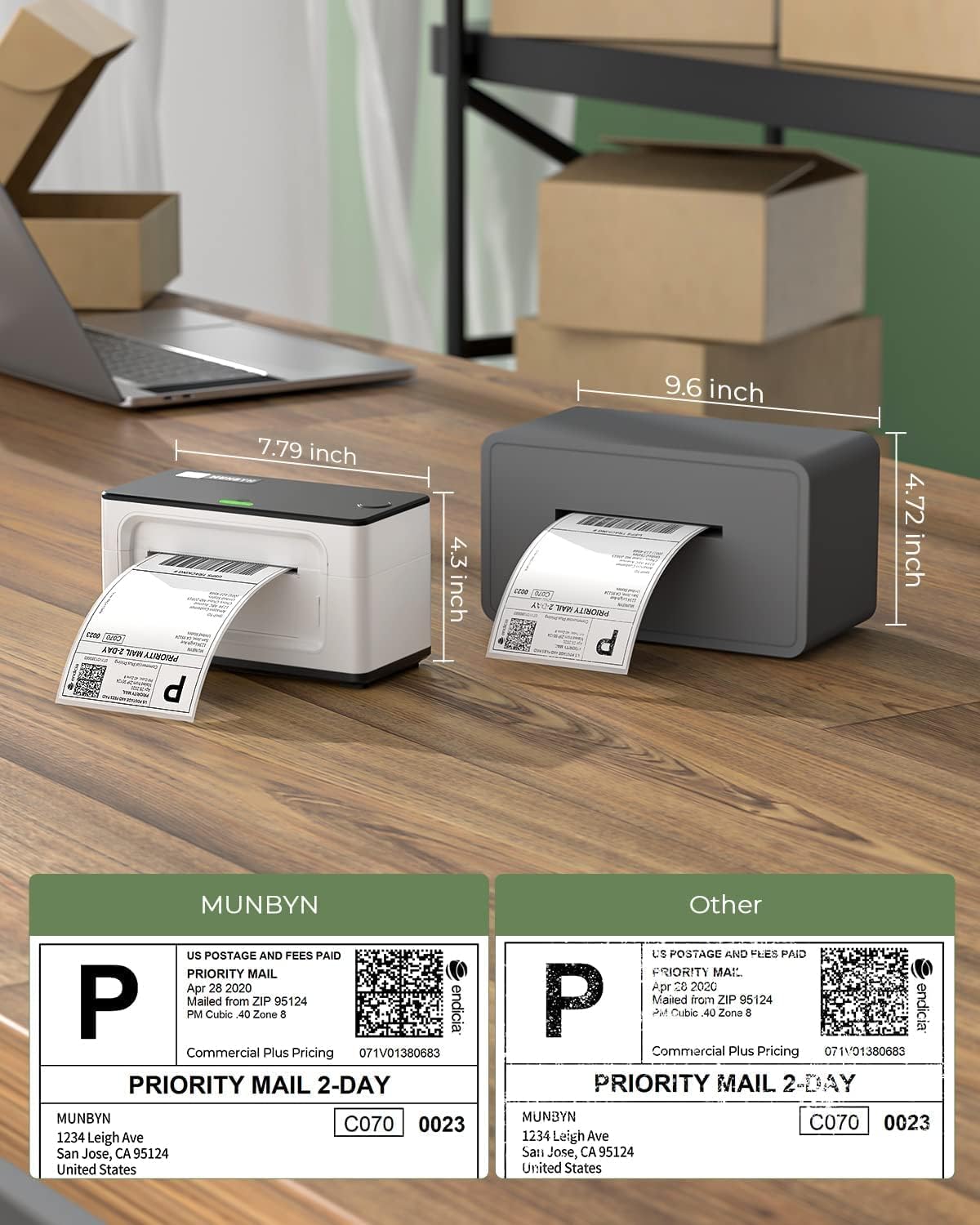
Image: A visual comparison of the MUNBYN printer's dimensions (7.79 inches length, 4.5 inches height) against another printer model.

Image: A comparison table showing different MUNBYN printer models (941U, 941BP, 941AP) with their connectivity, compatible devices, resolution, and max print speed.
7. Takuu ja tuki
7.1. Takuutiedot
MUNBYN provides perpetual customer support and product protection for any product issues. The manufacturer's warranty period is two years from the date of purchase.
7.2. Asiakastuki
For any questions or assistance, please contact MUNBYN customer support:
- Puhelin: +1 628 229 3612 (Monday through Friday, EST 9:00-24:00, excluding public holidays)
- Sähköposti: support@munbyn.com
- Live-chat: Available on the official MUNBYN websivusto.
- Remote Desktop Operations Support: Available as needed.
When contacting support, please provide your order number.

Image: A graphic illustrating the various customer support options offered by MUNBYN, including phone call, teaching video, live chat, and remote desktop support.