1. Johdanto
This manual provides comprehensive instructions for the setup, operation, and maintenance of your A4 Tech G3-200N Wireless Optical Mouse. Please read this manual thoroughly before using the product to ensure optimal performance and longevity.
Ylhäältä alaspäin view of the A4 Tech G3-200N wireless mouse, showing its black body with blue accents and the scroll wheel.
2. Pakkauksen sisältö
Tarkista pakkauksen sisältö varmistaaksesi, että kaikki osat ovat mukana:
- A4 Tech G3-200N Wireless Optical Mouse
- USB-vastaanotin
- Käyttöopas (tämä asiakirja)
3. Asennus
3.1 Asenna akku
Locate the battery compartment on the underside of the mouse. Open the compartment cover and insert one AA battery, ensuring correct polarity (+/-). Close the battery compartment cover securely. Huomautus: The AA battery is not included.
3.2 Connect USB Receiver
Plug the USB receiver into an available USB port on your computer. The operating system will automatically detect and install the necessary drivers. This process may take a few moments.
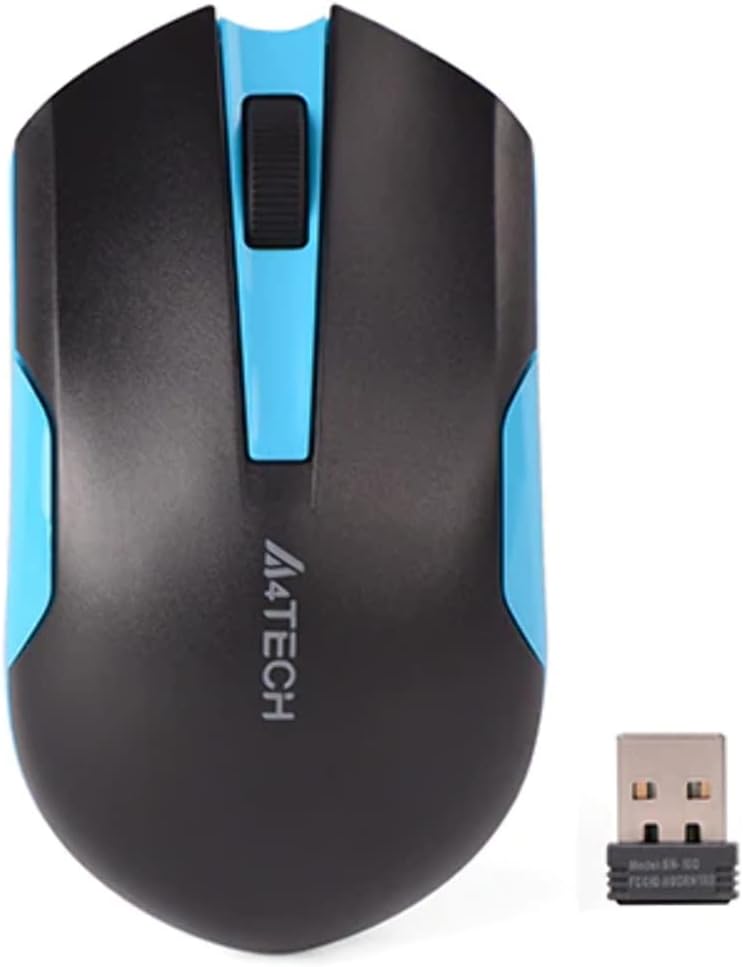
Ylhäältä alaspäin view of the A4 Tech G3-200N wireless mouse alongside its compact USB receiver, highlighting the black and blue design.
3.3 Power On the Mouse
If your mouse has a power switch (typically on the underside), slide it to the "ON" position. The mouse should now be ready for use.
4. Käyttö
4.1 Perustoiminnot
- Vasen painike: Primary click function, typically used for selecting items or opening links.
- Oikea painike: Toissijainen napsautustoiminto, jota tyypillisesti käytetään kontekstivalikoiden avaamiseen.
- Vierityspyörä: Vieritä asiakirjoja ylös tai alas ja web pages. The scroll wheel can also function as a middle button when pressed.

Kulmikas yläosa view of the A4 Tech G3-200N wireless mouse, emphasizing its contoured design and the A4TECH logo, with visible buttons.
4.2 Optical Tracking
The A4 Tech G3-200N uses optical tracking technology for precise cursor movement. For best performance, use the mouse on a non-reflective, opaque surface. Avoid using it on glass or highly reflective surfaces.
4.3 Langaton kantama
The mouse operates wirelessly via the 2.4 GHz frequency band. Ensure the USB receiver is within a reasonable range (typically up to 10 meters) for uninterrupted connectivity.
5. Huolto
5.1 Hiiren puhdistaminen
To clean your mouse, gently wipe its surface with a soft, slightly damp cloth. Avoid using harsh chemicals, solvents, or abrasive cleaners, as these can damage the finish or internal components. Ensure no liquid enters the mouse.
5.2 Pariston vaihto
When the mouse performance degrades, the cursor becomes erratic, or the mouse stops responding, it may be time to replace the AA battery. Follow the battery installation steps outlined in Section 3.1.
6. Vianmääritys
| Ongelma | Mahdollinen ratkaisu |
|---|---|
| Hiiri ei vastaa |
|
| Epätasainen kohdistimen liike |
|
| Poor wireless connection |
|
7. Tekniset tiedot
- Merkki: A4tech
- Malli: G3-200N
- Liitettävyys: Langaton (2.4 GHz:n USB-vastaanotin)
- Liikkeiden tunnistus: Optinen
- Painikkeiden määrä: 3 (Vasen, Oikea, Vieritysrulla/Keskipainike)
- Käsien suunta: Molempikätinen
- Virtalähde: 1 x AA-paristo (ei mukana)
- Väri: Musta/sininen
8. Takuu ja tuki
For detailed warranty information and technical support, please refer to the documentation provided with your purchase or visit the official A4tech websivusto. Säilytä ostokuittisi mahdollisten takuuvaatimusten varalta.
9. Ota yhteyttä tukeen
If you encounter issues not covered in this manual or require further assistance, please contact A4tech customer support through their official websivustolla tai tuotepakkauksen mukana toimitetuissa yhteystiedoissa.


