Johdanto
This manual provides essential information for the safe and efficient use of your Canon PIXMA MG3620 Wireless Inkjet Multifunction Printer. Please read this manual thoroughly before using the printer and retain it for future reference.

Kuva 1: Etuosa view of the Canon PIXMA MG3620 printer.
Asennus
1. Purkaminen ja alkuvalmistelut
Carefully remove the printer from its packaging. Ensure all protective tapes and packing materials are removed from the exterior and interior of the printer. Open the scanner unit to check for any internal packing materials.

Figure 2: Printer with paper output tray extended.
2. Mustekasettien asentaminen
Open the printer's access cover to install the ink cartridges. The printer uses both dye ink for vivid colors and black pigment ink for sharp text. Ensure cartridges are correctly seated.
3. Paperin lisääminen
Extend the paper output tray and load paper into the input tray. The printer supports various paper types, including A4 plain paper and 4"x6" photo paper. Adjust the paper guides to fit the paper size.
4. Virtaliitäntä
Kytke virtajohto tulostimeen ja sitten pistorasiaan. Käynnistä tulostin painamalla virtapainiketta.
5. Langaton asennus
The Canon PIXMA MG3620 features built-in wireless connectivity. To connect to your wireless network:
- Press the Wireless button on the printer's control panel.
- Follow the on-screen instructions or refer to the Canon PRINT app for detailed setup steps.
- Alternatively, a USB connection can be used for direct PC connection, though the USB cable is often sold separately.
Käyttöohjeet
1. Asiakirjojen ja valokuvien tulostaminen
The printer delivers crisp, clear photos and documents with a maximum color resolution of 4800 x 1200 dpi. It supports borderless photos up to 8.5" x 11".
- Tietokoneelta: Select the Canon PIXMA MG3620 from your printer options and adjust settings as needed (e.g., paper type, print quality).
- Mobiililaitteista: Use the Canon PRINT app to easily print photos and documents directly from your smartphone or tablet.
- Automaattinen kaksipuolinen tulostus: Utilize the auto duplex printing feature to save paper by printing on both sides automatically.
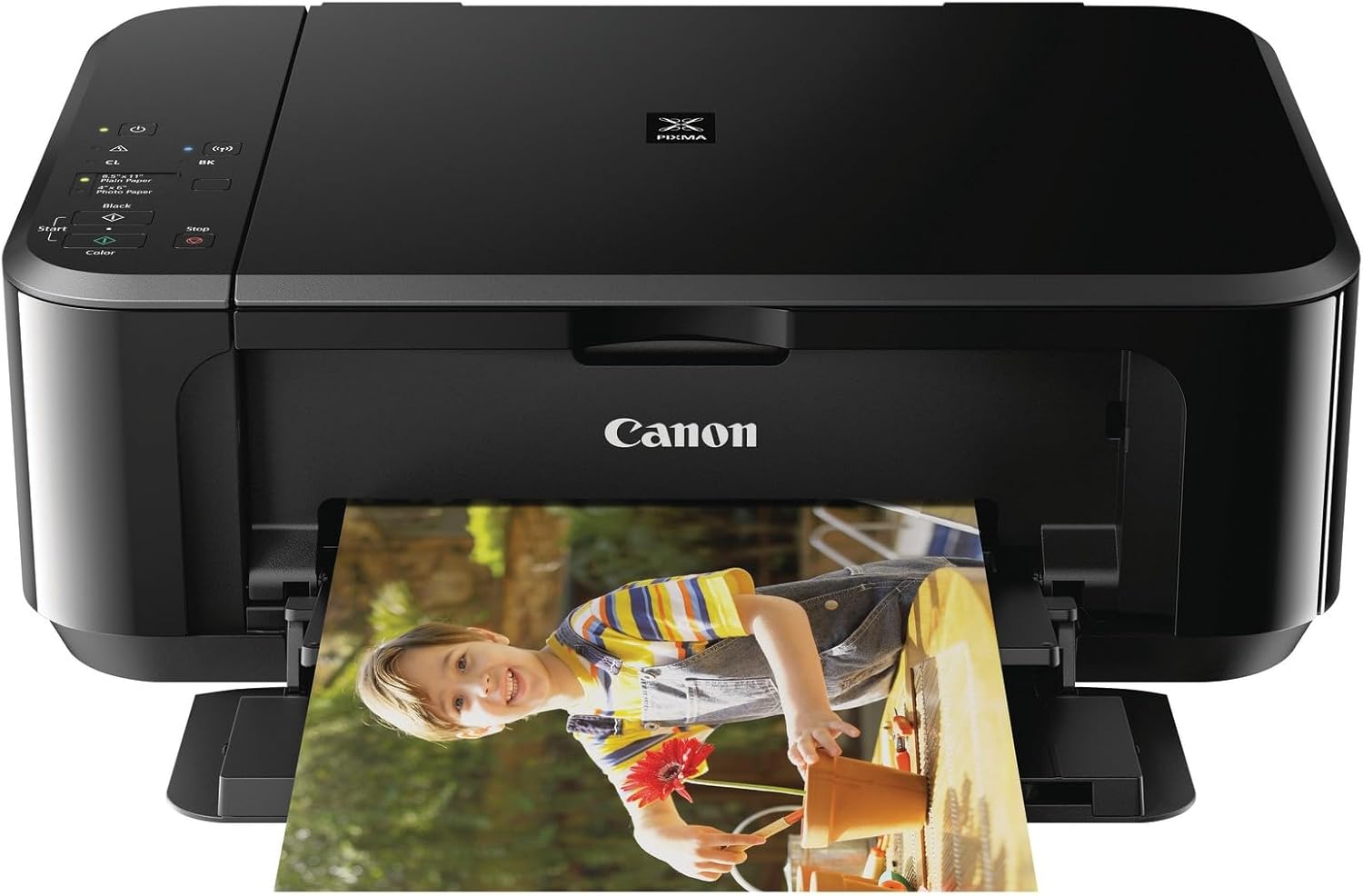
Figure 3: The printer in operation, producing a color photo.
2. Asiakirjojen skannaaminen
Place your document or photo on the scanner glass. The Auto Scan Mode automatically detects the item and applies correct scan settings. You can scan directly to your computer or mobile device via the Canon PRINT app.
3. Asiakirjojen kopiointi
Place the document on the scanner glass. Use the control panel buttons to select black and white or color copy options. The printer will then produce a copy.
Huolto
1. Mustekasettien vaihtaminen
When an ink cartridge runs low or is empty, the printer will indicate this. Replace cartridges with genuine Canon ink for optimal performance and print quality. Refer to the printer's display or the Canon PRINT app for specific instructions on cartridge replacement.
2. Tulostimen puhdistaminen
Puhdista tulostimen ulkopinta säännöllisesti pehmeällä, liinallaamp cloth. For internal cleaning, such as print head cleaning or roller cleaning, refer to the printer's utility software or the Canon support websivusto.
3. Paper Path Maintenance
Ensure the paper path is clear of any obstructions. If paper jams occur, carefully remove the jammed paper following the instructions in the troubleshooting section or on the Canon support websivusto.
Vianetsintä
1. Yhteysongelmat
- Langaton yhteys: If the printer fails to connect wirelessly, ensure your Wi-Fi network is active and the printer is within range. Re-attempt the wireless setup process. Some older Wi-Fi security protocols (like WEP) might be required for direct connection, or use the Canon PRINT app for a more guided setup.
- USB-liitäntä: If using a USB cable, ensure it is securely connected to both the printer and your computer. Verify that the correct printer drivers are installed.
2. Paperinsyöttöongelmat
If the printer struggles to pick up paper, ensure the paper is loaded correctly and the paper guides are adjusted snugly against the paper stack. Try fanning the paper before loading to prevent sticking. If issues persist, the paper pickup rollers may require cleaning or service.
3. Tulostuslaatuongelmat
For streaky or faded prints, perform a print head cleaning and nozzle check from the printer's maintenance menu or software. Ensure ink cartridges are not empty and are properly installed.
Tekniset tiedot
| Ominaisuus | Yksityiskohta |
|---|---|
| Merkki | Canon |
| Mallin nimi | PIXMA MG3620 |
| Tulostustekniikka | Mustesuihku |
| Yhteystekniikka | USB, langaton |
| Erikoisominaisuudet | Auto-Duplex, Color Print Capability, Energy Star, Wi-Fi |
| Väri | Musta |
| Tulostimen lähtö | Väri |
| Maximum Color DPI | 4800 x 1200 |
| Tuotteen paino | 11.9 paunaa (noin 5.4 kg) |
| Tuotteen mitat | 6"S x 17.7"L x 12"K (noin 15.2 cm S x 45 cm L x 30.5 cm K) |
| Ohjaimen tyyppi | Android (sovelluksen kautta) |
Takuu ja tuki
For warranty information, technical support, or service inquiries, please visit the official Canon support website or contact Canon customer service. Keep your purchase receipt as proof of purchase for warranty claims.
Optional protection plans may be available for extended coverage. Refer to your retailer for details on available protection plans.


