1. Johdanto
This manual provides essential information for the safe and efficient use of your Acer B326HK 32-inch UHD 4K monitor. Please read this manual thoroughly before operating the device and retain it for future reference.
The Acer B326HK monitor features a 32-inch Ultra HD (4K2K) display with a resolution of 3840 x 2160 pixels, offering detailed imagery. It includes an ergonomic stand and supports VESA mounting for flexible placement. Connectivity options include DVI, MHL, DisplayPort, Mini DisplayPort, and a 5-port USB 3.0 hub.
2. Turvallisuustiedot
- Aseta näyttö aina vakaalle ja tasaiselle alustalle, jotta se ei putoa.
- Varmista näytön ympärillä oleva asianmukainen ilmanvaihto. Älä tuki tuuletusaukkoja.
- Käytä ainoastaan valmistajan toimittamaa virtalähdettä ja kaapeleita.
- Vältä näytön altistamista kosteudelle, sateelle tai äärimmäisille lämpötiloille.
- Älä yritä huoltaa näyttöä itse. Jätä kaikki huoltotyöt pätevän henkilöstön tehtäväksi.
- Irrota näyttö pistorasiasta ennen puhdistamista.
- Pidä näyttö poissa voimakkaista magneettikentistä.
3. Pakkauksen sisältö
Varmista, että pakkauksessa on kaikki tarvittavat osat:
- Acer B326HK LED-backlit LCD monitor - 32"
- DisplayPort-kaapeli
- DVI-kaapeli
- SuperSpeed USB-kaapeli
- Virtajohto
- Käyttöopas (tämä asiakirja)
4. Asennus
4.1 Näytön jalustan kokoaminen
Carefully remove the monitor and stand components from the packaging. Follow the instructions below to attach the stand to the monitor panel.

Kuva 4.1: Etuosa view of the Acer B326HK monitor with its ergonomic stand.
- Aseta näyttöpaneeli kuvaruutu alaspäin pehmeälle, puhtaalle liinalle naarmuuntumisen estämiseksi.
- Kohdista jalustan varsi näytön takana olevaan kiinnityspaikkaan.
- Secure the stand arm to the monitor using the provided screws.
- Attach the base to the stand arm and tighten the thumb screw or screws from the bottom.
- Carefully lift the assembled monitor and place it on your desired surface.
The monitor also supports VESA compatible mounting (100x100mm) for wall mounts or alternative stands. Refer to your VESA mount's instructions for installation.
4.2 Liitäntäkaapelit
Kytke tarvittavat kaapelit näytön ja tietokoneen takana oleviin vastaaviin portteihin.
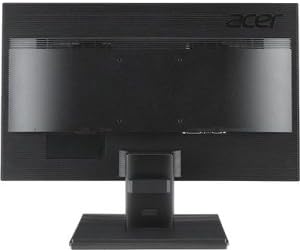
Kuva 4.2: Takaosa view of the Acer B326HK monitor, highlighting the various input ports.
- Video Input: Connect one of the following video cables from your computer's graphics card to the monitor:
- DisplayPort cable (recommended for 4K resolution at 60Hz)
- Mini DisplayPort cable
- DVI cable (supports HDCP)
- MHL cable (for compatible mobile devices)
- USB ylävirtaan: Connect the SuperSpeed USB cable from your computer to the monitor's USB upstream port to enable the monitor's USB 3.0 hub.
- USB alavirtaan: Use the 5 high-speed USB 3.0 ports on the monitor to connect peripherals like a mouse, keyboard, or for charging mobile devices.
- Teho: Liitä virtajohto näytön virransyöttöön ja kytke sitten toinen pää maadoitettuun pistorasiaan.
5. Näytön käyttö
5.1 Virta päälle/pois
Press the power button, usually located on the bottom right bezel, to turn the monitor on or off. The power indicator light will illuminate when the monitor is on.
5.2 Adjusting the Display (OSD Menu)
The On-Screen Display (OSD) menu allows you to adjust various monitor settings such as brightness, contrast, color, input source, and more. Use the control buttons located on the monitor's bezel to navigate the OSD menu.
- Aktivoi OSD-valikko painamalla mitä tahansa OSD-painiketta.
- Use the navigation buttons (usually arrows) to move through the menu options.
- Paina valintapainiketta siirtyäksesi alivalikkoon tai vahvistaaksesi asetuksen.
- Use the navigation buttons to adjust values or select options.
- Press the exit button to leave the OSD menu.
5.3 Tulolähteen valinta
The monitor can automatically detect an active input source. If multiple sources are connected, you may need to manually select the desired input via the OSD menu. Navigate to the "Input" or "Source" section in the OSD and select your preferred input (e.g., DisplayPort, DVI, MHL).
5.4 Ergonomiset säädöt
Ergonominen jalusta mahdollistaa useita säätöjä optimoidaksesi viewmukavuutta:
- Korkeuden säätö: Työnnä tai vedä näyttöpaneelia varovasti ylös tai alas.
- Kallistuksen säätö: Tilt the monitor panel forward or backward to find the optimal viewkulma.
- Kääntymisen säätö: Käännä näyttöä vasemmalle tai oikealle jalustansa varassa.
- Pivot-säätö: Rotate the monitor 90 degrees for portrait mode (ensure sufficient clearance).
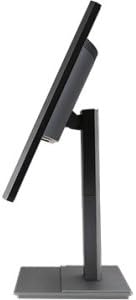
Kuva 5.1: Sivu view of the Acer B326HK monitor, demonstrating its tilt capability.
6. Huolto
Asianmukainen hoito varmistaa näyttösi pitkän käyttöiän.
- Näytön puhdistaminen:
- Sammuta näyttö ja irrota virtajohto.
- Use a soft, lint-free cloth (e.g., microfiber) slightly dampvedellä tai ammoniakittomalla ja alkoholittomalla näytönpuhdistusaineella.
- Wipe the screen gently. Do not spray cleaner directly onto the screen.
- C:n puhdistaminenasing:
- Pyyhi näyttö pehmeällä, kuivalla liinalla.asing.
- Vältä hankaavien puhdistusaineiden tai liuottimien käyttöä.
- Ilmanvaihto: Ensure the ventilation openings on the monitor are clear of dust and debris.
7. Vianmääritys
Jos kohtaat ongelmia näytön kanssa, katso seuraavia yleisiä ratkaisuja:
| Ongelma | Mahdollinen ratkaisu |
|---|---|
| Ei virtaa |
|
| Ei kuvaa / "Ei signaalia" -viesti |
|
| Kuva on epäselvä tai vääristynyt |
|
| Color issues or incorrect display |
|
| Kaiuttimista ei kuulu ääntä |
|
8. Tekniset tiedot
Key technical specifications for the Acer B326HK monitor:
| Ominaisuus | Yksityiskohta |
|---|---|
| Mallinumero | B326HK ymjdpphz |
| Näytön koko | 32 tuumaa |
| Suurin näytön tarkkuus | 3840 x 2160 pikseliä (4K UHD 2160p) |
| Kuvasuhde | 16:9 |
| Vastausaika | 6 ms |
| Kontrastisuhde | 100,000,000:1 (dynaaminen) |
| Signaalitulot | 1 x DVI (w/HDCP), 1 x MHL, 1 x Display Port, 1 x Mini Display Port |
| USB-portit | 5 x USB 3.0 (1 upstream, 4 downstream) |
| Yhteensopiva VESA-kiinnikkeen kanssa | Kyllä |
| Tuotteen paino | 26.4 kiloa |
| Tuotteen mitat (PxLxK) | 10.49 x 29.05 x 18.63 tuumaa |
| Valmistaja | Acer Computer |
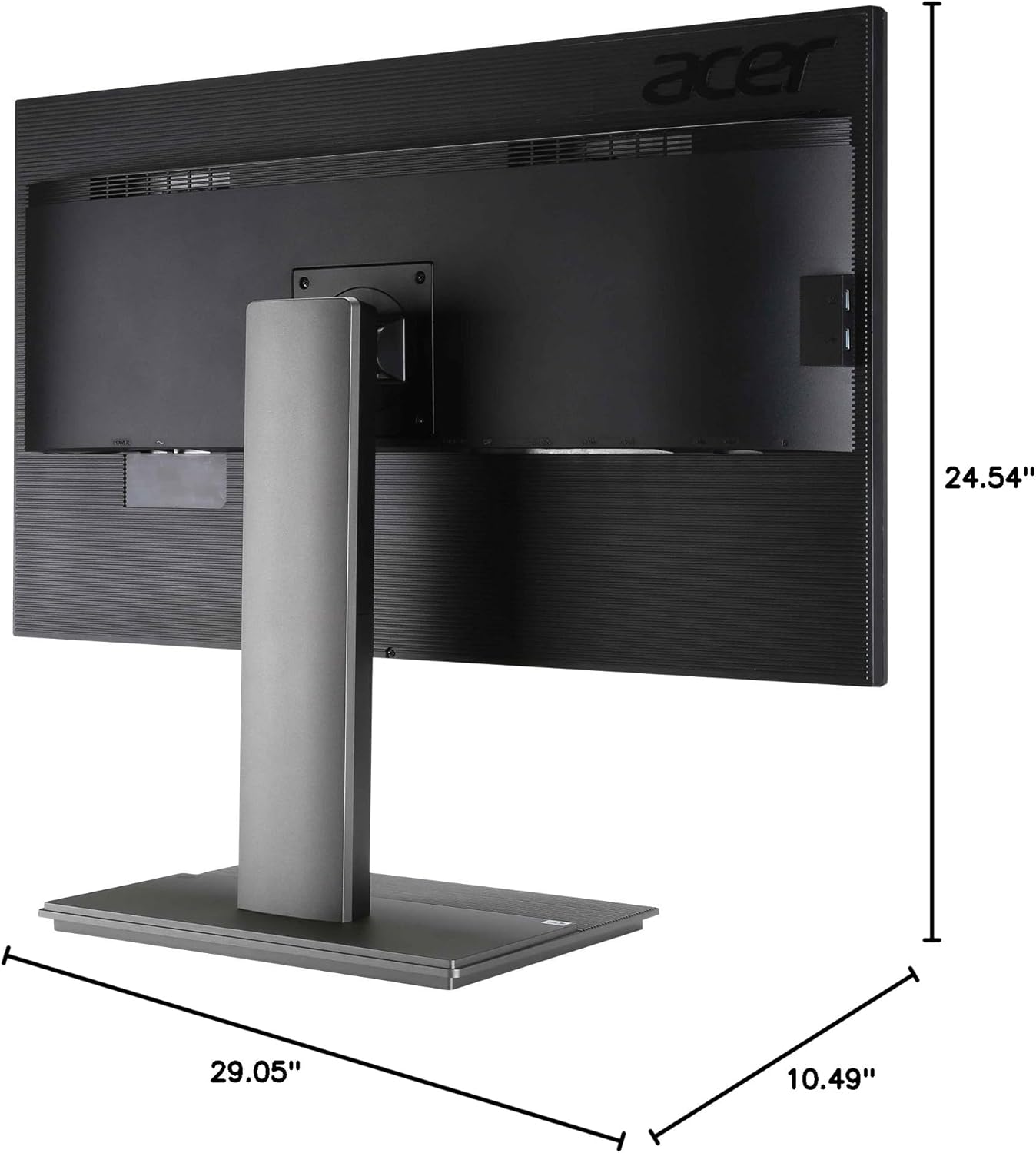
Kuva 8.1: Mittatilaustyönä view of the Acer B326HK monitor.
9. Takuu ja tuki
Takuutietoja ja teknistä tukea varten katso tuotteen mukana toimitettu takuukortti tai käy Acerin virallisella tukisivustolla. website. You may need your monitor's serial number, which is typically located on a label on the back of the monitor.
Acer Official Websivusto: https://www.acer.com/support