Johdanto
This manual provides essential information for the setup, operation, and maintenance of your Logitech USB Keyboard for Business. Designed for efficiency and durability, this keyboard offers a comfortable and reliable typing experience for various computing environments.

Kuva: Ylhäältä alas view of the Logitech USB Keyboard for Business, showcasing sen koko asettelu.
Asennus
The Logitech USB Keyboard for Business is designed for simple plug-and-play functionality. No additional software or drivers are typically required for basic operation on compatible systems.
Näppäimistön liittäminen
- Etsi tietokoneesta vapaa USB-portti.
- Työnnä näppäimistön USB-liitin tukevasti USB-porttiin.
- Wait for your operating system to recognize the new hardware. This process is usually automatic and takes a few seconds.
- Näppäimistö on nyt käyttövalmis.

Image: The Logitech K120 keyboard, highlighting its plug-and-play USB connectivity.
Käyttöohjeet
This keyboard features a standard 104-key layout, including a full-size F-key row and a dedicated number pad, providing comprehensive functionality for business and general use.
Tärkeimmät ominaisuudet
- Low-Profile Avaimet: Designed for a quiet and comfortable typing experience.
- Täysikokoinen asettelu: Includes a complete set of keys, F-keys, and a numeric keypad for efficient data entry.
- Bold, Bright Characters: Key legends are designed to be easy to read and resistant to wear.
- Säädettävät kallistusjalat: Allows for personalized ergonomic adjustment to suit your typing preference.

Image: A hand positioned on the keyboard, demonstrating the familiar and comfortable typing experience.

Image: A detailed diagram illustrating key features such as spill-proof design, deep-profile keys, full-size layout, adjustable height, Windows layout, and the integrated number pad.
Kestävyys ja muotoilu
The Logitech USB Keyboard for Business is built to withstand daily use and common office accidents, ensuring long-lasting performance.
Roiskeenkestävä muotoilu
This keyboard features a spill-resistant design, meaning accidental liquid spills can drain out without damaging the internal components. This feature is tested under limited conditions (maximum of 60 ml liquid spillage). It is important not to immerse the keyboard in liquid.

Image: The keyboard surface with water droplets, demonstrating its spill-resistant capabilities.
Säädettävä kirjoituskulma
The integrated adjustable tilt legs allow you to customize the keyboard's angle for a more comfortable and ergonomic typing position, reducing strain during extended use.
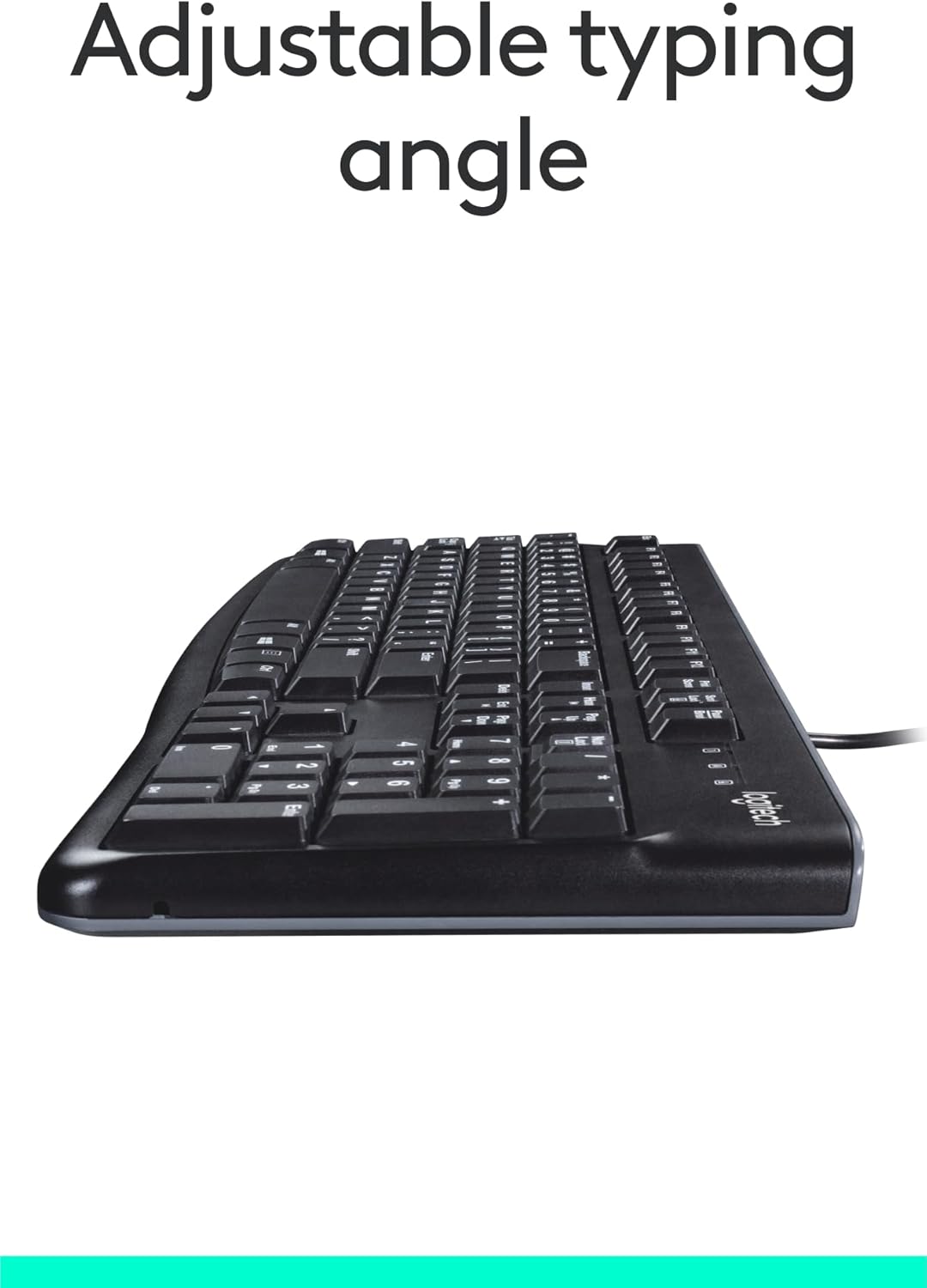
Kuva: Sivu view of the keyboard with its adjustable tilt legs extended, showing the elevated typing angle.
Huolto
Proper care and cleaning will help maintain the performance and appearance of your keyboard.
Puhdistusohjeet
- Irrota näppäimistö tietokoneesta ennen puhdistamista.
- Käytä pehmeää, nukkaamatonta liinaa hieman dampkastettu vedellä tai miedolla puhdistusliuoksella näppäimistön pinnan pyyhkimiseksi.
- Vältä voimakkaiden kemikaalien, hankaavien puhdistusaineiden tai liuottimien käyttöä, sillä ne voivat vahingoittaa näppäimistön pintaa ja näppäintekstejä.
- Puhdista näppäinten välit paineilmalla pölyn ja roskien poistamiseksi.
- Varmista, että näppäimistö on täysin kuiva ennen kuin kytket sen takaisin tietokoneeseen.
Vianetsintä
If you encounter issues with your Logitech USB Keyboard for Business, try the following troubleshooting steps:
Näppäimistö ei vastaa
- Tarkista USB-liitäntä: Varmista, että näppäimistön USB-kaapeli on kytketty kunnolla tietokoneen toimivaan USB-porttiin. Kokeile toista USB-porttia.
- Käynnistä tietokone uudelleen: Yksinkertainen uudelleenkäynnistys voi usein ratkaista yhteysongelmat.
- Testi toisella tietokoneella: Jos mahdollista, liitä näppäimistö toiseen tietokoneeseen selvittääksesi, onko ongelma näppäimistössä vai alkuperäisen tietokoneen asetuksissa.
- Tarkista Laitehallinta (Windows): Open Device Manager, locate 'Keyboards', and check for any error indicators. You may need to update or reinstall the keyboard driver (though typically not required for this plug-and-play model).
Näppäimet eivät toimi oikein
- Puhtaat näppäimet: Ensure no debris is lodged under the non-functioning keys. Use compressed air to clear any obstructions.
- Spill Damage: If the keyboard has been exposed to a significant liquid spill, allow it to dry completely. If issues persist, internal damage may have occurred.
Tekniset tiedot
| Ominaisuus | Yksityiskohta |
|---|---|
| Merkki | Logitech |
| Mallinumero | FBA_920-002582 |
| Yhteystekniikka | USB, USB-A |
| Näppäimistön kuvaus | Ergonominen |
| Avainten määrä | 104 |
| Materiaali | Muovi |
| Käyttöjärjestelmän yhteensopivuus | Windows 10 (and compatible with other standard OS) |
| Tuotteen paino | 1.52 puntaa (noin 689 grammaa) |
| Tuotteen mitat (PxLxK) | 18.43 x 7.24 x 7.24 tuumaa (noin 46.8 x 18.4 x 18.4 cm) |

Image: Visual representation of the keyboard with its key dimensions and weight detailed.
Pakkauksen sisältö
The retail package for the Logitech USB Keyboard for Business typically includes the following:
- Logitech USB Keyboard for Business (Model: FBA_920-002582)

Image: The Logitech USB Keyboard for Business, indicating it is the primary item included in the product package.
Takuu ja tuki
Logitech products are manufactured to high quality standards and are backed by a limited hardware warranty. For specific warranty terms and conditions, please refer to the warranty information provided with your product at the time of purchase or visit the official Logitech support websivusto.
For technical support, frequently asked questions, and driver downloads (if applicable), please visit the official Logitech support page or the Logitech-kauppa Amazonissa.


