
1. Johdanto
The Huawei OptiXstar K251a-21 is a sub-FTTR (Fiber to the Room) unit designed to extend the high-speed network provided by the Huawei FTTR OptiXstar F50 Plus main unit. This device supports ultra-Gigabit high-speed access via upstream fiber optic lines and delivers Ultra Gigabit dual-band Wi-Fi and ultra-Gigabit network ports to users. It integrates next-generation Wi-Fi 7 technology for higher speeds and lower latency, ensuring a superior home network experience.
2. Turvallisuustiedot
Please read and understand all safety instructions before using this device. Failure to follow these instructions may result in injury, damage to the device, or property damage.
- Käytä vain laitteen mukana toimitettua virtalähdettä.
- Älä altista laitetta vedelle, kosteudelle tai äärimmäisille lämpötiloille.
- Vältä sijoittamasta laitetta lämmönlähteiden lähelle tai suoraan auringonpaisteeseen.
- Varmista riittävä ilmanvaihto ylikuumenemisen estämiseksi.
- Do not attempt to open or repair the device yourself. Contact qualified service personnel for assistance.
- Pidä laite poissa lasten ja lemmikkien ulottuvilta.
3. Pakkauksen sisältö
Varmista, että pakkauksessasi on kaikki tarvittavat osat:
- Huawei OptiXstar K251a-21 Sub FTTR Device
- Virtakaapeli
- Pikaopas (jos mukana)
4. Tuote ohiview
Tutustu laitteen osiin ja merkkivaloihin.
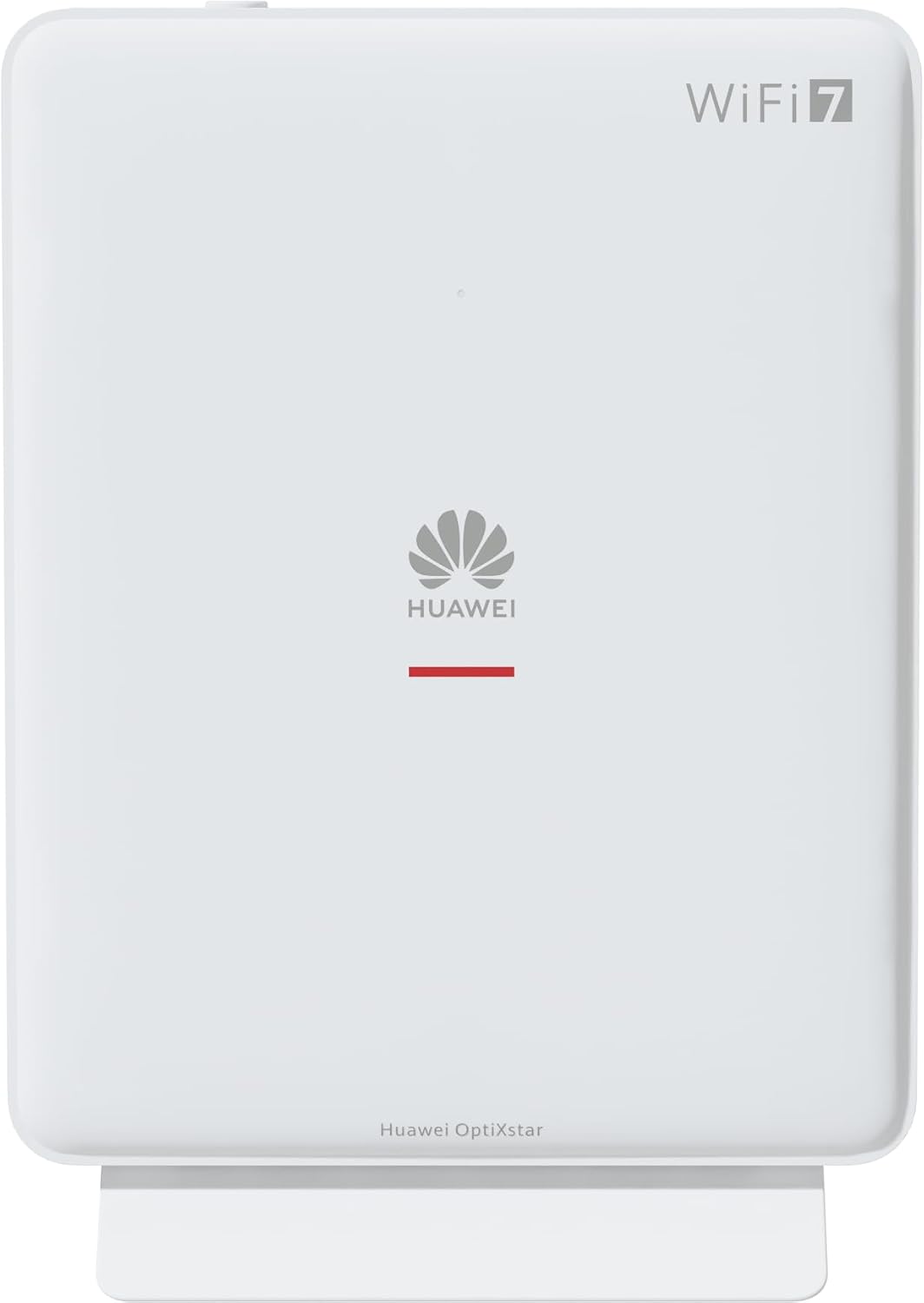
Kuva 1: Etuosa view of the Huawei OptiXstar K251a-21 Sub FTTR device, showing the Huawei logo and "WiFi 7" branding.

Kuva 2: Kulmikas etupuoli view of the Huawei OptiXstar K251a-21 Sub FTTR, highlighting its sleek design and ventilation.

Kuva 3: Takaosa view of the Huawei OptiXstar K251a-21 Sub FTTR, displaying the ports (Reset, 2-GE, 1-2.5GE, Power, FTTR) and mounting options.

Kuva 4: Sivuprofiilifile of the Huawei OptiXstar K251a-21 Sub FTTR, showing its slim form factor and ventilation grilles.

Kuva 5: Kulmassa oleva takaosa view of the Huawei OptiXstar K251a-21 Sub FTTR, providing a clear look at the port labels and layout.

Kuva 6: Yläosa view of the Huawei OptiXstar K251a-21 Sub FTTR, featuring the WPS/LED button.
Portit ja painikkeet:
- FTTR Port: Connects to the main FTTR unit via a fiber optic cable.
- 1-2.5GE Port: Gigabit Ethernet port for high-speed wired connections.
- 2-GE Port: Gigabitin Ethernet-portti langallisille yhteyksille.
- Virtaportti: Liitetään virtalähteeseen.
- Reset-painike: Used to restore factory settings (press and hold for 5-10 seconds).
- WPS/LED Button: Initiates Wi-Fi Protected Setup (WPS) for easy device connection and controls LED indicators.
5. Asennus
Follow these steps to set up your Huawei OptiXstar K251a-21 Sub FTTR device:
- Sijoitus: Choose a central location in your home for optimal Wi-Fi coverage. The device is suitable for various installation scenarios, including vertical placement on a desk, wall-mounting, plugging into a power strip, or mounting in an 86mm junction box with a bracket.
- Yhdistä valokuitukaapeli: Connect one end of the fiber optic cable to the FTTR port on the Sub FTTR unit and the other end to the corresponding FTTR port on your Huawei FTTR OptiXstar F50 Plus main unit or wall outlet. Ensure the connection is secure.
- Liitä virta: Plug the power adapter into the Power port on the Sub FTTR unit, then plug the other end into a power outlet.
- Virta päälle: The device will automatically power on. Wait for the indicator lights to stabilize, typically indicating a successful connection to the main FTTR unit and active Wi-Fi.
- Wired Connections (Optional): For wired devices, connect an Ethernet cable from the 1-2.5GE or 2-GE ports on the Sub FTTR to your computer, gaming console, or other network devices.
6. Käyttö
Once set up, your OptiXstar K251a-21 provides seamless Wi-Fi 7 connectivity.
- Wi-Fi-yhteys: Etsi the Wi-Fi network name (SSID) broadcast by your FTTR system on your devices (smartphones, laptops, etc.). Enter the Wi-Fi password. The system's unique SRCN (Seamless Roaming Coordinate Network) technology ensures seamless roaming throughout your home.
- C-WAN Architecture: The C-WAN architecture centrally controls and coordinates network-wide Wi-Fi resources via the Main FTTR, providing an ultra-Gigabit high-speed experience.
- IoT Casing: The device features an IoT casing designed to protect home network security and privacy.
- WPS-toiminto: Press the WPS/LED button briefly to use Wi-Fi Protected Setup (WPS) for quick connection of compatible devices without entering the password.
- LED-ilmaisimet: The LED indicators provide status information. Refer to the main FTTR unit's manual or the device's specific documentation for detailed LED status meanings.
7. Huolto
Regular maintenance helps ensure optimal performance and longevity of your device.
- Puhdistus: Pyyhi laite varovasti pehmeällä, kuivalla liinalla. Älä käytä nestemäisiä puhdistusaineita tai hankaavia aineita.
- Laiteohjelmistopäivitykset: Huawei periodically releases firmware updates to improve performance and security. These updates are typically managed through the main FTTR unit or a dedicated mobile application. Ensure your system is always running the latest firmware.
- Ilmanvaihto: Varmista, että tuuletusaukot eivät ole tukossa ylikuumenemisen estämiseksi.
- Kaapelin hallinta: Keep fiber optic and power cables neatly organized and free from kinks or excessive bending.
8. Vianmääritys
Jos kohtaat ongelmia, kokeile seuraavia vianetsintävaiheita:
- Ei virtaa: Check if the power cable is securely connected to both the device and the power outlet. Try a different outlet.
- Ei Internet-yhteyttä:
- Verify that the fiber optic cable is correctly connected to the FTTR port.
- Check the status indicators on both the Sub FTTR and the main FTTR unit.
- Restart both the Sub FTTR and the main FTTR unit by unplugging them from power for 30 seconds and then plugging them back in.
- Ensure your main FTTR unit has an active internet connection.
- Hidas Wi-Fi-nopeus:
- Ensure the device is placed optimally, away from obstructions and interference sources.
- Check if too many devices are connected to the network.
- Update the firmware of your FTTR system.
- Consider using a wired connection for bandwidth-intensive tasks.
- Ei voi muodostaa yhteyttä Wi-Fi-verkkoon:
- Varmista, että annat oikean Wi-Fi-salasanan.
- Try using the WPS button to connect.
- Restart your device and the Sub FTTR unit.
- Tehdasasetusten palautus: If issues persist, you may need to perform a factory reset. With the device powered on, use a pointed object (like a paperclip) to press and hold the Reset button for 5-10 seconds until the indicators change. Note that this will erase all custom settings.
9. Tekniset tiedot
| Ominaisuus | Erittely |
|---|---|
| Merkki | HUAWEI |
| Mallinumero | K8M251a-21G02 |
| Mitat (paketti) | 24.5 x 23.7 x 7.4 cm |
| Paino (pakkaus) | 300 grammaa |
| Erikoisominaisuus | Internet-suojaus |
| Taajuuskaistaluokka | Dual Band |
| Langaton tiedonsiirtostandardi | 802.11ax (Wi-Fi 7 Generation) |
| Yhteensopivat laitteet | Henkilökohtainen tietokone |
| Suositellut käyttötavat | Kotiin |
| Mukana olevat komponentit | Virtakaapeli |
| Yhteystekniikka | Ethernet, FTTR, Wi-Fi, Fiberglass |
| Väri | Valkoinen |
| Porttien määrä | 4 (FTTR, 1-2.5GE, 2-GE, Power) |
| Tiedonsiirtonopeus | 1 gigabittiä sekunnissa |
| Smart Home -yhteensopivuus | Compatible with smart home systems |
| Internet-yhteys | Kyllä |
| Yhteysprotokolla | Wi-Fi |
10. Takuu ja tuki
Takuutietoja ja teknistä tukea varten katso Huawein virallinen sivusto. website or contact your local Huawei customer service. Keep your purchase receipt for warranty claims.
Verkkoresurssit: Käy Huawein virallisella tukisivustolla websivusto usein kysyttyjen kysymysten, päivitettyjen käyttöohjeiden ja ohjelmistojen lataamiseen.
Asiakaspalvelu: Contact details for customer support can typically be found on the Huawei website or in the documentation provided with your main FTTR unit.


