
1. Johdanto
This manual provides comprehensive instructions for the safe and efficient use of your HGFRTEE 27-inch 4K UHD 60Hz Monitor. Please read this manual thoroughly before operating the device and retain it for future reference.
The HGFRTEE 27-inch 4K UHD monitor features a 3840 x 2160 resolution IPS panel, 60Hz refresh rate, HDR10 support, 100% sRGB color gamut, and AMD FreeSync technology. It is designed for a wide range of applications, from professional work to casual entertainment.
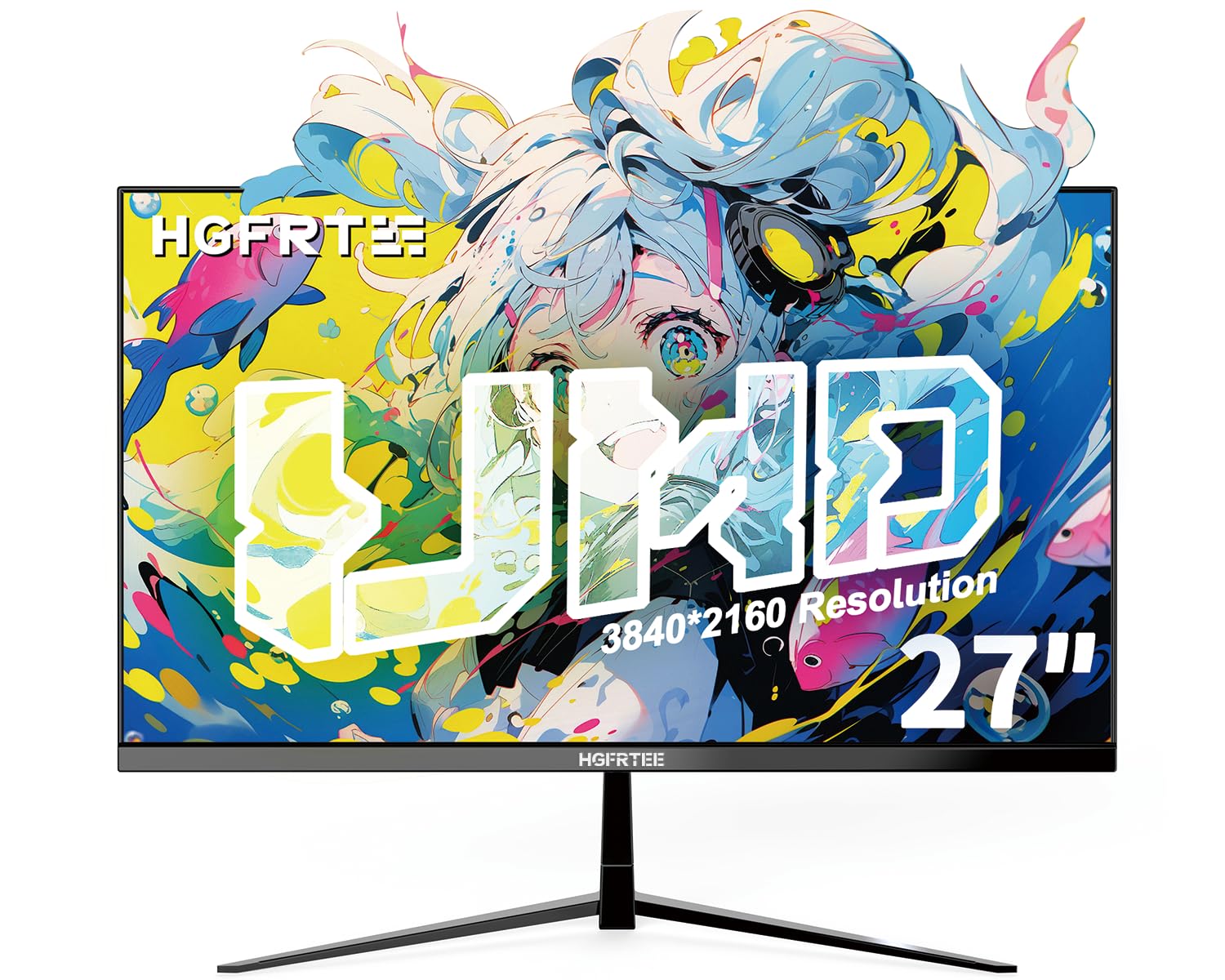
Kuva 1.1: Edessä view of the HGFRTEE 27-inch 4K UHD Monitor.
2. Turvallisuustiedot
Noudata aina näitä perusturvallisuusohjeita tulipalon, sähköiskun ja loukkaantumisen riskin vähentämiseksi:
- Älä altista näyttöä sateelle tai kosteudelle.
- Älä avaa näyttöä casing. Anna kaikki huoltotoimenpiteet pätevän henkilöstön tehtäväksi.
- Varmista riittävä ilmanvaihto näytön ympärillä.
- Käytä ainoastaan näytön mukana toimitettua virtalähdettä.
- Vältä näytön asettamista epävakaille pinnoille.
- Puhdista näyttö pehmeällä, kuivalla liinalla. Älä käytä nestemäisiä puhdistusaineita tai aerosolipuhdistusaineita.
3. Pakkauksen sisältö
Varmista, että pakkauksessasi on kaikki tarvittavat osat:
- HGFRTEE 27-inch 4K UHD Monitor
- Näytön jalusta (jalusta ja kaula)
- Virtalähde
- HDMI kaapeli
- DisplayPort-kaapeli
- Käyttöopas
4. Asennus
4.1 Jalustan kokoaminen
- Poista näyttö varovasti pakkauksestaan ja aseta se suojattuna pehmeälle alustalle.
- Attach the stand neck to the monitor's rear mounting point.
- Kiinnitä jalustan pohja jalustan kaulaan mukana toimitetuilla ruuveilla.
- Aseta koottu näyttö vakaalle ja tasaiselle alustalle.

Image 4.1: Illustrated steps for monitor stand assembly.
4.2 VESA-kiinnitys
The monitor supports VESA 100x100mm mounting. To mount the monitor on a wall or an alternative stand:
- Remove the original stand if it is already attached.
- Attach your VESA-compatible mount to the four screw holes on the back of the monitor using M4 screws (not included with the monitor, typically supplied with the VESA mount).
- Varmista, että teline on tukevasti kiinni ennen irrottamistaasinnäyttöä.
4.3 Laitteen yhdistäminen
The monitor features multiple input ports for connectivity:
- HDMI 2.0: Connect to devices such as PCs, laptops, and gaming consoles.
- DisplayPort 1.4: Connect to PCs and graphics cards for high-resolution and refresh rate output.
- USB (Power): For powering external devices.
- Ääni ulos: Connect external speakers or headphones (monitor does not have built-in speakers).
Yhteyden muodostaminen:
- Connect one end of the HDMI or DisplayPort cable to the corresponding port on your computer or device.
- Liitä kaapelin toinen pää näytön HDMI- tai DisplayPort-tuloon.
- Kytke virtalähde näytön tasavirtatuloon ja kytke se sitten pistorasiaan.

Kuva 4.2: Takaosa view of the monitor displaying available input ports.
5. Näytön käyttö
5.1 Virta päälle/pois
Käynnistä tai sammuta näyttö painamalla sen takana olevaa virtapainiketta.
5.2 OSD-valikon navigointi
The monitor features a joystick control for navigating the On-Screen Display (OSD) menu. The controls are typically located on the back or bottom of the monitor.

Image 5.1: Diagram illustrating the monitor's control buttons and their functions.
- Virtapainike: Kytkee näytön päälle tai pois päältä.
- 'E' Button: HDMI Port/DP Port Selection, Back/Exit Key.
- Nuoli ylöspäin: Increase value, Up Key.
- Nuoli alas: Decrease value, Down Key.
- M-painike: Confirmation Key, Enter Submenu Key.
5.3 Näyttöasetukset
Käytä OSD-valikkoa säätääksesi erilaisia näyttöasetuksia:
- Kirkkaus/kontrasti: Säädä näytön kokonaisvalovoimaa ja kontrastia.
- Väriasetukset: Fine-tune color temperature, gamma, and color space (e.g., sRGB).
- Syöttölähde: Valitse manuaalisesti HDMI- ja DisplayPort-tulojen välillä.
- Kuvatila: Valitse valmiista tiloista (esim. Vakio, Peli, Elokuva, Teksti-TV).
- FreeSync: Enable or disable AMD FreeSync for adaptive synchronization with compatible graphics cards.
- HDR: Enable or disable HDR10 support for enhanced dynamic range.
- Näönhoito: Activate features like flicker-free technology and blue light filter to reduce eye strain.
5.4 Lisäominaisuudet
- Liikkeen selkeys (MEMC): This feature enhances motion smoothness by inserting black frames and optimizing motion processing, which can improve clarity in fast-moving scenes.
- Gaming Crosshairs: For gaming, the monitor offers six types of on-screen crosshairs to assist with aiming.

Image 5.2: Demonstration of Motion Clarity feature.

Kuva 5.3: Esim.amples of gaming crosshairs.
6. Huolto
6.1 Näytön puhdistaminen
Näytön ja c:n puhdistaminenasing:
- Sammuta näyttö ja irrota virtajohto.
- Pyyhi näyttö varovasti pehmeällä, nukkaamattomalla liinalla. Pinttyneisiin tahroihin hankaa kevyesti.ampen the cloth with water or a specialized screen cleaner (ensure it is alcohol-free and ammonia-free).
- Pyyhi casing pehmeällä, kuivalla liinalla.
- Do not spray cleaners directly onto the screen or into any openings.
6.2 Varastointi
If storing the monitor for an extended period, ensure it is powered off, unplugged, and stored in a cool, dry place away from direct sunlight and extreme temperatures. Use original packaging if available for best protection.
7. Vianmääritys
Yleisiä ongelmia ja niiden ratkaisuja on seuraavassa taulukossa:
| Ongelma | Mahdollinen syy | Ratkaisu |
|---|---|---|
| Ei kuvaa näytöllä | Näyttö ei ole päällä; Väärä tulosignaali valittu; Löysä videokaapeli. | Ensure power is connected and monitor is on; Select correct input source via OSD; Check video cable connections. |
| Kuvan välkkyminen tai repeäminen | FreeSync not enabled or incompatible; Graphics driver issues; Cable quality. | Enable FreeSync in OSD and graphics card settings; Update graphics drivers; Try a different high-quality video cable. |
| Värit näyttävät vääriltä | Color settings misconfigured; Faulty cable. | Reset color settings in OSD; Adjust color temperature; Try a different video cable. |
| Ei ääntä kuulokkeista/kaiuttimista | Äänikaapelia ei ole kytketty; Äänenvoimakkuus liian alhainen; Tietokoneella on valittu väärä äänilähtö. | Ensure audio cable is securely connected to the monitor's audio out port; Adjust volume on connected device; Select monitor as audio output on your computer. |
Jos ongelma jatkuu näiden ratkaisujen kokeilemisen jälkeen, ota yhteyttä asiakastukeen.
8. Tekniset tiedot
Below are the technical specifications for the HGFRTEE 27-inch 4K UHD Monitor (Model B270BZU06):
| Ominaisuus | Erittely |
|---|---|
| Merkki | HGFRTEE |
| Mallinumero | B270BZU06 |
| Näytön koko | 27 tuumaa |
| Resoluutio | 4K UHD (3840 2160 x XNUMX XNUMX) |
| Päivitystaajuus | 60 Hz |
| Vastausaika | 1 millisekunti (MPRT) |
| Näytön tyyppi | IPS LCD |
| Kuvasuhde | 16:9 |
| Värivalikoima | 100 % sRGB |
| HDR-tuki | HDR10 |
| Mukautuva synkronointi | AMD FreeSync |
| Viewkulma | 178° (vaaka/pysty) |
| Yhteydet | HDMI 2.0 (x2), DisplayPort 1.4 (x1), USB (Power), Audio Out (3.5mm) |
| VESA-yhteensopivuus | 100 x 100 mm |
| Ergonomia | Kallistuksen säätö (-10° - 10°) |
| Mitat (L x K x S) | Noin 612 mm x 452 mm x 210 mm (jalustan kanssa) |
| Paino | Noin 4 kg / 8.81 lbs |

Image 8.1: Monitor dimensions and key physical features.
9. Takuutiedot
This HGFRTEE monitor is covered by a 2 vuoden valmistajan takuu ostopäivästä lukien. Tämä takuu kattaa materiaali- ja valmistusvirheet normaalissa käytössä. Se ei kata vahinkoja, jotka johtuvat väärinkäytöstä, onnettomuuksista, luvattomista muutoksista tai ulkoisista tekijöistä.
Säilytä ostokuitti takuuvaatimuksia varten.
10. Asiakastuki
For technical assistance, warranty claims, or any questions regarding your HGFRTEE monitor, please contact our customer support team.
You can find more information and contact details on the official HGFRTEE store page: HGFRTEE Store on Amazon