
Johdanto
Thank you for choosing the ProtoArc KM310 Wireless Mechanical Keyboard and Mouse. This combo offers a responsive typing experience with low-profile linear red switches and versatile multi-device connectivity. The ergonomic mouse is designed for comfort and precision. This manual provides detailed instructions for setup, operation, maintenance, and troubleshooting to ensure optimal performance.
Mitä laatikossa on

Image: Contents of the ProtoArc KM310 package, including the keyboard, mouse, charging cable, and user manual.
- ProtoArc KM310 Wireless Mechanical Keyboard
- ProtoArc Wireless Mouse
- USB-C latauskaapeli
- Käyttöopas
Tuote loppuview
Näppäimistön ominaisuudet

Kuva: Lähikuva view of the ProtoArc KM310 keyboard, highlighting its low-profile keys and linear red switches.
- Low-Profile Mekaaniset avaimet: Equipped with linear red switches for a smooth, quiet, and responsive typing experience.
- Aluminum Top Case: Provides durability and a sleek, modern aesthetic.
- Säädettävät kallistusjalat: Ergonomically designed with 2-stage foot mats offering 6° and 9° tilt options for comfortable typing.
- Täysikokoinen asettelu: A 108-key layout suitable for office and business use.
Hiiren ominaisuudet

Image: The ProtoArc KM310 mouse being held, showcasing its ergonomic design for a natural grip.
- 63G Ultra-Lightweight: Reduces hand fatigue during extended use and enhances portability.
- Ergonominen muotoilu: Contoured shape for a comfortable and natural grip.
- Säädettävä DPI: Three DPI levels (1000/1600/2400) for tailored control and precision.
- Hiljainen klikkaus: Suunniteltu hiljaiseen käyttöön.
- Eteen-/taaksepäin-painikkeet: Integrated for seamless browsing.
Liitettävyys ja virta
- Usean laitteen liitettävyys: Connects up to 3 devices via 2.4G USB receiver or Dual Bluetooth (BT1, BT2).
- Ladattava: Both keyboard and mouse feature Type-C charging. The mouse's USB receiver is stored on its bottom.
- Pitkä akun käyttöikä: Up to 150-200 days standby time; 2-3 hours for a full charge.
Asennusohjeet
1. Laitteiden lataaminen

Image: The keyboard and mouse are shown connected to power sources via USB-C cables for charging.
- Connect the provided USB-C charging cable to the charging port on the keyboard (located on the top edge) and the mouse (located on the front edge).
- Kytke kaapelin toinen pää USB-virtalähteeseen (esim. tietokoneen USB-porttiin tai USB-seinäsovittimeen).
- The indicator lights will show charging status. Allow 2-3 hours for a full charge.
2. Yhteyden muodostaminen laitteisiin

Image: A desk setup showing the ProtoArc KM310 keyboard and mouse connected to a laptop, monitor, and tablet, illustrating multi-device capability.
The KM310 combo supports three connection modes: 2.4G wireless via USB receiver, Bluetooth 1 (BT1), and Bluetooth 2 (BT2).
2.1. Langaton 2.4G-yhteys
- Etsi hiiren pohjassa olevasta lokerosta USB-vastaanotin.
- Liitä USB-vastaanotin tietokoneesi vapaaseen USB-porttiin.
- Käynnistä näppäimistö ja hiiri niiden virtakytkimillä.
- The devices should connect automatically.
2.2. Bluetooth-yhteys (BT1 / BT2)
- Kytke näppäimistö ja hiiri päälle.
- Paina näppäimistön BT1 or BT2 key (usually located on the number pad, indicated by orange keycaps) to select the desired Bluetooth channel. The indicator light will flash.
- On your device (computer, tablet, etc.), go to Bluetooth settings and search for "ProtoArc KM310 Keyboard" and "ProtoArc KM310 Mouse".
- Select the devices to pair. The indicator light will stop flashing once connected.
- Toista toiselle Bluetooth-laitteelle, joka käyttää toista BT-kanavaa.
2.3. Laitteiden välillä vaihtaminen
To switch between connected devices, simply press the corresponding connection key on the keyboard (2.4G, BT1, or BT2) and the channel switch button on the bottom of the mouse.
Käyttöohjeet
Näppäimistön käyttö
- Kirjoittaminen: Matala profile linear red switches provide a responsive and quiet typing experience.
- Käyttöjärjestelmän yhteensopivuus: The keyboard is compatible with Windows and Mac OS. Keys like 'Win' and 'Alt' also show 'Option' and 'Cmd' for Mac users.
- Kallistuksen säätö: Use the adjustable tilt legs on the underside of the keyboard to set your preferred typing angle (6° or 9°).
Hiiren käyttö
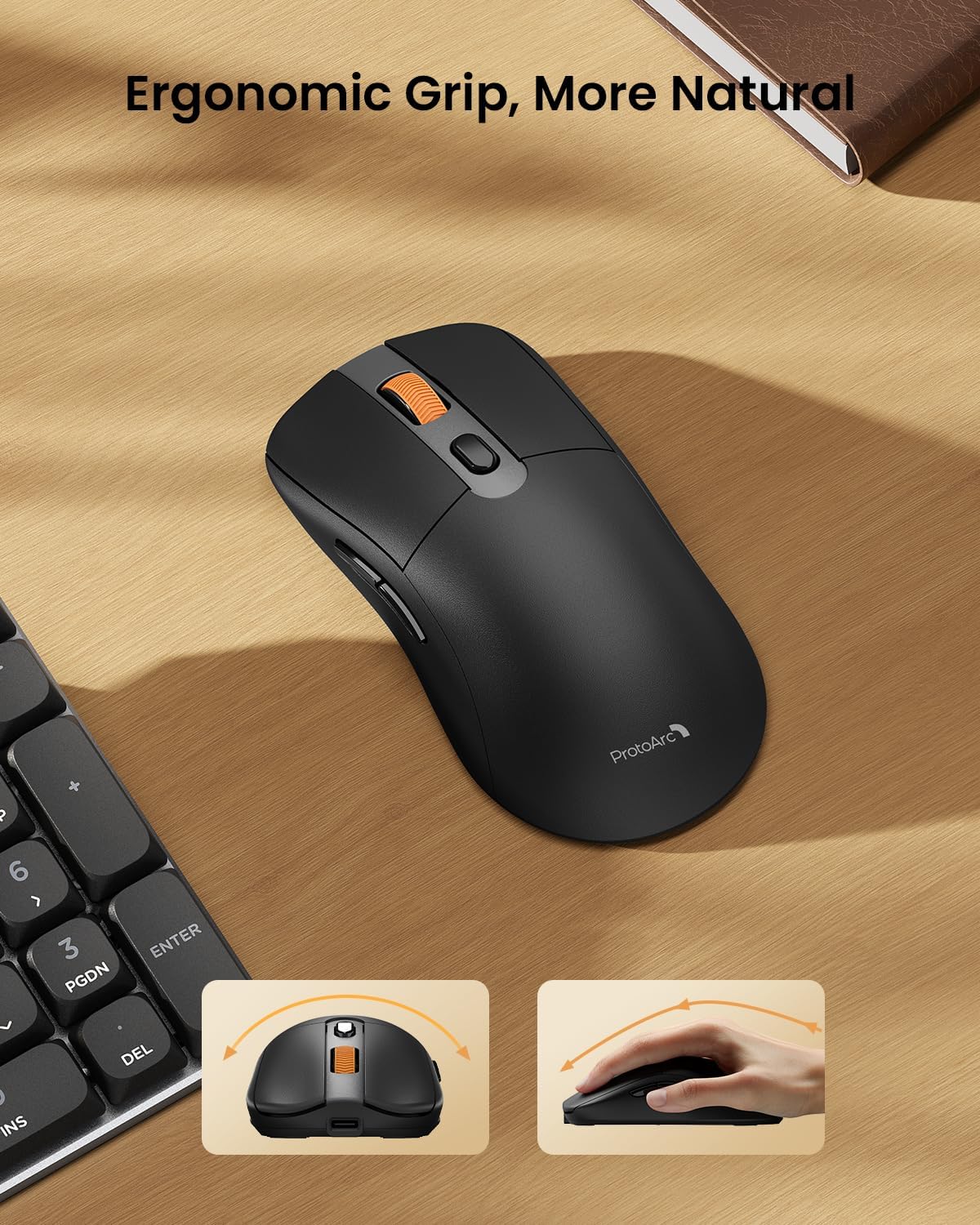
Image: A close-up of the ProtoArc KM310 mouse, illustrating the three adjustable DPI settings (1000, 1600, 2400).
- DPI-säätö: Press the DPI switch button (usually located near the scroll wheel) to cycle through the 3 DPI levels (1000/1600/2400) to match your preference for cursor speed and precision.
- Navigointipainikkeet: Use the forward and backward buttons on the side of the mouse for quick navigation in web selaimet tai file tutkimusmatkailijoita.
- Hiljaiset klikkaukset: The mouse features silent click buttons for a quiet working environment.
Huolto
- Puhdistus: Pyyhi näppäimistö ja hiiri pehmeällä, kuivalla liinalla. Pinttyneeseen likaan käytä hieman kuivaa liinaa.amp voidaan käyttää miedolla saippualla kostutettua liinaa varmistaen, ettei nestettä pääse laitteeseen.
- Akun hoito: Recharge the devices when the battery indicator is low. Avoid prolonged exposure to extreme temperatures.
- Varastointi: When not in use for extended periods, turn off the devices to conserve battery life. Store the USB receiver inside the mouse to prevent loss.
Vianetsintä
Keyboard/Mouse Not Turning On or Stopping Working
- Tarkista akku: Ensure both the keyboard and mouse are sufficiently charged. Connect them to a power source using the USB-C cable.
- Yhdistä laitteet uudelleen:
- For 2.4G connection, ensure the USB receiver is securely plugged in and the devices are set to 2.4G mode.
- For Bluetooth connection, ensure the devices are set to the correct BT channel (BT1 or BT2) and re-pair them through your device's Bluetooth settings.
- Kokeile toista kaapelia: If charging issues persist, try using a different USB-C cable to rule out a faulty cable.
- Häiriöt: Move the devices closer to your computer or away from other wireless devices that might cause interference.
- Ota yhteyttä tukeen: If the issue persists, please contact ProtoArc customer support for further assistance.
Tekniset tiedot
| Mallinumero | KM310 |
| Merkki | ProtoArc |
| Väri | Space Grey |
| Yhteystekniikka | Bluetooth, USB (2.4G langaton) |
| Erikoisominaisuudet | Low Profile Keys, Linear Red Switches, Ergonomic Design, Ultra-Light Mouse, Ergonomic Mouse |
| Yhteensopivat laitteet | Laptop, Personal Computer, Tablet (Windows 7/8/10, Mac OS X 10.12, Android 4.3 or higher) |
| Tuotteen paino | 2.31 kiloa |
| Pakkauksen mitat | 17.68 x 8.07 x 2.05 tuumaa |
Takuu ja tuki
The ProtoArc KM310 Mechanical Keyboard and Mouse combo comes with a 2 vuoden takuu.
For any questions, technical support, or warranty claims, please contact ProtoArc customer service:
- Sähköposti: support@protoarc.com
- Puhelin: +1 866-287-8188
Virallinen tuotevideo
Video: Virallinen tuotevideo-esittelyasing the features and design of the ProtoArc KM310 Aluminum Mechanical Keyboard and Mouse.