
1. Johdanto ja loppuview
This manual provides essential information for setting up, operating, maintaining, and troubleshooting your HP 17-inch Business Laptop. This device is designed for productivity and features a 13th Generation Intel Core i5 processor, a 17.3-inch HD+ anti-glare display, a backlit keyboard with a numeric keypad, and a fingerprint reader for enhanced security. It comes pre-installed with Windows 11 Home.
Keskeisiä ominaisuuksia ovat:
- Prosessori: 13th Gen Intel Core i5-1334U 10-core processor for efficient multitasking.
- Käyttöjärjestelmä: Windows 11 Home for a modern and secure computing experience.
- Näyttö: 17.3-inch HD+ (1366x768) anti-glare screen with micro-edge design.
- Muisti ja tallennus: Up to 64GB DDR4 RAM and up to 2TB NVMe M.2 SSD for fast performance and ample varastointia.
- Liitettävyys: USB 3.2 Gen 1 Type-C, USB 3.2 Gen 1 Type-A, HDMI 1.4, and a headphone/microphone combo jack.
- Turvallisuus: Integrated fingerprint reader.
- Sopivuus: Full-size backlit keyboard with numeric keypad and HP Fast Charge battery technology.
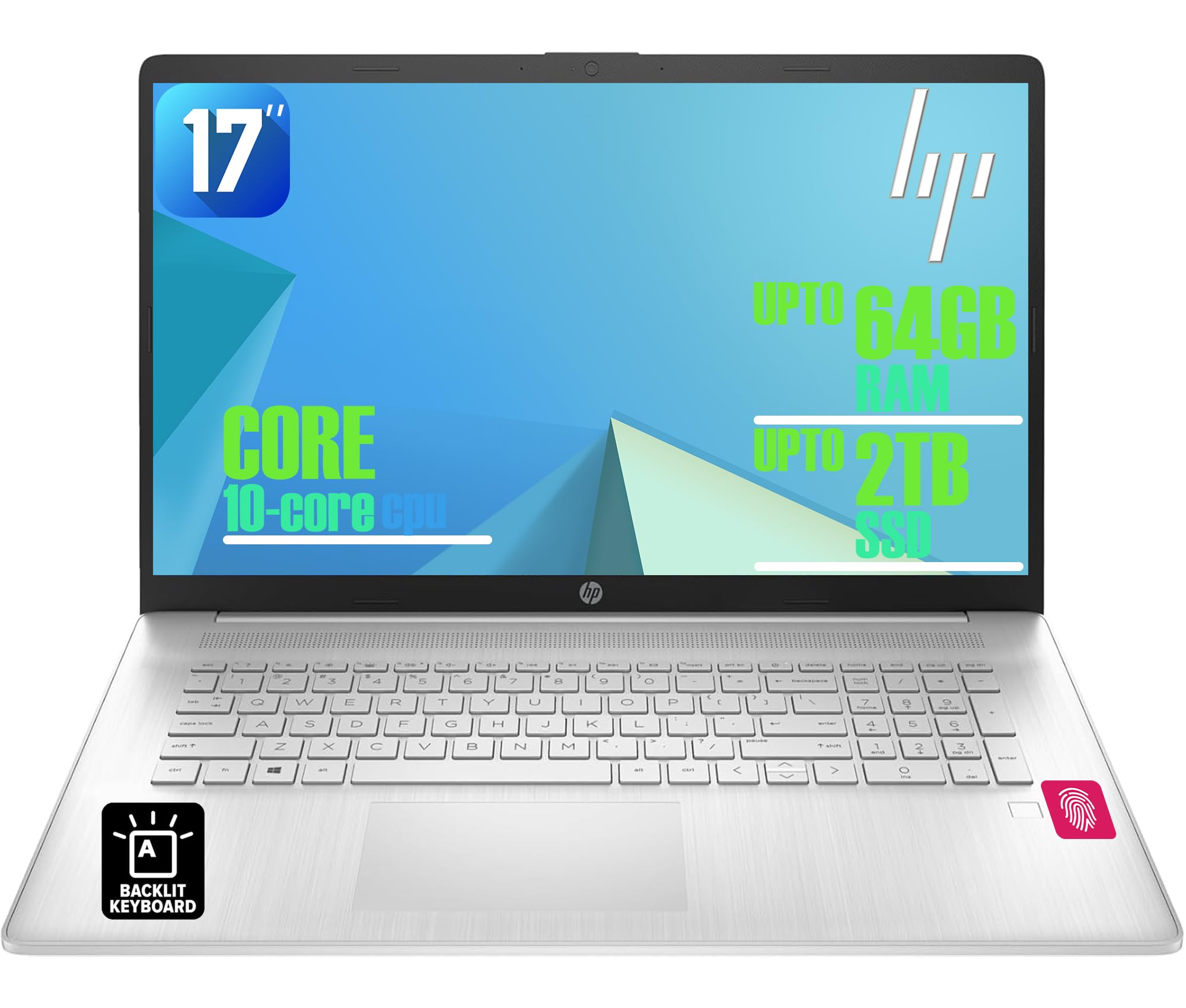
Figure 1: HP 17-inch Business Laptop (Silver)
2. Asennus
2.1 Laatikon purkaminen ja alkutarkastus
Carefully remove the laptop and all accessories from the packaging. Check for any visible damage. The package should include the HP 17-inch laptop, a power adapter, and documentation.
2.2 Virran kytkeminen
- Liitä virtalähde kannettavan tietokoneen sivussa olevaan AC Smart Pin -porttiin.
- Liitä verkkolaite pistorasiaan.
- Anna kannettavan tietokoneen latautua vähintään 30 minuuttia ennen ensimmäistä käyttökertaa tai kunnes akun merkkivalo näyttää riittävää varausta.
2.3 Ensimmäinen käynnistys ja Windowsin asennus
- Avaa kannettavan tietokoneen kansi ja paina virtapainiketta, joka sijaitsee yleensä näppäimistön oikeassa yläkulmassa.
- Suorita Windows 11 Homen asennusprosessi loppuun noudattamalla näytön ohjeita. Tämä sisältää alueen ja kielen valinnan, yhteyden muodostamisen Wi-Fi-verkkoon ja käyttäjätilin luomisen.
2.4 Oheislaitteiden liittäminen
Your HP laptop offers various ports for connecting external devices:
- USB-portit: Use the USB 3.2 Gen 1 Type-C port or the two USB 3.2 Gen 1 Type-A ports for connecting external drives, mice, keyboards, or other USB accessories.
- HDMI: Liitä ulkoinen näyttö tai projektori HDMI 1.4 -portin kautta.
- Audio: Plug headphones or an external microphone into the 3.5mm headphone/microphone combo jack.

Kuva 2: Sivu view illustrating available ports (USB Type-C, USB Type-A, HDMI, Headphone/microphone combo, AC smart pin)
3. Kannettavan tietokoneen käyttö
3.1 Virranhallinta
- Virta päälle: Paina virtapainiketta.
- Nukkumismoodi: Sulje kansi tai valitse Käynnistä-valikosta "Lepotila".
- Sammuta: Valitse Käynnistä-valikosta 'Sammuta'.
- Käynnistä uudelleen: Valitse Käynnistä-valikosta 'Käynnistä uudelleen'.
3.2 Näppäimistö ja kosketuslevy
The laptop features a full-size backlit keyboard with a numeric keypad. Use the function keys (Fn) in combination with other keys for specific actions like adjusting screen brightness, volume, or toggling the keyboard backlight.
The integrated touchpad supports multi-touch gestures for navigation. Refer to Windows settings for customizing touchpad behavior.

Figure 3: Backlit keyboard with numeric keypad and integrated fingerprint reader
3.3 sormenjälkilukija
The integrated fingerprint reader allows for secure and quick login using Windows Hello. To set up, navigate to Asetukset > Tilit > Kirjautumisasetukset ja rekisteröi sormenjälkesi noudattamalla ohjeita.
3.4 Langaton yhteys
- Wi-Fi: The laptop supports Realtek Wi-Fi 6 (2x2). To connect to a wireless network, click the Wi-Fi icon in the taskbar, select your desired network, and enter the password if required.
- Bluetooth: Bluetooth 5.3 is integrated for connecting wireless accessories like headphones or mice. Enable Bluetooth from Asetukset > Bluetooth ja laitteet and pair your devices.
3.5 Näyttö ja Webnokka
The 17.3-inch HD+ anti-glare display provides a clear viewing experience. The HP True Vision 720p HD webcam with dual microphones is suitable for video calls and online meetings.
3.6 HP:n QuickDrop
HP QuickDrop mahdollistaa langattoman file transfer between your laptop and mobile devices without needing cables. Install the HP QuickDrop app on both your laptop and mobile device and follow the in-app instructions to pair and transfer files.

Figure 4: HP QuickDrop for wireless file transfer between laptop and phone
4. Huolto
4.1 Kannettavan tietokoneen puhdistaminen
- Näyttö: Käytä pehmeää, nukkaamatonta liinaa kevyesti dampvedellä tai näytönpuhdistusaineella. Älä suihkuta nestettä suoraan näytölle.
- Näppäimistö ja runko: Käytä pehmeää, kuivaa liinaa. Pinttyneeseen likaan voi käyttää hieman kuivaa liinaa.amp cloth can be used, ensuring no liquid enters the device. Compressed air can help remove debris from between keys.
4.2 Akun hoito
The laptop is equipped with a 41Wh Lithium-Ion Battery. To maximize battery lifespan:
- Vältä äärimmäisiä lämpötiloja.
- Älä tyhjennä akkua säännöllisesti kokonaan.
- Utilize HP Fast Charge, which can charge the battery from 0 to 50% in approximately 45 minutes.

Figure 5: Battery life indicator (Up to 8 hours wireless streaming)
4.3 Ohjelmistopäivitykset
Tarkista säännöllisesti Windows-päivitykset ja asenna ne varmistaaksesi, että järjestelmässäsi on uusimmat tietoturvakorjaukset ja suorituskyvyn parannukset. Siirry osoitteeseen Asetukset > Windows Update päivitysten hallintaan.
5. Vianmääritys
Tässä osiossa käsitellään yleisiä ongelmia, joita saatat kohdata HP:n kannettavan tietokoneen kanssa.
5.1 Virtaongelmat
- Kannettava tietokone ei käynnisty: Varmista, että virtalähde on kytketty kunnolla sekä kannettavaan tietokoneeseen että toimivaan pistorasiaan. Tarkista, palaako virtalähteen merkkivalo. Kokeile toista pistorasiaa.
- Akku ei lataudu: Verify the power adapter connection. Check battery health in Windows settings.
5.2 Näyttöongelmat
- Ei kuvaa näytöllä: Varmista, että kannettava tietokone on päällä. Jos ulkoinen näyttö on kytketty, irrota se tai paina Fn + F4 (tai vastaavaa näytön vaihtonäppäintä) näyttölähdön vaihtamiseksi.
- Himmeä näyttö: Adjust brightness using the function keys (e.g., Fn + F2/F3) or through Windows settings.
5.3 Yhteysongelmat
- Wi-Fi-yhteyttä ei muodosteta: Ensure Wi-Fi is enabled in Windows settings. Restart your router and the laptop. Check for updated network drivers.
- Bluetooth-laite ei pariliitu: Varmista, että Bluetooth on käytössä sekä kannettavassa tietokoneessa että laitteessa. Varmista, että laite on pariliitostilassa.
5.4 Yleiset suorituskykyongelmat
- Hidas suorituskyky: Sulje tarpeettomat sovellukset. Tarkista haittaohjelmien varalta. Varmista, että SSD-levyllä on riittävästi vapaata tilaa.
- Järjestelmä jumiutuu: Paina Ctrl + Alt + Del to open Task Manager and end unresponsive tasks. If unresponsive, perform a hard shutdown by holding the power button for several seconds.
6. Tekniset tiedot
The following table outlines the key technical specifications for the HP 17-inch Business Laptop (Model: HP laptop).
| Ominaisuus | Erittely |
|---|---|
| Merkki | HP |
| Mallin nimi | HP laptop |
| Prosessori | 13th Gen Intel Core i5-1334U (10 Cores, up to 4.6 GHz) |
| Käyttöjärjestelmä | Windows 11 Home |
| Näyttö | 17.3-inch HD+ (1366x768) Anti-glare, 250 nits |
| Grafiikka | Intel Iris Xe -näytönohjain (integroitu) |
| RAM-muisti | Jopa 64 Gt DDR4 SDRAM 3200 MHz |
| Varastointi | Up to 2TB NVMe M.2 SSD |
| Langaton yhteys | Realtek Wi-Fi 6 (2x2), Bluetooth 5.3 |
| Portit | 1x USB 3.2 Gen 1 Type-C, 2x USB 3.2 Gen 1 Type-A, 1x HDMI 1.4, 1x Headphone/microphone combo jack |
| Näppäimistö | Full-size Backlit Keyboard with Numpad |
| Turvallisuus | Sormenjälkilukija |
| Kamera | 720p HD -kamera yksityisyyssuojalla |
| Akku | 41Wh Lithium-Ion (HP Fast Charge) |
| Mitat (P x L x K) | 15.78 cm x 10.15 cm x 0.81 cm (noin) |
| Paino | 4.6 lbs (noin) |
| Väri | Luonnollinen hopea |

Figure 6: Laptop dimensions (15.78" W x 10.15" D x 0.78" H) and weight (4.60 lbs)
7. Takuu ja tuki
7.1 Valmistajan takuu
Your HP laptop is covered by a manufacturer's warranty. Please refer to the warranty documentation included with your product for specific terms, conditions, and duration. Keep your proof of purchase for warranty claims.
7.2 Tekninen tuki
Jos tarvitset teknistä apua, ajurilatauksia tai muuta tukea, käy HP:n virallisella tukisivustolla. website. You will typically need your product's serial number or model number to access specific support resources.
Online-tuki: https://support.hp.com