
1. Johdanto
Thank you for choosing the FMOUSE M235 PRO Gaming Wireless Mouse. This tri-mode mouse offers versatile connectivity options (2.4G wireless, Bluetooth, and wired Type-C), high-performance features like 4800 DPI and 1000Hz polling rate, and customizable RGB lighting. This manual provides detailed instructions for setup, operation, and maintenance to ensure optimal performance.
2. Pakkauksen sisältö
- FMOUSE M235 PRO Gaming Wireless Mouse
- 2.4G USB-vastaanotin
- Type-C Charging/Data Cable
- Käyttöopas
- Säilytyspussi
3. Tuote ohiview
The FMOUSE M235 PRO features an ergonomic hollow design for reduced hand fatigue and a lightweight build (approximately 65g). It includes multiple buttons for enhanced functionality and customizable RGB lighting.
Kuva: Yläosa view of the FMOUSE M235 PRO Gaming Wireless Mouse.

Image: Lightweight design of the FMOUSE M235 PRO mouse.
Painikkeiden toiminnot:
- Vasen painike: Vakioklikkaustoiminto.
- Oikea painike: Normaali hiiren kakkospainikkeen toiminto.
- Vierityspyörä: Vieritä ylös/alas, napsauta keskimmäisellä painikkeella.
- DPI-painike: Cycles through DPI levels.
- Eteenpäin-painike: Navigates forward in browsers/applications.
- Taaksepäin-painike: Navigates backward in browsers/applications.
- Mode Switch (Bottom): Vaihtaa 2.4G-, Bluetooth- ja langallisen tilan välillä.
- ON/OFF Switch (Bottom): Käynnistää tai sammuttaa hiiren.

Kuva: Pohja view of the FMOUSE M235 PRO mouse with labeled components.
4. Asennus
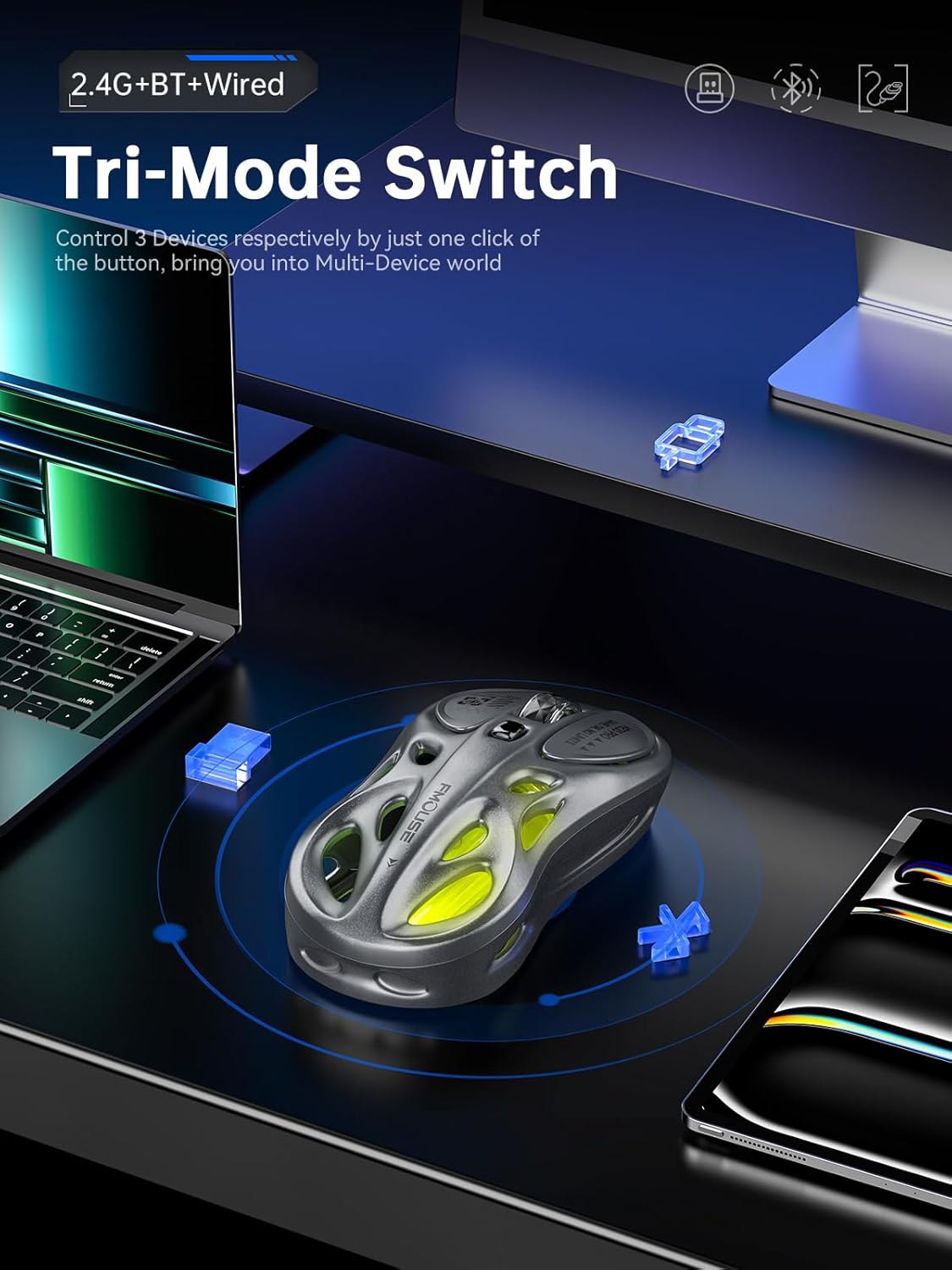
The FMOUSE M235 PRO supports three connection modes: Wired, 2.4G Wireless, and Bluetooth. You can seamlessly switch between up to 3 devices.
4.1 Langallinen yhteys
- Connect the Type-C end of the charging/data cable to the mouse.
- Liitä kaapelin USB-A-pää tietokoneen USB-porttiin.
- Ensure the mouse's ON/OFF switch is in the 'ON' position. The mouse will automatically switch to wired mode.
4.2 2.4G langaton yhteys
- Locate the 2.4G USB receiver in the package.
- Kytke 2.4G USB-vastaanotin tietokoneesi vapaaseen USB-porttiin.
- Flip the mouse's ON/OFF switch to 'ON'.
- Press the 'MODE' switch button on the bottom of the mouse until the indicator light turns vihreä. This indicates 2.4G mode.
- The mouse should now be connected.
4.3 Bluetooth-yhteys
- Flip the mouse's ON/OFF switch to 'ON'.
- Press the 'MODE' switch button on the bottom of the mouse until the indicator light turns sininen (for Bluetooth 1) or punainen (for Bluetooth 2).
- On your device (computer, laptop, iPad, etc.), go to Bluetooth settings and enable Bluetooth.
- Etsi new devices. The mouse should appear as "BT Mouse" or similar.
- Select the mouse to pair. The indicator light will stop flashing once successfully paired.
- To switch between two paired Bluetooth devices, press the 'MODE' switch button to toggle between blue and red indicator lights.
Video: Demonstrates the tri-mode connection process (wired, 2.4G, Bluetooth) for the FMOUSE M235 PRO Gaming Wireless Mouse. Shows how to plug in the data cable, insert the 2.4G USB receiver, and pair via Bluetooth with different devices.
5. Käyttöohjeet
5.1 DPI-säätö
The mouse features 5 adjustable DPI levels (800-4800) for precise control. Press the DPI button located on the top of the mouse to cycle through the available DPI settings. Each DPI level may correspond to a different RGB color indicator for easy identification.

Image: Illustration of 5-level adjustable DPI settings.
5.2 RGB-valaistuksen ohjaus
The mouse features customizable RGB backlighting. Long press the DPI button to switch between multiple lighting modes and effects. Experience dynamic RGB track synchronization.
5.3 Mukauttaminen ja makro-ohjelmointi
For advanced customization, including button remapping, macro programming, and detailed lighting effects, download the official FMOUSE software (FMOUSE Futura) from the official website. The software allows you to adjust various parameters to personalize your mouse for specific tasks or games.

Image: Screenshot of the FMOUSE software for macro programming and customization.
6. Lataus
The FMOUSE M235 PRO is equipped with a 500mAh rechargeable lithium-ion battery. Use the provided Type-C cable to charge the mouse.
- Connect the Type-C end of the cable to the mouse's charging port.
- Connect the USB-A end to a power source (e.g., computer USB port, USB wall adapter).
- The mouse's indicator light will typically show charging status (e.g., pulsing green).
- Täysi lataus kestää noin 2 tuntia.

Image: Type-C charging illustration.
7. Huolto
- Puhdistus: Puhdista hiiri pehmeällä, kuivalla liinalla. Vältä voimakkaiden kemikaalien tai hankaavien materiaalien käyttöä.
- Varastointi: Säilytä hiirtä viileässä, kuivassa paikassa, poissa suorasta auringonvalosta ja äärimmäisistä lämpötiloista.
- Akun hoito: Pidentääksesi akun käyttöikää, vältä hiiren akun usein toistuvaa tyhjentämistä kokonaan. Lataa se säännöllisesti.
- Vastaanottimen säilytys: When not in use, store the 2.4G USB receiver in a safe place to prevent loss. Note that there is no dedicated storage slot on the mouse itself.
8. Vianmääritys
| Antaa | Mahdollinen ratkaisu |
|---|---|
| Hiiri ei vastaa 2.4G-tilassa | Ensure the 2.4G USB receiver is securely plugged in. Check if the mouse is switched to 2.4G mode (green indicator light). Try plugging the receiver into a different USB port. |
| Mouse not pairing via Bluetooth | Ensure the mouse is in Bluetooth pairing mode (blue or red indicator light flashing). Make sure Bluetooth is enabled on your device and it's discoverable. Try restarting both the mouse and your device. |
| Viive tai ajoittainen yhteys | Reduce distance between mouse and receiver/device. Avoid interference from other wireless devices. Ensure the mouse is fully charged. |
| RGB-valo ei toimi | Ensure the mouse is powered on. Long press the DPI button to cycle through lighting modes. Check software settings if applicable. |
| DPI ei muutu | Press the DPI button firmly. If using custom software, ensure DPI settings are correctly configured and applied. |
| Hiiri ei lataudu | Verify the Type-C cable is properly connected to both the mouse and the power source. Try a different cable or USB port/charger. |
9. Tekniset tiedot
| Ominaisuus | Yksityiskohta |
|---|---|
| Mallinumero | M235 PRO |
| Yhteystekniikka | 2.4GHz USB / Dual Bluetooth / Wired (Type-C) |
| Liiketunnistustekniikka | Optical (PixArt PAW3212DB-TJDT chip) |
| DPI-tasot | 5 adjustable levels, up to 4800 DPI |
| Äänestysprosentti | 1000 Hz |
| Akku | 500 mAh:n litiumioniakku (ladattava) |
| Tuotteen paino | 6.7 unssia (noin 65 g) |
| Mitat | 4.7 x 2.4 x 1.3 tuumaa (119 x 62 x 33 mm) |
| Erikoisominaisuudet | RGB backlight, Customizable buttons, Macro programming, Ergonomic hollow design |
| Yhteensopivuus | Windows, Mac, Android (Laptops, iPads, MacBooks) |
10. Takuu ja tuki
For warranty information and technical support, please refer to the documentation included with your purchase or visit the official FMOUSE websivusto. Löydät yleensä sieltä ajurit, usein kysytyt kysymykset ja asiakaspalvelun yhteystiedot.
Official FMOUSE Websivusto: www.fmouse.com