
1. Johdanto
Thank you for choosing the Pisichen 24 inch Touch Screen Gaming Monitor. This manual provides essential information for setting up, operating, and maintaining your monitor. Please read it thoroughly before use to ensure optimal performance and safety.
This monitor features a 24-inch QHD (2560x1440P) display with a 165Hz refresh rate, 2ms response time, and 10-point projected capacitive touchscreen functionality. It supports FreeSync and HDR, offering a vibrant and responsive visual experience for both gaming and professional applications.

Image: The Pisichen 24-inch 2K 165Hz Touch Screen Monitor highlighting its key features like HDR, IPS Panel, and 10-point Touch.
2. Pakkauksen sisältö
Ennen asennuksen aloittamista varmista, että pakkauksessa on kaikki tarvittavat osat:
- Pisichen 24 inch Touch Screen Monitor
- Näytön jalusta (jalusta ja kaula)
- DP kaapeli
- HDMI kaapeli
- USB B Touch Cable
- USB CC kaapeli
- DC-virtalähde
- Käyttöopas (tämä asiakirja)
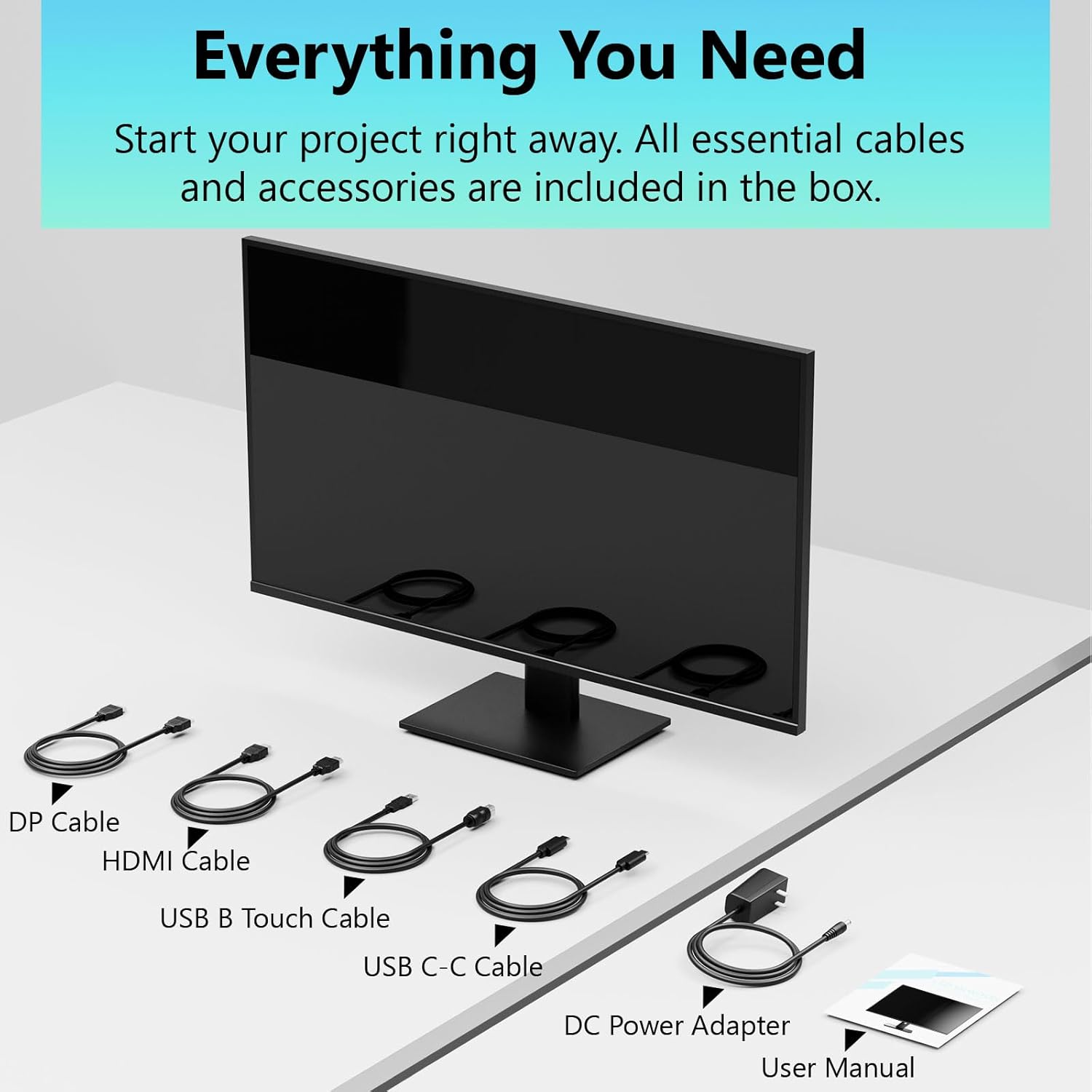
Image: All essential cables and accessories included in the box for the monitor setup.
3. Asennusohjeet
3.1 Jalustan kokoaminen
- Poista näyttö varovasti pakkauksestaan ja aseta se näyttö alaspäin pehmeälle ja puhtaalle alustalle naarmujen välttämiseksi.
- Kiinnitä jalustan kaula monitorin takapaneeliin.
- Kiinnitä jalustan pohja jalustan kaulaan mukana toimitetuilla ruuveilla.
- Varmista, että kaikki liitännät ovat tukevasti kiinni ennen näytön asettamista pystyasentoon.
3.2 VESA-kiinnityksen asennus (valinnainen)
This monitor supports VESA mounting. If you plan to use a VESA-compatible arm or wall mount, remove the stand and attach the VESA mount according to the mount's instructions. The VESA pattern is typically 75x75mm or 100x100mm (refer to specifications for exact details).
3.3 Laitteen yhdistäminen
Näytössä on useita liitäntävaihtoehtoja:
- HDMI: Liitä HDMI-kaapelin toinen pää näytön HDMI-porttiin ja toinen pää tietokoneen HDMI-lähtöön.
- DisplayPort (DP): Connect one end of the DP cable to the monitor's DP port and the other end to your computer's DP output.
- USB Type-C: For compatible devices, connect the USB C-C cable to the monitor's USB Type-C port and your device's USB Type-C port. This single cable can transmit video, data, and power (charging).
- USB Type-B (for Touch Functionality): To enable the touch screen feature, connect the USB B Touch Cable from the monitor's USB Type-B port to an available USB Type-A port on your computer.

Image: The monitor's rear panel with various connectivity options, including HDMI, DisplayPort, and USB-C ports.
3.4 Virtaliitäntä
Connect the DC Power Adapter to the monitor's power input port, then plug the adapter into a power outlet.
3.5 Initial Power On and Touch Compatibility
Press the power button on the monitor. The display should light up. If no image appears, ensure all cables are securely connected and the correct input source is selected on the monitor (via the OSD menu).
For touch functionality, ensure the USB B Touch Cable is connected to your computer. Touch compatibility may vary by operating system and device. Most Windows PCs support multi-touch. For Mac devices, single-touch click is generally supported, but multi-touch may require specific drivers or configurations. Game consoles (PS3/4/5, Xbox, Steam Deck) and some other devices (Fire TV, Apple products like iPhone/iPad) typically do not support touch functionality.

Image: A compatibility chart illustrating which devices support multi-touch or single-touch, and which devices do not support touch functionality with the monitor.
4. Käyttöohjeet
4.1 Virta päälle/pois
Käynnistä tai sammuta näyttö painamalla siinä olevaa virtapainiketta. Virran merkkivalo näyttää näytön tilan.
4.2 On-Screen Display (OSD) -valikko
The OSD menu allows you to adjust various monitor settings. Use the control buttons (usually located on the back or bottom of the monitor) to navigate the menu. Common menu options include:
- Kuva-asetukset: Kirkkaus, kontrasti, terävyys, värilämpötila, HDR-tila.
- Näyttöasetukset: Aspect Ratio, Input Source selection (HDMI, DP, USB-C).
- Peliasetukset: FreeSync, Response Time (Overdrive), Crosshair.
- Ääniasetukset: Volume (if internal speakers or audio output are present).
- Järjestelmäasetukset: Language, OSD Transparency, Reset to Factory Defaults.
4.3 Touch Screen Functionality
The monitor supports 10-point multi-touch, allowing for intuitive interaction directly on the screen. Ensure the USB B Touch Cable is connected to your computer for this feature to work.
- Yksi napautus: Equivalent to a left-click.
- Napauta ja pidä: Vastaa hiiren kakkospainikkeen napsautusta.
- Nipistys zoomaukseen: Lähennä tai loitonna kahdella sormella.
- Pyyhkäise: Navigate through content or scroll.

Image: A user interacting with the monitor's touch screen, highlighting its precision and responsiveness for creative tasks.
4.4 Ergonomiset säädöt
The monitor stand allows for tilt adjustments to achieve the most comfortable viewing and touch angle. Gently adjust the screen to your preferred position.
4.5 Silmienhoito-ominaisuudet
The monitor includes advanced eye-comfort features such as Flicker-Free technology and Low Bluelight mode to reduce eye strain during prolonged use. These settings can typically be adjusted within the OSD menu.

Image: Visual representation of the monitor's advanced eye-comfort features, including Flicker-Free and Low Bluelight technologies.
5. Huolto
5.1 Näytön puhdistaminen
- Sammuta aina näyttö ja irrota virtajohto pistorasiasta ennen puhdistamista.
- Käytä pehmeää, nukkaamatonta liinaa kevyesti dampvedellä tai miedolla, hankaamattomalla näytönpuhdistusaineella.
- Älä suihkuta puhdistusainetta suoraan näytölle. Levitä sitä ensin liinaan.
- Vältä bentseenin, ohentimien, ammoniakkipohjaisten puhdistusaineiden tai hankaavien materiaalien käyttöä, sillä ne voivat vahingoittaa näytön pintaa.
5.2 Varastointi
When storing the monitor for an extended period, ensure it is powered off, unplugged, and stored in a cool, dry place away from direct sunlight and extreme temperatures. Use the original packaging if available for best protection.
6. Vianmääritys
Jos kohtaat ongelmia näytön kanssa, noudata seuraavia yleisiä vianmääritysohjeita:
- Ei virtaa: Ensure the power adapter is securely connected to both the monitor and a working power outlet. Check if the power indicator light is on.
- Ei kuvaa/signaalia:
- Verify that the video cable (HDMI, DP, or USB-C) is securely connected to both the monitor and your computer.
- Varmista, että oikea tulolähde on valittu näytön OSD-valikosta.
- Tarkista tietokoneesi näyttöasetukset varmistaaksesi, että näyttö tunnistetaan ja se on käytössä.
- Ei kosketustoimintoa:
- Confirm the USB B Touch Cable is connected from the monitor to your computer.
- Check your computer's device manager to see if the touch screen driver is installed and functioning correctly.
- Refer to the "Initial Power On and Touch Compatibility" section for device-specific limitations.
- Välkkyvä tai vääristynyt kuva:
- Tarkista videokaapeli vaurioiden tai löysien liitäntöjen varalta.
- Kokeile eri videokaapelia tai -porttia.
- Säädä virkistystaajuutta tietokoneesi näyttöasetuksista.
- Kuolleet pikselit: Pieni määrä kirkkaita tai tummia pikseleitä on yleistä LCD/LED-tekniikassa, eikä niitä pidetä vikana, elleivät ne ylitä valmistajan määrityksiä.
Jos ongelma jatkuu näiden vaiheiden kokeilemisen jälkeen, ota yhteyttä asiakastukeen.
7. Tekniset tiedot
| Ominaisuus | Erittely |
|---|---|
| Merkki | Pisichen |
| Mallinumero | 24IN165HZ-QHD |
| Näytön koko | 23.8 tuumaa |
| Resoluutio | QHD Wide 1440p (2560 x 1440) |
| Kuvasuhde | 16:9 |
| Päivitystaajuus | 165 Hz |
| Vastausaika | 2 millisekuntia |
| Näytön tyyppi | LED IPS |
| Kirkkaus | 400 kandelaa (cd/m²) |
| Kontrastisuhde | 3000:1 |
| Viewkulma | 178 astetta |
| Värivalikoima | 99 % |
| Picture Quality Enhancement | HDR |
| Mukautuva synkronointi | FreeSync |
| Yhteystekniikka | DisplayPort, HDMI, USB Type-C, USB Type-B |
| Lisäominaisuudet | Tilt Adjustment, 10-Point Touchscreen |
| Tuotteen mitat (S x L x K) | 0.75" S x 21.5" L x 12.7" K |
| Tuotteen paino | 5.38 kiloa |
| Väri | Musta |
8. Takuutiedot
This product comes with a 1-year limited warranty from the date of purchase. The warranty covers manufacturing defects and workmanship under normal use. It does not cover damage caused by misuse, accidents, unauthorized modifications, or external factors. Please retain your proof of purchase for warranty claims.
9. Asiakastuki
For technical assistance, warranty claims, or further inquiries, please contact Pisichen customer support. You may find contact information on the official Pisichen websivustoltasi tai jälleenmyyjän kautta.
Lisätietoja ja resursseja on osoitteessa Pisichen Store on Amazon.