
1. Johdanto
The INAIR Wakey is a remote PC wake-up device designed to seamlessly integrate with your INAIR Spatial Computer ecosystem. This accessory allows you to power on your personal computer from any location with internet access, providing convenience and flexibility for remote work or access.

Image 1.1: The INAIR Wakey device connected to a laptop.
Keskeisiä ominaisuuksia ovat:
- Remote Wake-Up: Activate your PC from a distance using an internet connection.
- Saumaton integrointi: Works with INAIR Space software for unified control.
- Yritystason tietoturva: Utilizes encrypted communication for secure remote access.
2. Asennusohjeet
Follow these steps to set up your INAIR Wakey device:
- Kytke: Connect the INAIR Wakey device into an available USB-C port on your personal computer.
- Verkkoyhteys: Ensure both your PC (with INAIR Wakey connected) and your INAIR Spatial Computer are connected to the same network. This facilitates automatic pairing.
- Ohjelmiston asennus: Verify that the latest version of INAIR Space software is installed on your INAIR Spatial Computer. This is crucial for optimal performance and security.
- Tilin kirjautuminen: Log in with your INAIR account on both your PC (via INAIR Space software) and your INAIR Spatial Computer. This enables the remote control functionality.

Image 2.1: Connecting the INAIR Wakey to your PC.
The device is designed for simple setup and should automatically pair once connected to the same network and logged into your INAIR account.
3. Käyttöohjeet
Once setup is complete, you can remotely wake up and access your PC using your INAIR Spatial Computer:
- Launch INAIR Space: On your INAIR Spatial Computer, open the INAIR Space application.
- Select PC: Within the INAIR Space interface, locate and select your connected PC.
- Initiate Wake-Up: Follow the on-screen prompts within INAIR Space to send the wake-up command to your PC. Your PC will power on and become accessible.
- Etäkäyttö: After your PC is awake, you can proceed with remote streaming and control through the INAIR Space software, enjoying a seamless experience regardless of your physical location.
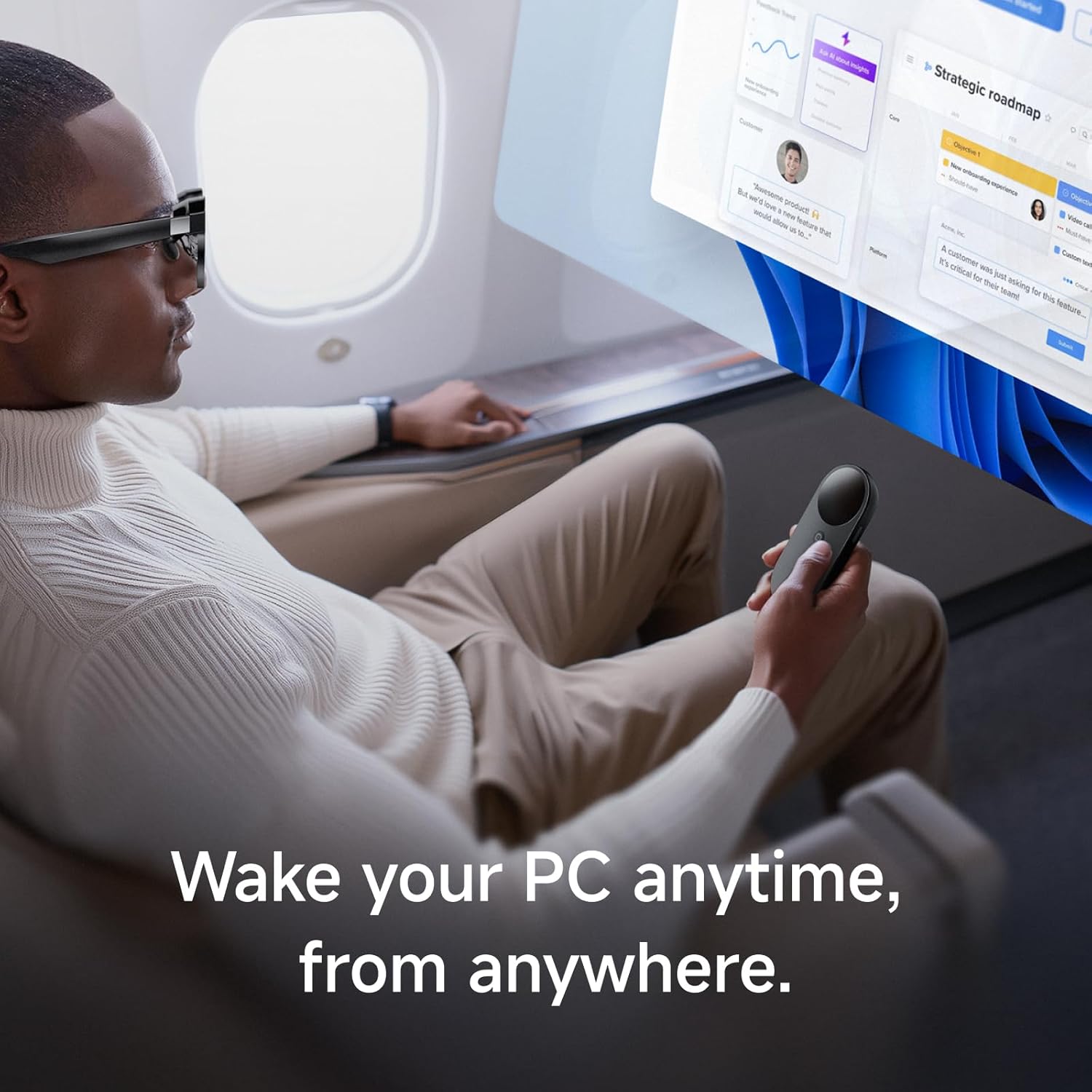
Image 3.1: Remote PC access from a distance.

Image 3.2: Interacting with INAIR Space software.
4. Huolto
The INAIR Wakey device requires minimal maintenance to ensure optimal performance.
- Puhdistus: Gently wipe the device with a dry, soft cloth to remove dust or smudges. Avoid using liquid cleaners or abrasive materials.
- Ohjelmistopäivitykset: Regularly ensure that your INAIR Space software on both your PC and Spatial Computer is updated to the latest version. This ensures compatibility, security, and access to new features.
- Varastointi: Kun laitetta ei käytetä, säilytä sitä viileässä, kuivassa paikassa suojassa suoralta auringonvalolta ja äärimmäisiltä lämpötiloilta.
5. Vianmääritys
If you encounter issues with your INAIR Wakey, consider the following troubleshooting steps:
- PC Not Waking Up:
- Ensure the INAIR Wakey is securely plugged into a USB-C port on your PC.
- Verify that both your PC and INAIR Spatial Computer are connected to the same network (Wi-Fi or Ethernet).
- Confirm that the INAIR Space software is running on your PC and you are logged into your INAIR account.
- Check for any power management settings on your PC that might prevent wake-on-LAN or USB device wake-up.
- Laite ei muodosta pariliitosta:
- Restart both your PC and your INAIR Spatial Computer.
- Ensure your INAIR Space software is up-to-date on both devices.
- Verify that you are logged into the same INAIR account on both devices.
- Yhteysongelmat:
- Check your internet connection on both devices.
- If using Wi-Fi, ensure a strong signal.
Jos nämä ohjeet eivät ratkaise ongelmaa, katso lisätietoja Tuki-osiosta.
6. Tekniset tiedot
| Ominaisuus | Yksityiskohta |
|---|---|
| Tuotteen nimi | INAIR Wakey |
| Mallin nimi | INAIR Wakey |
| Merkki | INAIR |
| Väri | Musta |
| Yhteystekniikka | Wi-Fi |
| Yhteensopivat laitteet | Henkilökohtainen tietokone |
| Erikoisominaisuus | Kevyt |
| Painike Määrä | 1 |
| Ohjaimen tyyppi | Painikkeiden ohjaus |
| Käyttöliittymä | Tyyppi-C |
| Voitage/Nykyinen | 5V-1A |

Image 6.1: INAIR Wakey device dimensions.
7. Takuutiedot
The INAIR Wakey device comes with a 1 vuoden rajoitettu takuu ostopäivästä lukien. Tämä takuu kattaa valmistusvirheet ja normaalissa käytössä esiintyvät toimintahäiriöt. Se ei kata väärinkäytöstä, onnettomuuksista, luvattomista muutoksista tai virheellisestä asennuksesta aiheutuneita vahinkoja.
For warranty claims or detailed terms and conditions, please retain your proof of purchase and contact INAIR customer support.
8. Tukea
For additional assistance, technical support, or to provide feedback, please visit the official INAIR websivustolla tai ota yhteyttä asiakastukitiimiimme.
- Online-tuki: Vierailla the INAIR Store on Amazon usein kysyttyihin kysymyksiin ja tuotetietoihin.
- Asiakaspalvelu: Refer to your product packaging or the INAIR websivustolta tarkempia yhteystietoja varten.