
1. Johdanto
This manual provides detailed instructions for the WIWU A16 3-in-1 Magnetic Detachable Keyboard Case. It covers product features, setup, operation, maintenance, troubleshooting, and technical specifications to ensure optimal use of your device.
1.1. Yhteensopivuus
The WIWU A16 Keyboard Case is designed for the following iPad models:
- iPad 11th Gen (A16)
- iPad 10th Gen (10.9-inch)
- iPad Air 11 (M2/M3)
- iPad Pro 11 inch (4th/3rd/2nd/1st Gen)
- iPad Air 5th/4th Gen (10.9-inch)
Please verify your iPad model number before use. Compatible model numbers include: A3354, A3355, A3356, A2696, A2757, A2777, A3162, A3266, A3267, A3270, A2902, A2903, A2904, A2435, A2759, A2761, A2762, A2377, A2459, A2301, A2460, A2228, A2068, A2230, A2231, A1980, A2013, A1934, A1979, A2588, A2589, A2591, A2316, A2324, A2325, A2072.

Figure 1: Compatible iPad Models. Ensure your iPad model matches the listed compatible devices for proper fit and function.
2. Tuotteen ominaisuudet
- 3-in-1 Magnetic Detachable Design: The keyboard and case can be used together or separately, offering versatility for typing, viewing, or tablet-only use. Strong magnets ensure stable attachment.
- Säädettävä teline: The case features a foldable stand that adjusts from 0° to 170°, providing multiple viewkulmia erilaisiin aktiviteetteihin.
- Ohut ja kevyt: Designed for portability, the keyboard is ultra-thin (0.25 inch), making it easy to carry.
- Bluetooth 5.3 -yhteydet: Ensures instant, lag-free pairing and stable connection with your iPad.
- Silent Backlit Keys: Scissor-switch keys provide a comfortable and responsive typing experience with quiet 1mm travel. Features 7 RGB colors with adjustable brightness for use in any lighting condition.
- Pitkä akun käyttöikä: USB-C rechargeable battery provides up to 100 hours of use on a 2-hour charge.
- Precise Multi-Touch Trackpad: Supports 18 intuitive gestures and palm rejection, enhancing navigation and productivity on iPadOS.
- iPad OS Shortcuts: Integrated multimedia shortcuts for quick access to functions like screenshots and desktop return.
- Kestävä suojaus: Made from PU Leather with full-edge coverage and a honeycomb structure back panel to protect your tablet from drops and scratches.

Figure 2: 3-in-1 Magnetic Detachable Design. The keyboard and case can be used together or separately.
Video 1: Magnetic Detachable Design. This video demonstrates the magnetic attachment and detachment of the keyboard and case components.

Figure 3: Keyboard Features. Illustrates the backlit keys, scissor-switch design, and iPad OS shortcuts.
3. Asennus
3.1. Attaching the iPad to the Case
Align your iPad with the protective case. The case is designed for a snug fit, ensuring all ports and buttons are accessible. Gently press the iPad into the case until it is securely seated.
3.2. Näppäimistön yhdistäminen Bluetoothin kautta
- Varmista, että näppäimistö on päällä ja että akku on riittävän ladattu.
- Locate the power switch on the keyboard and slide it to the "ON" position. The Bluetooth indicator light will illuminate.
- Siirry iPadillasi osoitteeseen Asetukset > Bluetooth ja kytke Bluetooth päälle.
- The iPad will search for nearby Bluetooth devices. Look for "MK-005" in the list of "Other Devices" and tap on it.
- A Bluetooth Pairing Request pop-up will appear. Tap "Pair" to confirm the connection.
- Once connected, the Bluetooth indicator light on the keyboard will stop flashing and remain solid, and "MK-005" will appear under "My Devices" as "Connected".
Video 2: Connecting Bluetooth and Trackpad. This video demonstrates the steps to connect the keyboard via Bluetooth and activate the trackpad function.

Figure 4: Bluetooth Connection and Touchpad Activation. Visual guide for connecting the keyboard and enabling the trackpad.
4. Käyttöohjeet
4.1. Using the Keyboard and Trackpad
After successful Bluetooth connection, you can use the keyboard for typing and the integrated trackpad for navigation. To activate the trackpad, press the "Fn" key simultaneously with the Bluetooth icon key (often shared with the 'Z' key or a dedicated icon).
4.2. Trackpad Gestures (for Systems Above iOS 14.5)
- Napsauta: Press with one finger until it feels slightly pressed.
- Click and Hold: Paina ja pidä painettuna yhdellä sormella.
- Drag and Move: Napauta ja pidä kohdetta painettuna ja siirrä se sitten pyyhkäisemällä sormella ohjauslevyn yli.
- Herätys iPad: Napsauta kosketuslevyä tai paina mitä tahansa näppäimistön näppäintä.
- Avaa Dock: Swipe the pointer with one finger from the bottom of the screen.
- Back to Homescreen: Swipe the pointer with one finger from the bottom of the screen. After the dock appears, swipe the pointer from the bottom of the screen again.
- Show Side Dock: Swipe the pointer across the right edge of the screen with one finger. To hide the side dock, swipe right again.
- Avaa Ohjauskeskus: Napsauta kosketuslevyä tai paina mitä tahansa näppäimistön näppäintä.
- Avaa ilmoituskeskus: Move the pointer with one finger to select the status icon at the top left, and click, or use one finger to move the pointer near the middle of the top of the screen.

Figure 5: Trackpad Gestures. Visual guide for various multi-touch gestures supported by the trackpad.
4.3. Taustavalon säätäminen
The keyboard features 7 RGB backlight colors and multiple brightness levels. Use the dedicated backlight keys (often indicated by a light bulb icon) to cycle through colors and adjust brightness to your preference.
Video 3: Backlight Demonstration. A short video showcasing the keyboard's backlit keys and color options.
4.4. Säädettävän jalustan käyttö
The case's foldable stand allows for flexible viewing angles. Adjust the stand to any angle between 0° and 170° to suit your activity, whether typing, watching videos, or drawing.

Figure 6: Adjustable Stand and Portability. Demonstrates the case's adjustable viewing angles and slim profile.
5. Huolto
5.1. Näppäimistön lataaminen
The keyboard is equipped with a rechargeable Lithium Ion battery. Use the provided USB-C cable to charge the keyboard. Connect one end of the USB-C cable to the charging port on the keyboard and the other end to a compatible USB power adapter (not included). A full charge takes approximately 2 hours and provides up to 100 hours of continuous use.
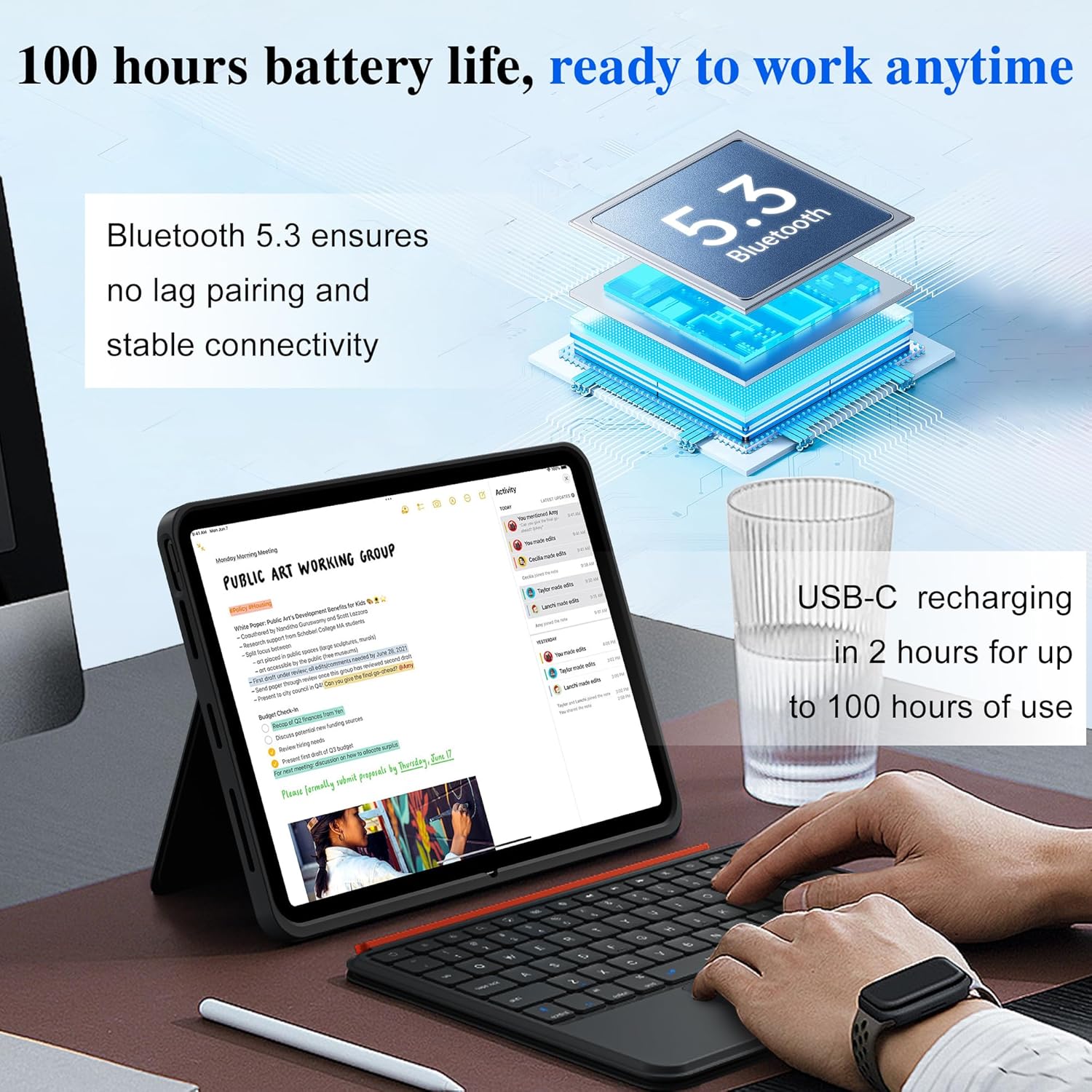
Figure 7: Charging and Battery Life. Illustrates the keyboard's USB-C charging port and long battery life.
5.2. Puhdistus
Puhdista näppäimistö ja kotelo pehmeällä, damp cloth. Avoid using harsh chemicals or abrasive materials, as these may damage the surfaces. Ensure the keyboard is powered off and disconnected from any power source before cleaning.
6. Vianmääritys
- Näppäimistö ei muodosta yhteyttä:
- Varmista, että näppäimistö on päällä ja että akku on riittävän ladattu.
- Varmista, että Bluetooth on käytössä iPadissasi.
- Forget "MK-005" from your iPad's Bluetooth device list and attempt to re-pair.
- Käynnistä sekä iPad että näppäimistö uudelleen.
- Kosketuslevy ei vastaa:
- Varmista, että näppäimistö on yhdistetty Bluetoothin kautta.
- Activate the trackpad by pressing "Fn" + Bluetooth icon key.
- Tarkista iPadOS-asetuksista ohjauslevyn toiminnot.
- Näppäimet eivät vastaa:
- Ensure the keyboard is connected and charged.
- Test individual keys. If only some keys are unresponsive, contact support.
- Taustavalo ei toimi:
- Press the backlight key to cycle through brightness levels and colors.
- Varmista, että näppäimistö on ladattu.
7. Tekniset tiedot
| Ominaisuus | Yksityiskohta |
|---|---|
| Mallinumero | MK-005 |
| Yhteystekniikka | Bluetooth 5.3 |
| Näppäimistön kuvaus | Multi-Functional, Scissor-Switch, Backlit |
| Erikoisominaisuus | Integrated Trackpad, Adjustable Stand, Detachable |
| Materiaali | PU Leather (case) |
| Väri | Musta |
| Akun tyyppi | 1 litiumioniakku (mukana) |
| Latausaika | Noin 2 tuntia |
| Akun kesto | Jopa 100 tuntia käyttöaikaa |
| Tuotteen mitat | 11.22 x 8.66 x 1.02 tuumaa |
| Tuotteen paino | 2.22 kiloa |
| Mukana olevat komponentit | USB-kaapeli |
8. Takuu ja tuki
For warranty information and customer support, please refer to the product packaging or visit the official WIWU websivusto. Säilytä ostokuittisi mahdollisten takuuvaatimusten varalta.
For additional assistance, you may contact WIWU customer service directly through their Amazon Store.