
1. Johdanto
Welcome to the instruction manual for your Jectse WiFi 6 4G/5G CPE LTE Router. This document provides essential information on how to set up, operate, maintain, and troubleshoot your device. Please read this manual carefully before using the product to ensure optimal performance and longevity.
The Jectse WiFi 6 Router is designed to provide high-speed internet connectivity by converting a 4G LTE signal into a Wi-Fi hotspot, supporting multiple devices simultaneously. Its robust design with four antennas ensures stable and wide coverage.
2. Tuote ohiview
2.1 Tärkeimmät ominaisuudet
- 4G LTE -tuki: Compatible with multiple 4G LTE bands, including FDD B1, B3, B5, B7, B8, B20, TDD B38, B40, B41, and WCDMA B1, B5, B8. This ensures versatile connectivity across various networks.
- Nopeat nopeudet: Experience 4G download speeds up to 150 Mbps and upload speeds up to 50 Mbps. Wireless transfer rates reach up to 300 Mbps for smooth streaming, gaming, and browsing.
- Helppo asennus: Simply insert a standard SIM card to transform the 4G LTE signal into a Wi-Fi hotspot. Enjoy immediate internet access with minimal configuration.
- Suuri laitteen kapasiteetti: Connect up to 32 devices simultaneously, including smartphones, tablets, and PCs, within a maximum coverage area of 300 square meters.
- 4-Antenna Design: Equipped with four antennas for enhanced signal coverage, faster network speeds, and stable connectivity throughout your space.
2.2 Pakkauksen sisältö
Valitse seuraavat kohdat rastittamalla ruutu:
- 1 x Jectse WiFi 6 4G/5G CPE LTE Router
- 1 x virtalähde
- 1 x Ethernet-kaapeli
- 1 x USB-kaapeli
- 1 x Käyttöohje (tämä asiakirja)

Image: Jectse WiFi 6 Router with its power adapter, Ethernet cable, and USB cable.
3. Asennusohjeet
Follow these steps to set up your Jectse WiFi 6 Router:
- Pura reititin pakkauksesta: Poista reititin ja kaikki lisävarusteet varovasti pakkauksesta.
- Aseta SIM-kortti: Locate the SIM card slot on the side of the router. Insert a standard-sized 4G LTE SIM card into the slot until it clicks into place. Ensure the SIM card is correctly oriented as indicated by the diagram near the slot.

Kuva: Sivu view of the router highlighting the SIM card slot and USB/WAN/LAN ports.
- Liitä virta: Connect the power adapter to the router's power input port and then plug the adapter into a wall outlet. The router will power on automatically.
- Virta päälle: Wait for the router's indicator lights to stabilize. The Wi-Fi and network status lights should indicate a successful connection.
- Optional: Wired Connection: If you prefer a wired connection, connect one end of the Ethernet cable to the WAN/LAN port on the router and the other end to your computer or another network device.
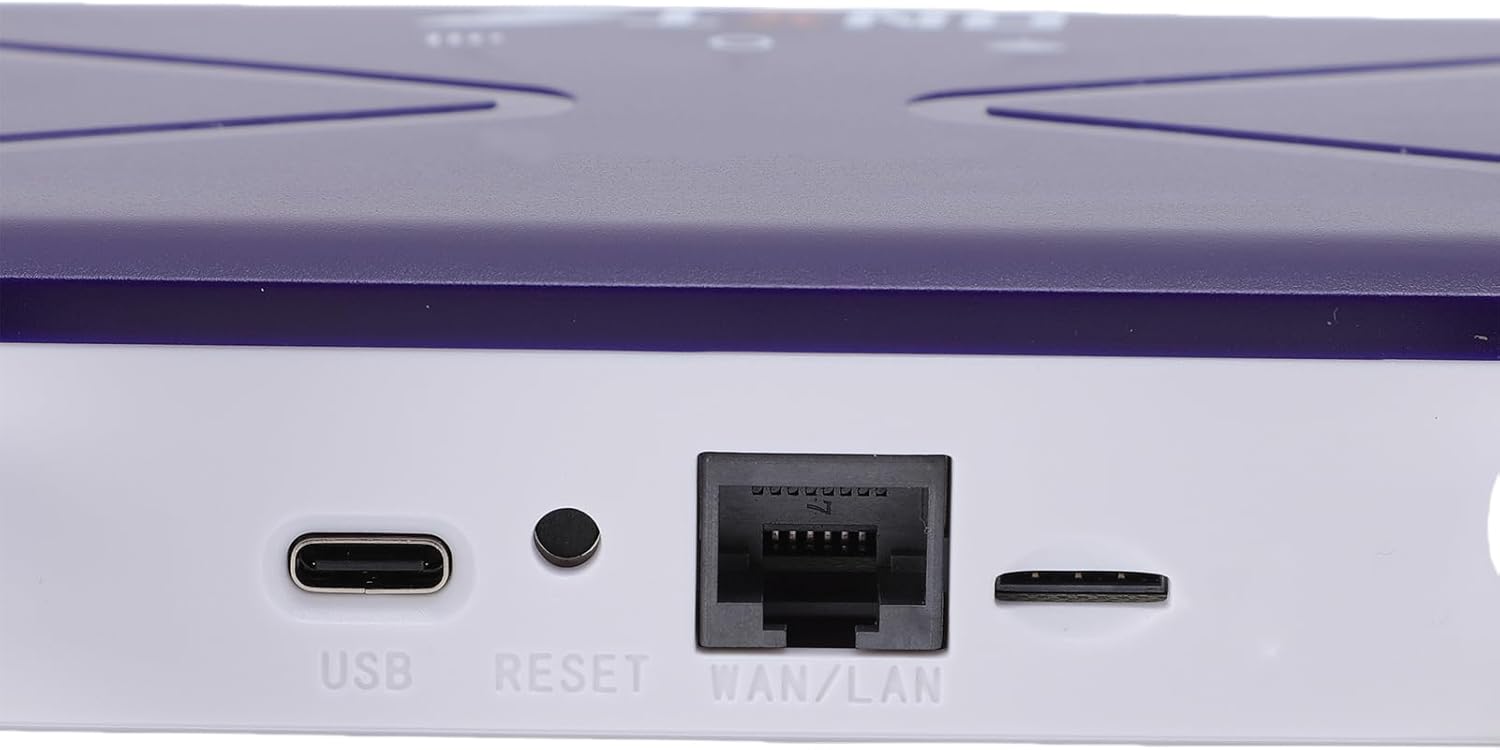
Image: Close-up of the router's rear panel showing the USB port, Reset button, and WAN/LAN port.
4. Käyttöohjeet
4.1 Wi-Fi-yhteyden muodostaminen
Laitteiden yhdistäminen reitittimen Wi-Fi-verkkoon:
- Avaa laitteellasi (älypuhelin, tabletti, kannettava tietokone) Wi-Fi-asetukset.
- Etsi available Wi-Fi networks. The router's default Wi-Fi network name (SSID) and password (Wi-Fi Key) are typically printed on a label on the bottom of the router.
- Select the router's SSID from the list.
- Enter the Wi-Fi Key when prompted. The default Wi-Fi Key is usually 1234567890.
- Kun yhteys on muodostettu, laitteellasi pitäisi olla internet-yhteys.

Image: Bottom label of the router displaying default Wi-Fi Key and Web IP-osoite.
4.2 Reitittimen asetusten käyttö
To manage your router settings, such as changing the Wi-Fi name or password, or configuring advanced network options:
- Connect your device to the router's Wi-Fi network or via an Ethernet cable.
- Avaa a web selain (esim. Chrome, Firefox, Edge).
- In the address bar, type the default Web IP-osoite: 192.168.100.1 ja paina Enter.
- You will be prompted for a username and password. Refer to the label on the bottom of your router for default login credentials.
- Once logged in, you can customize your network settings.
4.3 Network Coverage
The router provides Wi-Fi wireless coverage and supports network port wired output for various environments.

Image: Diagram showing the router's Wi-Fi coverage and wired output capabilities.
5. Huolto
To ensure the optimal performance and longevity of your router, consider the following maintenance tips:
- Sijoitus: Aseta reititin keskeiselle paikalle, kauas esteistä, suurista metalliesineistä ja muista elektronisista laitteista, jotka voivat aiheuttaa häiriöitä.
- Ilmanvaihto: Ensure the router has adequate ventilation. Do not cover the ventilation holes or place it in an enclosed space.
- Puhdistus: Gently clean the router's exterior with a soft, dry cloth. Avoid using liquid cleaners or aerosols.
- Laiteohjelmistopäivitykset: Tarkista säännöllisesti valmistajan websivusto laiteohjelmistopäivityksiä varten. Reitittimen laiteohjelmiston pitäminen ajan tasalla voi parantaa suorituskykyä ja tietoturvaa sekä lisätä uusia ominaisuuksia.
- Tehosykli: If you experience minor network issues, try power cycling the router by unplugging it from the power outlet for 10-15 seconds and then plugging it back in.
6. Vianmääritys
Jos reitittimessäsi on ongelmia, katso seuraavat yleiset ongelmat ja ratkaisut:
- Ei Internet-yhteyttä:
- Tarkista, onko SIM-kortti asetettu oikein ja aktivoitu.
- Verify that the router's network indicator lights are stable and show a connection.
- Varmista, että SIM-kortillasi on aktiivinen datapaketti.
- Try power cycling the router.
- Hitaat Wi-Fi-nopeudet:
- Paranna signaalin voimakkuutta siirtymällä lähemmäs reititintä.
- Vähennä kytkettyjen laitteiden määrää, jos monet käyttävät aktiivisesti kaistanleveyttä.
- Tarkista muiden elektronisten laitteiden aiheuttama häiriö.
- Käynnistä reititin uudelleen.
- Ei voi muodostaa yhteyttä Wi-Fi-verkkoon:
- Ensure you are entering the correct Wi-Fi password (Wi-Fi Key).
- Check if the Wi-Fi function on the router is enabled (refer to router settings via web käyttöliittymä).
- Käynnistä uudelleen sekä reititin että yhdistävä laite.
- Reititin ei vastaa:
- Perform a hard reset by pressing and holding the 'RESET' button (located near the WAN/LAN port) with a pin for about 10 seconds until the lights flash. This will restore the router to factory default settings, including the default Wi-Fi name and password.
7. Tekniset tiedot
| Ominaisuus | Erittely |
|---|---|
| Mallinumero | Jectseak28xtdzqf |
| Wi-Fi-standardin | 802.11b/g/n |
| Langaton taajuus | 2.4 GHz |
| 4G LTE -kaistat (FDD) | B1, B3, B5, B7, B8, B20 |
| 4G LTE -kaistat (TDD) | B38, B40, B41 |
| WCDMA-kaistat | B1, B5, B8 |
| Suurin latausnopeus | 150 Mbps |
| Suurin latausnopeus | 50 Mbps |
| Langaton siirtonopeus | 300 Mbps |
| SIM-korttipaikka | Normaali SIM |
| Antennit | 4 |
| Sisäänrakennettu palomuuri | Kyllä |
| Kytkettyjen laitteiden enimmäismäärä | 32 |
| Peittoalue | Jopa 300 m² |
| Valmistaja | Jectse |
| Alkuperämaa | Kiina |
8. Takuu ja tuki
8.1 Takuutiedot
This Jectse WiFi 6 4G/5G CPE LTE Router comes with a 2 vuoden valmistajan takuu ostopäivästä lukien. Tämä takuu kattaa materiaali- ja valmistusvirheet normaalissa käytössä. Säilytä ostokuitti takuuvaatimuksia varten.
Takuu ei kata vahinkoja, jotka johtuvat väärinkäytöstä, onnettomuuksista, luvattomista muutoksista tai ulkoisista tekijöistä, kuten virtapiikeistä.
8.2 Asiakastuki
For technical assistance, troubleshooting beyond this manual, or warranty inquiries, please contact your retailer or the Jectse customer support team. Refer to the contact information provided with your purchase or visit the official Jectse webtukiresurssien sivusto.