
1. Johdanto
Thank you for choosing the ZEUSLAP Z18W Dual Screen Portable Monitor. This device is designed to enhance your productivity and multimedia experience by providing two additional 18.5-inch displays for your compatible devices. This manual provides essential information for setting up, operating, and maintaining your monitor.
2. Tuote ohiview
2.1 Tärkeimmät ominaisuudet
- Dual 18.5-inch Full HD IPS Displays: Nauti eloisista väreistä ja laajasta viewing angles with 1920x1080 resolution on each screen.
- 120Hz virkistystaajuus: Experience smooth visuals, ideal for gaming and fast-paced multimedia.
- Type-C Connectivity: Single cable solution for power and video transmission with compatible devices.
- 100 % sRGB-värialue: Varmistaa tarkan ja täyteläisen värien toiston.
- 300 cd/m² Kirkkaus: Tarjoaa selkeän näkyvyyden erilaisissa valaistusolosuhteissa.
- Kosketusnäytön toiminnot: Interact directly with the display for intuitive control.
- Laaja yhteensopivuus: Connects to Laptops, Desktops, Gaming Consoles, and Smartphones.
2.2 Pakkauksen sisältö
Tarkista pakkauksesta seuraavat tuotteet:
- ZEUSLAP Z18W Dual Screen Portable Monitor
- USB-C to USB-C Cable (for video and power)
- USB-A to USB-C Power Cable (for additional power if needed)
- Käyttöopas

This image shows the ZEUSLAP Z18W dual portable monitor set up next to a laptop, demonstrating its extended display capabilities for enhanced productivity.
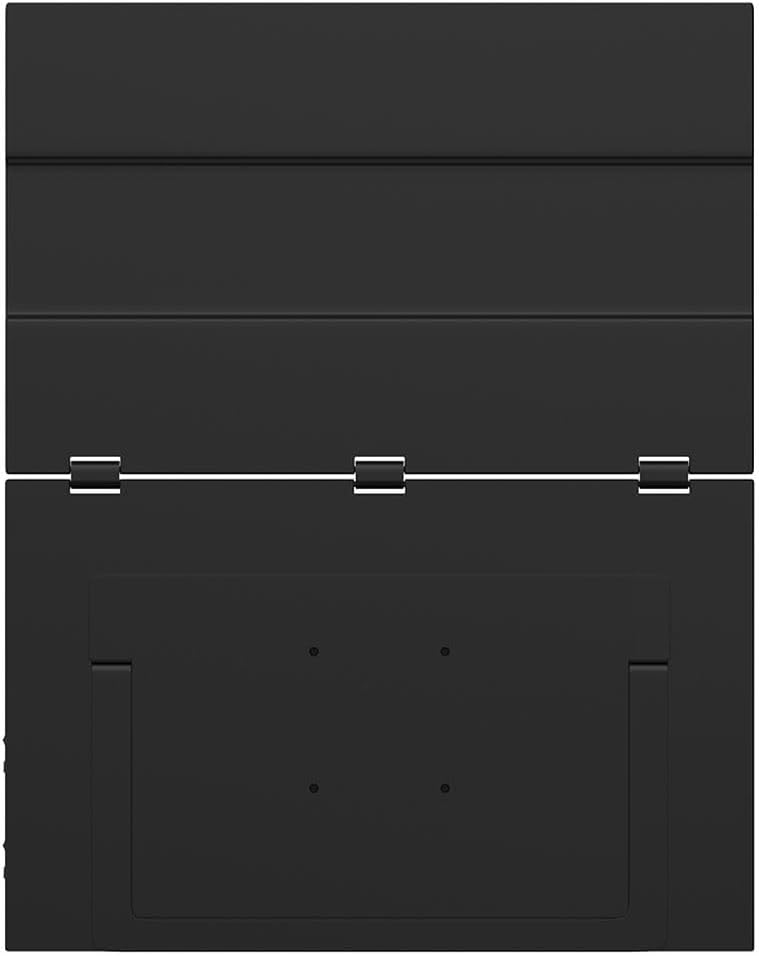
Selkä view of the ZEUSLAP Z18W monitor highlights its robust hinge design and integrated stand, allowing for flexible positioning and stability.
3. Asennus
3.1 Laitteen yhdistäminen
The ZEUSLAP Z18W monitor supports various connection methods. Ensure your device has the necessary ports.
- USB-C (täysi ominaisuus): If your laptop, smartphone, or gaming console has a full-featured USB-C port (supporting DisplayPort Alternate Mode and power delivery), connect the monitor using the provided USB-C to USB-C cable. This single cable can transmit video, audio, and power to the monitor.
- USB-C (Power Only) + HDMI (Video): If your device's USB-C port does not support video output, or if you are connecting to a device with an HDMI port, you will need two cables:
- Connect an HDMI cable (not included) from your device to the monitor's HDMI input.
- Connect the provided USB-A to USB-C power cable from a USB power source (e.g., laptop USB port, wall adapter) to the monitor's USB-C power input.
3.2 Virran kytkeminen päälle/pois
- Virta päälle: Once connected to a compatible device and receiving power, the monitor should automatically power on. If not, press the Power button located on the side of the monitor.
- Virta pois: Press and hold the Power button for a few seconds until the display turns off. Disconnect the cables when not in use.
4. Käyttöohjeet
4.1 On-Screen Display (OSD) -valikko
The OSD menu allows you to adjust various display settings. The monitor typically features a joystick or a set of buttons for navigation.
- OSD-valikon käyttö: Press the OSD button (or push the joystick) to open the menu.
- Navigointi: Use the joystick or directional buttons to move through menu options.
- Valinta: Press the OSD button (or push the joystick in) to select an option.
- Poistu: Navigate to the 'Exit' option or press the 'Back' button to close the OSD menu.
Common OSD settings include Brightness, Contrast, Color Temperature, Input Source, Aspect Ratio, and Volume.
4.2 Näyttötilat
Kun olet yhteydessä tietokoneeseen, voit määrittää näyttötilan käyttöjärjestelmäsi näyttöasetuksista:
- Laajenna tila: Each monitor displays a separate desktop, allowing for more screen space and multitasking.
- Kopiointitila: All monitors display the same content, useful for presentations or sharing your screen.
4.3 Touch Screen Functionality
The ZEUSLAP Z18W features a touch screen. For touch functionality to work, ensure your device supports touch input over the connected interface (typically USB-C) and that the necessary drivers are installed (usually automatically by the operating system).
- Yksi kosketus: Tap to select or open items.
- Monikosketuseleet: Use gestures like pinch-to-zoom, two-finger scroll, etc., as supported by your operating system.
5. Huolto
5.1 Näytön puhdistaminen
- Sammuta aina näyttö ja irrota kaikki kaapelit ennen puhdistamista.
- Käytä pehmeää, nukkaamatonta liinaa kevyesti dampvedellä tai hankaamattomalla näytönpuhdistusaineella.
- Älä suihkuta puhdistusainetta suoraan näytölle.
- Vältä alkoholin, ammoniakin tai hankaavien puhdistusaineiden käyttöä, sillä ne voivat vahingoittaa näytön pintaa.
5.2 Varastointi
- Säilytä näyttöä viileässä, kuivassa paikassa, poissa suorasta auringonvalosta ja äärimmäisistä lämpötiloista.
- Use the original packaging or a protective case to prevent damage during transport or storage.
6. Vianmääritys
| Ongelma | Mahdollinen syy | Ratkaisu |
|---|---|---|
| Ei näyttöä / "Ei signaalia" -viesti |
|
|
| Monitor powers on but no image |
|
|
| Kosketusnäyttö ei vastaa |
|
|
| Välkkyvä tai vääristynyt kuva |
|
|
7. Tekniset tiedot
| Ominaisuus | Yksityiskohta |
|---|---|
| Mallin nimi | Z18W |
| Näytön koko | 2 x 18.5 tuumaa |
| Resoluutio | 1920 x 1080 (Full HD) |
| Päivitystaajuus | 120 Hz |
| Paneelin tyyppi | IPS |
| Värivalikoima | 100 % sRGB |
| Kirkkaus | 300 cd/m² |
| Yhteydet | USB-C, USB |
| Erikoisominaisuudet | Dual Screen, High Refresh Rate, Type-C Connection, Touch Screen |
| Yhteensopivat laitteet | Laptop, Desktop, Gaming Console, Smartphone |
8. Takuu ja tuki
The ZEUSLAP Z18W Dual Screen Portable Monitor comes with a standard manufacturer's warranty. Please refer to the warranty card included in your package for specific terms and conditions, including the warranty period and coverage details.
For technical support, troubleshooting assistance, or warranty claims, please contact the retailer where you purchased the product or visit the official ZEUSLAP websivustolta asiakaspalvelun yhteystiedot.