
1. Johdanto
Thank you for choosing the Zeuslap Z13KT 13.3-inch Portable Touchscreen Monitor. This device is designed to enhance your productivity and entertainment experience with its high-resolution 2K IPS display, 100% sRGB color gamut, and responsive touch functionality. This manual provides essential information for the safe and efficient use of your monitor, including setup, operation, maintenance, and troubleshooting.
2. Turvallisuustiedot
- Lue kaikki ohjeet huolellisesti ennen monitorin käyttöä.
- Älä altista näyttöä sateelle, kosteudelle tai äärimmäisille lämpötiloille.
- Vältä näytön sijoittamista lämmönlähteiden lähelle tai suoraan auringonvaloon.
- Käytä ainoastaan valmistajan toimittamaa tai suosittelemaa virtalähdettä ja kaapeleita.
- Älä yritä purkaa tai korjata näyttöä itse. Jätä kaikki huoltotyöt pätevän henkilöstön tehtäväksi.
- Clean the monitor with a soft, dry cloth. Avoid using liquid cleaners or aerosols.
- Pidä näyttö poissa voimakkaista magneettikentistä.
3. Pakkauksen sisältö
Tarkista pakkauksen sisältö purkamisen jälkeen. Jos jokin puuttuu tai on vaurioitunut, ota yhteyttä jälleenmyyjään.
- Zeuslap Z13KT Portable Monitor
- USB-C–USB-C-kaapeli (virtaa ja video-/kosketustoimintoja varten)
- Mini HDMI to HDMI Cable (for video)
- USB-A–USB-C-kaapeli (virtaa varten)
- Virtalähde (jos mukana)
- Suojakansi/jalusta
- Käyttöopas (tämä asiakirja)
4. Tuote ohiview
Tutustu näytön osiin ja portteihin.
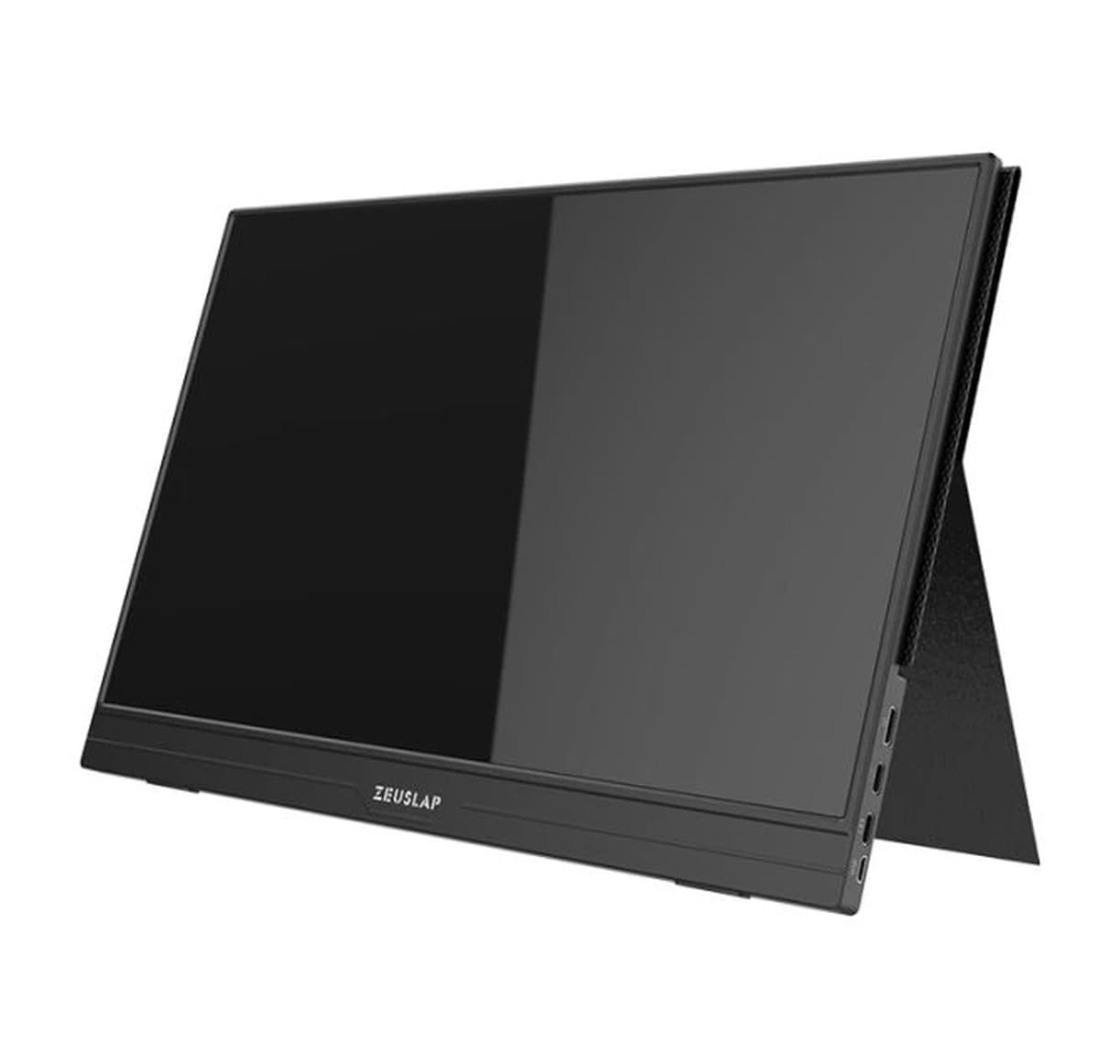
Kuva 4.1: Edessä view of the Zeuslap Z13KT portable monitor, showcasing its slim design and screen.
4.1. Näytön osat
- 13.3-inch 2K IPS Touchscreen: Main display area with touch input capability.
- Virtapainike: Turns the monitor on/off and can be used to access the OSD menu.
- Valikko-/navigointipainikkeet: Näyttövalikon (OSD) navigointiin.
- Kaiuttimet: Integroitu äänilähtö.
4.2. Käytettävissä olevat portit
- USB-C Port (Full-featured): For power, video signal, and touch data transmission from compatible devices (e.g., laptops, smartphones).
- USB-C Port (Power Only): For connecting to an external power adapter to supply power to the monitor.
- Mini HDMI-portti: For video signal input from devices like gaming consoles, cameras, or older laptops.
- 3.5 mm ääniliitäntä: Ulkoisten kuulokkeiden tai kaiuttimien kytkemiseen.
5. Asennus
Follow these steps to connect your Zeuslap Z13KT monitor to your device.
5.1. Connecting to a Laptop/PC (USB-C with DisplayPort Alt Mode)
- Ensure your laptop's USB-C port supports DisplayPort Alternate Mode (DP Alt Mode) and power delivery.
- Connect one end of the provided USB-C to USB-C cable to the full-featured USB-C port on the monitor.
- Connect the other end of the USB-C to USB-C cable to your laptop's compatible USB-C port.
- The monitor should automatically detect the signal and power on. If not, press the monitor's power button.
- For touch functionality, ensure the USB-C connection is established correctly.
5.2. Connecting to a Laptop/PC (HDMI + USB for Power/Touch)
- Connect one end of the Mini HDMI to HDMI cable to the Mini HDMI port on the monitor.
- Liitä HDMI-kaapelin toinen pää kannettavan tietokoneen HDMI-porttiin.
- For power, connect the USB-A to USB-C cable from your laptop's USB-A port (or a power adapter) to the power-only USB-C port on the monitor.
- For touch functionality, if your laptop has a USB-A port, connect the USB-A end of the USB-A to USB-C cable to your laptop and the USB-C end to the full-featured USB-C port on the monitor. This will provide touch data.
- The monitor should power on and display the image.
5.3. Connecting to a Smartphone (USB-C with DisplayPort Alt Mode)
Note: Not all smartphones support video output via USB-C. Check your phone's specifications.
- Connect one end of the USB-C to USB-C cable to the full-featured USB-C port on the monitor.
- Connect the other end of the USB-C to USB-C cable to your compatible smartphone's USB-C port.
- The monitor will draw power from the phone. For extended use or if the phone cannot supply enough power, connect an external power adapter to the monitor's power-only USB-C port.
- The monitor should display your phone's screen, and touch functionality should be active.
6. Käyttöohjeet
6.1. Virta päälle/pois
- Virran kytkeminen: Paina virtapainiketta.
- Virran sammuttaminen: Paina virtapainiketta 3 sekunnin ajan.
6.2. On-Screen Display (OSD) -valikko
OSD-valikon avulla voit säätää erilaisia näytön asetuksia.
- OSD-valikon käyttö: Press the Menu button (or short press the Power button, depending on model variation).
- Navigointi: Use the navigation buttons (or touch gestures if enabled) to move through menu options.
- Valinta: Valitse vaihtoehto painamalla valikkopainiketta (tai napauttamalla).
- Poistu: Navigate to the "Exit" option or wait for the OSD to time out.
6.3. Yleiset näyttövalikon asetukset
- Kirkkaus/kontrasti: Säädä näytön kirkkautta ja kontrastia.
- Väriasetukset: Muokkaa värilämpötilaa, sävyä ja kylläisyyttä.
- Syöttölähde: Valitse manuaalisesti USB-C- ja Mini HDMI -tulojen välillä.
- Kuvasuhde: Change the display aspect ratio (e.g., 16:9, 4:3).
- Äänenvoimakkuus: Adjust the built-in speaker volume.
- Kieli: Valitse näyttövalikon kieli.
6.4. Kosketusnäytön toiminnallisuus
The monitor supports multi-touch gestures. Ensure your device (laptop/smartphone) is compatible and connected via a full-featured USB-C cable for touch input to function.
- Napauta: Vastaa hiiren napsautusta.
- Pyyhkäise: For scrolling or navigating.
- Nipistys zoomaukseen: For zooming in or out on content.
7. Huolto
7.1. Näytön puhdistaminen
- Sammuta aina näyttö ja irrota se pistorasiasta ennen puhdistamista.
- Use a soft, lint-free cloth to gently wipe the screen and casing.
- Pinttyneisiin tahroihin, hankaa kevyestiampKostuta liina vedellä tai näytön puhdistusaineella. Älä suihkuta nestettä suoraan näytölle.
- Vältä hankaavien puhdistusaineiden, alkoholin tai ammoniakkipohjaisten liuosten käyttöä, sillä ne voivat vahingoittaa näytön pintaa.
7.2. Varastointi
- When not in use, store the monitor in a cool, dry place.
- Use the provided protective cover to prevent scratches and dust accumulation.
- Vältä raskaiden esineiden asettamista näytön päälle.
8. Vianmääritys
Jos kohtaat ongelmia näytön kanssa, katso seuraavat yleiset ongelmat ja ratkaisut.
| Ongelma | Mahdollinen syy | Ratkaisu |
|---|---|---|
| Ei näyttöä/Ei signaalia |
|
|
| Kosketusnäyttö ei toimi |
|
|
| Välkkyvä tai epävakaa näyttö |
|
|
| Ei ääntä näytön kaiuttimista |
|
|
9. Tekniset tiedot
| Ominaisuus | Yksityiskohta |
|---|---|
| Malli | ZL-Z13KT |
| Näytön koko | 13.3 tuumaa |
| Resoluutio | 2560 x 1600 (2K) |
| Päivitystaajuus | 60 Hz |
| Paneelin tyyppi | IPS |
| Värivalikoima | 100 % sRGB |
| Kirkkaus | 300 cd/m² |
| Kosketusnäyttö | Kyllä |
| Yhteydet | 2x USB-C (1x Full-featured, 1x Power), 1x Mini HDMI, 1x 3.5mm Audio Jack |
| Virransyöttö | USB-C (5V-20V) |
10. Takuu ja tuki
Specific warranty information for the Zeuslap Z13KT monitor is not available in the provided product data. Please refer to the warranty card included with your product or visit the official ZEUSLAP websivustolta tarkemmat takuuehdot.
For technical support, product inquiries, or service requests, please contact your retailer or the manufacturer directly through their official support channels.