
1. Johdanto
Thank you for choosing the Bcofo Wireless Mobile Game Controller. This versatile gamepad is designed to enhance your gaming experience across multiple platforms, including iOS, Android, Nintendo Switch, and PC. Featuring advanced Hall Effect triggers, programmable buttons, vibrant RGB lighting, and a robust battery, this controller provides precise control and immersive feedback for all your favorite games.
2. Tärkeimmät ominaisuudet
- Monen alustan yhteensopivuus: Easily switch between iOS, Android, Switch, and PC modes. Supports iPhone, iPad, Mac, Apple Arcade MFi Games, Android mobile smart phones, Android HID Games, tablets, Switch/Lite/OLED, and laptops via Bluetooth. Wired connection is available for PC (Windows 7/8/10/11/Steam Deck).
- Hall-ilmiön laukaisevat tekijät: Experience smoother and more accurate gameplay with advanced Hall Effect sensors, providing a competitive edge in fast-paced action games.
- 2 Programmable Buttons (N1/N2): Customize complex skill operations by programming up to 30-second combinations using the 21 available buttons (A/B/X/Y, etc.).
- Cool RGB Lighting: Personalize your gaming setup with 8 lights and 1 colorful gradient. Choose from 4 lighting modes (color, wave, breathing, static) and 9 different RGB colors. Toggle RGB lights on/off by pressing and holding the 'RGB' button.
- Six Gyro Sensor & Dual Vibration: The 6-Axis motion control allows rapid movement detection for quick responses. Dual vibration provides realistic feedback for impacts, explosions, and collisions.
- 3 Turbo Speeds: Enhance your action and arcade game experience with adjustable turbo speeds of 5, 12, or 20 shots per second.
- Pitkäkestoinen akku: The built-in 1200mAh high-performance battery provides up to 15 hours of playtime on a 2-3 hour charge. The controller can be used while charging.
- Integrated Phone Clip: Securely attach your smartphone to the controller for mobile gaming. The clip is designed for easy attachment and removal.
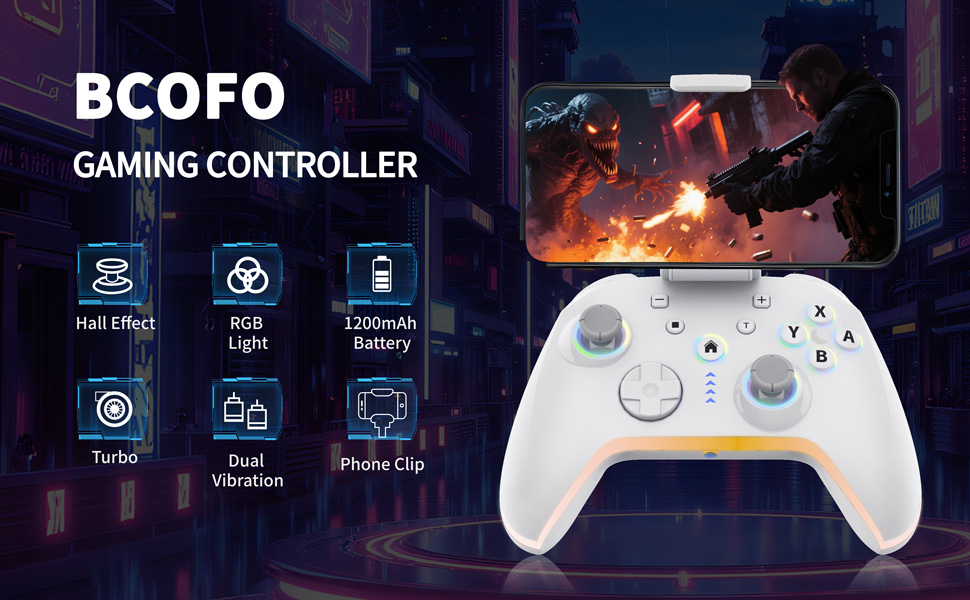
Image: The Bcofo Mobile Gaming Controller showcasing sen RGB-valaistustehosteita.
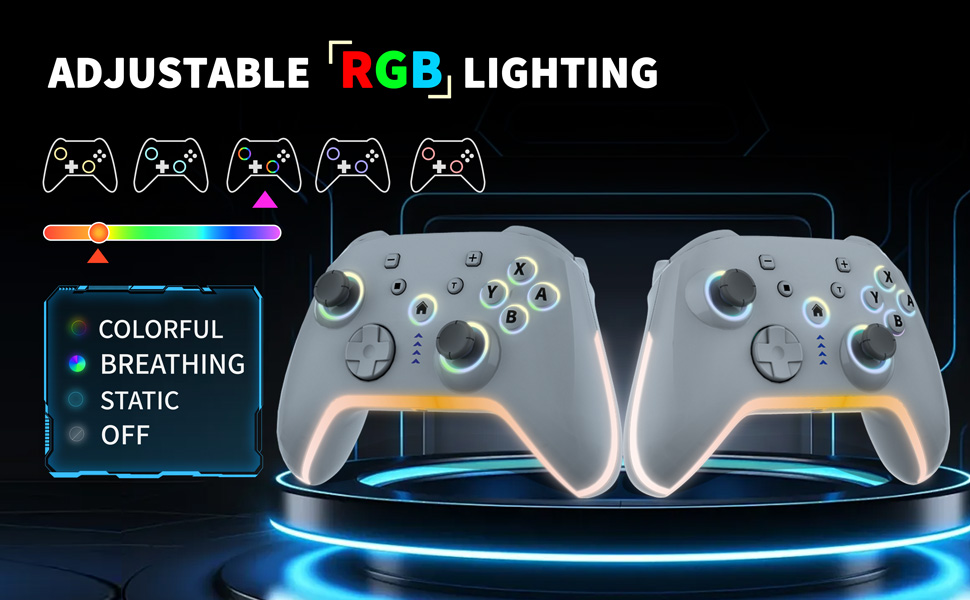
Image: The Bcofo controller with a smartphone attached via the integrated phone clip, demonstrating mobile gaming.
3. Pakkauksen sisältö
Varmista, että pakkauksessasi on kaikki tarvittavat osat:
- Bcofo Wireless Mobile Game Controller
- Irrotettava puhelinklipsi
- USB-latauskaapeli
- Käyttöopas
4. Asennus ja yhteys
The controller features a mode switch button on the back to select the appropriate platform. After selecting the mode, press and hold the 'HOME' button to initiate pairing.
4.1. Attaching the Phone Clip
The phone clip can be easily inserted into the slot on the top of the controller. It extends and retracts freely to accommodate various phone sizes and can be disassembled effortlessly when not in use. Ensure the clip is securely attached before placing your phone.
Video: Demonstration of attaching and detaching the phone clip, and its secure hold during gameplay. This video also shows the control buttons demo and mode switching.
4.2. Connecting to iOS Devices (iPhone/iPad/Mac)
- On the back of the controller, slide the mode switch to the 'iOS' position.
- Short press the 'HOME' button for a few seconds until the LED lights flash quickly, indicating pairing mode.
- Siirry iOS-laitteellasi osoitteeseen Asetukset > Bluetooth.
- Select the Bluetooth name: "Xbox Wireless Controller" pariksi.
- Once connected, the LED lights will stop flashing and remain solid.
Video: Step-by-step guide on how to connect the Bcofo controller to an iOS device.
4.3. Yhdistäminen Android-laitteisiin
- On the back of the controller, slide the mode switch to the 'Android' position.
- Short press the 'HOME' button for a few seconds until the LED lights flash quickly, indicating pairing mode.
- Siirry Android-laitteellasi osoitteeseen Asetukset > Bluetooth.
- Select the Bluetooth name: "6147 Gamepad" pariksi.
- Once connected, the LED lights will stop flashing and remain solid.
Video: Step-by-step guide on how to connect the Bcofo controller to an Android device.
4.4. Yhdistäminen Nintendo Switchiin
- On the back of the controller, slide the mode switch to the 'NS' (Nintendo Switch) position.
- Siirry Nintendo Switchillä osoitteeseen Järjestelmäasetukset > Ohjaimet ja anturit > Muuta pitoa/järjestystä.
- Press and hold the 'HOME' button on the controller until the LED lights flash quickly.
- The Switch will detect the controller and pair automatically.
4.5. Tietokoneeseen liittäminen (langallinen)
- On the back of the controller, slide the mode switch to the 'PC' position.
- Liitä ohjain tietokoneeseen mukana toimitetulla USB-kaapelilla.
- The PC should automatically recognize the controller. No additional drivers are typically required for Windows 7/8/10/11 or Steam Deck.
5. Käyttöohjeet
5.1. Programmable Back Buttons (N1/N2)
The controller features two programmable back buttons, N1 and N2, allowing you to map complex button sequences or single button presses for quick execution.
- Press the 'SET' button on the back of the controller. The indicator light will start flashing.
- Press either N1 or N2.
- Press the button(s) or sequence of buttons you wish to program (up to 30 seconds).
- Press the 'SET' button again to save the programming. The indicator light will turn off.
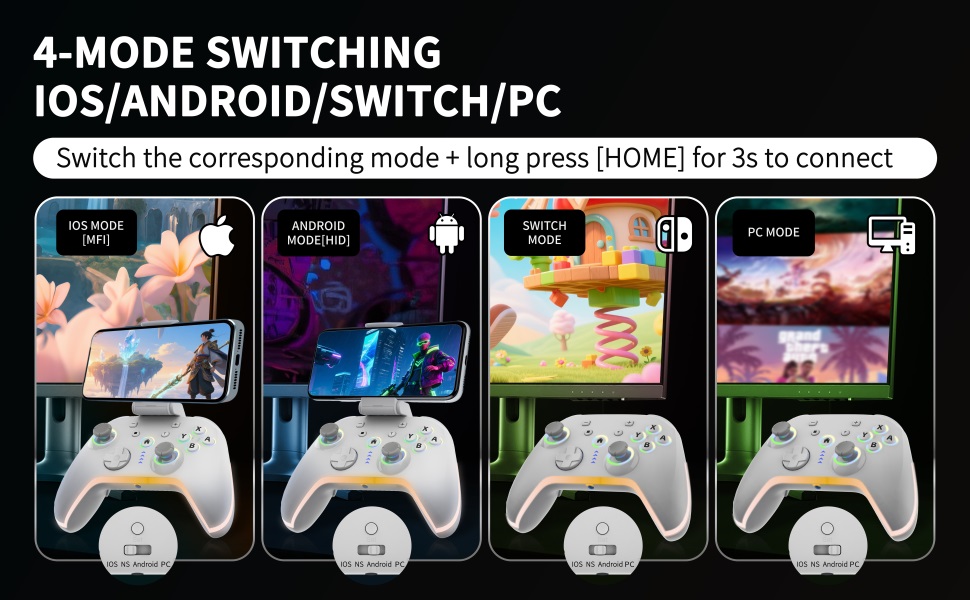
Image: Close-up of the controller's back, showing the N1 and N2 programmable buttons and the mode switch.
5.2. RGB LED Lighting Control
The controller is equipped with customizable RGB LED lighting.
- To cycle through 9 different RGB colors, press the 'RGB' button on the back of the gamepad.
- To switch between 4 lighting modes (color, wave, breathing, static), press the 'RGB' button repeatedly.
- To turn the RGB lights on or off, press and hold the 'RGB' button for a few seconds.
5.3. Turbo Speed Adjustment
Activate turbo function for rapid button presses in action and arcade games.
- Press and hold the 'Turbo' button (T).
- While holding 'Turbo', press the button you wish to apply turbo to (e.g., A, B, X, Y).
- To adjust turbo speed (5/12/20 shots per second), press and hold 'Turbo' and move the right joystick up or down.
- To clear turbo for a specific button, press and hold 'Turbo' and press the assigned button again.
- To clear all turbo settings, press and hold 'Turbo' and press the 'HOME' button.
6. Huolto
- Pidä ohjain puhtaana pyyhkimällä se pehmeällä, kuivalla liinalla. Vältä voimakkaiden kemikaalien tai hankaavien materiaalien käyttöä.
- Säilytä ohjainta viileässä, kuivassa paikassa, poissa suorasta auringonvalosta ja äärimmäisistä lämpötiloista.
- Vältä ohjaimen pudottamista tai sen altistamista voimakkaille iskuille.
- Charge the controller regularly to maintain battery health, even if not in frequent use.
7. Vianmääritys
7.1. Ohjain ei muodosta yhteyttä
- Ensure the correct mode (iOS/Android/NS/PC) is selected using the switch on the back of the controller.
- Make sure the controller is charged. Connect it to a power source using the USB cable.
- Verify Bluetooth is enabled on your device and that the controller is in pairing mode (LEDs flashing quickly).
- Forget the device in your device's Bluetooth settings and attempt to pair again.
- For PC wired connection, ensure the USB cable is securely connected and try a different USB port.
7.2. Painikkeet tai ohjaussauvat eivät reagoi
- Tarkista, onko ohjain kytketty oikein laitteeseesi.
- Restart the controller and your gaming device.
- Ensure the game you are playing supports external controllers.
- Perform a factory reset by pressing the 'Reset' button on the back of the controller (a small pin might be needed).
7.3. RGB-valot eivät toimi
- Press the 'RGB' button to cycle through modes and colors.
- Press and hold the 'RGB' button to ensure the lights are not turned off.
- Varmista, että ohjaimen akussa on riittävästi virtaa.
8. Tekniset tiedot
| Mallinumero | 6147 |
| Yhteydet | Langaton (Bluetooth), Langallinen (USB) |
| Yhteensopivuus | iOS, Android, Nintendo Switch, PC (Windows 7/8/10/11, Steam Deck) |
| Akun kapasiteetti | 1200 mAh |
| Latausaika | 2-3 tuntia |
| Peliaika | Jopa 15 tuntia |
| Paino | 11.3 unssia (noin 320 g) |
| Mitat | 6.38 x 4.57 x 2.83 tuumaa (noin 16.2 x 11.6 x 7.2 cm) |
9. Takuu ja tuki
For any questions or issues regarding your Bcofo Wireless Mobile Game Controller, please refer to the seller's return policy or contact customer support through your purchase platform. Keep your proof of purchase for warranty claims, if applicable.