
1. Johdanto
This manual provides detailed instructions for the Pingequa Flipper Zero Wi-Fi Devboard. This expansion module enhances your Flipper Zero with Wi-Fi connectivity and comes pre-installed with Marauder firmware, enabling advanced wireless testing capabilities. Please read this manual thoroughly before use to ensure proper setup and operation.
2. Tärkeimmät ominaisuudet
- Wi-Fi-yhteys: Seamlessly integrates Wi-Fi capabilities with your Flipper Zero.
- Pre-installed Marauder Firmware: Equipped with Marauder firmware for advanced Wi-Fi testing.
- ESP32-S2 Chipset: Utilizes a powerful ESP32-S2 chipset for robust performance.
- Easy Firmware Installation: Supports effortless flashing of new firmware for customization and expanded functionalities.
- Monipuoliset sovellukset: Suitable for network security research, IoT projects, development, and remote device management.
3. Mitä laatikossa on
Kun avaat pakkauksen, tarkista, että kaikki osat ovat mukana:
- 1x Pingequa Flipper Zero Wi-Fi Devboard
- 1x WiFi Board
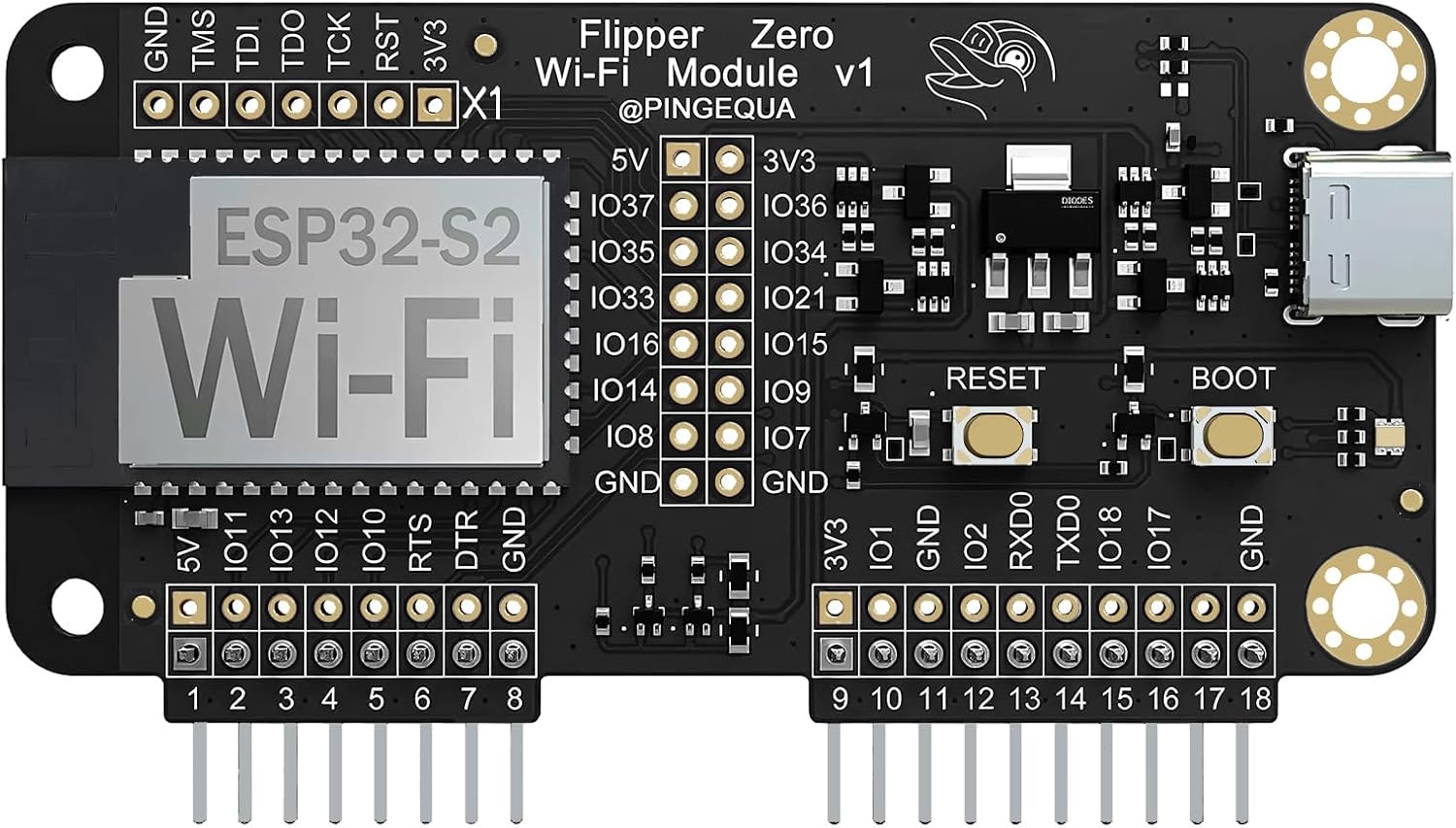
Image 1: The Pingequa Flipper Zero Wi-Fi Devboard.
4. Asennusopas
4.1. Fyysinen asennus
- Ensure your Flipper Zero is powered off before connecting the Wi-Fi Devboard.
- Carefully align the pins of the Wi-Fi Devboard with the GPIO pins on your Flipper Zero.
- Gently press the Devboard into place until it is securely seated.

Image 2: Flipper Zero with the Wi-Fi Devboard securely attached.
4.2. Initial Configuration (GPIO Pins)
For the Wi-Fi Devboard to function correctly, you may need to configure the GPIO pins on your Flipper Zero. This process is similar for various Flipper Zero modules.
- Power on your Flipper Zero.
- Navigoi kohtaan Sovellukset valikosta.
- Valitse Momentum application (or similar firmware interface).
- Siirry osoitteeseen Protokollat, sitten GPIO Pins.
- Ensure the correct SPI settings are selected for the ESP32-S2 module. Typically, this involves setting ESP32/8266 SPI to Oletus 1. Refer to your Flipper Zero's specific firmware documentation for exact pin assignments if issues arise.

Image 3: Flipper Zero display showing firmware selection options.
4.3. Visuaalinen asennusopas
For a visual walkthrough of connecting a module and configuring GPIO pins on the Flipper Zero, please refer to the following video. While this video demonstrates a different RF module, the physical connection and GPIO setup steps are generally applicable.
Video 1: General guide on setting up and using an RF module with Flipper Zero, including GPIO pin configuration.
5. Käyttö
The Pingequa Wi-Fi Devboard comes pre-installed with Marauder firmware, designed for various wireless testing and analysis tasks. After successful setup, you can access its functionalities through your Flipper Zero interface.
5.1. Accessing Marauder Firmware
- From the Flipper Zero main menu, navigate to Sovellukset.
- Select the application associated with the Wi-Fi Devboard (often labeled "ESP32" or "Marauder").
- Within the Marauder interface, you will find options for various Wi-Fi testing functionalities, such as network scanning, deauthentication attacks, and packet capture.

Image 4: Flipper Zero display showing the Marauder firmware menu with various Wi-Fi options.
5.2. Laiteohjelmistopäivitykset
The Devboard supports easy firmware updates. To flash new firmware, connect the Devboard to your computer via its USB-C port while holding down the reset button. Follow the instructions provided by the firmware developer for the specific update process.
6. Huolto
- Keep the Wi-Fi Devboard clean and free from dust and debris. Use a soft, dry cloth for cleaning.
- Vältä moduulin altistamista äärimmäisille lämpötiloille, kosteudelle tai suoralle auringonvalolle.
- Handle the module carefully to prevent damage to the pins or internal components.
- Store the module in a protective case when not in use to prevent physical damage.
7. Vianmääritys
| Ongelma | Mahdollinen syy | Ratkaisu |
|---|---|---|
| Flipper Zero does not recognize the Devboard. | Incorrect GPIO pin configuration or loose connection. | Ensure the Devboard is securely connected to the Flipper Zero's GPIO pins. Verify GPIO pin settings in the Flipper Zero firmware (refer to Section 4.2). Try re-flashing the Devboard firmware if necessary. |
| Wi-Fi functions are not working. | Incorrect firmware, outdated firmware, or improper application selection. | Confirm that the Marauder firmware is correctly installed and up-to-date. Ensure you are selecting the correct application within the Flipper Zero menu. |
| Devboard is not powering on. | Loose connection or Flipper Zero power issue. | Check the connection to the Flipper Zero. Ensure the Flipper Zero itself is adequately charged and functioning. |
8. Tekniset tiedot
| Ominaisuus | Yksityiskohta |
|---|---|
| Mallin nimi | WiFi Devboard for Flipper Zero |
| Tuotteen mallinumero | WiFi Devboard |
| Prosessorin merkki | Espresso |
| Käyttöjärjestelmä | Rosvo |
| Yhteystekniikka | Wi-Fi |
| RAM | LPDDR2 |
| Muistin tallennuskapasiteetti | 2 Mt |
| Tuotteen paino | 1.13 unssia |
| Pakkauksen mitat | 4.29 x 3.39 x 1.46 tuumaa |
9. Takuu ja tuki
This Pingequa product is covered by a standard manufacturer's warranty against defects in materials and workmanship. For specific warranty terms and conditions, please refer to the product packaging or contact Pingequa customer support.
Jos tarvitset teknistä apua, vianmääritystä tai yleisiä kysymyksiä, käy osoitteessa Pingequa Store on Amazon tai ota yhteyttä suoraan heidän asiakaspalveluunsa.