
1. Johdanto
This manual provides essential information for the safe and efficient operation of your Canon imagePROGRAF PRO-310 Professional 13-inch Wireless Inkjet Photo Printer. Please read this manual thoroughly before using the printer and keep it for future reference.

Kuva 1: Etuosa view of the Canon imagePROGRAF PRO-310 printer.
2. Turvallisuustiedot
Always observe the following safety precautions to prevent injury or damage to the printer.
2.1 Yleinen turvallisuus
- Älä aseta tulostinta epävakaalle alustalle.
- Pidä tulostin poissa vedestä ja kosteudesta.
- Vältä tuuletusaukkojen tukkimista.
2.2 Sähköturvallisuus
- Käytä ainoastaan tulostimen mukana toimitettua virtajohtoa.
- Älä ylikuormita pistorasioita.
- Irrota tulostin pistorasiasta ukkosmyrskyjen aikana tai jos laitetta ei käytetä pitkään aikaan.
2.3 Ink Handling
- Pidä mustekasetit poissa lasten ulottuvilta.
- Älä niele mustetta. Jos ainetta on nielty, hakeudu välittömästi lääkärin hoitoon.
- Avoid contact with eyes or skin. If contact occurs, rinse thoroughly with water.
3. Pakkauksen sisältö
Varmista, että kaikki pakkauksessa olevat osat ovat mukana:
- Canon imagePROGRAF PRO-310 Printer
- Set of Ink Cartridges (9 colors + Chroma Optimizer)
- Virtajohto
- Asennus-CD-ROM (Windowsille/Macille)
- Sample-valokuvapaperi
- Setup Guide and other documentation
For detailed information on ink cartridges, refer to the 'Replacing Ink Cartridges' section.
4. Asennus
4.1 Laatikon purkaminen ja sijoittaminen
- Remove the printer from its packaging. Use the clear plastic bag with handles to safely lift the printer.
- Place the printer on a stable, flat surface with adequate space around it for operation and ventilation. The printer dimensions are approximately 28.7"D x 18.6"W x 14.04"H.
- Poista kaikki suojateipit ja pakkausmateriaalit tulostimen ulko- ja sisäpuolelta.

Kuva 2: Kulmassa view of the PRO-310, showing its compact design.
4.2 Virtaliitäntä
- Connect the power cord to the printer's power input port.
- Liitä virtajohdon toinen pää maadoitettuun pistorasiaan.
- Käynnistä tulostin painamalla virtapainiketta.
4.3 Mustekasetin asennus
- Open the top cover of the printer. The print head carriage will move to the center.
- Pura jokainen mustekasetti pakkauksestaan.
- Insert each ink cartridge into its corresponding slot, matching the color labels. Press down firmly until it clicks into place.
- Close the top cover. The printer will begin initial adjustments.

Figure 3: Installing ink cartridges into the PRO-310. The printer uses a 9-color plus Chroma Optimizer pigment-based ink system.
4.4 Paperin lisääminen
The PRO-310 offers versatile media handling with two paper paths: the Top Feed and the Manual Feed Tray.
4.4.1 Top Feed
Use the Top Feed for standard paper types and sizes. Lift the paper support and extend the output tray.

Figure 4: The PRO-310 with its top paper feed open, ready for paper loading.
4.4.2 Manual Feed Tray
The Manual Feed Tray is ideal for thicker fine art media and custom sizes up to 13" x 129".

Figure 5: The PRO-310 with its CD/DVD printing tray extended, demonstrating versatile media handling.
4.5 Alkuasetukset ja verkkoyhteys
- Follow the on-screen instructions on the 3.0-inch Color LCD Monitor to complete the initial setup.
- To connect to a network, navigate to the network settings on the LCD. The printer supports Wi-Fi, Ethernet, and USB connectivity.
- For Wi-Fi setup, select your network and enter the password. For Ethernet, connect a network cable to the Ethernet port.
Video 1: Official Canon USA video demonstrating the Canon imagePROGRAF PRO-310 Wireless Photo Printer's features and connectivity options.
5. Tulostimen käyttö
5.1 Perustulostus
You can print directly from your computer using the printer driver or from compatible devices via the network connection.
5.2 Using Professional Print & Layout Software
The Canon Professional Print & Layout (PPL) software provides advanced printing options for photographers and artists. It integrates as a plug-in with popular photo editing software like Adobe Photoshop and Lightroom.
5.3 Media Handling
The PRO-310 supports a wide range of paper sizes and types, including square, panoramic, and custom sizes up to 13" x 129". Ensure correct paper settings are selected in the printer driver or LCD for optimal results.

Figure 6: The PRO-310 printing a panoramic image, showcasing its versatile media handling capabilities.
5.4 Understanding the 3.0-Inch Color LCD Monitor
The 3.0-inch Color LCD Monitor allows you to check ink levels, printer status, and adjust settings directly on the printer without a computer. Use the navigation buttons to browse menus and confirm selections.
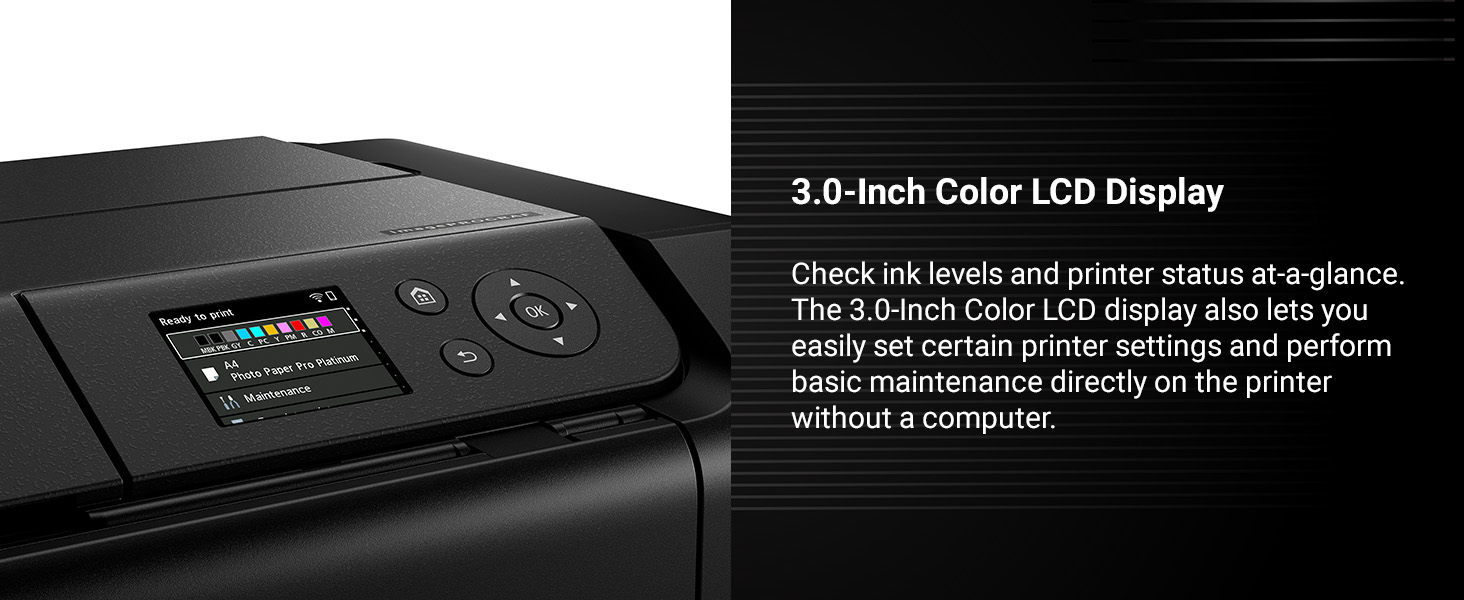
Figure 7: The 3.0-inch color LCD monitor provides easy access to printer status and settings.
6. Huolto
Regular maintenance ensures optimal print quality and extends the life of your printer.
6.1 Mustetasojen tarkistaminen
Ink levels can be checked on the printer's LCD monitor or through the printer driver software on your computer. Replace cartridges when levels are low to avoid interruptions during printing.
6.2 Mustekasettien vaihtaminen
When an ink cartridge is empty, the printer will prompt you to replace it. Open the top cover, remove the empty cartridge by pressing the tab, and insert a new one until it clicks into place. Close the cover to resume operation.
6.3 Tulostuspään puhdistus
If print quality declines (e.g., missing lines, streaking), perform a print head cleaning from the printer's maintenance menu or through the printer driver. This clears clogged nozzles.
6.4 Nozzle Recovery System
The PRO-310 features a Nozzle Recovery System that helps prevent print failures due to clogged nozzles, ensuring consistent print quality.
6.5 Skew Correction
The printer includes Skew Correction technology to automatically adjust paper alignment, reducing errors and wasted media.
7. Vianmääritys
Tässä osiossa käsitellään yleisiä ongelmia, joita saatat kohdata.
7.1 Common Print Quality Issues
- Raitoja tai haalistumista: Check ink levels. Perform print head cleaning or deep cleaning.
- Väärät värit: Ensure correct paper type is selected in print settings. Perform print head alignment.
- Grainy Prints: Use higher quality paper or adjust print quality settings to 'High' or 'Fine'.
7.2 Paperitukokset
If a paper jam occurs, follow the on-screen instructions on the LCD monitor. Carefully remove any jammed paper from the paper paths, ensuring no torn pieces remain inside.
7.3 Yhteysongelmat
- Wi-Fi-yhteyden katkeaminen: Check your router and printer's Wi-Fi status. Reconnect the printer to the network via the LCD menu.
- USB-yhteysongelmat: Varmista, että USB-kaapeli on kytketty kunnolla sekä tulostimeen että tietokoneeseen. Kokeile toista USB-porttia tai kaapelia.
- Ethernet Issues: Varmista, että Ethernet-kaapeli on kytketty oikein ja että verkko on aktiivinen.
7.4 Virheilmoitukset
Refer to the printer's LCD monitor for specific error codes and messages. Consult the online manual or Canon support website for detailed solutions corresponding to each code.
8. Tekniset tiedot
| Merkki | Canon |
| Mallin nimi | imagePROGRAF PRO-310 |
| Mallinumero | 6858C002 |
| Tulostustekniikka | Mustesuihku |
| Mustejärjestelmä | 9 Color + Chroma Optimizer Pigment-Based Ink |
| Suurin tulostuskoko | 13" x 19" (A3+), Custom (up to 13" x 129") |
| Yhteydet | Wi-Fi, Ethernet, USB |
| Näyttö | 3.0 tuuman värillinen LCD-näyttö |
| Mitat (S x L x K) | 28.7" S x 18.6" L x 14.04" K |
| Paino | 31.6 puntaa |
| Suurin tulostustarkkuus | 1200 x 1200 dpi |
9. Takuu ja tuki
9.1 Takuutiedot
The Canon imagePROGRAF PRO-310 printer comes with a 1 vuoden rajoitettu takuuTämä takuu kattaa materiaali- ja valmistusvirheet normaalissa käytössä. Säilytä ostokuitti takuuvaatimuksia varten.
9.2 Tuotetuki
Jos tarvitset lisäapua, teknistä tukea tai huoltoa, käy Canonin virallisella tukisivustolla. website or contact Canon customer service. Online resources include FAQs, driver downloads, and additional manuals.
Visit the Canon Store: Canon Official Store