
1. Johdanto
Thank you for choosing the PAUL B Wireless Keyboard Case. This product is designed to enhance your iPad experience by providing a protective case and a comfortable typing solution. Please read this manual carefully before use to ensure proper operation and longevity of your device.
Yhteensopivuus
Tämä näppäimistökotelo on yhteensopiva seuraavien iPad-mallien kanssa:
- iPad 10th Generation (10.9-inch, 2022) - Models: A2696, A2757, A2777
- iPad 11th Generation (11-inch, 2025) - Models: A3354, A3355, A3356
Please verify your iPad model number (found on the back of your tablet) to ensure compatibility.
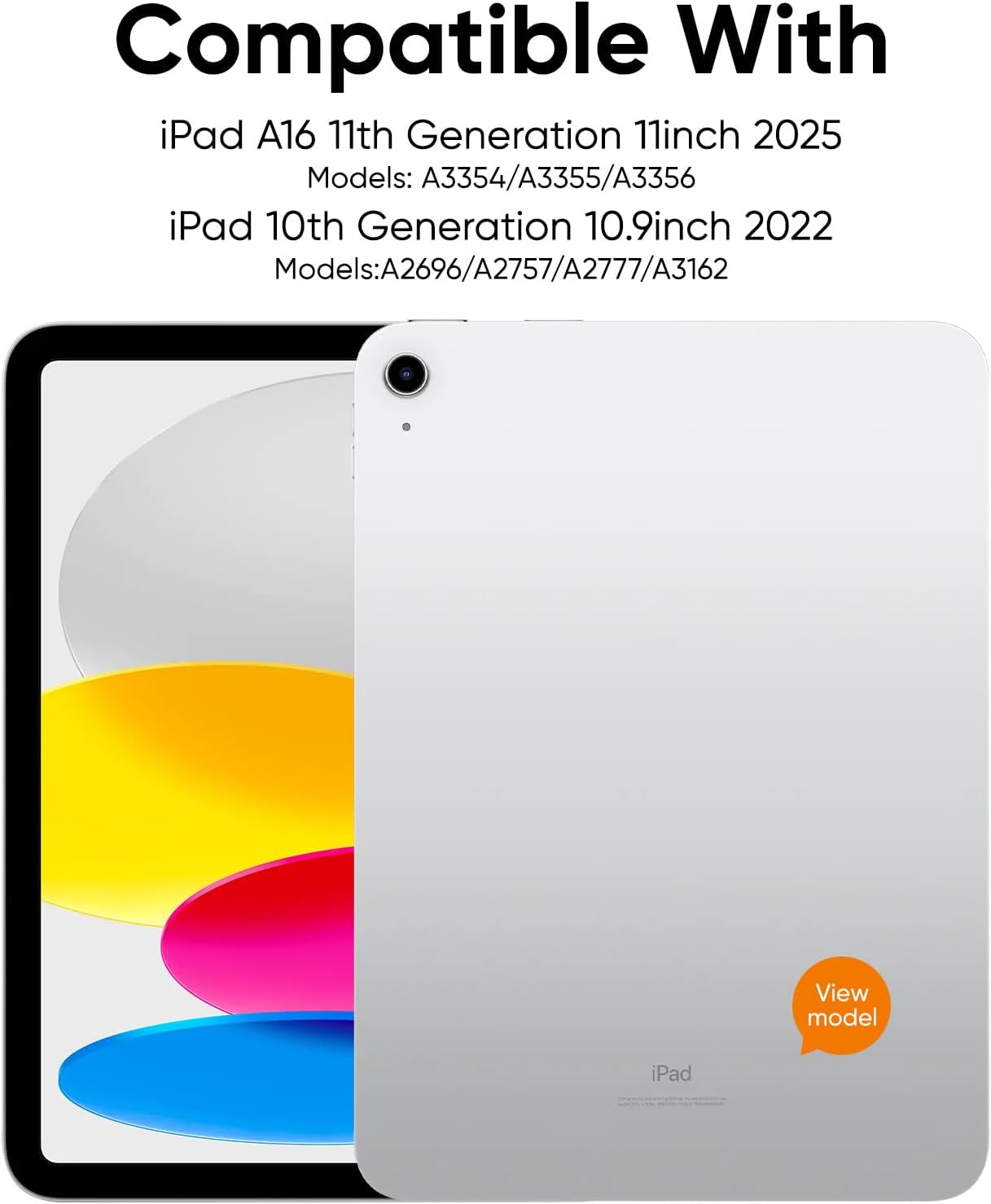
Kuva 1: Yhteensopivat iPad-mallit
Pakkauksen sisältö
Paketti sisältää:
- 1 x PAUL B Wireless Keyboard Case
- 1 x USB-C-latauskaapeli
- 1 x Käyttöopas
Note: Apple iPad and charging plug are not included.
2. Asennus
Näppäimistön lataaminen
The keyboard features a built-in 800mAh rechargeable Li-polymer battery. Before first use, fully charge the keyboard.
- Paikanna näppäimistön USB-C-latausportti.
- Connect the provided USB-C cable to the keyboard's charging port and a suitable USB power adapter (not included).
- The battery indicator lights will show the charging status. A full charge typically takes about 2 hours.
A full charge provides up to 140 days of use, thanks to Bluetooth Low Energy technology and a smart power-saving mode that activates after 20 minutes of inactivity.

Kuva 2: USB-C-latausportti
Bluetooth-pariliitos
Follow these steps to connect your keyboard case to your iPad:
- Varmista, että näppäimistö on ladattu.
- Turn on the keyboard by pressing and holding the power button. The power indicator light will illuminate.
- Press and hold the Bluetooth pairing button on the keyboard until the Bluetooth indicator light starts flashing. This indicates the keyboard is in pairing mode.
- Siirry iPadillasi osoitteeseen Asetukset > Bluetooth ja kytke Bluetooth päälle.
- Your iPad will search for available devices. Select "Paul B Keyboard" from the list.
- A pairing request may appear. Confirm the pairing on your iPad.
- Once connected, the Bluetooth indicator light on the keyboard will stop flashing and remain solid, or turn off, depending on the model.
3. Käyttöohjeet
Näppäimistön käyttäminen
The keyboard features ergonomic mechanical scissor-switch keys for a comfortable and quiet typing experience. It includes a full row of multi-function keys for quick access to media controls, volume, and other iPad functions.

Figure 3: Keyboard Layout and Features
Integrated Pencil Holder
The case includes a built-in slot designed to securely hold your Apple Pencil, allowing for easy access and storage.

Figure 4: Apple Pencil Holder
Seisontatuen toiminnallisuus
The case features a magnetic kickstand that allows you to prop up your iPad for comfortable viewing and typing angles. The magnetic design ensures the iPad stays securely in place.

Kuva 5: Seisontatuki käytössä
Automatic Sleep/Wake
The case supports the iPad's automatic sleep/wake function. Closing the case will put your iPad to sleep, and opening it will wake it up, conserving battery life.
Kattava suoja
Crafted from durable PU material, the case resists scratches and stains while cushioning against bumps and spills. It offers full protection for your iPad, including precise cutouts for all ports, buttons, and the camera.

Figure 6: Precise Cutouts for Ports and Camera
4. Huolto
Puhdistus
To clean the keyboard case, gently wipe it with a soft, damp cloth. Avoid using harsh chemicals or abrasive cleaners, as these may damage the material or electronic components.
Akun hoito
To maximize battery life, fully charge the keyboard regularly. The smart power-saving mode helps conserve power by putting the device to sleep after 20 minutes of inactivity. If you plan not to use the keyboard for an extended period, it is recommended to fully charge it and then turn it off.
5. Vianmääritys
Keyboard Not Pairing
- Varmista, että näppäimistö on ladattu täyteen.
- Make sure the keyboard is turned on and in pairing mode (Bluetooth indicator flashing).
- Turn off and then turn on your iPad's Bluetooth.
- Forget the device in your iPad's Bluetooth settings and try pairing again.
- Ensure your iPad is within the Bluetooth range (typically 10 meters or 33 feet).
Avaimet eivät vastaa
- Check if the keyboard is connected to your iPad via Bluetooth.
- Varmista, että näppäimistön akussa on riittävästi virtaa.
- Käynnistä sekä iPad että näppäimistö uudelleen.
iPad Not Entering Sleep/Wake Mode
- Ensure the iPad is correctly seated in the case and the cover is fully closed.
- Check your iPad settings to ensure "Lock/Unlock" is enabled under Display & Brightness.
6. Tekniset tiedot
| Ominaisuus | Yksityiskohta |
|---|---|
| Mallinumero | L1153 |
| Pakkauksen mitat | 12.77 x 8.62 x 1.65 tuumaa |
| Tuotteen paino | 1.59 kiloa |
| Valmistaja | PAUL B |
| Paristot | Vaatii 1 AAAA-paristoa (mukana) |
| Yhteensopivat laitteet | iPad 10th Gen (10.9-inch), iPad 11th Gen (11-inch) |
| Yhteystekniikka | Bluetooth |
| Näppäimistön kuvaus | Joustava |
| Suositellut käyttötavat | Business |
| Erikoisominaisuus | Asia |
| Väri | Punainen |
| Tyyli | Klassinen |
| Materiaali | Polyuretaani (PU) |
7. Takuu ja tuki
PAUL B is committed to providing 100% satisfactory solutions and a hassle-free shopping experience. If you encounter any issues with your purchase, please feel free to contact us. We offer 24-hour customer service support to assist you.
For customer service inquiries, please refer to the contact information provided on the product packaging or the official PAUL B websivusto.