
1. Johdanto
This manual provides essential information for the proper installation, operation, and maintenance of your GAMEON Pro Series 27-inch Fast IPS Gaming Monitor (Model: GOAE27QHD165IPS). Please read this manual thoroughly before using the product to ensure optimal performance and safety. Keep this manual for future reference.

Kuva 1.1: Edessä view of the GAMEON Pro Series 27-inch Fast IPS Gaming Monitor, showcasinsen ohuiden reunusten ja jalustan ansiosta.
The GAMEON Pro Series 27-inch Fast IPS Gaming Monitor features a QHD 2K (2560x1440p) resolution, a 165Hz refresh rate, and a 0.5ms MPRT response time. It supports Adaptive-Sync and Variable Refresh Rate (VRR) technologies for smooth, tear-free gameplay. Connectivity options include dual HDMI 2.1 ports and dual DisplayPort 1.4 ports, along with an audio-out jack and integrated speakers. This monitor is compatible with various gaming consoles and PCs, including PS5.
2. Pakkauksen sisältö
Tarkista pakkauksen sisältö purkamisen jälkeen. Jos jokin puuttuu tai on vaurioitunut, ota yhteyttä jälleenmyyjään.
- GAMEON Pro Series 27-inch Fast IPS Gaming Monitor
- Näytön jalusta (jalusta ja kaula)
- Virtasovitin ja virtajohto
- HDMI kaapeli
- DisplayPort-kaapeli
- Käyttöopas
3. Asennus
3.1 Näytön kokoaminen
- Poista näyttö varovasti pakkauksestaan ja pidä näyttö suojattuna.
- Kiinnitä jalustan kaula näyttöpaneeliin. Varmista, että se napsahtaa tukevasti paikalleen tai on kiinnitetty ruuveilla, jos mukana on toimitettu.
- Kiinnitä jalustan pohja jalustan kaulaan ja kiristä jalustan pohjassa oleva ruuvi.
- Aseta koottu näyttö vakaalle ja tasaiselle alustalle.
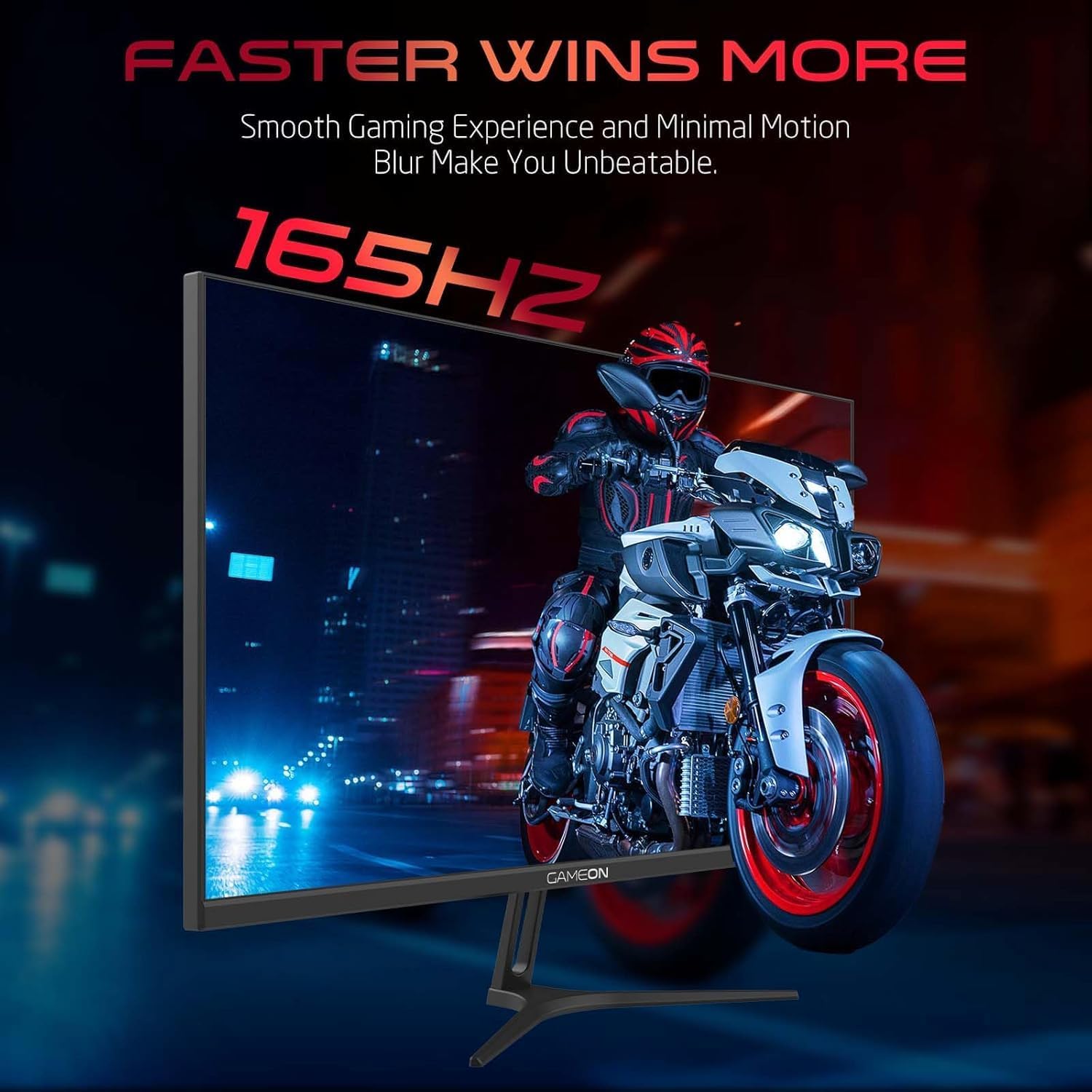
Image 3.1: Illustration of the monitor with its stand, ready for assembly.
3.2 Laitteisiin yhdistäminen
The monitor offers multiple input options. Choose the appropriate cable for your device (PC, gaming console, etc.).

Kuva 3.2: Takaosa view of the monitor, highlighting the input ports and VESA mounting points.

Image 3.3: Detailed diagram illustrating the various input/output ports and their corresponding devices.
- HDMI-liitäntä: Connect one end of the HDMI cable to the HDMI output port of your device (PC, PS5, Xbox, TV box) and the other end to one of the HDMI 2.1 ports on the monitor.
- DisplayPort-liitäntä: Connect one end of the DisplayPort cable to the DisplayPort output of your PC and the other end to one of the DisplayPort 1.4 ports on the monitor.
- Äänilähtö: For external audio, connect headphones or external speakers to the 3.5mm audio-out jack on the monitor.
3.3 Virtaliitäntä
- Connect the power adapter to the DC IN port on the monitor.
- Plug the power cable into the power adapter, then plug the other end of the power cable into a power outlet.
4. Käyttöohjeet
4.1 Virta päälle/pois
Käynnistä tai sammuta näyttö painamalla siinä olevaa virtapainiketta. Virran merkkivalo palaa, kun näyttö on päällä.
4.2 On-Screen Display (OSD) -valikko
The monitor features a menu button (often a joystick or a series of buttons) usually located on the back or bottom right of the monitor. Use this to navigate the OSD menu and adjust settings.
- Press the menu button to open the OSD menu.
- Käytä navigointiohjaimia siirtyäksesi valikkovaihtoehtojen välillä.
- Press the menu button again (or a designated 'Enter' button) to select an option.
- Use the navigation controls to adjust values or select sub-menus.
- Select 'Exit' or press the menu button repeatedly to close the OSD menu.
4.3 Yleiset näyttövalikon asetukset
- Kuva-asetukset: Säädä kirkkautta, kontrastia, terävyyttä, gamma-arvoa ja värilämpötilaa.
- Väriasetukset: Fine-tune RGB values, hue, and saturation.
- Syöttölähde: Manually select between HDMI 1, HDMI 2, DisplayPort 1, or DisplayPort 2.
- Audio: Säädä äänenvoimakkuutta sisäänrakennetuille kaiuttimille tai liitetyille kuulokkeille.
- Peliominaisuudet: Enable/disable Adaptive-Sync/FreeSync, adjust overdrive settings, and activate crosshair overlays if available.
4.4 PS5 120Hz Setup Guide
To enable 120Hz output on your PlayStation 5 with this monitor, follow these steps:

Image 4.1: Visual guide for configuring 120Hz refresh rate on a PlayStation 5 console.
- Enable 120Hz from PS5 Settings:
- Siirry osoitteeseen Asetukset > Screen and Video > Videolähtö.
- Sarja Enable 120Hz Output to Automaattinen.
- Sarja Resoluutio to 1080p or Automaattinen. (Note: While the monitor supports 1440p, some PS5 games may require 1080p for 120Hz output.)
- Enable Performance Mode for Gamers:
- Siirry osoitteeseen Asetukset > Save Data and Game App Settings > Pelin esiasetukset.
- Sarja Suorituskykytila oletuksena.
- Check In-Game Settings:
- Go to the specific game's Peliasetukset > Videoasetukset ja valitse 120 fps or Suorituskykytila.
5. Huolto
5.1 Näytön puhdistaminen
- Sammuta näyttö ja irrota virtajohto.
- Käytä pehmeää, nukkaamatonta liinaa kevyesti dampvedellä tai erikoisnäytönpuhdistusaineella.
- Wipe the screen gently. Do not press hard or use abrasive materials.
- Avoid using alcohol, ammonia, or benzene-based cleaners, as they may damage the screen surface.
5.2 C:n puhdistaminenasing
- Pyyhi näyttö pehmeällä, kuivalla liinalla.asing.
- Pinttyneille tahroille kevyesti dampKostuta liina vedellä ja miedolla pesuaineella ja pyyhi sitten kuivaksi.
6. Vianmääritys
Jos kohtaat ongelmia näytön kanssa, katso seuraavaa vianmääritysopasta:
| Ongelma | Mahdollinen syy | Ratkaisu |
|---|---|---|
| Ei kuvaa näytöllä | No power; Incorrect input source; Loose video cable | Ensure power cable is securely connected and power outlet is active. Press power button. Check OSD menu to select correct input source (HDMI/DP). Reconnect video cable firmly. |
| Kuva on epäselvä tai vääristynyt | Incorrect resolution; Video cable issue | Set display resolution to 2560x1440p in your device's display settings. Try a different video cable. |
| Ei ääntä | Volume too low; Incorrect audio output selected; Loose audio cable | Adjust monitor volume via OSD. Ensure monitor is selected as the audio output device on your PC/console. Check external audio cable connection if using headphones/speakers. |
| Näytön välkkyminen | Refresh rate mismatch; Adaptive-Sync/VRR issue | Ensure your device's refresh rate is set to 165Hz. If flickering persists with Adaptive-Sync/VRR enabled, try disabling it in the OSD or your graphics card settings. |
| Monitor not detected by PC/console | Video cable issue; Driver issue | Try a different video cable or port. Update your graphics card drivers. Restart your PC/console. |
7. Tekniset tiedot
Below are the technical specifications for the GAMEON Pro Series 27-inch Fast IPS Gaming Monitor (GOAE27QHD165IPS):
| Ominaisuus | Erittely |
|---|---|
| Näytön koko | 27 tuumaa |
| Paneelin tyyppi | Nopea IPS |
| Resoluutio | QHD 2K (2560x1440p) |
| Päivitystaajuus | 165 Hz |
| Vastausaika | 0.5 ms MPRT |
| Kontrastisuhde | 1000:1 |
| Kirkkaus | 280 (±30) nits typical |
| Viewkulmat | Leveä viewing angles (IPS technology) |
| Mukautuva synkronointitekniikka | Adaptive-Sync, FreeSync, VRR Compatible |
| Yhteydet | 2 x HDMI 2.1, 2 x DisplayPort 1.4, 1 x Äänilähtö (3.5 mm) |
| Audio | Built-in 4Ω2W speakers |
| Yhteensopivuus VESA-kiinnikkeen kanssa | 100x100mm |
| Virransyöttö | Ulkoinen DC 12V 4A sovitin |
| Suurin virrankulutus | 48W |
| Tuotteen mitat (jalustan kanssa) | 16.2 x 61.4 x 45.3 cm |
| Tuotteen paino | 5.84 kg |
| Mallinumero | GOAE27QHD165IPS |
8. Takuu ja tuki
The GAMEON Pro Series 27-inch Fast IPS Gaming Monitor comes with a 2 vuoden takuu ostopäivästä lukien. Tämä takuu kattaa valmistusvirheet normaalissa käytössä. Säilytä ostokuitti takuuvaatimuksia varten.
For technical support, warranty inquiries, or service requests, please contact GAMEON customer service through their official website or the retailer where the product was purchased. Provide your monitor's model number (GOAE27QHD165IPS) and a detailed description of the issue to expedite assistance.