
1. Tuote ohiview
The FoMaKo M1 is a versatile 5-channel live streaming video mixer switcher designed for professional video production. It supports multiple video inputs, including 4K HDMI, and offers various features for live switching, recording, and streaming.
Keskeisiä ominaisuuksia ovat:
- 6 video source inputs (2x 4K HDMI, 2x 1080P HDMI, 2x USB, 1x webcam, NDI HX support).
- 3 video outputs (2x HDMI, 1x UVC Streaming).
- Simultaneous recording to USB and SD cards.
- Professional audio mixing with 2 mic/line inputs and 1 line output.
- Multi-streaming capabilities to two platforms simultaneously via IP, and USB-A 3.1 plug-and-play streaming.
- Rich effects and transitions including Luma key, Chroma key, Logo insertion, PIP, and DSK.
- Advanced USB 3.1 connectivity for high-speed live streaming and USB 2.0/SD card for PGM recording and firmware updates.
- Sisäänrakennettu web server for remote control via computers or mobile devices.
- Intelligent PTZ camera control and preset functions.
- Support for both portrait and landscape video modes.
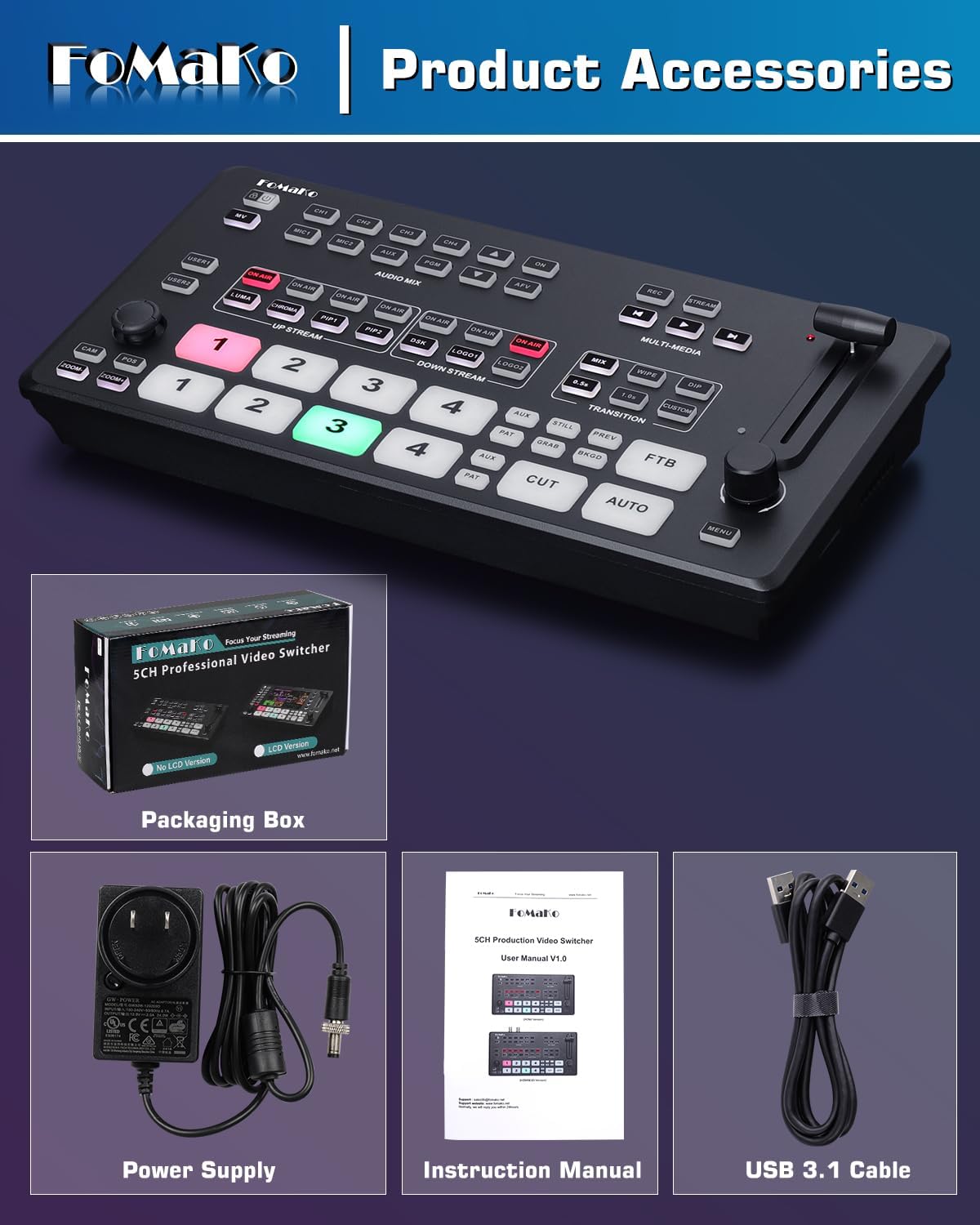
2. Pakkauksen sisältö
Varmista, että pakkauksessa on kaikki tarvittavat osat:
- FoMaKo M1 Video Mixer Switcher Unit
- Virtalähde
- USB 3.1 -kaapeli
- Käyttöohje
3. Asennusohjeet
3.1 Virran ja oheislaitteiden kytkeminen
Before operation, ensure all connections are secure.
- Connect the provided power supply to the DC 12V IN port on the rear panel of the M1 switcher.
- Connect your video sources (cameras, laptops, etc.) to the HDMI IN ports. The M1 supports 2x 4K HDMI inputs and 2x 1080P HDMI inputs.
- For UVC streaming, connect a USB 3.1 cable from the UVC AUX port to your computer.
- Connect a monitor to the HDMI PGM Output for program output or to the HDMI AUX Output for auxiliary display.
- Insert an SD card into the SD card slot for video storage and recording.
- Connect microphones or other audio devices to the MIC/LINE IN ports.
- For network control and IP streaming, connect an Ethernet cable to the LAN port.


4. Käyttöohjeet
4.1 Basic Switching and Transitions
The M1 features an intuitive control panel for live switching.
- Use the numbered buttons (1-4) to select input sources for preview ja ohjelma.
- The T-bar fader allows for manual control of transitions between sources, providing precise speed and effect control.
- Buttons for "CUT" and "AUTO" enable instant cuts or automatic transitions.
- The switcher supports over 30 transition effects, including Mix, Dip, and Wipe.


4.2 Audio Mixing
The M1 features a Smart Audio Trinity system for comprehensive audio control.
- Independent channel control for volume, mix, and delay for 4 HDMI and 2 mic inputs.
- AFV (Audio-Follow-Video) mode for automatic audio switching.
- Audio delay adjustment (0-1s) for perfect synchronization.
- Smart noise reduction (ALC) for clear microphone output.
4.3 Tallennus ja toisto
The M1 supports simultaneous recording to both USB and SD cards.
- Record program output (PGM) to a USB drive or SD card.
- Supported recording formats include H.264 encoding.
- Tuettu file system formats for storage devices: FAT32, NTFS, exFAT.
- Video playback from SD/USB will be routed to the AUX output.


4.4 Suoratoisto
The M1 supports multiple streaming methods to various platforms.
- IP Streaming: Stream to two platforms simultaneously.
- USB-A 3.1 Plug and Play Streaming: Direct connection to a computer for UVC streaming.
- Compatible with mainstream platforms such as YouTube Live, Facebook, and TikTok LiveStreaming.

4.5 Advanced Effects and Graphic Overlays
Enhance your live production with various visual effects:
- Luma avain ja Chroma Key: For green screen effects and background removal.
- Logon lisäys: Add custom logos to your stream.
- PIP (kuva kuvassa) ja DSK (Downstream Key): Create multi-layered video compositions.
- Supports up to 8 layers of graphics overlay.
4.6 PTZ-kameran ohjaus
The M1 can control up to 4 PTZ cameras simultaneously.
- Supports VISCA IP control.
- One-touch preset recall: Activate cameras and instantly call saved positions (1-7) by pressing ON AIR buttons.
4.7 Kaukosäädin
Control the M1 switcher remotely via its built-in web palvelin.
- Access the device control interface through a web browser on a computer or mobile phone.
- Monitor video input, audio status, recording, and streaming information in real-time.
- Scan a QR code to access the control interface.

4.8 Portrait and Landscape Modes
The M1 supports flexible switching between landscape and portrait modes to adapt to different live streaming needs. Note that PTZ cameras must also support vertical livestreaming mode for this feature to function correctly.

5. Huolto
5.1 laiteohjelmistopäivitystä
Firmware updates can be performed via the USB 2.0 port. Refer to the official FoMaKo website or support documentation for the latest firmware and update instructions.
5.2 Jäähdytysjärjestelmä
The M1 features a built-in cooling fan system. The fan speed adjusts automatically based on the switcher's temperature to ensure optimal performance and longevity during long hours of operation.

6. Vianmääritys
Tässä osiossa on ratkaisuja yleisiin ongelmiin. Monimutkaisempien ongelmien osalta ota yhteyttä asiakastukeen.
- Ei videolähtöä:
- Ensure all HDMI cables are securely connected to both the M1 switcher and the display/source devices.
- Verify that the input sources are active and sending a signal.
- Check the selected program output on the M1.
- Ei äänilähtöä:
- Confirm audio input levels are correctly set on the M1.
- Check audio connections from microphones or other audio sources.
- Ensure the output device (speakers, headphones) is properly connected and powered.
- Difficulty with Internet Connection for Streaming/Remote Control:
- Verify the Ethernet cable is securely connected to the LAN port on the M1 and to a working router or network switch.
- Check network settings on the M1 (if configurable) and ensure it has a valid IP address.
- Consult your network administrator or internet service provider if network issues persist.
- Tallennusongelmat:
- Ensure the USB drive or SD card is properly inserted and has sufficient free space.
- Verify that the storage device is formatted to a supported file system (FAT32, NTFS, exFAT).
- Check recording settings on the M1.
7. Tekniset tiedot
| Ominaisuus | Yksityiskohta |
|---|---|
| Merkki | FoMaKo |
| Mallinumero | M1 |
| Väri | Kiiltävä musta |
| Liittimen tyyppi | HDMI, USB Type-C |
| Yhteensopivat laitteet | Camera, Laptop, Monitor |
| Porttien määrä | 7 |
| Tuotteen mitat (S x L x K) | 7" S x 14" L x 4" K |
| Tuotteen paino | 1 kiloa |
| UPC | 735530570630 |
| GTIN | 735530570630 |
8. Takuu ja tuki
FoMaKo provides comprehensive support for the M1 Video Mixer Switcher:
- Takuu: 1-Year manufacturer warranty with free replacement for quality defects (excludes misuse, accident, water damage, or normal wear). An optional 3-Year trade-in program is available for upgraded models.
- Palautuskäytäntö: 30-Day no-hassle return and refund.
- Tekninen tuki: Lifetime technical support with 24-hour response. Free setup guidance and remote assistance are available with your order ID.

