
1. Johdanto
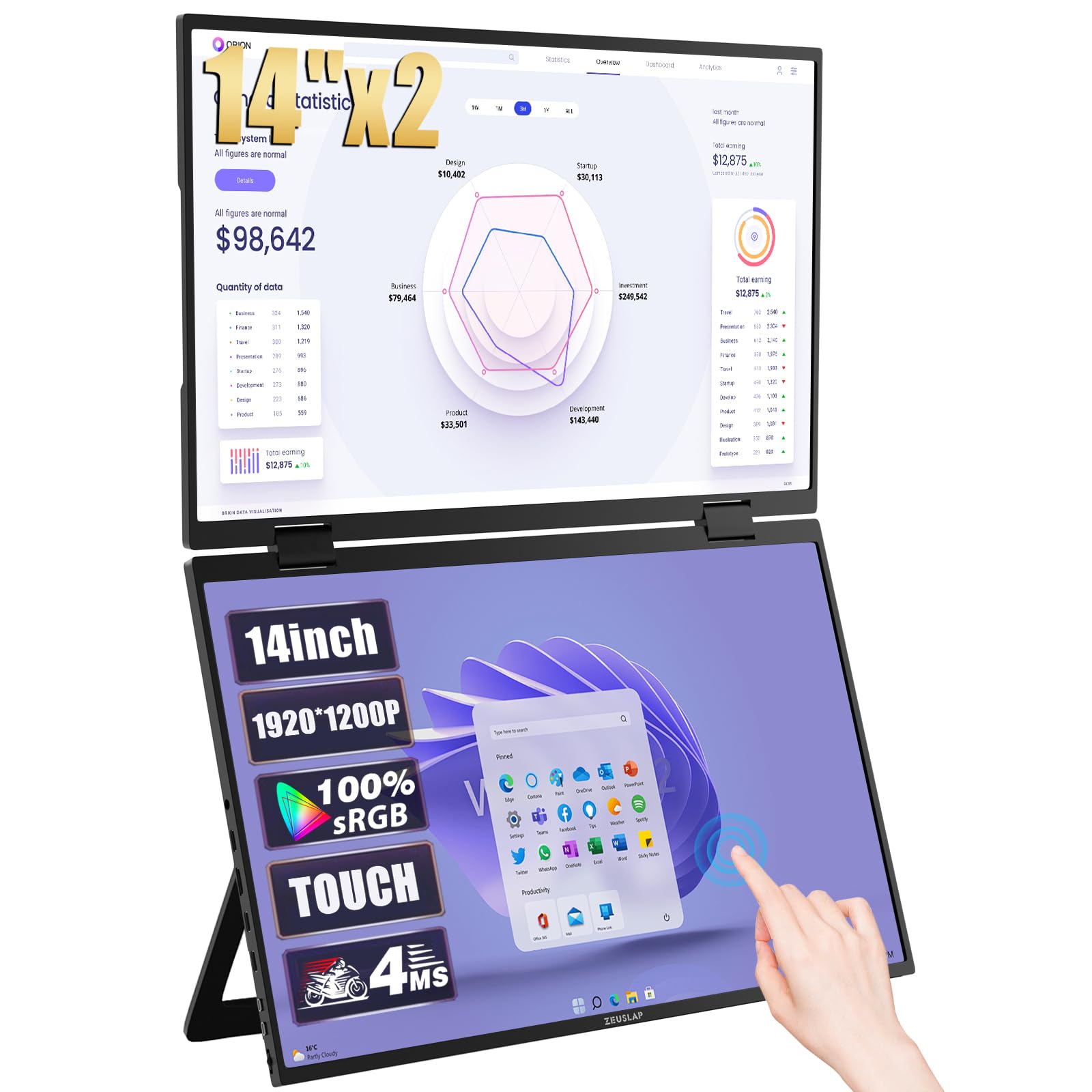
Thank you for choosing the ZEUSLAP Z14W 14-inch Portable Monitor. This device is designed to enhance your productivity and entertainment by providing an additional display for your laptops, smartphones, gaming consoles, and other compatible devices. Featuring a Full HD ADS-IPS touchscreen panel, Type-C connectivity, and integrated speakers, the Z14W offers a versatile and high-quality visual experience. This manual provides essential information for proper setup, operation, and maintenance of your monitor.
2. Turvallisuustiedot
- Lue kaikki ohjeet huolellisesti ennen monitorin käyttöä.
- Älä altista näyttöä sateelle, kosteudelle tai äärimmäisille lämpötiloille.
- Vältä näytön sijoittamista lämmönlähteiden lähelle tai suoraan auringonvaloon.
- Käytä ainoastaan valmistajan toimittamaa tai suosittelemaa virtalähdettä ja kaapeleita.
- Älä yritä purkaa tai korjata näyttöä itse. Jätä kaikki huoltotyöt pätevän henkilöstön tehtäväksi.
- Pidä näyttö poissa voimakkaista magneettikentistä.
- Puhdista näyttö pehmeällä, nukkaamattomalla liinalla. Vältä voimakkaiden kemikaalien tai hankaavien puhdistusaineiden käyttöä.
3. Pakkauksen sisältö
Tarkista pakkauksesta seuraavat tuotteet:
- ZEUSLAP Z14W Portable Monitor
- USB Type-C to Type-C Cable (for power and video)
- Mini HDMI to HDMI Cable (for video)
- USB Type-A to Type-C Cable (for power)
- Virtalähde (jos mukana)
- Käyttöopas
4. Tuote ohiview
Familiarize yourself with the ports and controls on your ZEUSLAP Z14W monitor.
Kuva: Edestä ja sivulta view of the ZEUSLAP Z14W Portable Monitor, highlighting its slim design and connectivity options.
Portit ja painikkeet:
- USB Type-C -portit (x2): For power supply, video signal transmission, and touch functionality. One port typically supports full functionality (power, video, touch) from a single cable to compatible devices, while the other might be primarily for power input.
- Mini HDMI-portti: For video signal input from devices like laptops, game consoles, or cameras. Requires a separate power source via a USB Type-C port.
- 3.5 mm ääniliitäntä: Ulkoisten kuulokkeiden tai kaiuttimien kytkemiseen.
- Power Button/OSD Joystick: Used to power the monitor on/off and navigate the On-Screen Display (OSD) menu for settings adjustments.
5. Asennus ja yhteys
Follow these steps to connect your ZEUSLAP Z14W monitor to your device.
5.1. Connecting via USB Type-C (Full Functionality)
For devices with a full-featured USB Type-C port (supporting DisplayPort Alternate Mode and power delivery):
- Connect one end of the USB Type-C to Type-C cable to a full-featured USB Type-C port on your device (e.g., laptop, smartphone).
- Connect the other end of the USB Type-C to Type-C cable to one of the USB Type-C ports on the ZEUSLAP Z14W monitor.
- The monitor should automatically power on and display the screen. Touch functionality will also be enabled.
5.2. Connecting via Mini HDMI (Requires Separate Power)
For devices with an HDMI output (e.g., desktop PC, game console, older laptop):
- Connect one end of the Mini HDMI to HDMI cable to the Mini HDMI port on the ZEUSLAP Z14W monitor.
- Connect the other end of the Mini HDMI to HDMI cable to the HDMI output port on your device.
- Connect the USB Type-A to Type-C cable to a power source (e.g., power adapter, laptop USB port) and the other end to a USB Type-C power input port on the monitor.
- The monitor will power on and display the screen. Note that touch functionality may not be available or may require an additional USB connection to your device when using HDMI.
5.3. Extending or Duplicating Display
After connecting, you may need to configure your display settings on your connected device (e.g., Windows Display Settings, macOS System Preferences) to extend or duplicate your screen.
6. Näytön käyttö
6.1. Virta päälle/pois
- Virran kytkeminen: Press and hold the Power button/OSD joystick for a few seconds.
- Virran sammuttaminen: Press and hold the Power button/OSD joystick for a few seconds until the screen turns off.
6.2. On-Screen Display (OSD) -valikko
The OSD menu allows you to adjust various display settings. Use the OSD joystick to navigate.
- Avaa OSD-valikko: Press the OSD joystick once to bring up the menu.
- Navigoida: Move the joystick up/down/left/right to browse menu options.
- Valitse/Vahvista: Press the joystick inward to select an option or confirm a setting.
- Poistu: Move the joystick to the 'Exit' option or press it repeatedly to go back through menus.
Yleisiä näyttövalikon asetuksia ovat kirkkaus, kontrasti, värilämpötila, kuvasuhde, tulolähde ja äänenvoimakkuus.
6.3. Kosketusnäytön toiminnallisuus
The Z14W features a 10-point multi-touch screen. Ensure your device supports touch input over the connected interface (typically USB Type-C for full functionality). For Windows, touch drivers are usually installed automatically. For macOS, additional drivers may be required for touch support.
7. Huolto
7.1. Näytön puhdistaminen
Puhdista näyttö pyyhkimällä se varovasti pehmeällä, nukkaamattomalla liinalla. Pinttyneisiin tahroihin hankaa kevyestiampKostuta liina vedellä tai näytön puhdistusaineella. Älä suihkuta nestettä suoraan näytölle.
7.2. Varastointi
When not in use, store the monitor in a cool, dry place, away from direct sunlight and extreme temperatures. Use a protective sleeve or case to prevent scratches and damage during transport.
8. Vianmääritys
Jos kohtaat ongelmia näytön kanssa, katso seuraavaa vianmääritysopasta:
| Ongelma | Mahdollinen syy | Ratkaisu |
|---|---|---|
| Ei näyttöä/"Ei signaalia" -viesti | Incorrect input source, loose cable connection, insufficient power. | Check cable connections. Ensure the monitor is receiving sufficient power. Select the correct input source via the OSD menu. Verify your device's display output settings. |
| Näyttö ei käynnisty | No power, faulty cable. | Ensure the power cable is securely connected and the power source is active. Try a different USB Type-C cable or power adapter. |
| Kosketusnäyttö ei toimi | Device not supporting touch over current connection, incorrect cable, driver issue. | Ensure you are using a full-featured USB Type-C connection. For HDMI, an additional USB connection for touch data might be required (if supported by your device). Check device settings and drivers. |
| Välkkyvä tai vääristynyt kuva | Faulty cable, resolution mismatch, interference. | Try a different cable. Adjust the resolution on your connected device. Ensure no strong electromagnetic interference sources are nearby. |
| Ei ääntä kaiuttimista/kuulokeliitännästä | Volume too low, incorrect audio output device selected, faulty cable. | Adjust monitor volume via OSD. Check your device's audio output settings to ensure the monitor is selected. Test with different headphones/speakers. |
9. Tekniset tiedot
Key technical specifications for the ZEUSLAP Z14W Portable Monitor:
- Mallinumero: ZL-Z14W
- Näytön koko: 14 tuumaa
- Paneelin tyyppi: ADS-IPS
- Resoluutio: 1920 x 1200 (Full HD)
- Päivitystaajuus: 60 Hz
- Vastausaika: 5 millisekuntia
- Kirkkaus: 400 Cd/m² (Nits)
- Värivalikoima: 100 % sRGB
- Kuvasuhde: 16:10
- Liitettävyys: 2x USB Type-C, 1x Mini HDMI, 1x 3.5mm Audio Jack
- Ominaisuudet: Touchscreen, Built-in Speakers, USB Support
- Väri: Musta
- Tuotteen mitat (P x L x K): 5D x 5G x 3Y cm (Note: These dimensions seem unusually small and might be incorrect. Please refer to product packaging for accurate dimensions.)
- Tuotteen paino: 2 kiloa
10. Takuu ja tuki
The ZEUSLAP Z14W Portable Monitor comes with a 2 vuoden valmistajan takuu ostopäivästä lukien. Tämä takuu kattaa valmistusvirheet ja työn laadun normaalissa käytössä.
For warranty claims, technical support, or any inquiries regarding your product, please contact your retailer or the official ZEUSLAP customer support channel. Please have your purchase receipt and product model number (ZL-Z14W) ready when contacting support.