
1. Asennus
1.1. Pakkauksen sisältö
Varmista, että kaikki osat ovat mukana pakkauksessa:
- AUSDOM 108-Key Wireless Keyboard
- AUSDOM Wireless Mouse
- USB-vastaanotin (hiiren sisällä)
- USB-C latauskaapeli
- Käyttöopas
1.2. Connecting the Combo
- Paikanna USB-vastaanotin: The 2.4GHz USB receiver is conveniently stored in a compartment on the underside of the wireless mouse. Gently slide open the battery cover to access it.
- Aseta vastaanotin: Plug the USB receiver into an available USB port on your computer (PC, laptop, or tablet). The system will automatically detect and install the necessary drivers.
- Käynnistettävät laitteet: Ensure both the keyboard and mouse are switched to the 'ON' position. The power switch for the keyboard is located on its top edge, and for the mouse, it is on the underside.

1.3. Charging the Combo
Both the keyboard and mouse are equipped with built-in rechargeable Lithium Polymer batteries. Use the provided USB-C cable to charge them.
- Connect the USB-C end of the cable to the charging port on the keyboard (located on the top edge) or the mouse (located on the front).
- Connect the USB-A end of the cable to a powered USB port on your computer or a USB wall adapter.
- Täysi lataus kestää noin 2 tuntia ja tarjoaa jopa 300 tuntia valmiusaikaa.

2. Käyttöohjeet
2.1. Näppäimistön ominaisuudet
The AUSDOM KAM200X keyboard features a full-size 108-key layout, including a dedicated numeric keypad and various function keys for enhanced productivity.
- Mechanical-Feel Keys: Experience tactile feedback similar to mechanical keyboards, combined with quiet scissor-switch mechanisms and a short 3.8mm key travel for comfortable and precise typing.
- Multimedia and Shortcut Keys: Utilize dedicated media controls (volume, play/pause) and app-switching shortcuts for streamlined workflow. Refer to the user manual for a complete list of function key combinations.
- OS Switching: Easily switch between Windows and macOS layouts using specific function key combinations (e.g., Fn + P for Windows, Fn + O for Mac).


2.2. Hiiren ominaisuudet
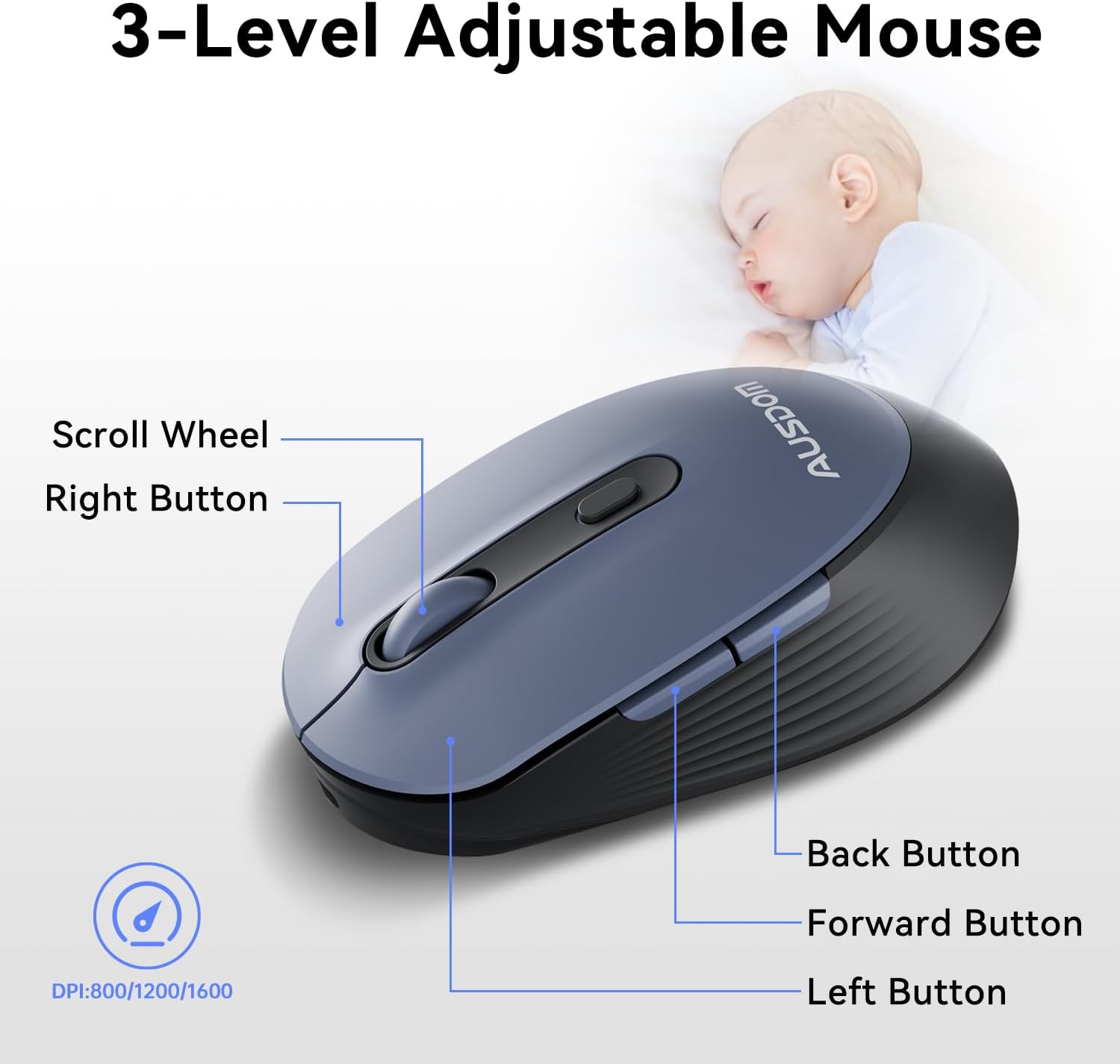
The ergonomic wireless mouse is designed for comfortable use and precise control.
- Säädettävä DPI: Cycle through 3 DPI levels (800, 1200, 1600) using the dedicated DPI button to adjust cursor sensitivity for different tasks.
- Eteen-/taaksepäin-painikkeet: Käytä sivupainikkeita nopeaan navigointiin web selaimet ja sovellukset.
- Hiljaiset klikkaukset: The mouse features silent click buttons to minimize noise in quiet environments.
2.3. Laaja yhteensopivuus
The AUSDOM wireless combo is compatible with a broad range of operating systems and devices, ensuring seamless integration into your existing setup.
- Käyttöjärjestelmät: Compatible with Windows XP/ME/Vista/7/8/10/11 and macOS.
- Laitteet: Works instantly with desktops, laptops, and other computers without requiring additional software or drivers.

3. Huolto
3.1. Puhdistus
To ensure the longevity and optimal performance of your AUSDOM combo, regular cleaning is recommended.
- Pyyhi näppäimistön ja hiiren pinnat pehmeällä, kuivalla ja nukkaamattomalla liinalla.
- Pinttyneeseen likaan, kevyesti dampen the cloth with water or a mild cleaning solution, ensuring no liquid enters the device openings.
- Vältä voimakkaiden kemikaalien, hankaavien puhdistusaineiden tai liuottimien käyttöä.
3.2. Varastointi
When not in use for extended periods, store the keyboard and mouse in a cool, dry place away from direct sunlight and extreme temperatures. The USB receiver can be stored inside the mouse to prevent loss.
4. Vianmääritys
4.1. Yhteysongelmat
- Tarkista vastaanotin: Ensure the USB receiver is firmly plugged into a working USB port on your computer.
- Virta päälle: Verify that both the keyboard and mouse are switched to the 'ON' position.
- Akun taso: Confirm that both devices have sufficient battery charge. Recharge if necessary.
- Kokeile eri porttia: Plug the USB receiver into a different USB port on your computer.
4.2. Lag or Unresponsiveness
- Vähennä häiriötä: Siirrä näppäimistö ja hiiri lähemmäs USB-vastaanotinta. Vältä asettamasta suuria metalliesineitä laitteiden ja vastaanottimen väliin.
- Check for Other Devices: Other 2.4GHz wireless devices might cause interference. Try to minimize their use or move them further away.
- Ladata: Varmista, että molemmat laitteet ovat täyteen ladattuja.
4.3. Keyboard Specific Issues
- Näppäimet eivät vastaa: Puhdista varovasti vaurioitettujen näppäinten ympäristö roskien poistamiseksi.
- Virheellinen avaimen tulostus: Check your computer's operating system settings to ensure the correct keyboard layout is selected.
4.4. Mouse Specific Issues
- Erratic Cursor: Clean the optical sensor on the underside of the mouse. Ensure you are using the mouse on a suitable, non-reflective surface.
- DPI:n säätö: Press the DPI button on the top of the mouse to cycle through the 800/1200/1600 DPI settings.
5. Tuotteen tekniset tiedot
| Ominaisuus | Erittely |
|---|---|
| Merkki | ITÄVALTA |
| Mallinumero | KAM200X |
| Tuotteen mitat | 17.44 x 5.31 x 0.79 tuumaa |
| Tuotteen paino | 1.8 kiloa |
| Paristot | Tarvitaan 2 litiumpolymeeriakku (mukana) |
| Yhteystekniikka | 2.4Ghz langaton |
| Erikoisominaisuudet | Lightweight, Rechargeable, Scissor Switch, Wireless |
| Yhteensopivat laitteet | Kannettava tietokone, henkilökohtainen tietokone, tabletti |
6. Takuutiedot
For detailed warranty information regarding your AUSDOM KAM200X Wireless Keyboard and Mouse Combo, please refer to the official documentation included in your product packaging or visit the manufacturer's official websivusto. Takuuehdot voivat vaihdella alueittain ja tuotteittain.
7. Asiakastuki
If you encounter any issues or have questions about your AUSDOM KAM200X Wireless Keyboard and Mouse Combo, please contact AUSDOM customer support through their official channels. You can often find support contact information, FAQs, and additional resources on the AUSDOM Store Page tai heidän virkamiehensä websivusto.