
1. Tuote ohiview
The ProtoArc Foldable Bluetooth Keyboard (XK01) and Ergonomic Vertical Mouse (EM11) combo offers a portable and comfortable solution for your computing needs. The keyboard features a full-size layout with a numeric keypad and multi-device Bluetooth connectivity, while the ergonomic mouse promotes a natural wrist position to reduce fatigue.

Image 1.1: ProtoArc Foldable Bluetooth Keyboard and Ergonomic Mouse setup, illustrating multi-device capability.
Tärkeimmät ominaisuudet:
- Folding Full-size Wireless Keyboard (XK01): 105-key layout with numeric keypad (Dimensions: 15.19 x 4.68 inch). Features non-slip pads for stability.
- Wireless Ergonomic Mouse (EM11): Designed with an extended wrist rest for a natural, relaxed hand position, reducing fatigue compared to standard mice.
- Usean laitteen liitettävyys: Both devices can sync with up to 3 devices simultaneously via Bluetooth channels, allowing easy switching between Windows, Mac OS, iOS, or Android devices.
- Ladattava ja kannettava: The keyboard has a built-in 210 mAh battery with 5 months standby time. The mouse has a built-in 500mAh Li-Ion battery. Both are rechargeable via Type-C.
- Kestävä muotoilu: Keyboard features aluminum hinges tested for 100,000 folding actions.
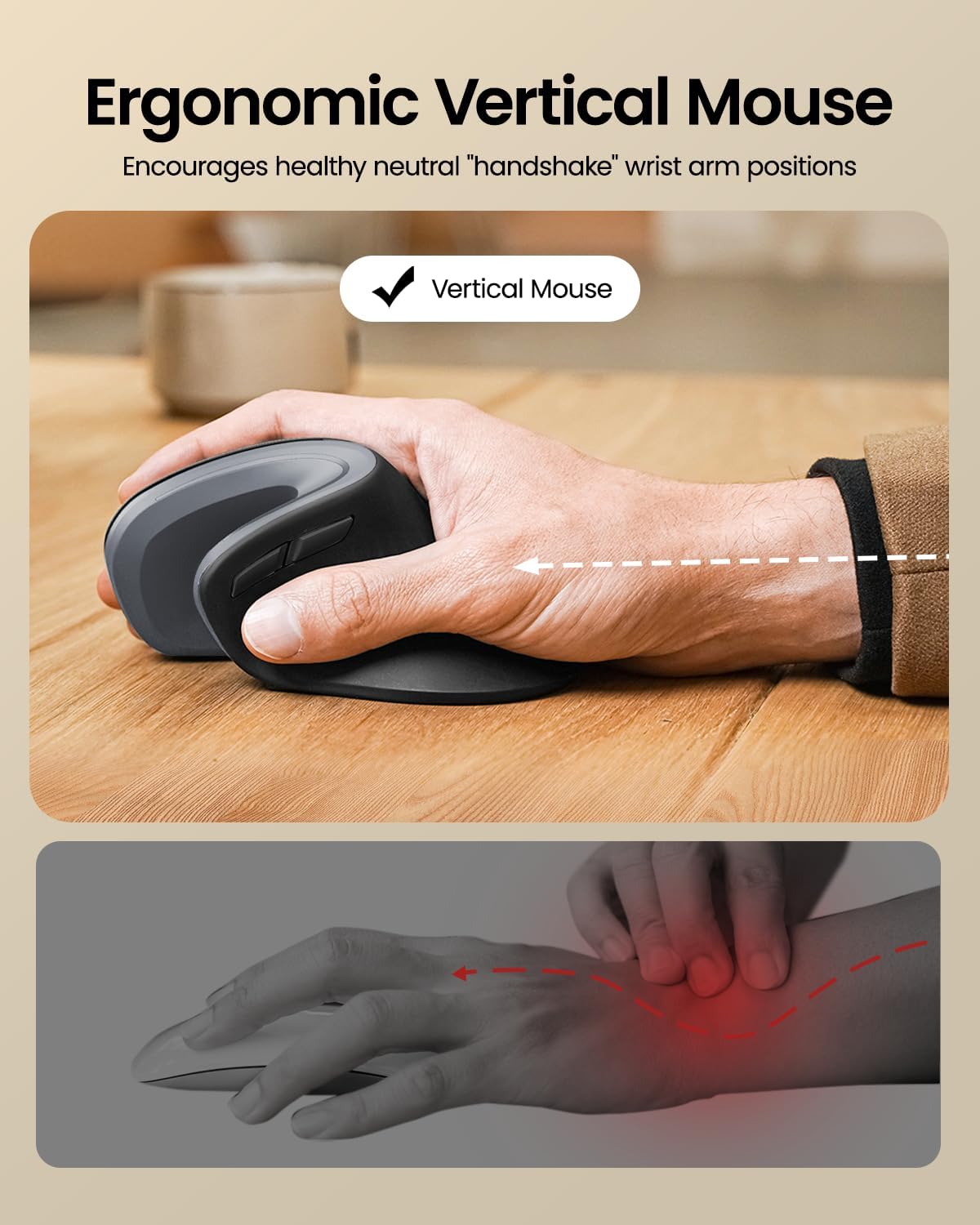
Image 1.2: Ergonomic design of the ProtoArc Vertical Mouse, promoting a healthy wrist position.

Image 1.3: The 58° angle of the ergonomic mouse for a natural handshake position.
2. Asennus ja pariliitos
Follow these steps to set up and pair your ProtoArc Foldable Bluetooth Keyboard and Ergonomic Mouse with your devices.
2.1. Keyboard Setup (XK01)
- Avaa näppäimistö: Gently unfold the keyboard until it lies flat. The magnetic hinges will secure it in place.
- Virta päälle: Locate the power switch (usually on the side or back) and slide it to the 'ON' position. An indicator light will illuminate.
- Siirry pariliitostilaan: Press and hold one of the Bluetooth channel keys (e.g., BT1, BT2, or BT3) for a few seconds until the corresponding indicator light flashes rapidly. This indicates the keyboard is in pairing mode.
- Yhdistä laitteellasi: On your computer, tablet, or smartphone, go to Bluetooth settings. Select "ProtoArc Keyboard" (or similar name) from the list of available devices. Follow any on-screen prompts to complete pairing.
- Vaihda laitteita: To switch between paired devices, simply press the corresponding Bluetooth channel key (BT1, BT2, or BT3).

Image 2.1: The keyboard's durable folding mechanism.
2.2. Mouse Setup (EM11)
- Virta päälle: Etsi hiiren pohjassa oleva virtakytkin ja liu'uta se ON-asentoon.
- Siirry pariliitostilaan: Press the Bluetooth pairing button (usually on the bottom) for a few seconds until the indicator light flashes.
- Yhdistä laitteellasi: On your computer, tablet, or smartphone, go to Bluetooth settings. Select "ProtoArc Mouse" (or similar name) from the list of available devices. Follow any on-screen prompts to complete pairing.
- Usean laitteen pariliitos: The mouse also supports multi-device pairing. Refer to the specific instructions in the included user manual for detailed steps on pairing with multiple devices.
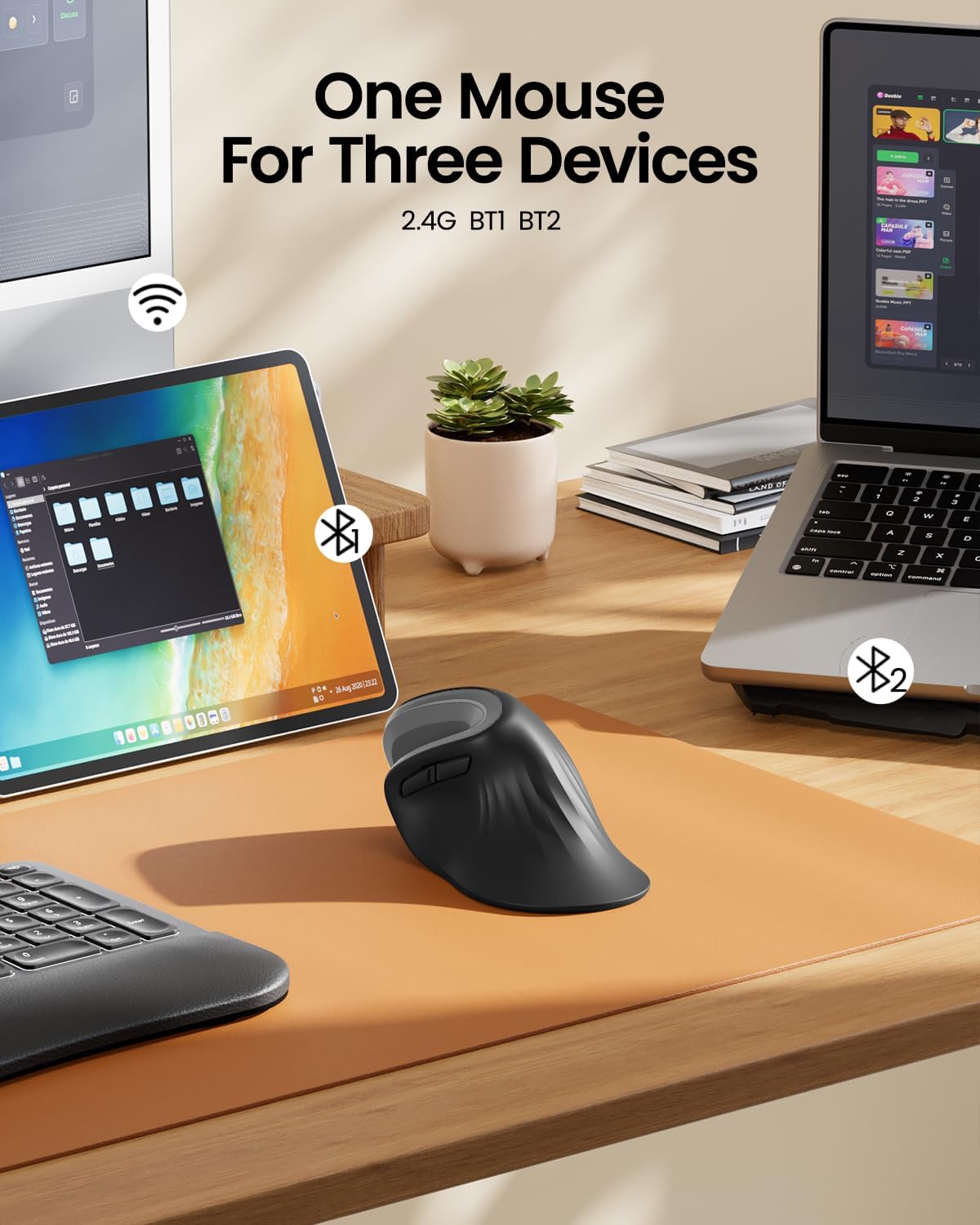
Image 2.2: The ergonomic mouse's ability to connect to three devices.
3. Käyttöohjeet
3.1. Keyboard Usage (XK01)
- Kirjoittaminen: The full-size QWERTY layout with scissor-switch keys provides a comfortable and responsive typing experience.
- Numeronäppäimistö: Utilize the integrated numeric keypad for efficient data entry.
- Toimintonäppäimet: Use the Fn key in combination with other keys for various shortcuts and media controls. Refer to the keyboard's key legends for specific functions.
- Backlight (if applicable): If your keyboard model includes backlighting, use the designated key combination (often Fn + a specific key) to adjust brightness or toggle the backlight on/off.

Image 3.1: Scissor switch keys for comfortable typing.
3.2. Mouse Usage (EM11)
- Ergonominen kahva: Hold the mouse with your hand in a natural "handshake" position, allowing your forearm and wrist to remain relaxed.
- Painikkeet: The mouse features standard left/right click buttons, a scroll wheel, and additional programmable buttons for enhanced productivity.
- DPI-säätö: Adjust the mouse sensitivity (DPI) using the dedicated DPI button, typically located near the scroll wheel, to suit your preference.
4. Huolto ja lataus
4.1. Lataus
- Näppäimistö: Connect the provided Type-C charging cable to the keyboard's charging port (Image 4.1) and a USB power source. The charging indicator light will show charging status. A full charge provides approximately 5 months of standby time.
- Hiiri: Connect the provided Type-C charging cable to the mouse's charging port (Image 4.2) and a USB power source. The mouse has a 500mAh Li-Ion battery.

Image 4.1: Keyboard charging port and stable hinge.

Image 4.2: Ergonomic mouse charging via Type-C.
4.2. Puhdistus
To clean your devices, power them off and use a soft, dry, lint-free cloth. For stubborn dirt, slightly dampKostuta liina vedellä. Vältä voimakkaiden kemikaalien tai hankaavien materiaalien käyttöä.
5. Vianmääritys
- Laite ei muodosta yhteyttä: Ensure both the keyboard and mouse are powered on and in pairing mode. Check your device's Bluetooth settings to ensure Bluetooth is enabled and the correct device is selected. Try restarting both the peripheral and your host device.
- Viive tai katkos: Ensure there are no obstructions between the peripheral and your device. Move closer to your device. Check battery levels and recharge if necessary.
- Näppäimet eivät vastaa: Check if the keyboard is powered on and connected. If specific keys are not working, try cleaning around them.
- Hiiren kursori ei liiku: Ensure the mouse is powered on and connected. Check the surface you are using the mouse on; a non-reflective, even surface is ideal.
If you encounter persistent issues, please refer to the "Warranty and Support" section for contact information.
6. Tekniset tiedot
| Ominaisuus | Erittely |
|---|---|
| Merkki | ProtoArc |
| Väri | Harmaa |
| Yhteystekniikka | Bluetooth |
| Yhteensopivat laitteet | Tablet, Smartphone, Laptop (Windows, macOS, iOS, Android) |
| Näppäimistön tyyppi | Folding Full-size Wireless Keyboard (XK01) with 105 keys, numeric keypad |
| Näppäimistön asettelu | QWERTY |
| Hiiren tyyppi | Ergonomic Vertical Mouse (EM11) |
| Käsien suuntautuminen | Molempikätinen |
| Virtalähde | Battery Powered (Rechargeable via Type-C) |
| Näppäimistön akku | 210 mAh (5 months standby) |
| Hiiren akku | 500 mAh Li-Ion |
7. Takuu ja tuki
ProtoArc products come with a standard manufacturer's warranty. For detailed warranty information, product support, or troubleshooting assistance, please contact ProtoArc customer service.
- Sähköpostituki: support@protoarc.com
- Websivusto: www.protoarc.com