
ShanWan Q36-XPS-KABRILAN
ShanWan Bluetooth Gamepad -avaimenperän kokoinen miniohjain, käyttöohje
Model: Q36-XPS-KABRILAN
1. Johdanto
This manual provides comprehensive instructions for the ShanWan Bluetooth Gamepad Keychain Sized Mini Controller. Please read this manual carefully before use to ensure proper operation and to maximize your gaming experience. This device is designed for use with Android phones and tablets, PS4/Slim/Pro, iPhone, iPad, Nintendo Switch, and Windows PCs.
2. Tuote ohiview
The ShanWan Mini Controller is a compact and versatile gamepad designed for portability and multi-platform compatibility. It features 17 buttons and a D-Pad, all within a keychain-sized form factor.
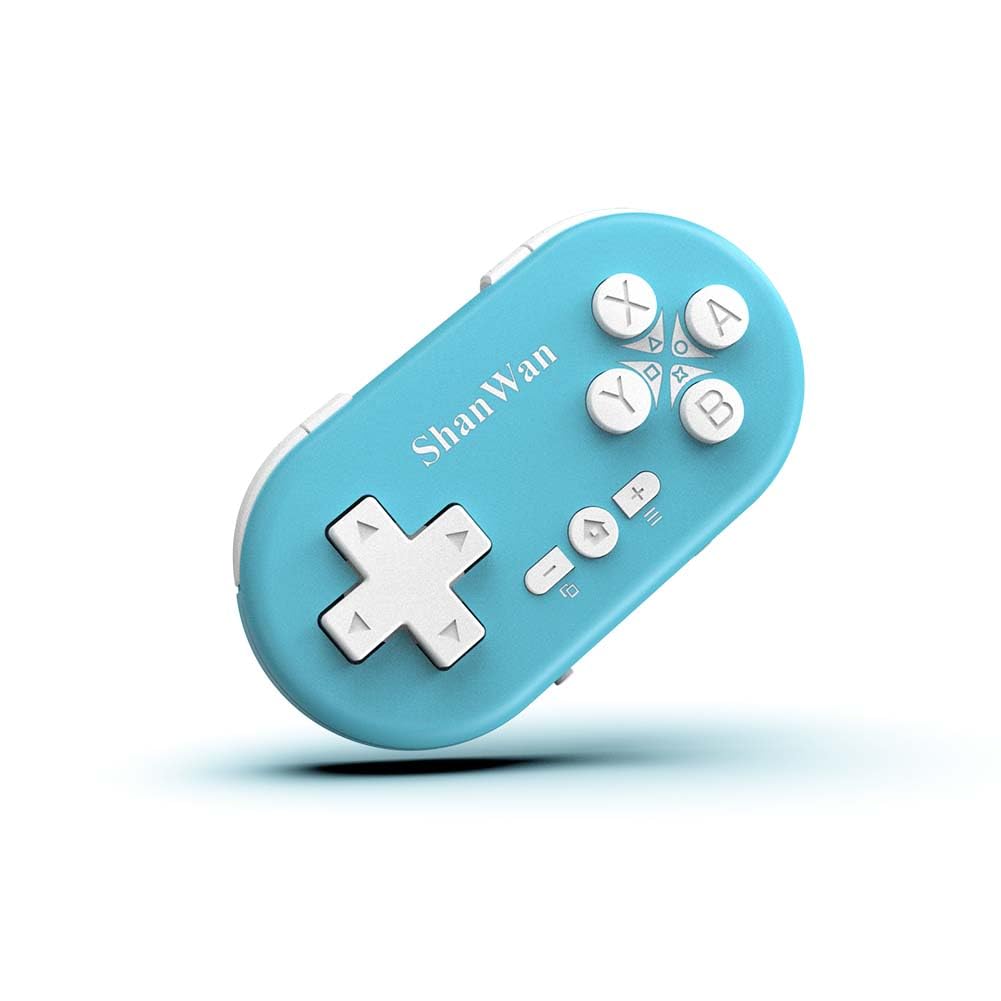
Figure 2.1: ShanWan Mini Bluetooth Gamepad, showcasinsen kompakti muotoilu ja painikkeiden asettelu.

Figure 2.2: Dimensions of the ShanWan Mini Bluetooth Gamepad, measuring 2.83 inches in length, 1.57 inches in width, and 0.55 inches in thickness.
2.1 Pakkauksen sisältö
- ShanWan Bluetooth Gamepad Keychain Sized Mini Controller
- USB-latauskaapeli
- Käyttöopas (tämä asiakirja)
3. Tekniset tiedot
| Ominaisuus | Yksityiskohta |
|---|---|
| Mallinumero | Q36-XPS-KABRILAN |
| Yhteydet | Langaton Bluetooth |
| Yhteensopivuus | Android, iOS, Windows, Nintendo Switch, PlayStation 4 |
| Akun kapasiteetti | 180mAh litiumpolymeeriakku (sisältyy pakkaukseen) |
| Latausaika | Noin 1 tunti |
| Toiminta-aika | Jopa 5-6 tuntia |
| Wireless Range | Jopa 10 metriä (33 jalkaa) |
| Tuotteen mitat | 2.83 x 1.57 x 0.55 tuumaa |
| Tuotteen paino | 1.44 unssia (noin 41 grammaa) |
| Erikoisominaisuudet | Gyroscope motion sensing, One-button wake-up function |
4. Asennus ja pariliitos
4.1 Ohjaimen lataaminen
Before first use, fully charge the controller. Connect the provided USB charging cable to the controller's charging port and the other end to a USB power source (e.g., computer, USB wall adapter). The charging indicator light will show the charging status and turn off when fully charged. A full charge typically takes about 1 hour.
4.2 Virran kytkeminen päälle/pois
- Virta päälle: Press and hold the Home button (usually the button with a house icon) for a few seconds until the indicator lights turn on.
- Virta pois: Press and hold the Home button for approximately 5 seconds until the indicator lights turn off. The controller will also automatically power off after a period of inactivity to conserve battery.
4.3 Bluetooth-pariliitosohjeet
The controller supports multiple platforms. Ensure the mode switch on the controller is set to the correct platform before pairing.
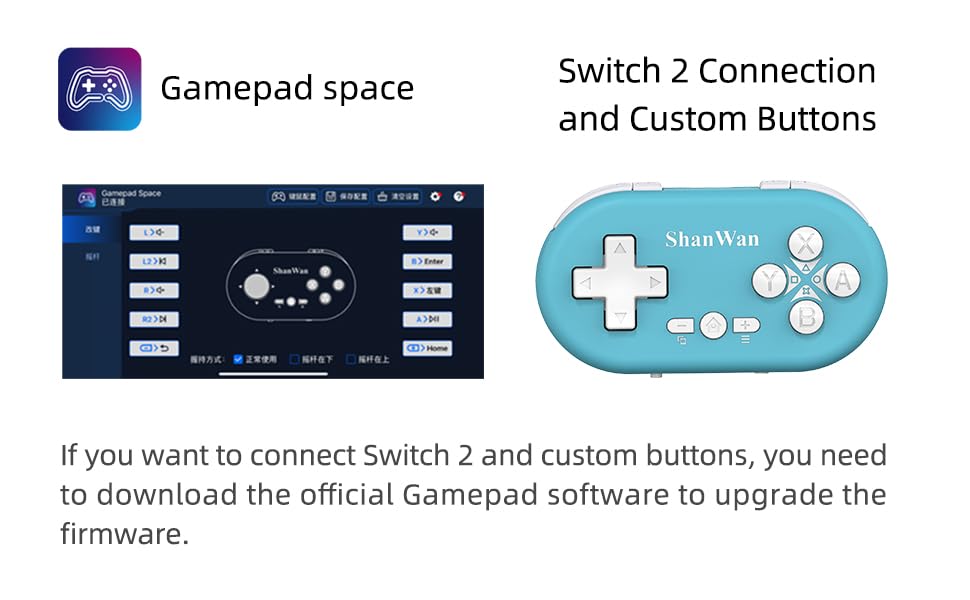
Figure 4.1: The mode switch on the controller, allowing selection between X (Xbox/PC), S (Switch), and P (PlayStation) modes for multi-device compatibility.
4.3.1 Yhdistäminen Nintendo Switchiin
- Siirry Nintendo Switchissä HOME-valikkoon.
- Select "Controllers" then "Change Grip/Order".
- Set the controller's mode switch to "S" (Switch mode).
- Press and hold the "Pair" button on the controller until the indicator lights begin to blink rapidly.
- The Switch will detect the controller. Once paired, the LED indicator on the controller will remain solid, and the controller will be displayed on the Switch host screen.

Figure 4.2: Visual guide for connecting the controller to a Nintendo Switch, showing menu navigation and the pairing button location.
4.3.2 Pairing with Android/iOS Devices
- Set the controller's mode switch to the appropriate mode (e.g., "X" for Android, or a specific iOS mode if available, refer to device-specific instructions).
- On your Android or iOS device, go to Bluetooth settings.
- Varmista, että Bluetooth on käytössä.
- Press and hold the "Pair" button on the controller until the indicator lights blink rapidly.
- Select "ShanWan Controller" or a similar name from the list of available devices on your phone/tablet.
- Kun yhteys on muodostettu, ohjaimen merkkivalo palaa tasaisesti.
4.3.3 Pairing with PS4
- Set the controller's mode switch to "P" (PlayStation mode).
- On your PS4, go to "Settings" > "Devices" > "Bluetooth Devices".
- Press and hold the "Pair" button on the controller until the indicator lights blink rapidly.
- Select "ShanWan Controller" or a similar name from the list of available devices on your PS4.
- Kun yhteys on muodostettu, ohjaimen merkkivalo palaa tasaisesti.
4.3.4 Pairing with Windows PC
- Set the controller's mode switch to "X" (Xbox/PC mode).
- Siirry Windows-tietokoneellasi kohtaan "Asetukset" > "Laitteet" > "Bluetooth ja muut laitteet".
- Ensure Bluetooth is enabled and click "Add Bluetooth or other device".
- Select "Bluetooth".
- Press and hold the "Pair" button on the controller until the indicator lights blink rapidly.
- Select "ShanWan Controller" or a similar name from the list of available devices.
- Kun yhteys on muodostettu, ohjaimen merkkivalo palaa tasaisesti.
5. Käyttöohjeet
5.1 Painikkeiden toiminnot
The controller features standard gamepad buttons. Their specific function may vary slightly depending on the platform and game.
- D-Pad: Suuntasyöttö.
- A-, B-, X- ja Y-painikkeet: Toimintopainikkeet.
- L1-, L2-, R1- ja R2-näppäimet: Olkapää- ja liipaisinpainikkeet.
- Koti näppäin: Power on/off, return to home screen (platform dependent).
- Plus (+) / Miinus (-) -painikkeet: Start/Select or menu functions.
- Pariliitospainike: Käynnistää Bluetooth-pariliitoksen.
5.2 Erikoisominaisuudet
5.2.1 One-Button Wake-Up Function
After initial pairing, you can wake up the controller and reconnect it to the last paired device by simply pressing the Home button. This feature allows for quick resumption of gameplay.
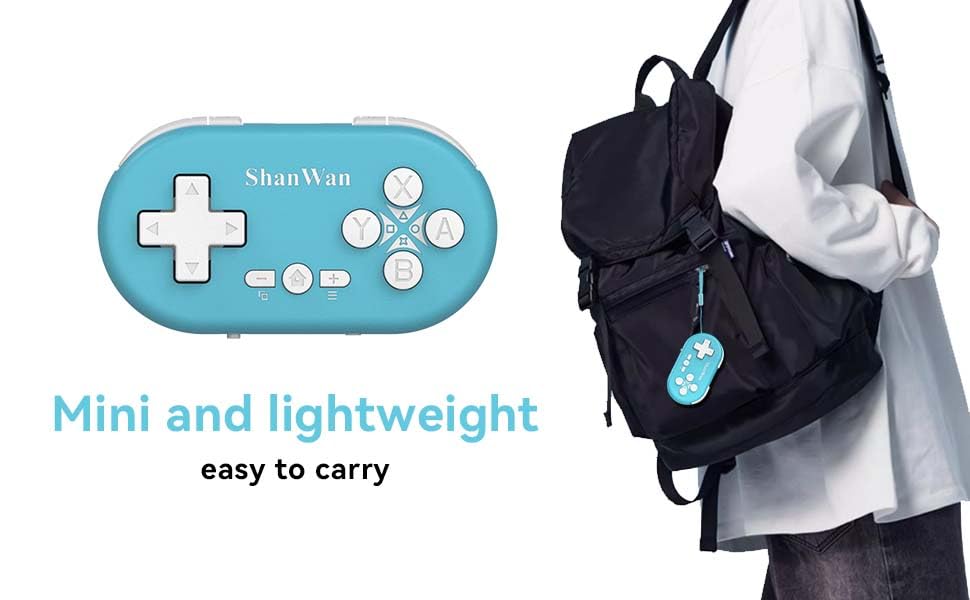
Figure 5.1: Illustration of the one-button wake-up function, highlighting the Home button used to quickly reactivate the controller.
5.2.2 Gyroscope Motion Sensing
The controller is equipped with a gyroscope for motion sensing effects, providing an immersive gaming experience in supported games, particularly on platforms like Nintendo Switch.
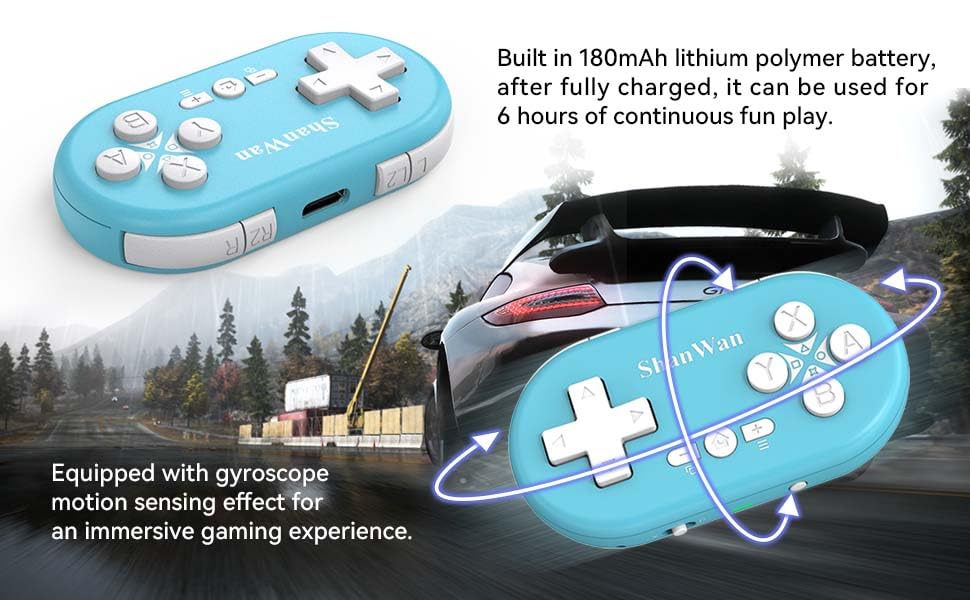
Figure 5.2: Visual representation of the gyroscope motion sensing effect, showing the controller being tilted to influence in-game actions.
5.2.3 Firmware Upgrade for Switch 2 and Custom Buttons
For compatibility with Switch 2 and to customize button mappings, it may be necessary to download the official Gamepad software and upgrade the controller's firmware. Refer to the manufacturer's official websivusto uusimmille ohjelmistoille ja ohjeille.

Figure 5.3: Screenshot illustrating the "Gamepad Space" software interface, used for firmware upgrades and custom button configurations, particularly for Switch 2 compatibility.
6. Huolto
- Puhdistus: Puhdista ohjain pehmeällä, kuivalla liinalla. Vältä voimakkaiden kemikaalien tai hankaavien materiaalien käyttöä.
- Varastointi: Säilytä ohjainta viileässä, kuivassa paikassa, poissa suorasta auringonvalosta ja äärimmäisistä lämpötiloista.
- Akun hoito: Akun käyttöiän pidentämiseksi vältä akun usein tapahtuvaa täydellistä tyhjentymistä. Lataa ohjain säännöllisesti, vaikka sitä ei käytettäisi pitkään aikaan.
- Vältä vaikutusta: Älä pudota ohjainta tai altista sitä voimakkaille iskuille, sillä se voi vahingoittaa sen sisäisiä komponentteja.
7. Vianmääritys
7.1 Controller Does Not Power On
- Ensure the controller is fully charged. Connect it to a power source and allow it to charge for at least 15 minutes before attempting to power on again.
- Verify that the charging cable and power source are functioning correctly.
7.2 Unable to Pair Controller
- Ensure the controller is in pairing mode (indicator lights blinking rapidly).
- Check that the mode switch on the controller is set to the correct platform (S for Switch, X for Android/Windows, P for PS4).
- Make sure Bluetooth is enabled on your device (Switch, phone, PC, PS4).
- Move the controller closer to the device you are trying to pair with.
- Remove any previous pairings of the controller from your device's Bluetooth settings and try pairing again.
- Käynnistä sekä ohjain että laite uudelleen.
7.3 Syöttöviive tai katkokset
- Varmista, että ohjain on laitteesi 10 metrin langattoman kantaman sisällä.
- Minimoi muiden langattomien laitteiden (Wi-Fi-reitittimien, muiden Bluetooth-laitteiden) aiheuttamat häiriöt.
- Ensure the controller is fully charged. Low battery can affect connection stability.
- Try re-pairing the controller with your device.
- Update the controller's firmware if available (refer to Section 5.2.3).
7.4 Buttons Not Responding Correctly
- Test the controller on a different game or application to determine if the issue is game-specific.
- Ensure the controller's firmware is up to date.
- Perform a factory reset if possible (refer to manufacturer's support for specific instructions, as this model may not have a dedicated reset button).
8. Takuu ja tuki
ShanWan products are designed for reliability and performance. For warranty information, technical support, or further assistance, please visit the official ShanWan websivustolta tai ota yhteyttä heidän asiakaspalveluunsa. Säilytä ostokuitti ostotodistuksena takuuvaatimuksia varten.
Official ShanWan Store: ShanWan Store on Amazon
9. Lisätietoja
The ShanWan Mini Controller's compact and lightweight design makes it highly portable, allowing users to carry it easily and enjoy gaming on the go.

Figure 9.1: The ShanWan Mini Bluetooth Gamepad attached to a backpack, illustrating its keychain-sized portability and ease of transport.

Figure 9.2: The ShanWan Mini Bluetooth Gamepad being used outdoors with a portable screen, demonstrating its ease of transport and use anywhere.