
X9 Performance X9RBBLKBDOCKS
X9 Full-Size Bluetooth Keyboard with Phone Holder
Model: X9RBBLKBDOCKS | Brand: X9 Performance
Johdanto
The X9 Full-Size Bluetooth Keyboard with Phone Holder is a versatile input device designed for enhanced productivity across multiple platforms. It features a full 110-key layout, integrated phone/tablet holder, and multi-device connectivity via 2.4G wireless and Bluetooth. This manual provides detailed instructions for setting up, operating, maintaining, and troubleshooting your keyboard.
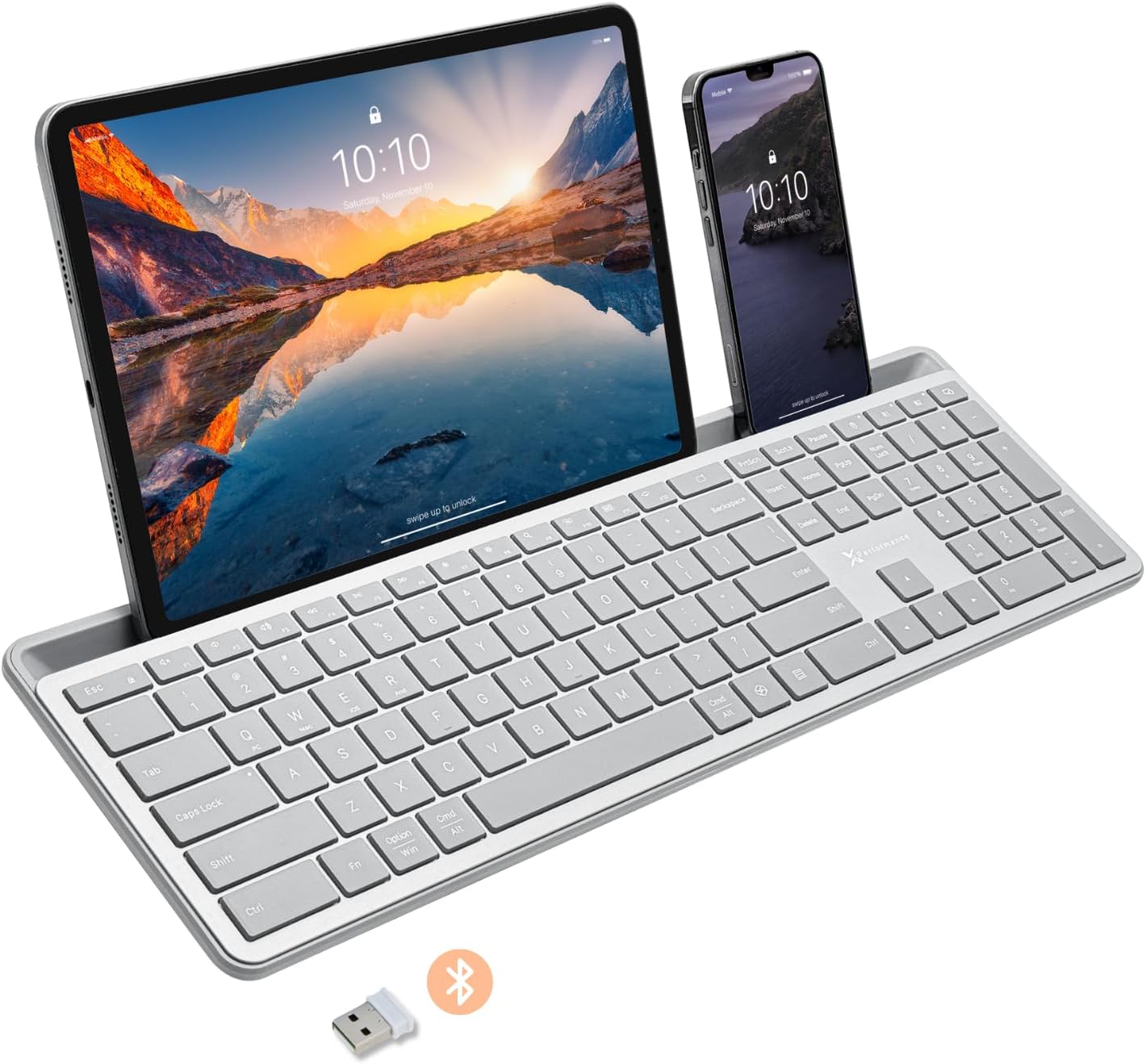
Image: The X9 Full-Size Bluetooth Keyboard in silver, featuring an integrated dock holding a tablet and a smartphone. A USB dongle and Bluetooth symbol are visible below the keyboard.
Tärkeimmät ominaisuudet
- Kolmoistilan yhteys: Seamlessly connect up to three devices using 2.4G wireless (via included USB dongle) and two independent Bluetooth channels.
- Integroitu laitetelakka: An extra-long dock (16.75" long x 0.45" wide) securely holds your smartphone and tablet simultaneously, allowing for easy transitions between devices. Note: May not fit devices with thick cases.
- Taustavalaistu näppäimet: Crisp white LED backlighting with 3 adjustable brightness levels for comfortable typing in various lighting conditions.
- Ladattava akku: Equipped with a 1000 mAh rechargeable battery for extended use, with a USB-C charging cable included.
- Täysikokoinen asettelu: A complete 110-key layout including a numeric keypad for efficient data entry and productivity.
- Usean käyttöjärjestelmän yhteensopivuus: Designed for Windows and Mac users, with seamless compatibility across macOS, iOS, and Android operating systems.
- Hiljaiset näppäimet: Keys are designed for a quiet typing experience.

Image: Diagram illustrating the keyboard's ability to pair with up to three devices: a smartphone via Bluetooth (channel 1), a desktop monitor via 2.4GHz wireless (channel 2), and a laptop via Bluetooth (channel 3).

Kuva: Lähikuva view of the keyboard's integrated dock, highlighting its extra-long design and a note indicating its dimensions (0.45" width) and potential incompatibility with thick device cases.

Image: A close-up of the keyboard's side, showing a USB-C cable plugged into the charging port, with text indicating a 1000mAh rechargeable battery.
Pakkauksen sisältö
Varmista, että pakkauksessa on kaikki tarvittavat osat:
- X9 Full-Size Bluetooth Keyboard
- USB-C latauskaapeli
- Langaton 2.4G USB-sovitin
Asennusopas
1. Näppäimistön lataaminen
Before first use, fully charge the keyboard. Connect the included USB-C charging cable to the keyboard's charging port and the other end to a USB power source (e.g., computer USB port, USB wall adapter). The charging indicator light will show charging status and turn off when fully charged.
2. Yhteyden muodostaminen laitteisiin
The X9 keyboard supports three connection channels: one 2.4G wireless channel and two Bluetooth channels (B1 and B2).
2.1. Langaton 2.4G-yhteys
- Locate the 2.4G USB wireless dongle, typically stored in a compartment on the keyboard.
- Kytke USB-sovitin tietokoneen vapaaseen USB-porttiin.
- Turn on the keyboard. The keyboard should automatically connect to your computer via the 2.4G dongle.
2.2. Bluetooth Connection (B1 / B2)
- Kytke näppäimistö päälle.
- Paina ja pidä painettuna B1 or B2 key for 3-5 seconds until the corresponding indicator light (B1 or B2) starts blinking rapidly. This indicates the keyboard is in pairing mode.
- Siirry laitteellasi (älypuhelin, tabletti, tietokone) Bluetooth-asetuksiin ja ota Bluetooth käyttöön.
- Etsi new devices. The keyboard should appear as "X9 Keyboard" or similar.
- Select the keyboard from the list to pair. Follow any on-screen prompts to complete the pairing process. The indicator light will stop blinking and remain solid for a few seconds, then turn off, indicating successful connection.
- Repeat these steps for the second Bluetooth channel (B2) if you wish to connect another device.
Käyttöohjeet
1. Vaihtaminen yhdistettyjen laitteiden välillä
Vaihda yhdistettyjen laitteiden välillä painamalla vastaavaa yhteysnäppäintä:
- Paina 2.4G key to switch to the device connected via the USB dongle.
- Paina B1 key to switch to the device connected via Bluetooth Channel 1.
- Paina B2 key to switch to the device connected via Bluetooth Channel 2.
2. Adjusting Backlight Brightness
The keyboard features three levels of backlight brightness. To adjust:
- Paina Fn näppäin + Lamppu key (usually located near the F12 key) repeatedly to cycle through the brightness levels (Low, Medium, High, Off).

Image: A close-up of the keyboard in a dark setting, showcasing its clear backlit keys. Indicators for Low, Medium, and High brightness levels are shown below the keyboard.
3. Using the Copilot AI Key
The keyboard includes a dedicated Copilot AI key for quick access to AI functionalities on compatible systems. Press this key to activate Copilot or similar AI features.
4. Operating System Specific Functions
The keyboard is optimized for various operating systems. Some function keys may behave differently or require the Fn key to access secondary functions depending on your OS (Windows, macOS, iOS, Android).
- For optimal compatibility, ensure your device's operating system is updated.
- Some systems may require specific key combinations (e.g., Fn + Option + R for Android, as mentioned in customer reviews for specific app compatibility). Refer to your device's documentation for advanced keyboard settings.
Huolto
To ensure the longevity and optimal performance of your X9 keyboard, follow these maintenance guidelines:
- Puhdistus: Käytä pehmeää, nukkaamatonta liinaa hieman dampened with water or a mild cleaning solution to wipe the surface of the keyboard. Avoid excessive moisture. For cleaning between keys, use compressed air.
- Varastointi: Säilytä näppäimistöä viileässä, kuivassa paikassa, poissa suorasta auringonvalosta ja äärimmäisistä lämpötiloista.
- Akun hoito: Avoid fully discharging the battery frequently. For long-term storage, charge the battery to about 50% to preserve its lifespan.
- Vältä roiskeita: Pidä nesteet poissa näppäimistöstä, jotta sen sisäiset komponentit eivät vahingoitu.
Vianetsintä
If you encounter issues with your X9 keyboard, refer to the following common problems and solutions:
| Ongelma | Mahdollinen syy / Ratkaisu |
|---|---|
| Näppäimistö ei käynnisty. | Battery is depleted. Connect the keyboard to a power source using the USB-C cable and allow it to charge. |
| Näppäimistö ei muodosta yhteyttä Bluetoothin kautta. |
|
| 2.4G wireless connection not working. |
|
| Näppäimet eivät reagoi tai ne painavat väärin. |
|
| Taustavalo ei toimi. |
|
Tekniset tiedot
| Ominaisuus | Yksityiskohta |
|---|---|
| Mallinumero | X9RBBLKBDOCKS |
| Yhteystekniikka | 2.4G langaton, Bluetooth |
| Yhteensopivat laitteet | Laptop, PC, Mac, iOS, Android (Smartphone, Tablet) |
| Näppäimistön asettelu | Full-Size, 110-key |
| Taustavalo | Single Color (White), 3 Brightness Levels |
| Akun kapasiteetti | 1000 mAh (ladattava) |
| Tuotteen mitat (P x L x K) | 17.33" x 5.56" x 0.89" (44.02 cm x 14.12 cm x 2.26 cm) |
| Tuotteen paino | 2.25 puntaa (1.02 kg) |
| Device Dock Dimensions (L x W) | 16.75 cm x 0.45 cm |
| Valmistaja | X9 suorituskyky |

Kuva: Yläpuolinen view of the X9 keyboard with measurements indicating its length (17.3"), width (5.55"), and height (0.89").
Takuutiedot
X9 Performance products are designed for reliability and performance. For specific warranty terms and conditions, please refer to the warranty card included with your product or visit the official X9 Performance websivusto. Yleensä tuotteilla on materiaali- ja valmistusvirhetakuu tietyn ajan ostopäivästä lukien.
Tukea
For further assistance, technical support, or to inquire about replacement parts, please contact X9 Performance customer support:
- Websivusto: Visit the official X9 Performance websivusto usein kysyttyjen kysymysten, ohjainten ja tukiresurssien osalta.
- Ota yhteyttä: Katso tuotepakkauksessa tai virallisella myyntiedustajalla olevat yhteystiedot. webpuhelin- tai sähköpostituen sivusto.
Please have your product model number (X9RBBLKBDOCKS) and purchase details ready when contacting support.
Ask a question about this manual
Ask about setup, troubleshooting, compatibility, parts, safety, or missing instructions. Manuals+ will review the question and use this page’s manual context to help answer it.