
1. Johdanto
The YESIDO TV10 4G HD Wireless Screen Display Receiver is designed to wirelessly mirror content from your smartphone, tablet, or laptop to a larger display such as a TV or projector. It supports 4K resolution and is compatible with various operating systems, including iOS, Android, and Windows, utilizing technologies like Miracast and AirPlay.
2. Turvallisuustiedot
- Pidä laite poissa vedestä ja korkean kosteuden ympäristöistä.
- Älä altista laitetta äärimmäisille lämpötiloille.
- Vältä laitteen pudottamista tai altistamista voimakkaille iskuille.
- Use only the provided power cable or a certified 5V/1A USB power adapter.
- Älä yritä purkaa tai korjata laitetta itse. Ota yhteyttä pätevään huoltohenkilöstöön.
3. Pakkauksen sisältö
- YESIDO TV10 4G Wireless Screen Display Receiver
- USB-virtajohto Wi-Fi-antennilla
- Käyttöopas
4. Tuote ohiview
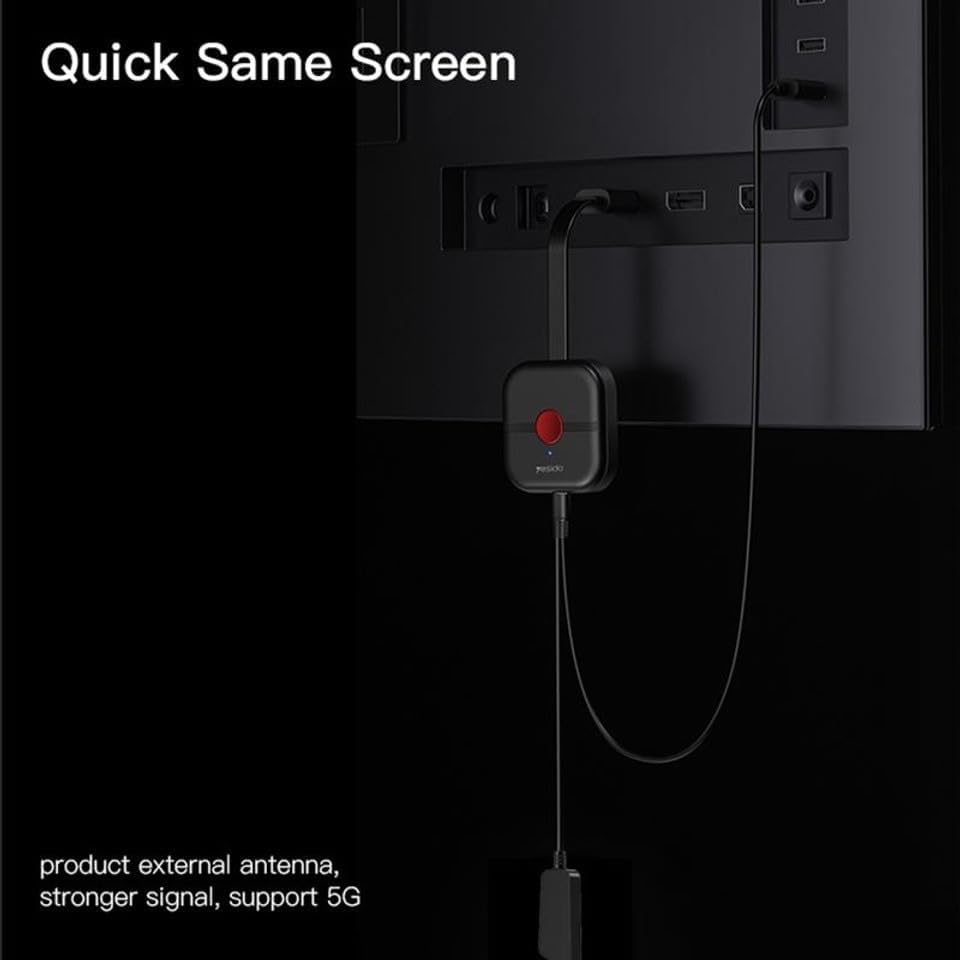
The YESIDO TV10 4G features a compact design with an integrated HDMI connector and a USB port for power and the external Wi-Fi antenna. It is designed for easy portability and discreet installation behind your display.
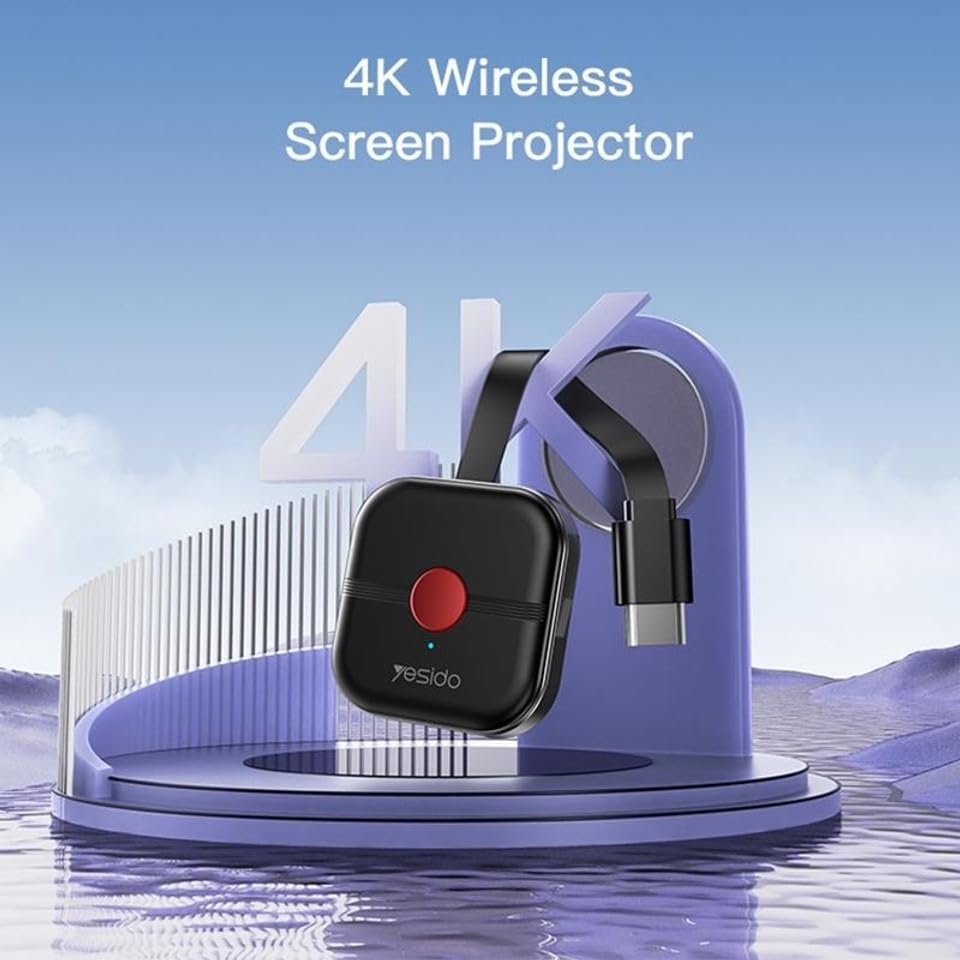
Image: The YESIDO TV10 4G dongle connected to an HDMI port on the back of a television, with its USB power cable and external antenna visible. This illustrates the compact setup.
Kuva: Havainnollistava kaavio, joka näyttääasing the high-performance main control chip, emphasizing its efficiency and stability for reliable wireless display.
5. Asennus
5.1 Laitteen liittäminen
- Plug the YESIDO TV10 4G into an available HDMI port on your TV or projector.
- Connect the USB power cable to the micro-USB port on the dongle.
- Plug the other end of the USB power cable into a USB power adapter (5V/1A recommended) or a USB port on your TV that provides sufficient power.
- Ensure the external Wi-Fi antenna is positioned for optimal signal reception.
- Switch your TV/projector's input source to the corresponding HDMI port. You should see the YESIDO TV10 4G startup screen.
5.2 Wi-Fi-yhteyden muodostaminen
- On the TV screen, locate the Wi-Fi network name (SSID) and password displayed by the YESIDO TV10 4G.
- On your smartphone, tablet, or laptop, go to Wi-Fi settings and connect to the YESIDO TV10 4G's Wi-Fi network.
- Avaa a web browser on your device and enter the IP address displayed on the TV screen (e.g., 192.168.x.x) to access the dongle's settings page.
- From the settings page, select 'Internet' or 'Wi-Fi Setup' and connect the dongle to your home Wi-Fi network. This allows the dongle to access the internet and for your device to maintain internet connectivity while mirroring.
6. Käyttöohjeet
6.1 Screen Mirroring (iOS/Android/Windows)
Once the YESIDO TV10 4G is connected to your home Wi-Fi network, you can initiate screen mirroring from your compatible device:
- iOS-laitteille (AirPlay): Swipe down from the top-right corner (or up from the bottom for older models) to open Control Center. Tap 'Screen Mirroring' or 'AirPlay Mirroring' and select the YESIDO TV10 4G from the list.
- Android-laitteille (Miracast/Smart View/Näytön lähetys): Go to your device's settings and look for 'Smart View', 'Screen Cast', 'Wireless Display', 'MirrorShare', or similar options. Select the YESIDO TV10 4G from the detected devices.
- For Windows Devices (Project to a wireless display): Paina Windows-näppäin + P, then select 'Connect to a wireless display'. Choose the YESIDO TV10 4G from the list.
6.2 Kuvanlaatu
The YESIDO TV10 4G supports up to 4K HD picture quality, providing clear and detailed visuals for your mirrored content.
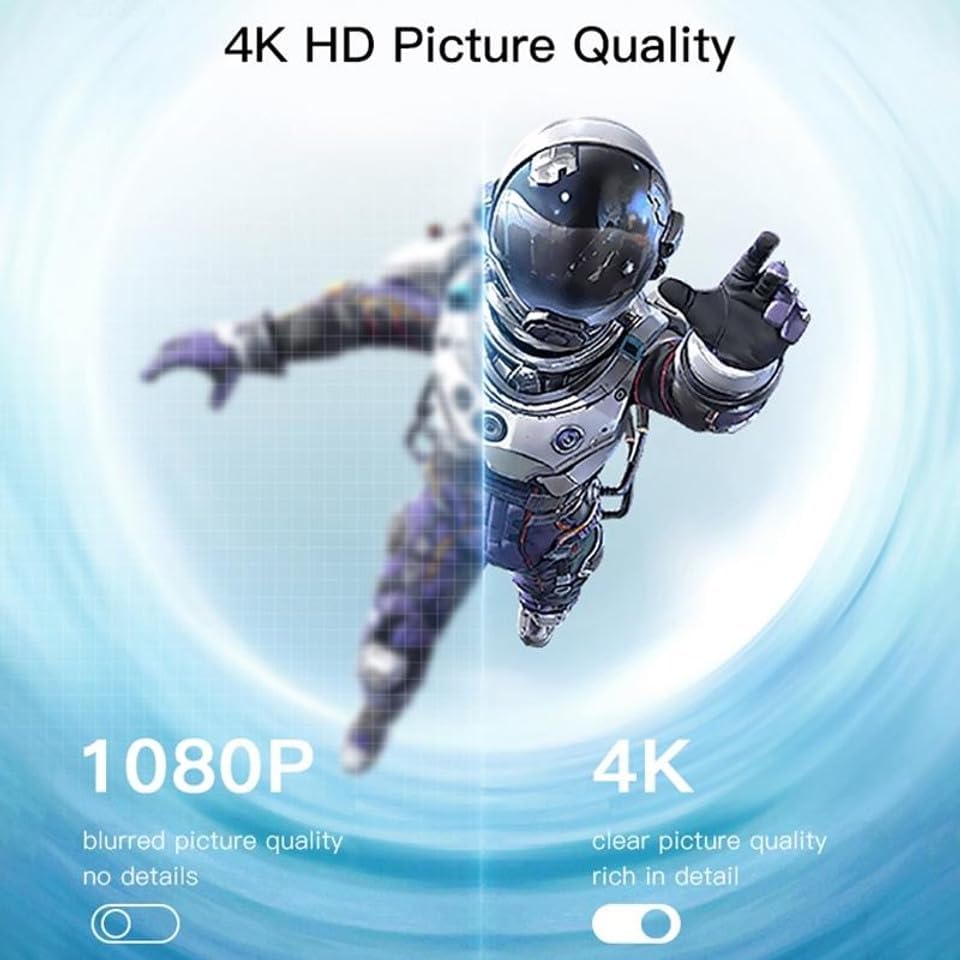
Image: A visual comparison demonstrating the difference between 1080P (blurred, no details) and 4K (clear, rich in detail) picture quality, highlighting the enhanced clarity offered by 4K resolution.
6.3 Näytön vaaka- ja pystysuuntainen vaihtaminen
The device supports flexible screen orientation, allowing you to switch between horizontal and vertical display modes freely, depending on your content and viewmieluummin.

Image: Two display setups, one showing content in a standard horizontal landscape mode and the other in a vertical portrait mode, illustrating the device's ability to switch screen orientation.
7. Huolto
- Puhdista laite pehmeällä, kuivalla liinalla. Älä käytä nestemäisiä puhdistusaineita tai aerosoleja.
- Varmista, että laite on irrotettu pistorasiasta ennen puhdistamista.
- Säilytä laitetta viileässä, kuivassa paikassa, kun sitä ei käytetä.
8. Vianmääritys
- Ei näyttöä televisiossa: Ensure the dongle is properly plugged into the HDMI port and receiving power. Check that the TV input source is set to the correct HDMI port.
- Unstable connection/lag: Ensure the dongle's Wi-Fi antenna is positioned optimally. Reduce distance between the dongle and your Wi-Fi router/mirroring device. Check for interference from other wireless devices.
- Ei voi muodostaa yhteyttä Wi-Fi-verkkoon: Double-check the Wi-Fi password. Ensure the dongle is within range of your router. Try restarting the dongle and your router.
- Ei ääntä: Check the audio settings on your mirroring device and your TV. Ensure the TV's volume is not muted.
- Device not found for mirroring: Ensure your mirroring device's Wi-Fi is on and it's connected to the same network as the dongle (if applicable). Restart both devices.
9. Tekniset tiedot
| Ominaisuus | Erittely |
|---|---|
| Merkki | YESIDO |
| Malli | TV10 4G |
| Liittimen tyyppi | HDMI |
| Väri | Musta |
| Tuotteen mitat (P x L x K) | 50 x 30 x 40 mm |
| UPC | 723326980084 |
| Langaton yhteys | 2.4G WiFi |
| Maksimiresoluutio | 4K HD |
10. Takuu ja tuki
Takuutietoja ja teknistä tukea varten katso ostohetkellä toimitettuja asiakirjoja tai ota yhteyttä jälleenmyyjään. Säilytä ostokuittisi mahdollisia takuuvaatimuksia varten.