
NIIMBOT BTZ3001
NIIMBOT Clear Round Labels (50x50mm) Instruction Manual
Model: BTZ3001
1. Johdanto
This manual provides instructions for using NIIMBOT Clear Round Labels, model BTZ3001. These labels are designed for use with NIIMBOT B1, B21, and B31 portable Bluetooth label makers. They are suitable for various labeling needs in home, school, office, and small business environments.
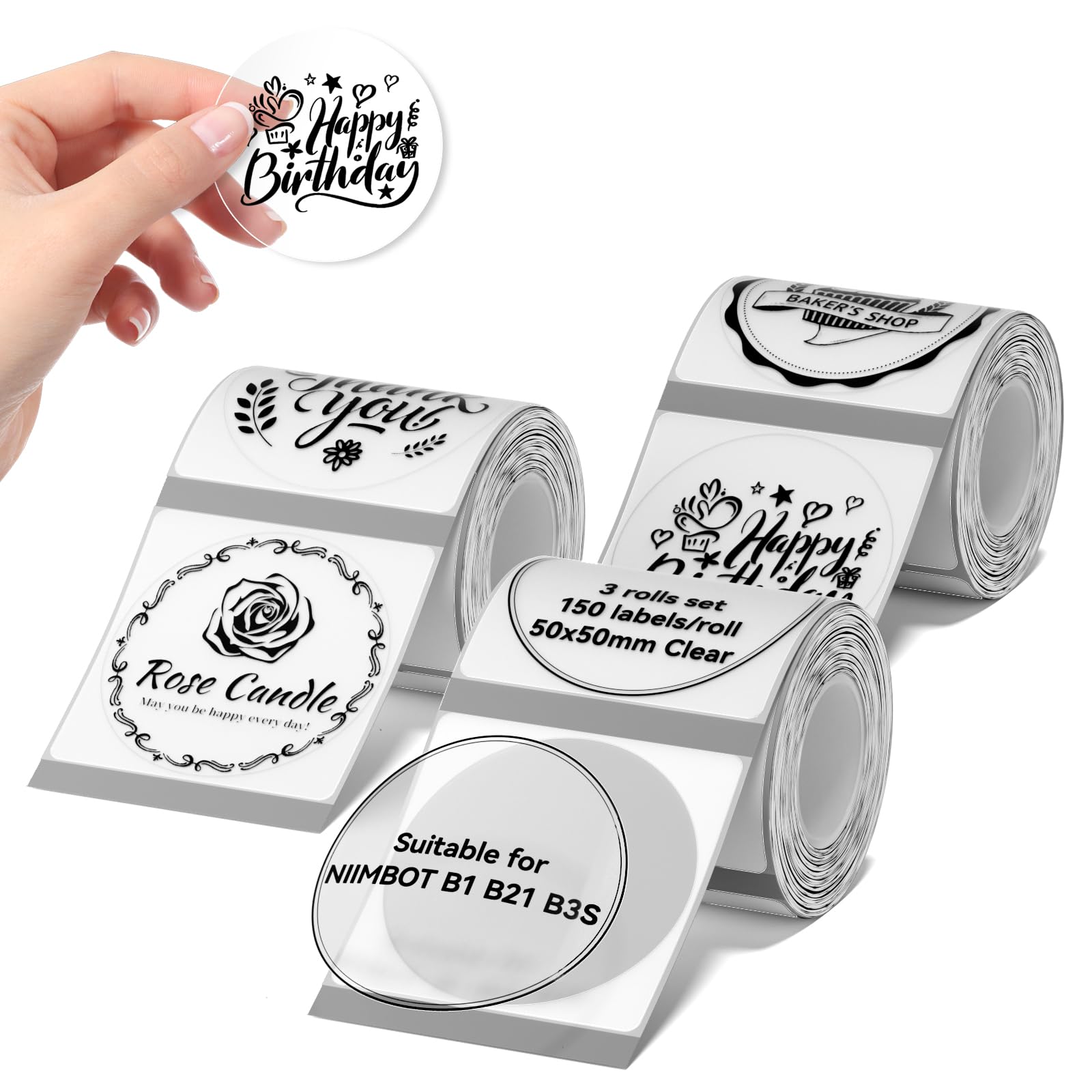
Image: NIIMBOT Clear Round Labels (50x50mm) for B1/B21/B31 printers.
2. Tuotteen ominaisuudet
- Genuine Labels: Specifically designed for compatibility with NIIMBOT B1, B21, and B31 portable Bluetooth label makers.
- Pre-cut Size: Each label measures 50 x 50 mm (1.97'' x 1.97''). Each roll contains 150 labels, with a total of 450 labels in a 3-roll set.
- Kestävä rakenne: These labels are waterproof, oil-proof, and tear-resistant. They are self-adhesive and BPA-free, ensuring safe use.
- Puhdas poisto: Labels can be removed easily without leaving residue.
- Tulostusväri: Designed for black and white printouts.

Image: Key features of NIIMBOT labels: waterproof, no ink required (thermal printing), self-adhesive, and removable.
3. Yhteensopivuus
These labels are compatible with the following NIIMBOT label printer models:
- NIIMBOT B1 -tarratulostin
- NIIMBOT B21 -tarratulostin
- NIIMBOT B31 -tarratulostin
Ensure your label printer is one of these models for proper function and optimal print quality.
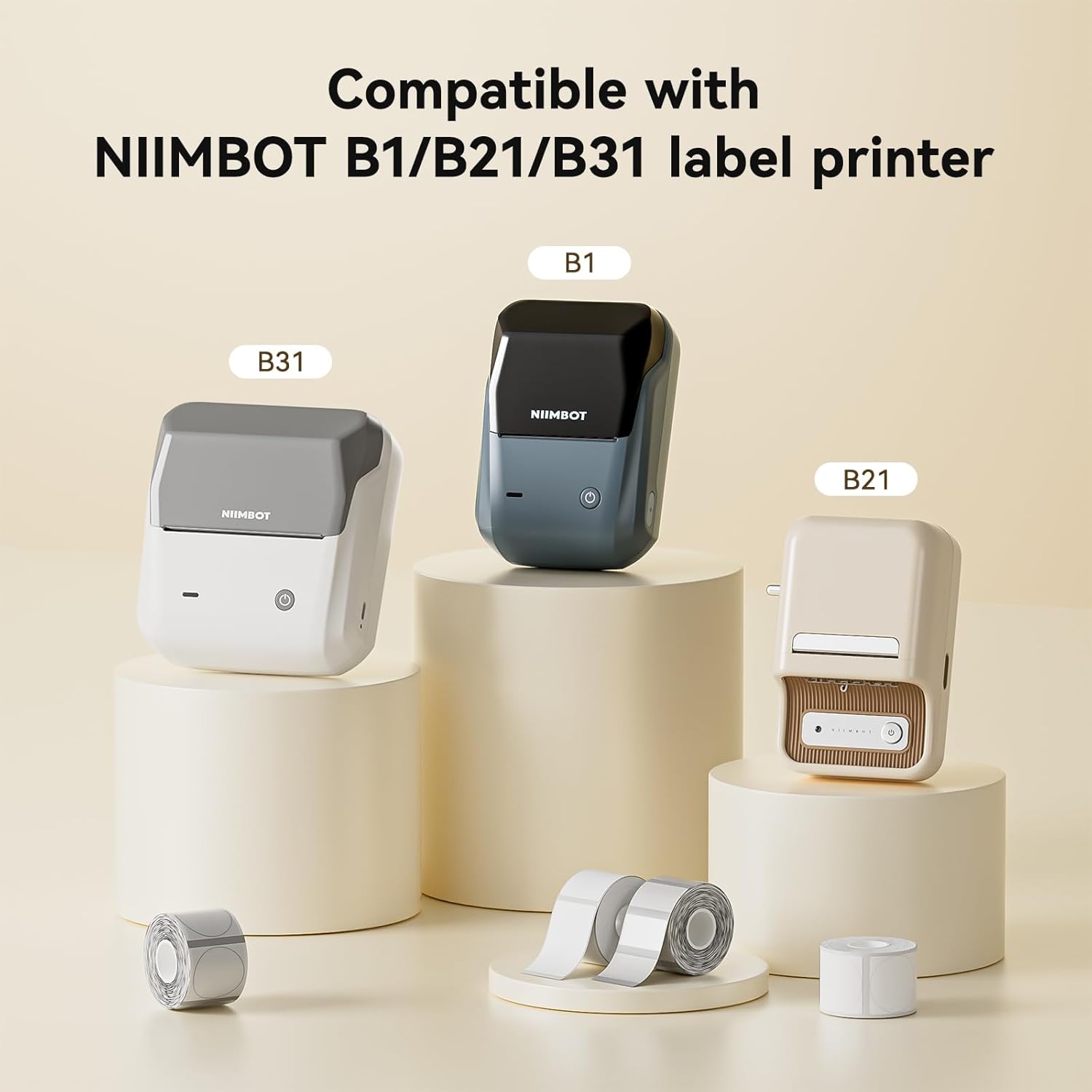
Image: NIIMBOT B1, B21, and B31 label printers, compatible with these labels.
4. Asennus: Tarrojen lataaminen
To load the labels into your compatible NIIMBOT label printer, follow these general steps:
- Open the label compartment cover on your NIIMBOT printer.
- Insert the roll of NIIMBOT labels into the compartment, ensuring the printing side of the labels faces the print head. The labels should feed smoothly.
- Pull a small section of the label roll out past the print head.
- Sulje etikettilokeron kansi tiiviisti.
- Tärkeää: Do not remove or damage the sticker on the side of the label roll. This sticker contains a printing sensor chip essential for proper print effect and quality.
Video: Demonstrates loading labels into a NIIMBOT B1 printer and printing various labels for daily use.
5. Operating: Printing Labels
Once the labels are loaded, you can begin printing using your NIIMBOT label maker and its associated mobile application.
- Ensure your NIIMBOT label printer is powered on and connected via Bluetooth to your mobile device.
- Open the NIIMBOT mobile application on your smartphone or tablet.
- Select the desired label template or design your own label within the app.
- Confirm the label size and type match the loaded NIIMBOT Clear Round Labels (50x50mm).
- Initiate the print command from the application. The printer will automatically feed and print the labels.
- Carefully tear off the printed label from the printer's output slot.
These labels are suitable for a wide range of applications, including:
- Labeling spice jars, key tags, canning jars, and pantry items.
- Organizing cables, food storage containers, and bottles.
- Creating plant pot labels and name labels for school items.
- General organization in home, office, and small business settings.

Image: Clear round labels used on food storage jars for organization.

Image: A clear round label applied to a shampoo bottle for bathroom organization.

Image: Labels used for organizing clothing in storage boxes.
Video: Demonstrates printing gift labels, bakery food labels, photo labels, and barcode labels using a NIIMBOT B1 printer.
6. Huolto ja varastointi
- Varastointi: Store unused label rolls in a cool, dry place away from direct sunlight and extreme temperatures to preserve adhesive quality and printability.
- Käsittely: Avoid touching the printing surface of the labels excessively before printing to prevent smudges or reduced print quality.
- Printer Care: Regularly clean the print head of your NIIMBOT label printer according to its specific instruction manual to ensure clear and consistent printing with these labels.
7. Vianmääritys
| Ongelma | Mahdollinen syy | Ratkaisu |
|---|---|---|
| Huono tulostuslaatu / Haalea tulostusjälki |
|
|
| Tarrat eivät syöty |
|
|
| Tarrat eivät tartu hyvin |
|
|
8. Tekniset tiedot
| Attribuutti | Yksityiskohta |
|---|---|
| Merkki | NIIMBOT |
| Model Number (Labels) | BTZ3001 |
| Väri | Selkeä kierros |
| Koko | 50x50mm (1.97'' x 1.97'') |
| Materiaali | Muovi |
| Viimeistelytyyppi | Päällystämätön |
| Yksikkömäärä | 3.0 Count (Rolls) |
| Number of Labels | 450 (150 labels/roll x 3 rolls) |
| Musteen väri | Clear (refers to label base, prints black) |
| Kohteen muoto | Pyöristää |
9. Takuu ja tuki
For warranty information or technical support regarding your NIIMBOT labels or compatible label printer, please refer to the documentation provided with your specific label printer model or visit the official NIIMBOT websivusto. Asiakaspalvelun yhteystiedot löytyvät yleensä tuotepakkauksesta tai valmistajan esitteestä. websivusto.
Ask a question about this manual
Ask about setup, troubleshooting, compatibility, parts, safety, or missing instructions. Manuals+ will review the question and use this page’s manual context to help answer it.