
Johdanto
This manual provides detailed instructions for the setup, operation, and maintenance of your Prechen 10.1 inch Portable Touchscreen Monitor, Model HD-101. Please read this manual thoroughly before using the device to ensure proper functionality and to prevent damage.
Tuotteen ominaisuudet
- Kannettava kosketusnäyttö: This 10.1-inch monitor is compact and lightweight, designed for portability. The touchscreen functionality allows for intuitive navigation and interaction, enhancing productivity on the go.
- High-Resolution IPS Display: Features a 1920x1200 resolution with a 16:10 aspect ratio, delivering clear and vibrant visuals. IPS technology provides wide viewing angles and accurate color reproduction, suitable for various applications.
- Monipuoliset liitännät: Equipped with HDMI and USB-C ports, offering flexible connection options. It can be easily connected to Windows PCs, laptops, and gaming consoles like Xbox. Note: USB-C is for touch functionality and power.
- Integroidut kaiuttimet: Built-in speakers provide clear and dynamic audio, eliminating the need for external speakers during media consumption, gaming, or virtual meetings.
- Yhteensopiva VESA-kiinnikkeen kanssa: The monitor supports VESA mounting standards, allowing for attachment to compatible stands or arms for customized workspace setups and comfortable viewkulmat.
Asennus
Pakkauksen sisältö
Varmista, että pakkauksessa on kaikki tarvittavat osat:
- Prechen 10.1 inch Portable Touchscreen Monitor
- HDMI kaapeli
- USB-C-USB-C-kaapeli
- USB-A to USB-C Cable (for power/touch)
- Virtalähde
- Käyttöopas (tämä asiakirja)
Näytön liittäminen
- Virtaliitäntä: Connect the provided power adapter to the DC Power Port on the monitor and plug it into a power outlet. Alternatively, if your device supports power delivery, connect a USB-C to USB-C cable to the USB-C (Power & Touch) port for both power and signal.
- Videoliitäntä:
- HDMI: Connect one end of the HDMI cable to the HDMI port on the monitor and the other end to the HDMI output of your computer or device.
- USB-C (DisplayPort Alternate Mode): If your device supports DisplayPort Alternate Mode over USB-C, connect a USB-C to USB-C cable to the USB-C (Power & Touch) port on the monitor and your device. This single cable can provide video, power, and touch functionality.
- Kosketustoiminnot: For touch functionality, ensure the USB-C (Power & Touch) port is connected to your device. If using HDMI for video, you will also need to connect a USB-A to USB-C cable from your device's USB-A port to the monitor's USB-C (Power & Touch) port.
- Äänilähtö: If you wish to use external headphones or speakers, connect them to the 3.5mm Audio Port on the monitor.
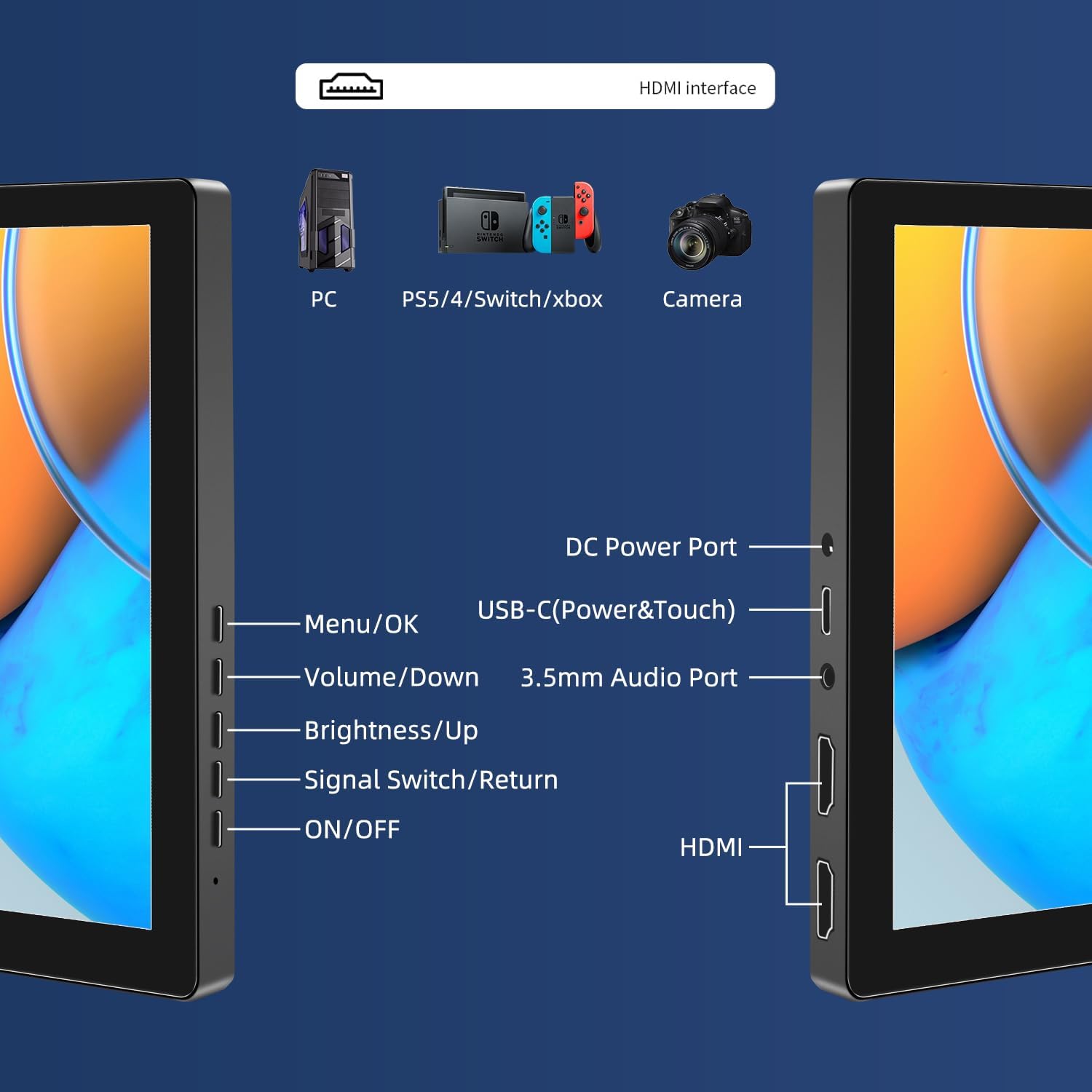
Kuva: Yliview of the monitor's ports including DC Power, USB-C (Power & Touch), 3.5mm Audio, HDMI, and control buttons.
Käyttöohjeet
Virran kytkeminen päälle/pois
- To power on the monitor, press the ON/OFF -painiketta.
- Katkaise virta pitämällä -painiketta painettuna ON/OFF button for a few seconds until the screen turns off.
Kuvaruutuvalikon (OSD) käyttäminen
The OSD menu allows you to adjust various display settings.
- Paina Valikko / OK -painiketta avataksesi OSD-valikon.
- Käytä Äänenvoimakkuutta pienemmälle ja Kirkkaus/ylös painikkeita valikkovaihtoehtojen selaamiseen.
- Paina Valikko / OK valitaksesi vaihtoehdon tai vahvistaaksesi asetuksen.
- Paina Signal Switch/Return button to go back to the previous menu or exit the OSD.
Adjusting Display Modes
The monitor supports multiple display modes when connected to a computer:
- Kopiointitila: Displays the same content on both your primary screen and the portable monitor.
- Laajenna tila: Laajentaa työpöytäsi molemmille näytöille, mikä tarjoaa enemmän työtilaa.
- Toisen näytön tila: Käyttää näyttönä vain kannettavaa näyttöä.
These modes are typically configured through your operating system's display settings (e.g., Windows Display Settings, macOS System Preferences).
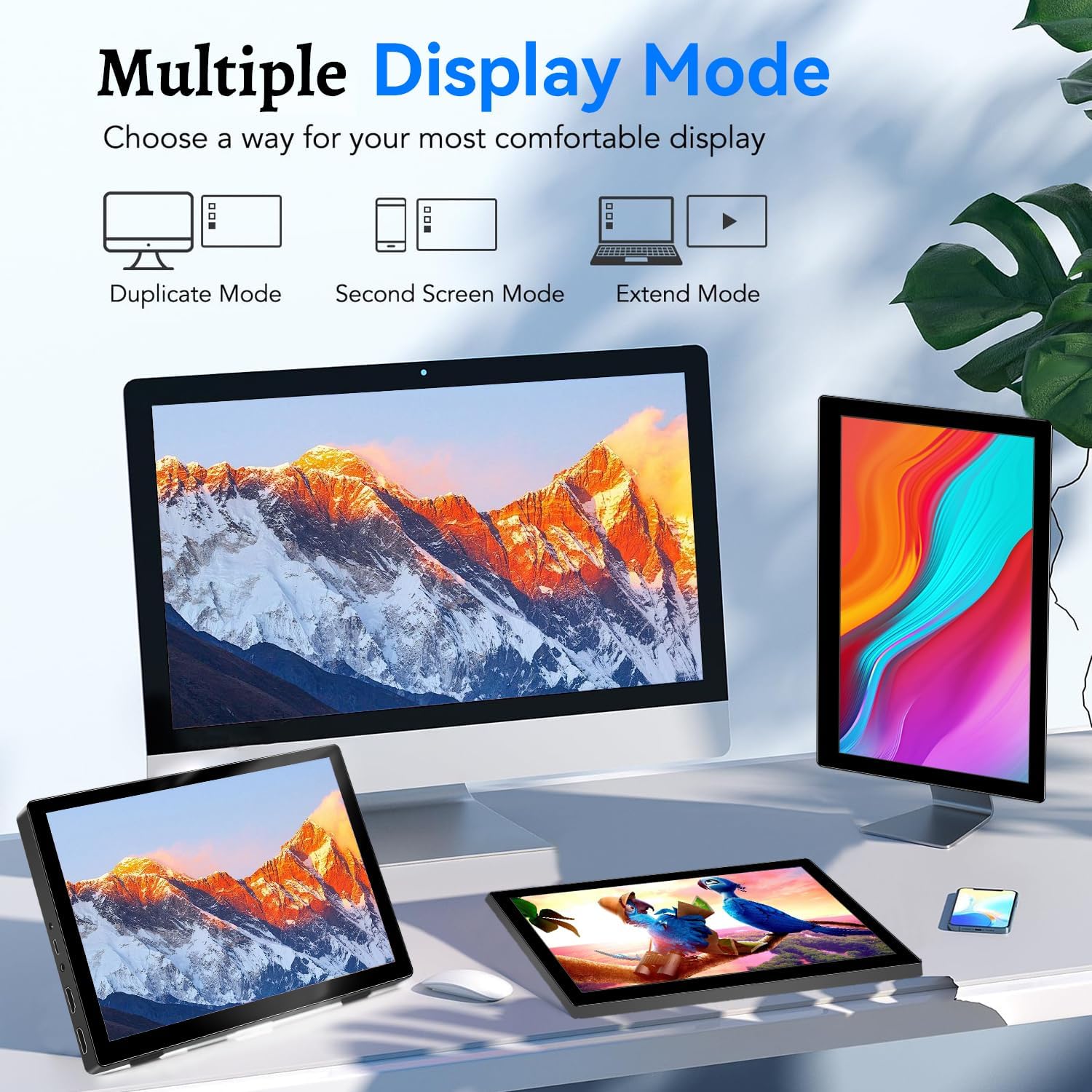
Image: Visual representation of Duplicate, Second Screen, and Extend display modes.
Using Touchscreen Functionality
The monitor supports 10-point touchscreen technology. Ensure the USB-C (Power & Touch) port is correctly connected to your device for touch input to function.

Kuva: esimamples of 10-point touchscreen gestures for interaction.
Huolto
- Näytön puhdistaminen: Käytä pehmeää, nukkaamatonta liinaa hieman dampvedellä tai hankaamattomalla näytönpuhdistusaineella. Älä suihkuta puhdistusainetta suoraan näytölle.
- C:n puhdistaminenasing: Pyyhi näyttö casinpehmeällä, kuivalla liinalla. Vältä voimakkaiden pesuaineiden tai liuottimien käyttöä.
- Varastointi: Kun näyttöä ei käytetä, säilytä sitä viileässä, kuivassa paikassa, poissa suorasta auringonvalosta ja äärimmäisistä lämpötiloista.
- Käsittely: Avoid dropping or subjecting the monitor to strong impacts. Do not place heavy objects on top of the monitor.
Vianetsintä
| Ongelma | Mahdollinen syy | Ratkaisu |
|---|---|---|
| Ei näyttöä/musta ruutu |
|
|
| Kosketusnäyttö ei vastaa |
|
|
| Ei ääntä kaiuttimista |
|
|
| Kuvanlaatuongelmat (epäselvä, vääristynyt) |
|
|
Tekniset tiedot
| Ominaisuus | Yksityiskohta |
|---|---|
| Merkki | Prechen |
| Mallinumero | HD-101 |
| Näytön koko | 10.1 tuumaa |
| Resoluutio | 1920 x 1200 (UXGA Wide) |
| Kuvasuhde | 16:10 |
| Paneelin tyyppi | IPS |
| Päivitystaajuus | 60 Hz |
| Vastausaika | 1 ms |
| Yhteydet | 1x HDMI, 1x USB-C (Power & Touch), 1x 3.5mm Audio Jack, 1x DC Power Port |
| Mitat (P x L x K) | 21.8 x 15.8 x 1.4 cm |
| Paino | 990 grammaa |
| Valmistaja | Shenzhen Kenowa Electronics Co., LTD |
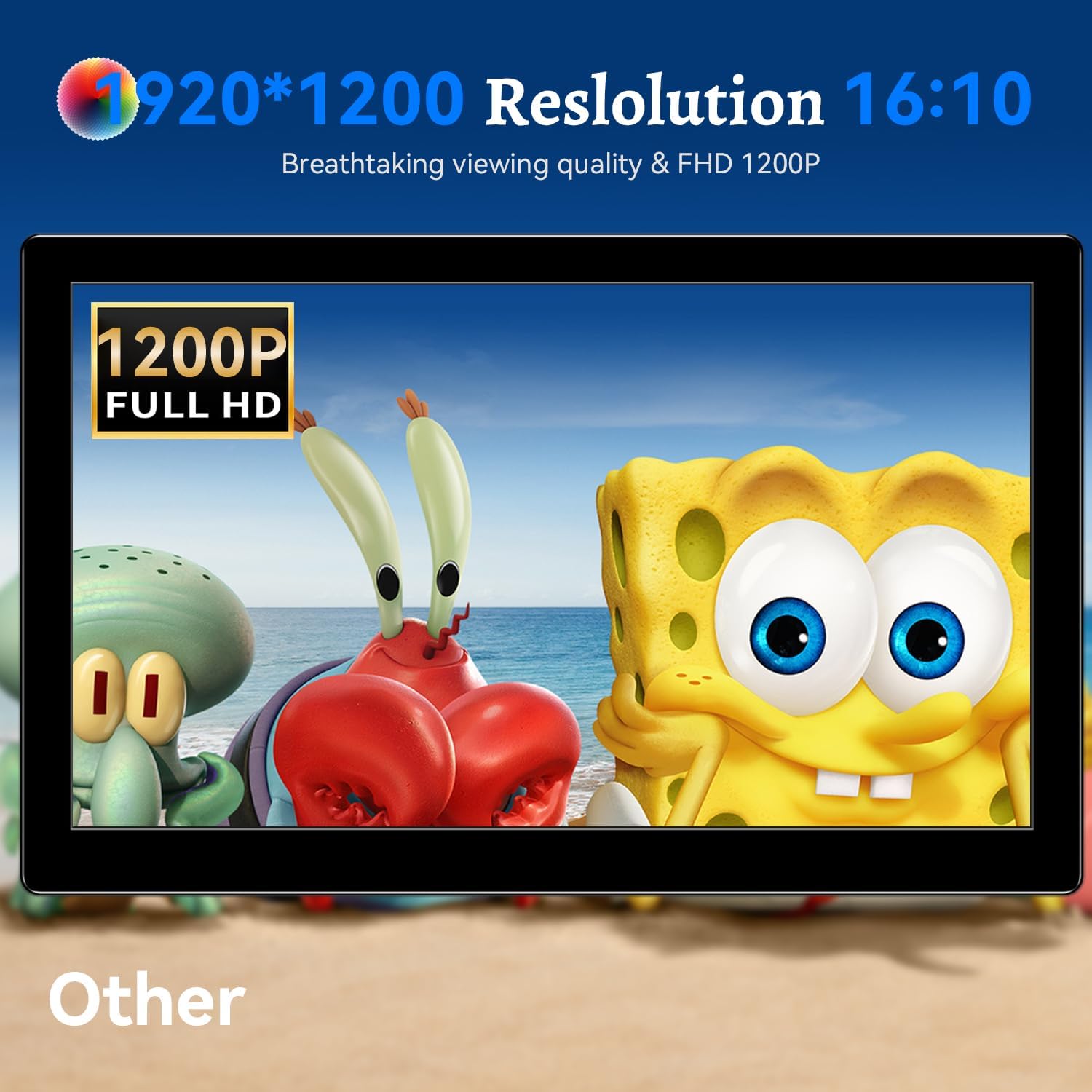
Kuva: Näyttöruutuasing its 1920x1200 Full HD resolution.

Image: The monitor's IPS panel offering wide viewing angles and rich colors.
Takuu ja tuki
For warranty information and technical support, please refer to the warranty card included with your product or contact Prechen customer service through their official websivusto. Pidä mallinumero (HD-101) ja ostotiedot käsillä, kun otat yhteyttä tukeen.