
LC-Power LC-POWER
LC-M27-QHD-180 - 27" PC-näytön käyttöohje
Brand: LC-Power | Model: LC-POWER
Tuote loppuview
The LC-M27-QHD-180 is a 27-inch (68.58 cm) PC monitor designed to deliver a high-quality visual experience. It features a QHD resolution of 2560 x 1440 pixels, providing sharp and detailed images. The IPS panel ensures an ultra-fast 1 ms response time, excellent color accuracy, and wide viewing angles. With a refresh rate of 180 Hz, content display is very fluid, making it suitable for fast-paced applications and gaming.
Key features include Adaptive Sync for smooth gameplay, Picture-by-Picture (PbP) and Picture-in-Picture (PiP) for multi-source viewing, and a height-adjustable stand with integrated cable management for ergonomic use. The monitor also supports a pivot feature, allowing it to be rotated 90 degrees for vertical document viewing.
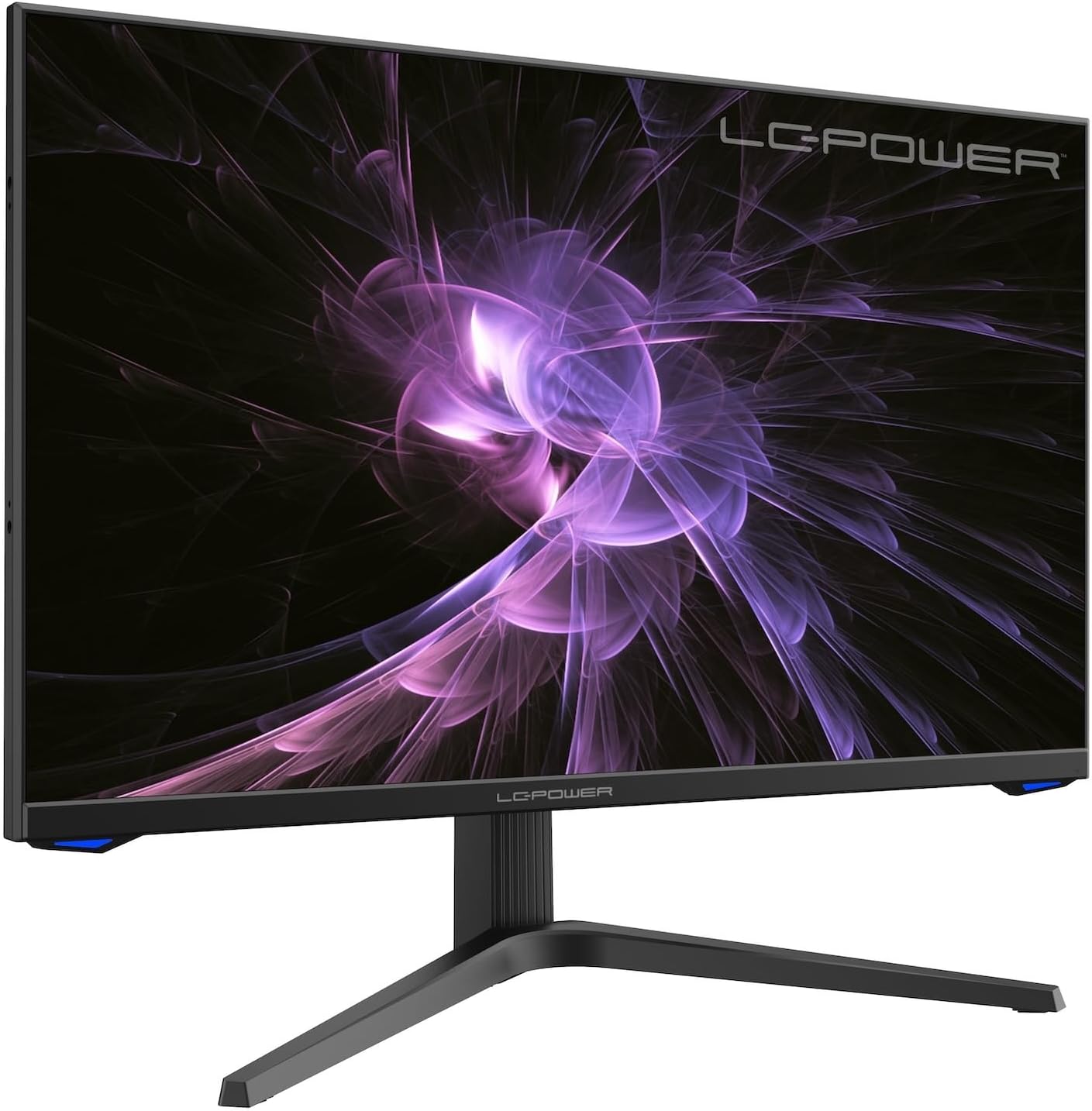
Kuva: Edessä view of the LC-M27-QHD-180 monitor, showcasinnäyttönsä ja tyylikkään muotoilunsa ansiosta.
Asennusopas
1. Purkaminen ja sisältö
Carefully remove all components from the packaging. Please verify that all items listed below are present:
- LC-M27-QHD-180 Monitor
- Monitori
- HDMI kaapeli
- Virtalähde
- Asennusmateriaali
- Käyttöopas (tämä asiakirja)
2. Kokoonpano
Pohjan kiinnitys:
- Aseta näyttöruutu alaspäin pehmeälle ja puhtaalle alustalle naarmuuntumisen välttämiseksi.
- Align the stand arm with the slot on the back of the monitor.
- Secure the stand arm to the monitor using the provided screws.
- Attach the base plate to the stand arm and tighten the screws.
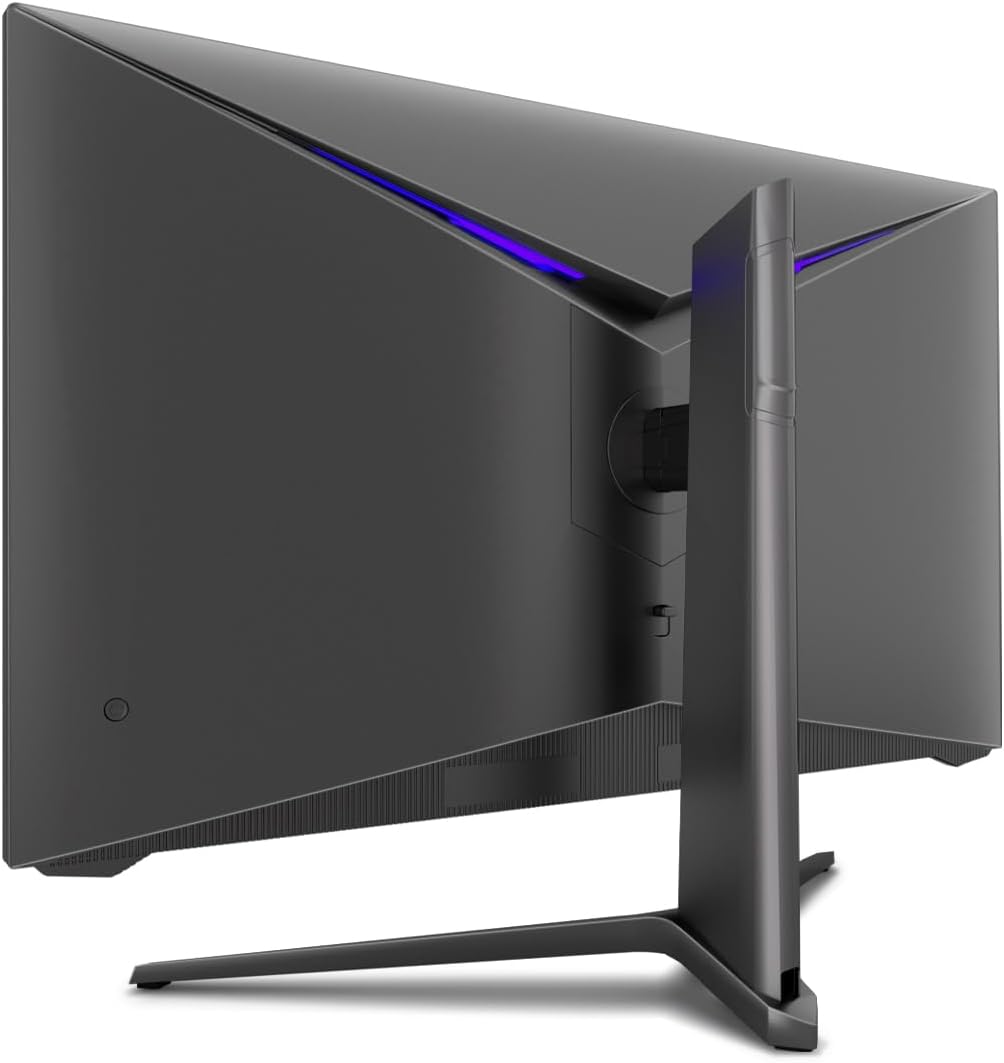
Kuva: Takaosa view of the monitor, illustrating the stand assembly area and cable management design.
VESA-kiinnitys: The monitor is VESA compatible. If you intend to use a VESA mount, remove the stand arm after assembly and attach your VESA mount according to its instructions.
3. Näytön liittäminen
- Virtaliitäntä: Connect the power adapter to the monitor's power input and then plug the power adapter into a wall outlet.
- Videoliitäntä: Connect one end of the provided HDMI cable to the HDMI port on your computer's graphics card and the other end to an HDMI input port on the monitor.
- Varmista, että kaikki liitännät ovat turvallisia.
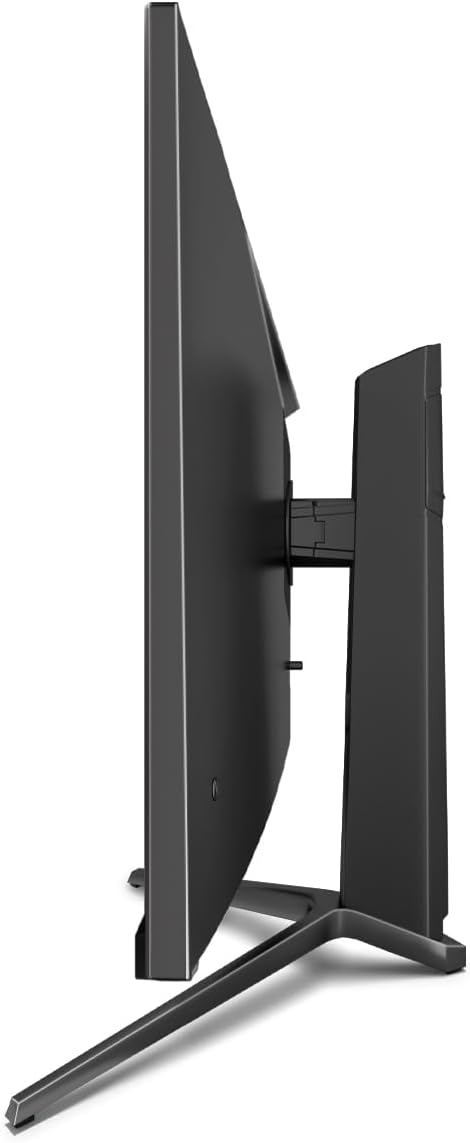
Kuva: Sivu view of the monitor, showing its slim design and connectivity ports.
4. Ensimmäinen käynnistys
Press the power button on the monitor. The power indicator light should illuminate. Your computer should automatically detect the new display. If not, adjust display settings in your operating system.
Käyttöohjeet
On-Screen Display (OSD) -valikko
The monitor features an On-Screen Display (OSD) menu for adjusting various settings. Use the control buttons located on the monitor (typically on the back or bottom edge) to navigate the OSD menu.
Tärkeimmät ominaisuudet ja asetukset
- Mukautuva synkronointi: This technology synchronizes the monitor's refresh rate with your graphics card's frame rate, reducing screen tearing and stuttering for a smoother gaming experience. Enable this feature in your graphics card settings and on the monitor's OSD if applicable.
- Ylikierros: Overdrive pre-calculates and accelerates specific pixels, significantly reducing response times for both black-and-white and color nuance changes, resulting in clearer motion.
- Matala sininen valo: The Low Blue Light filter reduces the emission of harmful blue light from the screen, minimizing eye strain and fatigue during prolonged use. This feature can be adjusted via the OSD menu.
- Kuva kuvassa (PbP) / Kuva kuvassa (PiP):
- PbP: Allows you to display content from two different input sources side-by-side on the same screen.
- PiP: Displays the image from a second source as a smaller, scalable window (up to 25% of original size) that can be positioned anywhere on the main screen.
- FPS / RTS Modes: Dedicated display modes optimized for First Person Shooter (FPS) and Real-Time Strategy (RTS) games. These modes enhance visibility and provide a better gaming experience by adjusting display parameters.
- Pivot-ominaisuus: The monitor can be rotated 90 degrees to a vertical (portrait) orientation. This is particularly useful for reading documents, coding, or web selailu.

Image: Diagram illustrating the monitor's ability to pivot 90 degrees for vertical viewing.
Note: After physically rotating the monitor, you must adjust the display orientation settings within your operating system (e.g., Windows Display Settings) to match the new physical orientation.
- Height Adjustable Stand & Cable Management: The integrated stand allows for height adjustment to achieve an ergonomic viewing position. Cables can be neatly routed through the stand's built-in cable management system to maintain a tidy workspace.

Image: Close-up of the monitor's stand, highlighting the integrated cable management feature.
Huolto
Varmistaaksesi näytön pitkän käyttöiän ja optimaalisen suorituskyvyn, noudata näitä huolto-ohjeita:
- Näytön puhdistaminen: Pyyhi näyttö varovasti pehmeällä, nukkaamattomalla liinalla, joka on suunniteltu erityisesti elektroniikkalaitteille. Pinttyneisiin tahroihin pyyhi kevyestiampKostuta liina vedellä tai hankaamattomalla, näyttöä suojaavalla puhdistusliuoksella. Älä suihkuta nestettä suoraan näytölle.
- C:n puhdistaminenasing: Puhdista näytön pinta pehmeällä, kuivalla liinalla.asing. Vältä voimakkaiden kemikaalien tai hankaavien materiaalien käyttöä.
- Ilmanvaihto: Varmista, että näytön tuuletusaukot eivät ole tukossa ylikuumenemisen estämiseksi.
- Virta pois: Always power off the monitor and unplug it from the power outlet before cleaning or if it will not be used for an extended period.
- Vältä suoraa auringonvaloa: Älä altista näyttöä suoralle auringonvalolle tai liialliselle kuumuudelle.
Vianetsintä
If you encounter issues with your LC-M27-QHD-180 monitor, please refer to the following common troubleshooting steps:
| Ongelma | Mahdollinen syy | Ratkaisu |
|---|---|---|
| Ei kuvaa näytöllä | Monitor not powered on; video cable loose or disconnected; incorrect input source selected. | Ensure power cable is securely connected and monitor is turned on. Check video cable connections (HDMI). Select the correct input source via the OSD menu. |
| Kuva on epäselvä tai vääristynyt | Incorrect resolution setting; video cable issue. | Set the display resolution to 2560 x 1440 pixels in your computer's display settings. Try a different HDMI cable if available. |
| No sound (if monitor has speakers/audio out) | Audio cable not connected; volume too low; incorrect audio output selected on computer. | Ensure audio cable (if used) is connected. Adjust monitor volume via OSD. Select the monitor as the default audio output device in your computer's sound settings. |
| Näytön välkkyminen | Refresh rate mismatch; faulty cable; graphics driver issue. | Ensure refresh rate is set to 180 Hz in display settings. Try a different video cable. Update your graphics card drivers. |
For more detailed troubleshooting or persistent issues, please consult the full user manual or contact LC-Power customer support.
Tekniset tiedot
| Ominaisuus | Yksityiskohta |
|---|---|
| Mallinumero | LC-POWER (LC-M27-QHD-180) |
| Näytön koko | 27 tuumaa (68.58 cm) |
| Resoluutio | QHD Wide 1440p (2560 x 1440 pixels) |
| Kuvasuhde | 16:9 |
| Päivitystaajuus | 180 Hz |
| Vastausaika | 1 ms |
| Paneelin tyyppi | IPS |
| Näytön pinta | Flach (Flat) |
| Tuotteen mitat (P x L x K) | 28.74 x 18.9 x 8.66 tuumaa |
| Tuotteen paino | 17.73 kiloa |
| Valmistaja | LC teho |
| ASIN | B0CQJNV3YR |
| Päivämäärä ensimmäinen saatavilla | 31. toukokuuta 2024 |

Image: EU Energy Label for the LC-M27-QHD-180 monitor. For more details, scan the QR code or visit eprel.ec.europa.eu/qr/1758049.
Takuu ja tuki
The LC-M27-QHD-180 monitor is manufactured by LC Power.
- Yleinen takuu: The product comes with a 3-year general warranty from the date of purchase.
- Guaranteed Availability of Spare Parts: Varaosien saatavuustakuu on 7 vuotta tuotteen markkinoille saattamisesta.
- Guaranteed Product Support: Product support is guaranteed for 7 years.
For technical support, warranty claims, or service inquiries, please contact LC-Power customer support through their official channels. Refer to the packaging or the brand's official websivustolta tarkempia yhteystietoja varten.
Asiaan liittyvät asiakirjatLC POWER


Ask a question about this manual
Ask about setup, troubleshooting, compatibility, parts, safety, or missing instructions. Manuals+ will review the question and use this page’s manual context to help answer it.