
CJ TECH 25057 - PA
USB C -keskittimen 5-in-1-sovittimen käyttöohje
Model: 25057 - PA
Merkki: CJ TECH
Tuote loppuview
The CJ TECH USB C Hub 5-in-1 Adapter is a versatile docking station designed to expand the connectivity of your USB Type-C enabled devices. It transforms a single USB-C port into multiple ports, including USB 3.0, USB 2.0, USB-C for data and power delivery, and an HDMI output.
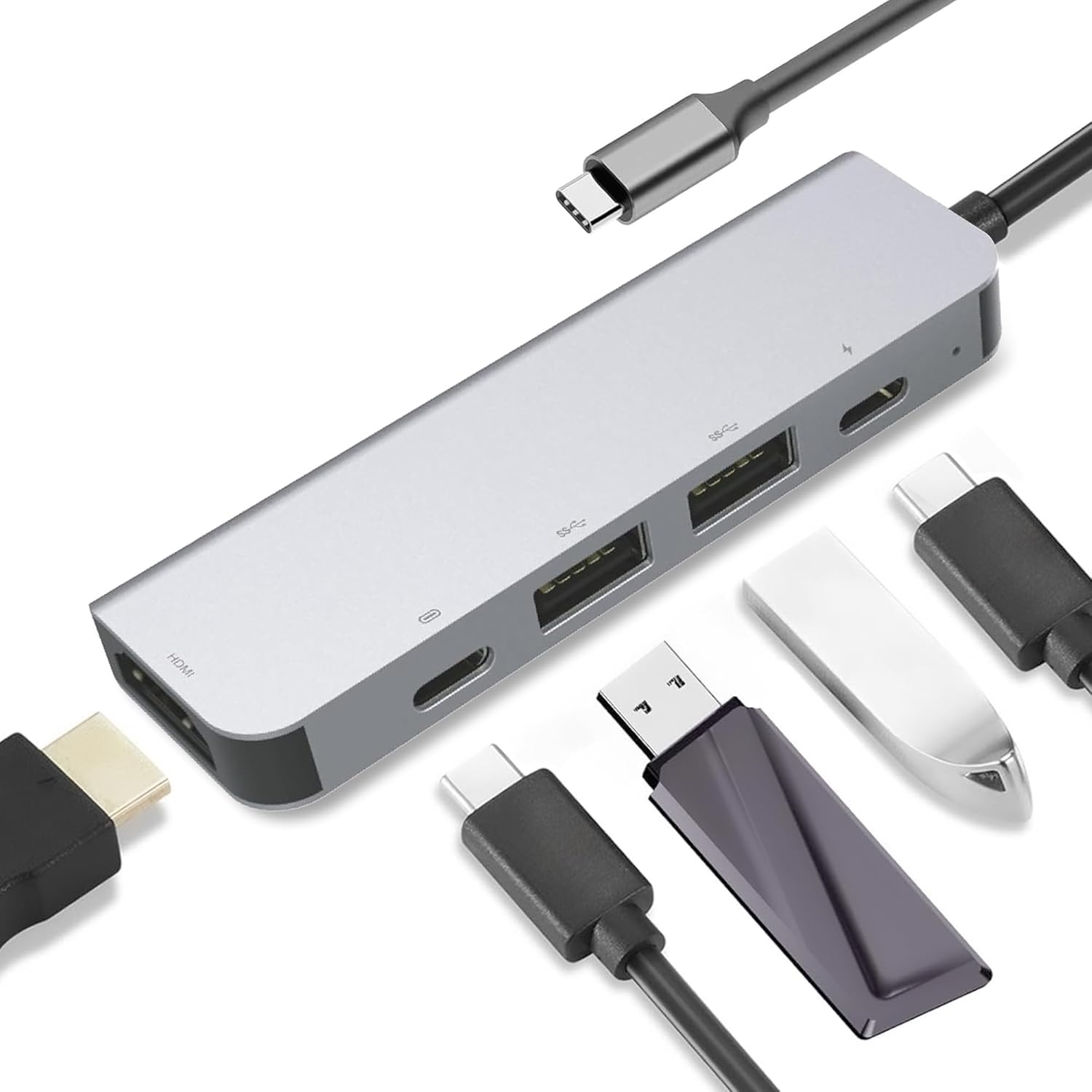
Image: The CJ TECH USB C Hub, displaying its compact silver design and various ports, including USB-A, USB-C, and HDMI, ready for connection.
This hub is ideal for laptops, MacBooks, gaming consoles like PS4 and PS5, and other devices requiring expanded USB and display capabilities. It supports fast charging and high-speed data transfer, making it a comprehensive solution for your connectivity needs.
Tärkeimmät ominaisuudet:
- Powerful USB Hub: Transforms your USB Type-C port into a versatile docking station with expansive connectivity.
- Great for Gaming Consoles: Enhances gaming setups by connecting additional peripherals to consoles like PS4 and PS5.
- Multiple USB Ports for Laptop: Expands laptop capabilities with USB 2.0, USB 3.0, and two USB Type-C ports for efficient data transfer and charging.
- Fast Charging Hub: Equipped with a USB Type-C PD 3.0 port supporting up to 100W for fast charging multiple devices.
- USB Expansion Hub: Supports 4K HDTV and is backwards compatible with 1080P & 720P, providing a comprehensive data transfer and display solution.
Asennusopas
Follow these steps to set up your USB C Hub 5-in-1 Adapter:
- Liitä keskitin: Plug the USB Type-C male connector of the hub into an available USB Type-C port on your host device (laptop, MacBook, PS5, etc.). Ensure your device's USB Type-C port supports USB 3.0/3.1 specifications for full functionality, including video output and power delivery.
- Virransyöttö (valinnainen): If your device requires charging through the hub, connect your original USB-C power adapter to the USB Type-C PD 3.0 port on the hub. This port supports up to 100W power input.
- Liitä oheislaitteet:
- USB-laitteet: Connect your USB-A peripherals (e.g., mouse, keyboard, USB flash drives) to the USB 3.0 or USB 2.0 ports.
- USB-C-laitteet: Connect USB-C peripherals to the dedicated USB Type-C data port.
- HDMI-näyttö: Connect an HDMI cable from the hub's HDMI port to your monitor, TV, or projector. Ensure the display is set to the correct HDMI input.

Image: A visual representation of the USB C Hub connected to a laptop, illustrating the various ports and their functions for connecting external devices like monitors and USB drives.
The hub is plug-and-play, meaning no drivers are typically required for most operating systems.
Käyttöohjeet
Once connected, the USB C Hub operates seamlessly with your device. Here's how to utilize its features:
USB-tiedonsiirto:
- USB 3.0 Portit: These ports support data transfer rates up to 5Gbps, ideal for external hard drives, SSDs, and high-speed flash drives.
- USB 2.0 -portti: This port supports data transfer rates up to 480Mbps, suitable for keyboards, mice, and other standard USB peripherals.
- USB Type-C Data Port: This port also supports data transfer up to 480Mbps, allowing connection of USB-C peripherals.
HDMI-videolähtö:
- The HDMI port supports resolutions up to 4K (3840x2160) at 30Hz. It is backwards compatible with 1080P and 720P displays.
- To use, simply connect an HDMI cable from the hub to your display. Your device should automatically detect the external display. You may need to adjust display settings (e.g., mirror or extend desktop) in your operating system.
Virransyöttö (PD):
- The USB Type-C PD 3.0 port allows you to charge your host device while using the hub. Connect your device's original power adapter to this port. It supports up to 100W power input.
- This feature is crucial for laptops and other devices that rely on USB-C for charging, ensuring continuous power supply even with multiple peripherals connected.

Image: An illustration highlighting the hub's capabilities: 4K UHD video output, fast charging, and high-speed data transfer, emphasizing its multi-functional design.
Huolto
To ensure the longevity and optimal performance of your USB C Hub, follow these maintenance guidelines:
- Puhdistus: Use a soft, dry, lint-free cloth to clean the hub's exterior. Avoid using liquid cleaners, aerosols, or abrasive solvents, as they may damage the finish or internal components.
- Varastointi: Kun sitä ei käytetä, säilytä keskitintä viileässä, kuivassa paikassa, poissa suorasta auringonvalosta ja äärimmäisistä lämpötiloista.
- Käsittely: Avoid dropping the hub or subjecting it to strong impacts. Do not bend or excessively pull the integrated USB-C cable.
- Liitettävyys: Always grasp the plug when connecting or disconnecting cables, rather than pulling on the cable itself, to prevent damage to the connectors.
Vianetsintä
If you encounter issues with your USB C Hub, refer to the following common problems and solutions:
Ei näyttölähtöä HDMI:n kautta:
- Tarkista liitännät: Varmista, että HDMI-kaapeli on kytketty kunnolla sekä keskittimeen että näyttöön.
- Syöttölähde: Verify that your display is set to the correct HDMI input source.
- Laitteen yhteensopivuus: Confirm that your host device's USB Type-C port supports DisplayPort Alternate Mode (Alt Mode) for video output. Not all USB-C ports support video.
- Resoluutioasetukset: Try lowering the display resolution on your host device to see if the display appears. Some older displays or cables may not support 4K resolution.
- Käynnistä uudelleen: Disconnect and reconnect the hub, or restart your host device.
USB Devices Not Recognized or Working:
- Yhdistä uudelleen: Disconnect and reconnect the USB device to the hub.
- Virtalähde: If connecting high-power devices (e.g., external hard drives), ensure the hub is connected to a power source via its PD port, or that your host device can supply sufficient power.
- Kokeile eri porttia: Test the device in a different USB port on the hub or directly on your host device to isolate the issue.
- Kuljettajaongelmat: While typically plug-and-play, ensure your host device's USB drivers are up to date.
Hidas tiedonsiirtonopeus:
- Porttityyppi: Ensure you are using the USB 3.0 ports for high-speed data transfer. USB 2.0 and USB-C data ports on this hub have lower speeds.
- Laitteen yhteensopivuus: Verify that the connected USB device itself supports USB 3.0 speeds.
- Kaapelin laatu: Käytä optimaalisen suorituskyvyn saavuttamiseksi korkealaatuisia USB 3.0 -kaapeleita.
Latausongelmat (PD-portti):
- Virtalähde: Ensure your USB-C power adapter is functioning correctly and provides sufficient wattage (up to 100W supported).
- Kaapeli: Use a USB-C cable that supports Power Delivery.
- Laitteen yhteensopivuus: Confirm your host device supports charging via its USB-C port.
Tekniset tiedot
| Ominaisuus | Yksityiskohta |
|---|---|
| Tuotteen mitat | 6.69 x 2.75 x 0.63 tuumaa |
| Tuotteen paino | 1.76 unssia |
| Mallinumero | 25057 - PA |
| Merkki | CJ TECH |
| Väri | Hopea |
| Laitteistorajapinta | USB, USB Type C, HDMI, USB 2.0 |
| Erikoisominaisuus | Pikalataus |
| Yhteensopivat laitteet | PS4, PS5, Laptops, MacBooks, and other devices with USB-C ports |
| HDMI-lähtö | 4K (3840x2160) @ 30Hz, backwards compatible with 1080P & 720P |
| USB 3.0 Data Transfer Rate | Jopa 5 Gbps |
| USB 2.0 Data Transfer Rate | Jopa 480 Mbps |
| USB Type-C PD Port | 20V@5A, Max 100W Power Input |
| USB Type-C Data Port | Max 480Mbps rate transmission |
Takuu ja tuki
For warranty information and technical support regarding your CJ TECH USB C Hub 5-in-1 Adapter, please refer to the documentation included with your product packaging or visit the official CJ TECH websivusto. Takuuehdot voivat vaihdella.
If you require further assistance, please contact CJ TECH customer support through their official channels.
Ask a question about this manual
Ask about setup, troubleshooting, compatibility, parts, safety, or missing instructions. Manuals+ will review the question and use this page’s manual context to help answer it.