
Johdanto
Thank you for choosing the MoKo Bluetooth AZERTY Keyboard. This manual provides detailed instructions to help you set up, operate, and maintain your keyboard, ensuring optimal performance with your Microsoft Surface Pro device. Please read this manual thoroughly before use.
Yhteensopivuus
This keyboard is specifically designed for the following Microsoft Surface Pro models:
- Surface Pro 7 Plus (2021)
- Surface Pro 7 (2019)
- Surface Pro 6
- Surface Pro 5 (Pro 2017)
- Surface Pro 4
- Surface Pro 3
The keyboard dimensions are approximately 29.5 cm (11.6 inches) in length, 21.7 cm (8.54 inches) in width, and 0.6 cm (0.23 inches) in height, providing a similar typing experience to official Surface Pro keyboards.
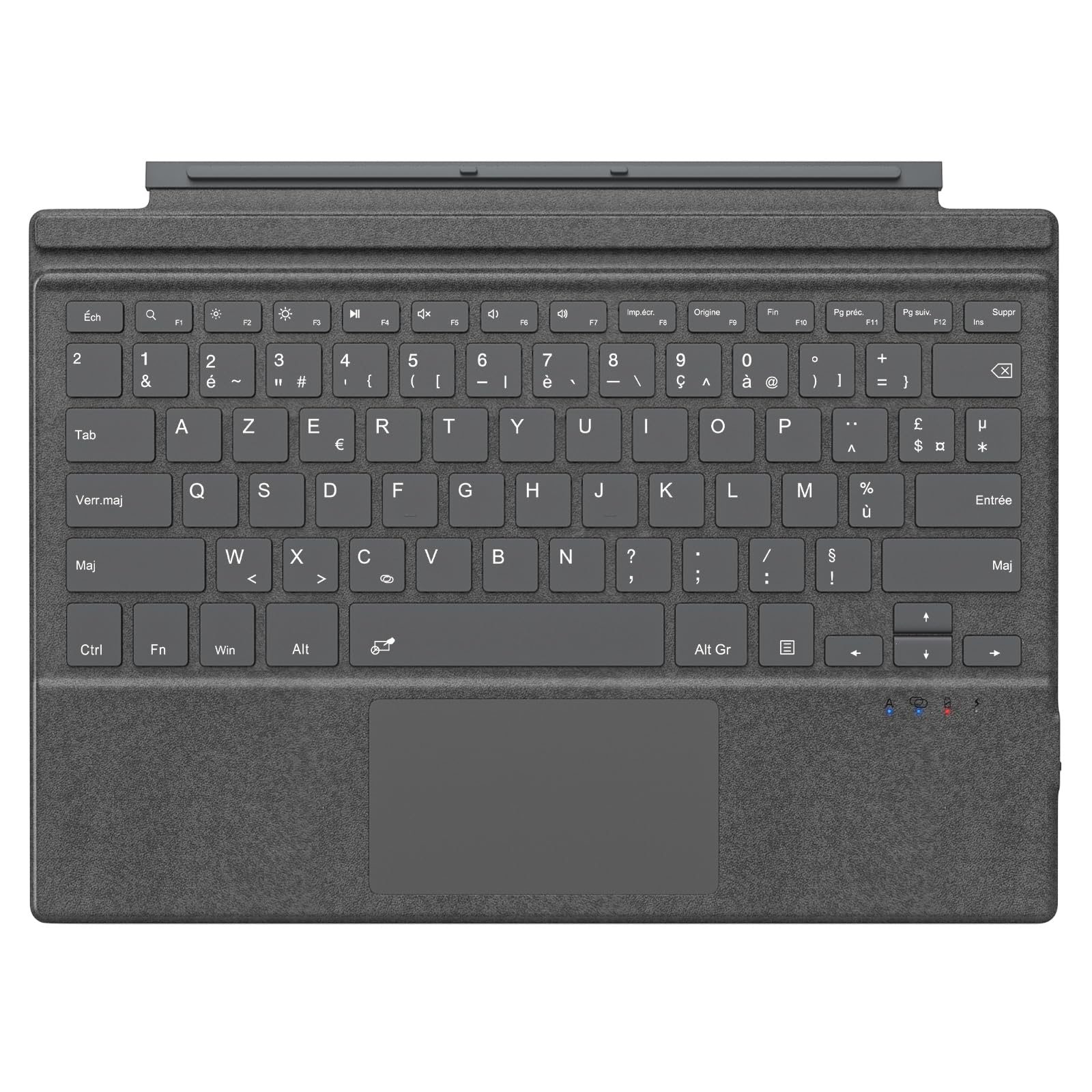
Image: The MoKo Bluetooth AZERTY Keyboard shown with several Microsoft Surface Pro models, illustrating compatibility.
Mitä laatikossa on
Pura pakkausta varmistaessasi, että kaikki osat ovat mukana:
- MoKo Bluetooth AZERTY Keyboard
- USB-latauskaapeli
Asennus
1. Näppäimistön lataaminen
The keyboard is equipped with a built-in 520mAh lithium battery. Before initial use, or when the battery is low, charge the keyboard using the provided USB cable.
- Connect the small end of the USB charging cable to the charging port on the keyboard.
- Liitä USB-kaapelin suurempi pää USB-virtalähteeseen (esim. tietokoneeseen tai seinäadapteriin).
- Latauksen merkkivalo syttyy. Kun akku on täysin latautunut, valo voi vaihtaa väriä tai sammua.
Täydellä latauksella akun käyttöaika on noin 25 tuntia.

Kuva: Lähikuva view of the keyboard's charging port with a USB cable connected, indicating the charging process.
2. Bluetooth-pariliitos
To connect your keyboard to your Surface Pro:
- Varmista, että näppäimistö on ladattu ja päällä.
- Siirry Surface Prolla osoitteeseen Asetukset > Laitteet > Bluetooth ja muut laitteet.
- Ota Bluetooth käyttöön.
- Paina Fn avain ja C key simultaneously on the keyboard to enter pairing mode. The Bluetooth indicator light on the keyboard will flash.
- On your Surface Pro, click Lisää Bluetooth tai muu laite > Bluetooth.
- Select "MoKo Keyboard" (or similar name) from the list of available devices.
- Follow any on-screen prompts to complete the pairing process. The Bluetooth indicator light on the keyboard will stop flashing once connected.
The keyboard can be used attached to your Surface Pro or detached for flexible positioning. The effective Bluetooth connection range is approximately 10 meters (33 feet).

Image: A Surface Pro tablet with the MoKo keyboard detached, illustrating the wireless Bluetooth connection capability.
Käyttöohjeet
Keyboard Layout and Keys
This keyboard features an AZERTY layout with 105 keys, providing a full-size typing experience. The keys utilize a scissor-switch mechanism for comfortable and responsive typing.

Kuva: Yksityiskohtainen view of the keyboard's AZERTY layout, highlighting the scissor-switch keys and integrated trackpad.
Kosketuslevyn toiminnallisuus
The integrated trackpad allows for precise navigation and control of your Surface Pro. To activate or deactivate the trackpad, press the Fn avain ja Välilyönti samanaikaisesti.
Huomautus: Please remove any protective film from the trackpad surface before use to ensure proper functionality.
Säädettävät kirjoituskulmat
The keyboard's design allows for two different typing angles, providing an ergonomic and comfortable experience whether you are working on a desk, lap, or other surface.

Image: A Surface Pro with the keyboard attached, demonstrating the two possible ergonomic typing angles.
Virranhallinta
Automaattinen lepotila
To conserve battery life, the keyboard will automatically enter sleep mode after 10 minutes of inactivity. The Bluetooth connection will automatically disconnect during this period.
Reconnecting After Sleep
To wake the keyboard and re-establish the Bluetooth connection, simply press any key. The keyboard will automatically attempt to reconnect to the last paired device.

Image: An illustration of the keyboard's power management, including automatic sleep mode and USB-C charging.
Huolto
To ensure the longevity and optimal performance of your MoKo keyboard, follow these maintenance guidelines:
- Puhdistus: Puhdista näppäimistön pinta pehmeällä, kuivalla ja nukkaamattomalla liinalla. Pinttyneeseen likaan pyyhi kevyesti.ampKostuta liina vedellä tai miedolla puhdistusliuoksella. Vältä liiallista kosteutta.
- Varastointi: Kun näppäimistöä ei käytetä, säilytä sitä viileässä, kuivassa paikassa, poissa suorasta auringonvalosta ja äärimmäisistä lämpötiloista.
- Vältä nesteitä: Do not expose the keyboard to liquids. It is not waterproof.
- Käsittele varovasti: Vältä näppäimistön pudottamista tai sen altistamista voimakkaille iskuille.
Vianetsintä
Jos näppäimistössäsi on ongelmia, katso seuraavia yleisiä ratkaisuja:
| Ongelma | Ratkaisu |
|---|---|
| Näppäimistö ei käynnisty | Ensure the keyboard is charged. Connect it to a power source using the USB cable. |
| Pariliitos Bluetoothin kautta ei onnistu | 1. Ensure the keyboard is in pairing mode (Fn + C). 2. Make sure Bluetooth is enabled on your Surface Pro. 3. Delete any previous keyboard pairings on your Surface Pro and try again. 4. Ensure the keyboard is within the 10-meter range. |
| Näppäimistö irtoaa usein | 1. Varmista, että näppäimistö on ladattu. 2. Avoid placing obstacles between the keyboard and your Surface Pro. 3. Reconnect the Bluetooth connection manually if needed. |
| Kosketuslevy ei vastaa | 1. Ensure the trackpad is activated (Fn + Spacebar). 2. Remove any protective film from the trackpad surface. 3. Restart the keyboard and try again. |
| Näppäimet eivät vastaa | 1. Ensure the keyboard is properly connected via Bluetooth. 2. Check battery level and charge if necessary. 3. Restart your Surface Pro and the keyboard. |
Tekniset tiedot
| Ominaisuus | Yksityiskohta |
|---|---|
| Merkki | MoKo |
| Mallin nimi | Clavier Français |
| Mallinumero | B0CPLZXMFK |
| Yhteystekniikka | Bluetooth |
| Näppäimistön kuvaus | Integroitu |
| Erikoisominaisuus | Ergonominen |
| Väri | Harmaa |
| Näppäimistön asettelu | AZERTY |
| Avainten määrä | 105 |
| Kytkimen tyyppi | Saksikytkin |
| Virtalähde | Battery Powered (520mAh Lithium) |
| Tuotteen mitat (P x L x K) | 29.5 cm x 21.7 cm x 0.6 cm (11.6 x 8.54 x 0.23 tuumaa) |
| Tuotteen paino | 10.93 unssia |
| Materiaali | ABS (akryylinitriilibutadieenistyreeni) |
| Yhteensopiva käyttöjärjestelmä | Windows (Minimum Windows 10) |

Image: A technical diagram illustrating the precise dimensions of the MoKo Bluetooth AZERTY Keyboard.
Takuu ja tuki
For warranty information or technical support, please refer to the documentation provided with your purchase or contact MoKo customer service directly through their official websivusto tai jälleenmyyjä, josta tuote ostettiin.