
1. Johdanto
This manual provides detailed instructions for the installation, operation, and maintenance of your EBTOOLS T20 4K Dash Cam. Please read this manual thoroughly before using the device to ensure proper functionality and safety.
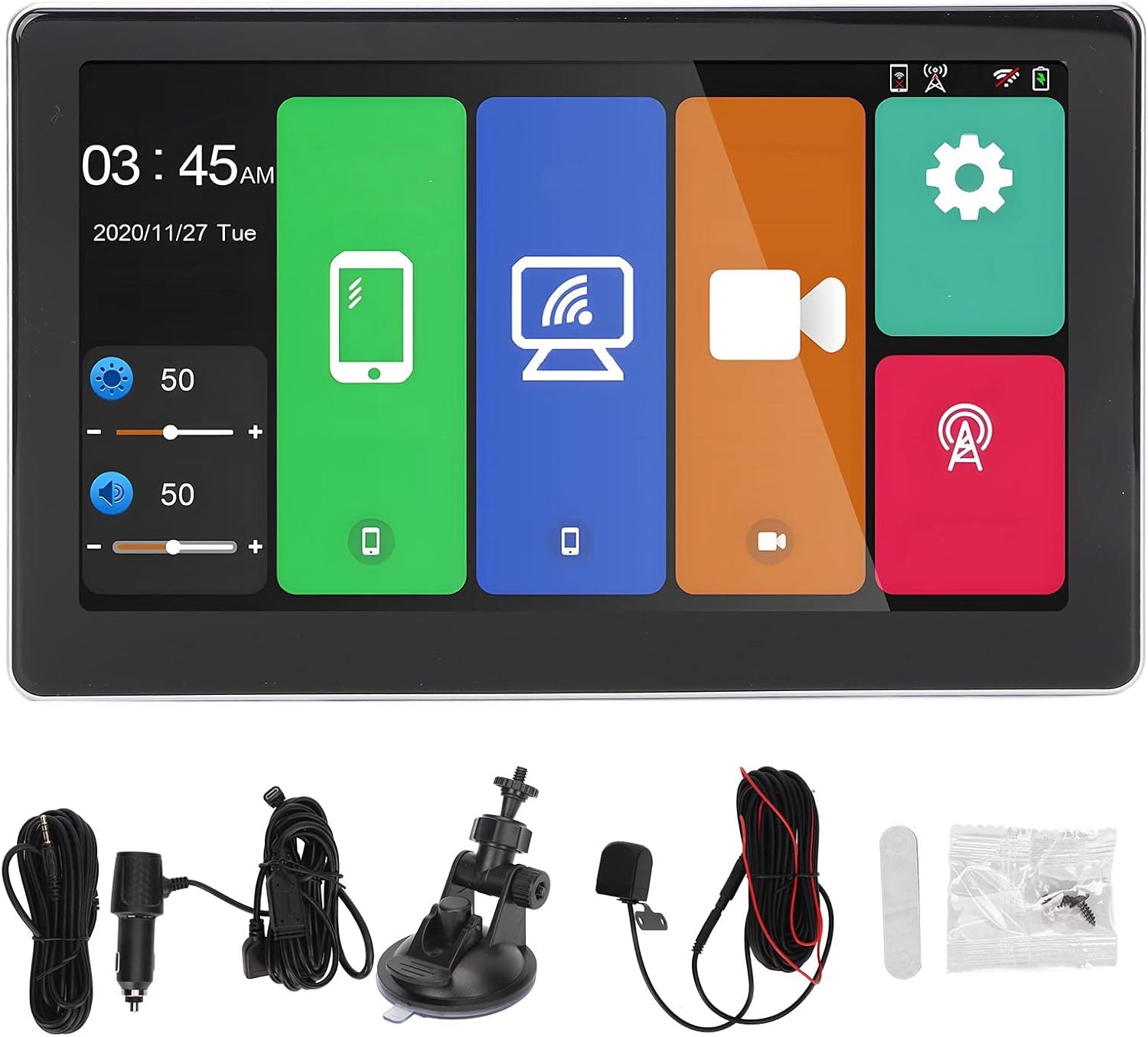
Paketin sisältö:
- Kojelautakamera (pääyksikkö)
- Charging Line (Type-C)
- Backup Camera with Line
- Car Charger with Line
- Koukku
- Ruuvipakkaus
- White Adhesive
- Käyttöopas
Kuva 1.1: Included components of the EBTOOLS T20 Dash Cam package. This image displays the main dash cam unit, charging cable, backup camera, car charger, mounting hook, screw pack, and adhesive pad.
2. Tekniset tiedot
| Ominaisuus | Kuvaus |
|---|---|
| Prosessori | Allwinner V535, DDR32GB |
| Langaton moduuli | 2.4/5 GHz |
| Bluetooth | BT5.0 Support |
| FM lähetin | Supports original car audio output |
| Näytön koko | 7 tuumaa |
| Näytön resoluutio | 1024 x 600 |
| Virtalähde | Type-C, Car Charger, Line (standard car charger) |
| Varastointi | Memory card (up to 256GB, C10 U1 recommended, not included) |
| Kamerat | Dual external AHD camera (5V) |
| Akku | Sisäänrakennettu 500 mAh litiumakku |
| Erikoisominaisuudet | Multi-language support, Parking Monitoring, Mobile App Control, G-Sensor Collision Locking, Intelligent Voice Control, Carplay, Android Auto, Automatic App Reconnection. |
3. Asennus ja asennus
3.1 Päälaitteen asennus
- Select a suitable location on your dashboard or windshield that does not obstruct your view tai häiritä turvatyynyjen toimintaa.
- Puhdista asennuspinta huolellisesti.
- Attach the dash cam to the chosen location using the provided adhesive mount or suction cup mount (if included). Ensure it is securely fastened.
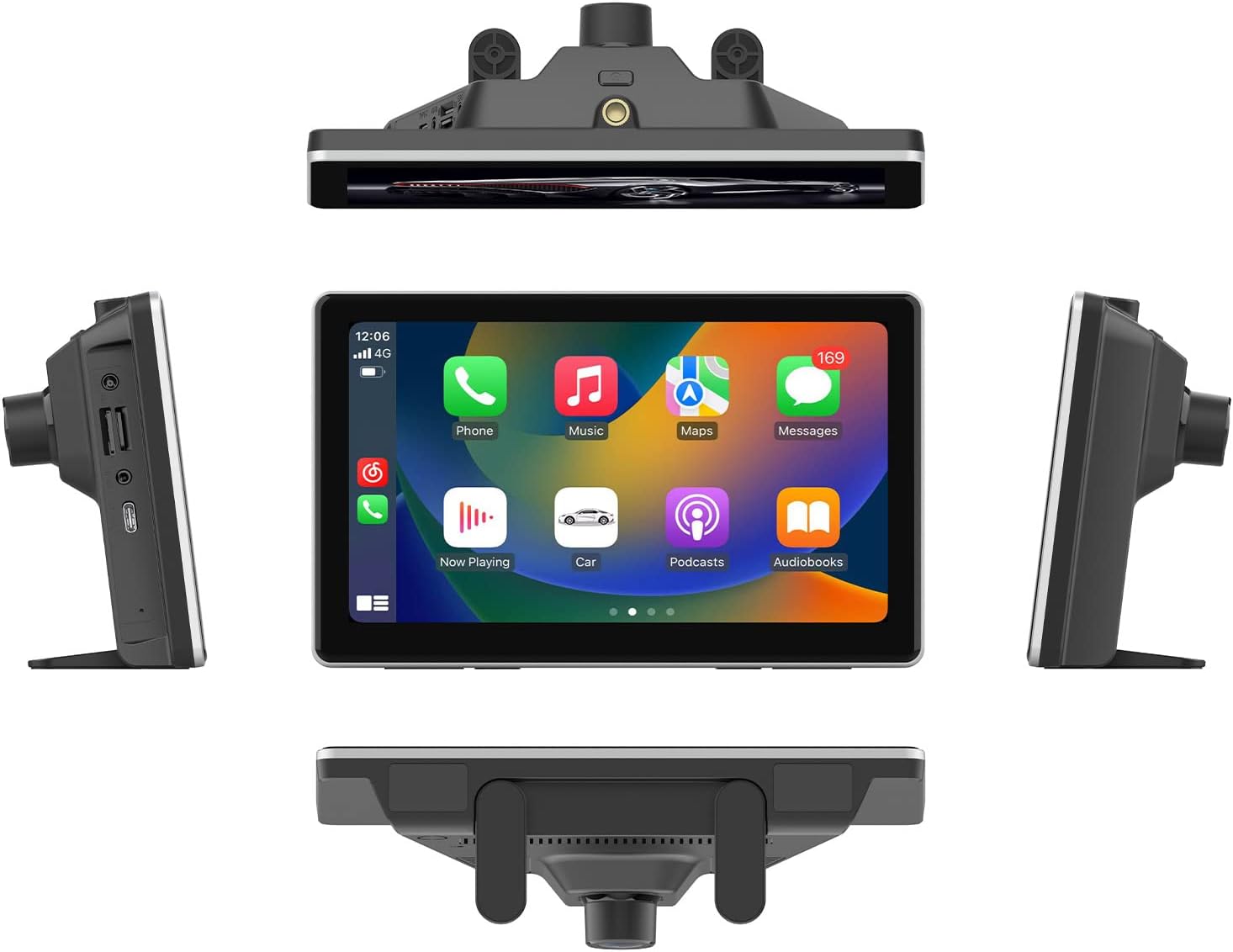
Kuva 3.1: The EBTOOLS T20 Dash Cam mounted on a vehicle dashboard, shown from multiple perspectives to illustrate its placement and screen orientation.
3.2 Virtaliitäntä
- Connect the Type-C charging line to the dash cam.
- Kytke autolaturi ajoneuvosi 12 V:n pistorasiaan (tupakansytytinliitäntään).
- Route the cable neatly to avoid interference with driving controls.
3.3 Peruutuskameran asennus (valinnainen)
- Mount the backup camera at the rear of your vehicle, typically above the license plate or on the rear bumper.
- Route the backup camera cable to the main dash cam unit. Ensure the cable is securely tucked away and protected from external elements.
- Connect the backup camera cable to the designated input port on the main dash cam unit.

Kuva 3.2: Display of the reverse image function on the dash cam screen, featuring dynamic parking guidelines to assist with vehicle maneuvering in reverse.
3.4 Muistikortin asettaminen
- Varmista, että kojelautakamera on sammutettu.
- Insert a compatible memory card (up to 256GB, C10 U1 recommended) into the designated slot.
- Format the memory card through the dash cam's settings menu upon first use to ensure optimal performance.
4. Käyttöohjeet
4.1 Virran kytkeminen päälle/pois
The dash cam will automatically power on when your vehicle starts and power off when the ignition is turned off (if connected to a switched power source).
4.2 Pääliitäntäview

Kuva 4.1: The main user interface of the EBTOOLS T20 Dash Cam, featuring a 7-inch screen with intuitive icons for various functions such as phone connectivity, Wi-Fi, camera recording, and system settings.
4.3 Tallennustilat
- Loop-tallennus: Kojelautakamera tallentaa videota jatkuvasti osissa. Kun muistikortti on täynnä, vanhin video... files on päällekirjoitettu.
- G-Sensor Collision Locking: In the event of a sudden impact or collision, the G-sensor will automatically lock the current video segment to prevent it from being overwritten.
- Pysäköinnin seuranta: When enabled, the dash cam will automatically start recording if it detects motion or impact while the vehicle is parked. This feature requires a continuous power supply (hardwire kit, sold separately, may be required for extended parking monitoring).
4.4 Yhteysominaisuudet
4.4.1 Carplay / Android Auto
The dash cam supports both Carplay (for iOS devices) and Android Auto (for Android devices). Connect your smartphone via Bluetooth or USB to access navigation, music, calls, and other compatible apps directly on the dash cam screen.

Kuva 4.2: The Carplay interface displayed on the EBTOOLS T20 Dash Cam screen, illustrating access to common smartphone applications like phone, music, and navigation.
4.4.2 Mobile App Control (Roadcam App)
Download the Roadcam app on your smartphone to control the dash cam, view elää huijaritage, download recorded videos, and adjust settings wirelessly. The app supports independent and automatic back connection.
4.4.3 FM-lähetys
Transmit audio from the dash cam to your vehicle's original car audio system via FM radio. Adjust the FM frequency on the dash cam and tune your car radio to the same frequency.

Kuva 4.3: Illustration of the FM signal transmission feature, where the dash cam's audio is broadcast to the vehicle's FM radio, allowing playback through the car's speakers.
4.4.4 AUX-äänilähtö
For a wired audio connection, use an AUX cable to connect the dash cam to your car's AUX input. This provides a direct audio signal to your car's sound system.

Kuva 4.4: Connection diagram for AUX audio output, detailing how to link the dash cam to a car's audio system using an AUX cable for direct sound transmission.
4.5 Älykäs ääniohjaus
The dash cam supports intelligent voice commands for hands-free operation of certain functions. Refer to the on-screen prompts or app for available commands.
5. Huolto
- Puhdistus: Use a soft, dry cloth to clean the dash cam screen and lens. Avoid abrasive cleaners or solvents.
- Muistikortti: Regularly format the memory card (e.g., once a month) to maintain optimal recording performance and prevent data corruption. Back up important files ennen alustusta.
- Laiteohjelmistopäivitykset: Tarkista valmistajalta website or the Roadcam app for available firmware updates to ensure your device has the latest features and improvements.
- Lämpötila: Vältä kojelautakameran altistamista äärimmäisille lämpötiloille pitkiä aikoja, sillä se voi vaikuttaa akun kestoon ja laitteen suorituskykyyn.
6. Vianmääritys
- Kojelautakamera ei käynnisty:
- Varmista, että autolaturi on kytketty oikein sekä kojelautakameraan että ajoneuvon pistorasiaan.
- Tarkista, toimiiko ajoneuvon 12 V:n pistorasia oikein.
- Verify the Type-C cable is securely connected.
- Tallennusongelmat (esim. jumiutuminen, ohitetut kuvat):
- Format the memory card. A corrupted card can cause recording problems.
- Ensure you are using a high-speed memory card (Class 10, U1 or higher).
- Try a different memory card to rule out card malfunction.
- Huono kuvanlaatu:
- Puhdista kameran linssit pehmeällä liinalla.
- Varmista, että suojakalvo on poistettu linsseistä.
- Check settings for video resolution and WDR (Wide Dynamic Range) to ensure they are configured optimally.
- Carplay/Android Auto ei muodosta yhteyttä:
- Ensure Bluetooth is enabled on both the dash cam and your smartphone.
- Try reconnecting your phone via USB cable.
- Käynnistä uudelleen sekä kojelautakamera että älypuhelimesi.
- FM transmission static/interference:
- Adjust the FM frequency on the dash cam to an unused frequency in your area.
- Ensure your car radio is tuned to the exact same frequency.
- Minimize other electronic devices that might cause interference.
7. Takuu ja tuki
For warranty information and technical support, please refer to the official EBTOOLS websivustolta tai ota yhteyttä heidän asiakaspalveluunsa. Säilytä ostokuitti ostotodistuksena.
Valmistaja: EBTOOLS
Mallinumero: T20
ASIN: B0CLH3T8TX
Päivämäärä, kun ensimmäinen saatavilla: 18. helmikuuta 2025