
Tuote loppuview
The Delton S12 Ergonomic Vertical Wireless Mouse is designed for comfort and efficiency, promoting a natural hand and wrist posture. It features a 2.4GHz wireless connection, six buttons, and three adjustable DPI levels for precise control. This manual provides instructions for setup, operation, maintenance, and troubleshooting.

Image: The Delton S12 Ergonomic Vertical Wireless Mouse, showcasing sen pystysuora muotoilu.
Asennus
1. Purkaminen
Carefully remove the mouse and its accessories from the packaging. Ensure all components are present: the Delton S12 Vertical Wireless Mouse and the USB dongle.
2. Akun asennus
The Delton S12 mouse requires two (2) AAA batteries (not included). Follow these steps to install them:
- Paikanna paristolokero hiiren alapuolelta.
- Liu'uta paristolokeron kansi varovasti auki.
- Aseta kaksi AAA-paristoa paikoilleen varmistaen oikea napaisuus (+/-).
- Sulje paristolokeron kansi, kunnes se napsahtaa tukevasti paikalleen.
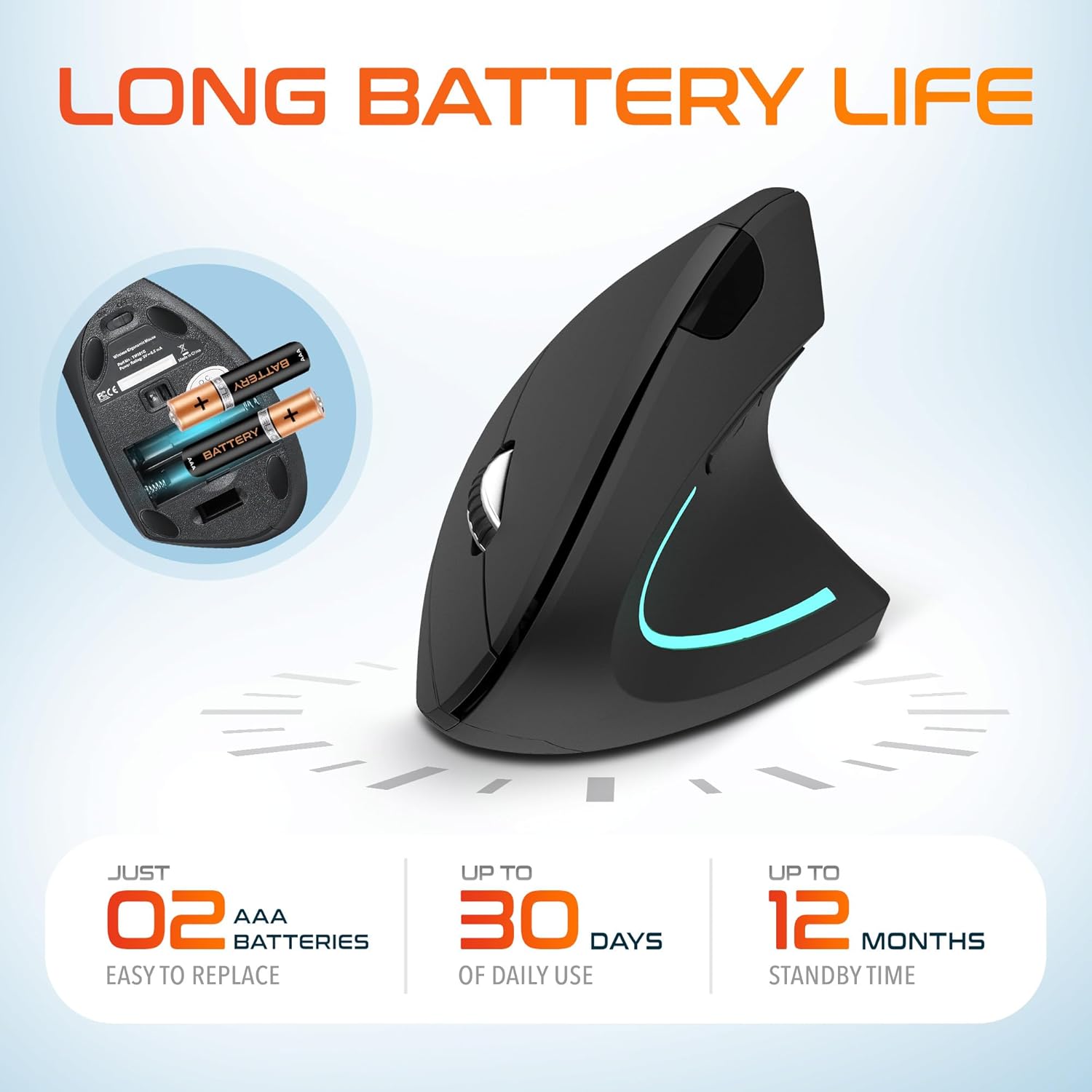
Image: The underside of the Delton S12 mouse with the battery compartment open, showing the correct placement for two AAA batteries.
3. Connecting the USB Dongle
The mouse connects wirelessly via a 2.4GHz USB dongle. No drivers are typically required for most operating systems.
- Remove the USB dongle from its storage slot, usually located near the battery compartment.
- Plug the USB dongle into an available USB port on your computer (PC, Laptop, Mac, Chromebook, etc.).
- The computer should automatically detect and install the necessary drivers. The mouse is ready for use once detected.

Image: The Delton S12 mouse positioned next to its USB dongle, ready for connection to a computer.
Hiiren käyttö
The Delton S12 mouse features six buttons and a scroll wheel for enhanced functionality.
1. Painikkeiden toiminnot
- Vasen painallus: Ensisijainen valinta- ja aktivointipainike.
- Oikealla painikkeella: Avaa kontekstivalikot.
- Vierityspyörä: Vierittää dokumentteja pystysuunnassa ja web sivuja. Voidaan myös napsauttaa keskipainikkeen toiminnon käyttämiseksi.
- DPI-vaihtopainike: Säätää kohdistimen herkkyyttä (DPI).
- Eteenpäin-painike: Navigoi eteenpäin kohdassa web selaimet tai file tutkimusmatkailijoita.
- Taaksepäin-painike: Navigoi taaksepäin web selaimet tai file tutkimusmatkailijoita.

Image: Diagram illustrating the location and function of the six buttons on the Delton S12 Ergonomic Vertical Wireless Mouse.
2. DPI-säätö
The mouse offers three adjustable DPI levels (800, 1200, 2400) to suit different tasks and preferences. Press the DPI Switch Button (located behind the scroll wheel) to cycle through the settings. An indicator LED will change color to show the current DPI level:
- Sininen LED: 800 DPI (Lower sensitivity, suitable for precise work)
- Punainen LED: 1200 DPI (Medium sensitivity, standard use)
- Vihreä LED: 2400 DPI (Higher sensitivity, suitable for faster cursor movement)

Image: Close-up of the Delton S12 mouse showing the DPI indicator LED changing colors (blue, red, green) for different sensitivity settings.
Huolto
1. Puhdistus
Optimaalisen suorituskyvyn ylläpitämiseksi puhdista hiiri säännöllisesti. Pyyhi pinta pehmeällä, kuivalla liinalla. Pinttyneeseen likaan käytä hieman kuivaa liinaa.amp Liinaa voi käyttää, mutta varmista, ettei kosteutta pääse sisäisiin osiin. Vältä voimakkaita kemikaaleja tai hankaavia puhdistusaineita.
2. Pariston vaihto
When the mouse performance degrades or it stops responding, it's time to replace the batteries. Follow the battery installation steps outlined in the Setup section. Dispose of used batteries responsibly according to local regulations.
Vianetsintä
Hiiri ei vastaa:
- Varmista, että hiiri on päällä.
- Tarkista, että paristot on asennettu oikein ja että niissä on riittävästi virtaa. Vaihda tarvittaessa.
- Verify the USB dongle is securely plugged into a working USB port on your computer. Try a different USB port.
- Move the mouse closer to the USB dongle to ensure it's within the 30-foot operating range.
- Käynnistä tietokone uudelleen.
Kohdistimen epäsäännöllinen liike:
- Puhdista hiiren alapuolella oleva optinen anturi pehmeällä, kuivalla liinalla.
- Varmista, että käytät hiirtä sopivalla alustalla. Vältä voimakkaasti heijastavia tai läpinäkyviä pintoja. Hiirimaton käyttö on suositeltavaa.
- Tarkista muiden langattomien laitteiden aiheuttama häiriö.
DPI Indicator Light Not Changing:
- Press the DPI switch button firmly. If the issue persists, ensure batteries are fresh.
Tekniset tiedot
| Merkki | Delton |
| Mallinumero | S12 |
| Yhteystekniikka | 2.4 GHz:n langaton (USB-sovitin) |
| Liiketunnistustekniikka | Optinen |
| DPI-tasot | 800, 1200, 2400 |
| Painikkeiden lukumäärä | 6 |
| Käsien suuntautuminen | Oikein |
| Virtalähde | Battery Powered (2 x AAA batteries required) |
| Akun keskimääräinen käyttöikä | Up to 30 days (daily use) |
| Wireless Range | Jopa 30 jalkaa |
| Yhteensopivat laitteet | PC, Laptop, Mac, Chromebook, iOS devices |
| Käyttöjärjestelmä | Windows 11/10/9/8/7/XP, Mac OS 9/8/7, Linux, Chrome OS |
| Materiaali | Muovi |
Takuu ja tuki
Takuutiedot:
This Delton S12 Ergonomic Vertical Wireless Mouse comes with a 1-Year Manufacturer Warranty. This warranty covers defects in materials and workmanship under normal use. For warranty claims, please retain your proof of purchase.
Asiakastuki:
For technical assistance, troubleshooting, or any questions regarding your Delton S12 mouse, please contact Delton customer support. Refer to the product packaging or the official Delton websivustolta ajantasaisimmat yhteystiedot.