
1. Johdanto
Welcome to the user manual for your Havit Gaming Mouse MS1032. This document provides essential information for setting up, operating, maintaining, and troubleshooting your device. Please read it carefully to ensure optimal performance and longevity of your mouse.
The Havit MS1032 is a gaming mouse featuring six adjustable DPI settings, a comfortable ergonomic design, and a non-slip surface. It is engineered for smooth and quiet operation, aiming to reduce fatigue during extended use.
2. Asennus
2.1 Pakkauksen sisältö
- Havit Gaming Mouse MS1032
- Käyttöopas
2.2 Järjestelmävaatimukset
- Käyttöjärjestelmä: Windows XP, Windows 7, Linux
- Käytettävissä oleva USB-portti
2.3 Hiiren kytkeminen
- Unpack the Havit Gaming Mouse MS1032 from its packaging.
- Etsi tietokoneesta vapaa USB-portti.
- Liitä hiiren USB-liitin USB-porttiin.
- Käyttöjärjestelmäsi pitäisi automaattisesti tunnistaa ja asentaa tarvittavat ajurit. Tämä prosessi voi kestää hetken.
- Kun asennus on valmis, hiiri on käyttövalmis.
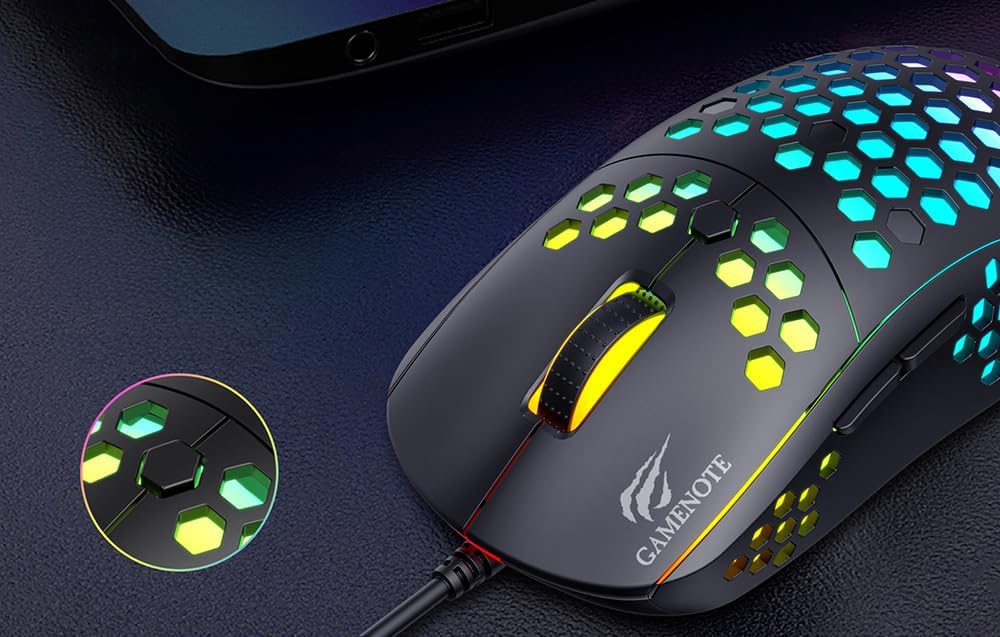
Figure 1: Havit MS1032 Gaming Mouse connected via USB.
3. Käyttöohjeet
3.1 Perustoiminnot
- Vasen painallus: Ensisijainen toiminto, valinta, aktivointi.
- Oikealla painikkeella: Opens context menus, performs secondary actions.
- Vierityspyörä: Scrolls up/down documents or web sivuja. Voidaan painaa myös keskipainikkeen napsautusta varten.
- Sivupainikkeet: Käytetään tyypillisesti eteen-/taaksepäin navigointiin web browsers or custom functions in games.
3.2 DPI-säätö
The Havit MS1032 features six adjustable DPI (Dots Per Inch) settings, allowing you to change the mouse sensitivity on the fly. This is useful for adapting to different tasks, such as precise aiming in games or fast navigation across multiple monitors.
To adjust the DPI, locate the DPI button, typically positioned behind the scroll wheel. Press this button to cycle through the available DPI settings. The LED lighting on the mouse may change to indicate the current DPI level, providing visual feedback for your selection.
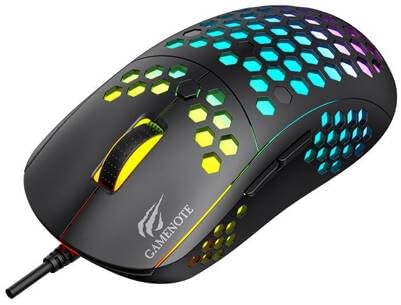
Figure 2: Location of the DPI button (behind the scroll wheel).
4. Huolto
4.1 Puhdistus
Optimaalisen suorituskyvyn ja ulkonäön ylläpitämiseksi puhdista hiiri säännöllisesti:
- Irrota hiiri tietokoneesta ennen puhdistamista.
- Käytä pehmeää, nukkaamatonta liinaa hieman dampvedellä tai miedolla, hankaamattomalla puhdistusliuoksella.
- Pyyhi hiiren pinta varovasti.
- For crevices and the optical sensor, use a cotton swab or compressed air to remove dust and debris.
- Avoid using harsh chemicals, abrasive cleaners, or excessive moisture, as these can damage the mouse's finish or internal components.
4.2 Varastointi
When not in use, store the mouse in a clean, dry environment away from direct sunlight and extreme temperatures to prevent damage.
4.3 Yleishoito
- Vältä hiiren pudottamista tai sen altistamista voimakkaille iskuille.
- Do not attempt to disassemble the mouse, as this will void the warranty and may cause irreparable damage.
- Keep the mouse away from liquids to prevent electrical damage.
5. Vianmääritys
If you encounter issues with your Havit Gaming Mouse MS1032, please refer to the following common solutions:
5.1 Hiiri ei vastaa
- Tarkista USB-liitäntä: Varmista, että USB-kaapeli on kytketty kunnolla tietokoneen toimivaan USB-porttiin. Kokeile toista USB-porttia.
- Käynnistä tietokone uudelleen: Joskus yksinkertainen tietokoneen uudelleenkäynnistys voi ratkaista yhteysongelmat.
- Testi toisella tietokoneella: Jos mahdollista, testaa hiirtä toisella tietokoneella selvittääksesi, onko ongelma hiiressä vai tietokoneesi asetuksissa.
5.2 Kohdistimen liike on epäsäännöllistä tai nykivää
- Puhdista anturi: Varmista, että hiiren pohjassa oleva optinen anturi on puhdas eikä siinä ole pölyä tai roskia.
- Tarkista pinta: Use the mouse on a clean, non-reflective, and uniform surface (e.g., a mouse pad). Avoid glass or highly reflective surfaces.
- DPI:n säätö: If the cursor is too fast or too slow, adjust the DPI setting using the DPI button.
5.3 Painikkeet eivät toimi
- Tarkista esteet: Varmista, ettei painikkeiden alle ole jäänyt roskia.
- Ohjelmistoristiriita: If you have custom mouse software installed, try uninstalling it temporarily to see if it resolves the issue.
5.4 LED-valot eivät toimi
- Tarkista yhteys: Varmista, että hiiri on kytketty oikein tietokoneeseen.
- Tehosykli: Disconnect and reconnect the mouse to reset its power.
6. Tekniset tiedot

Figure 3: Havit MS1032 Gaming Mouse design overview.
| Ominaisuus | Yksityiskohta |
|---|---|
| Malli | MS1032 |
| Merkki | Havit |
| Mitat | 15 x 8 x 5.2 cm |
| Paino | 200 g |
| DPI-asetukset | 6 säädettävää tasoa |
| Käyttöjärjestelmät | Linux, Windows 7, Windows XP |
| Yhteydet | Langallinen USB |
| Paristot vaaditaan | Ei |
7. Takuu ja tuki
For detailed warranty information and technical support, please refer to the official Havit website or contact your local retailer where the product was purchased. It is recommended to keep your purchase receipt as proof of purchase for any warranty claims.
Valmistaja: Havit
Mallinumero: MS1032