
1. Johdanto
This manual provides detailed instructions for the installation, operation, and maintenance of your Avision FB25 Flatbed Scanner. The FB25 is a high-resolution A4 color flatbed scanner designed for efficient document and ID card scanning. It features a 1200dpi Contact Image Sensor (CIS) and USB 2.0 connectivity, making it suitable for various scanning tasks. Please read this manual thoroughly before using the scanner to ensure proper operation and to maximize its performance.
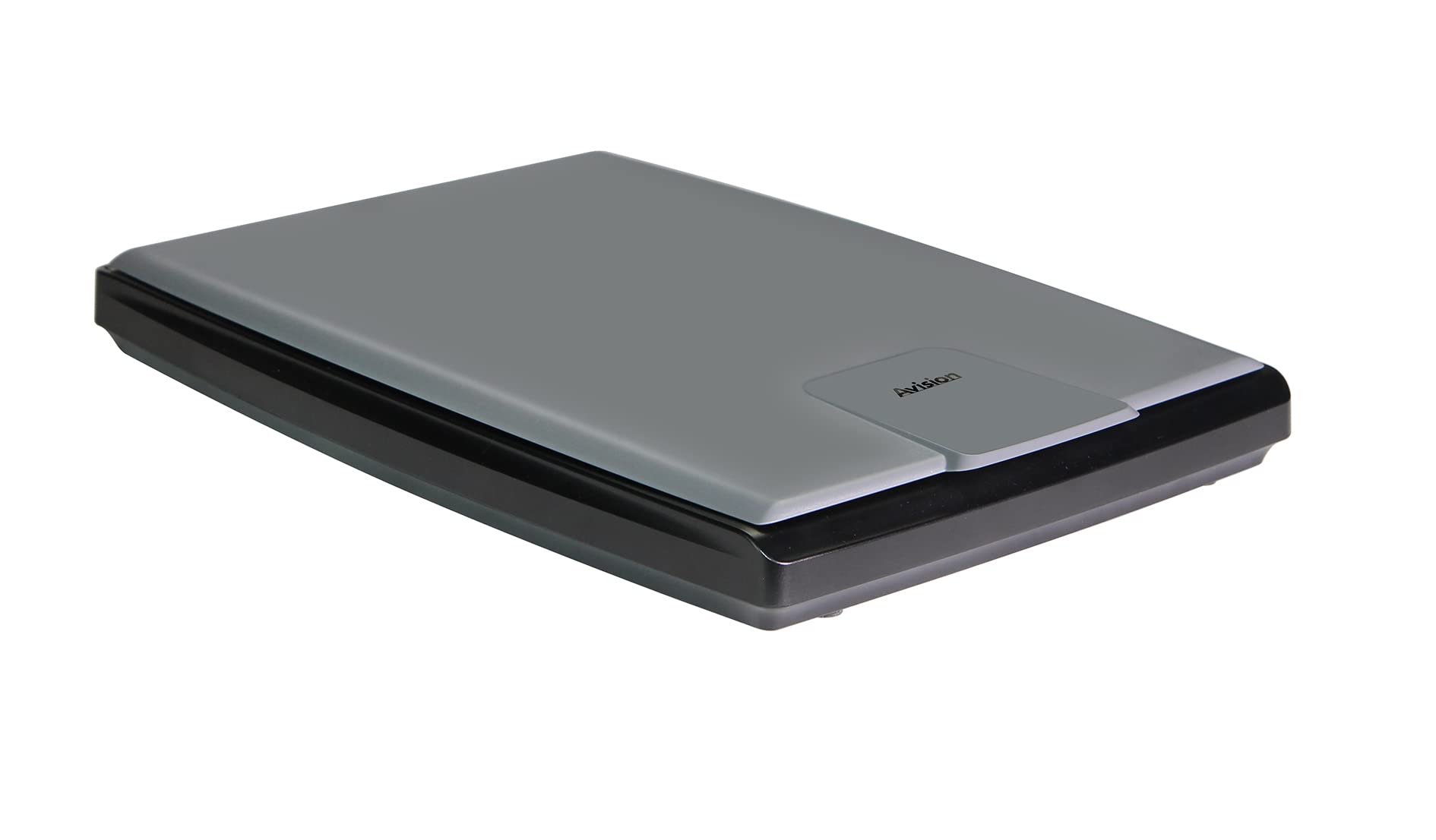
Kuva 1.1: Ylhäältä alas view of the Avision FB25 Flatbed Scanner. The scanner features a dark gray base with a lighter gray lid, displaying the 'Avision' logo prominently on the lid's front section.
2. Turvallisuustiedot
- Do not expose the scanner to water or moisture.
- Do not attempt to disassemble or modify the scanner. Refer all servicing to qualified personnel.
- Käytä ainoastaan skannerin mukana toimitettua virtalähdettä.
- Place the scanner on a stable, level surface to prevent damage from falling.
- Pidä skanneri poissa suorasta auringonvalosta ja lämmönlähteistä.
- Varmista skannerin ympärillä oleva asianmukainen ilmanvaihto ylikuumenemisen estämiseksi.
3. Pakkauksen sisältö
Varmista, että pakkauksessa on kaikki tarvittavat osat:
- Avision FB25 Flatbed Scanner Unit
- USB 2.0 -kaapeli
- Virtalähde
- Pika-aloitusopas
- Software CD (or download instructions for TWAIN Driver and PaperPort SE14)
4. Tuote ohiview
The Avision FB25 is a compact flatbed scanner. Its design includes a scanning bed for documents up to A4 size, a hinged lid, and a power/data interface.

Image 4.1: The Avision FB25 Flatbed Scanner shown with its approximate dimensions: 16.77 inches in length, 13.65 inches in width, and 3.12 inches in height.
4.1 Edessä View
The front of the scanner typically features the Avision logo on the lid. There are no physical buttons on the front.
4.2 Taka View
The rear panel houses the power input port and the USB 2.0 port for connecting to your computer.
4.3 Scanning Bed
The flat glass surface where documents are placed for scanning. Ensure this surface is clean before each use.
5. Asennus
5.1 Laitteiston liitäntä
- Aseta skanneri vakaalle ja tasaiselle alustalle.
- Connect the power adapter to the scanner's power input port and then plug it into an electrical outlet.
- Connect one end of the USB 2.0 cable to the scanner's USB port and the other end to an available USB port on your computer.
- Power on the scanner (if it has a power button; otherwise, it powers on automatically when connected).
5.2 Ohjelmiston asennus
The Avision FB25 requires driver software for proper operation. It supports Windows XP, Vista, 7, 8, 10, and 11.
- Insert the provided Software CD into your computer's CD/DVD drive. If your computer does not have a CD/DVD drive, download the latest drivers and software (TWAIN Driver and PaperPort SE14) from the official Avision support websivusto.
- Follow the on-screen instructions to install the TWAIN driver. The TWAIN driver allows the scanner to communicate with various scanning applications.
- Install PaperPort SE14, the bundled document management software. This software provides an intuitive interface for scanning, organizing, and sharing documents.
- Restart your computer after the installation is complete to ensure all drivers are properly loaded.
6. Käyttöohjeet
6.1 Placing Documents
- Nosta skannerin kantta.
- Place the document face-down on the scanning glass, aligning it with the corner guide (usually top-left).
- Gently close the scanner lid. Ensure the document lies flat against the glass.
6.2 Using the TWAIN Driver
The TWAIN driver allows you to scan directly from TWAIN-compliant applications (e.g., Adobe Photoshop, Microsoft Paint, or other document management software).
- Open your preferred TWAIN-compliant application.
- Siirry kohtaan 'File' menu and select 'Import' or 'Acquire Image'.
- Choose the Avision FB25 scanner from the list of available devices.
- The TWAIN driver interface will appear, allowing you to adjust scanning settings such as resolution (up to 1200dpi), color mode (color, grayscale, black & white), and scan area.
- Click 'Scan' to initiate the scanning process. The FB25 can scan an A4 color page at 300 dpi in approximately 1.5 seconds.
- The scanned image will appear in your application.
6.3 Using PaperPort SE14
PaperPort SE14 provides a user-friendly environment for scanning and managing your documents.
- Launch PaperPort SE14 from your desktop or Start menu.
- In the PaperPort interface, locate the 'Scan' button or option.
- Select the Avision FB25 as your scanner.
- Adjust scanning settings as needed (e.g., resolution, color, document type).
- Click 'Scan' to begin. The scanned document will appear in your PaperPort workspace.
- You can then save the document in various formats including BMP, PNG, GIF, JPEG, Single-Page PDF, Multi-Page PDF, Multi-TIFF, TIFF, RTF, TXT, OCR, XPS, DOC, XLS, PPT, DOCS, XLSX, PPTX, and HTML.
7. Huolto
7.1 Skannerin lasin puhdistaminen
Skannerin lasilla oleva pöly tai tahrat voivat vaikuttaa skannauslaatuun.
- Turn off the scanner and unplug the power adapter.
- Avaa skannerin kansi.
- Gently wipe the glass surface with a soft, lint-free cloth dampmiedolla lasinpuhdistusaineella. Älä suihkuta puhdistusainetta suoraan lasille.
- Pyyhi kuivaksi toisella puhtaalla, kuivalla liinalla.
- Close the lid and reconnect power.
7.2 Yleishoito
- Pidä skanneri peitettynä, kun sitä ei käytetä, jotta pölyä ei kerry.
- Vältä painavien esineiden asettamista skannerin kannelle.
8. Vianmääritys
If you encounter issues with your Avision FB25 scanner, refer to the following common problems and solutions:
| Ongelma | Mahdollinen syy | Ratkaisu |
|---|---|---|
| Tietokone ei tunnista skanneria. | Loose USB cable, power not connected, driver not installed. | Check USB and power connections. Ensure the scanner is powered on. Reinstall the TWAIN driver. Try a different USB port. |
| Huono skannauslaatu (juovia, epätarkkoja kuvia). | Dirty scanner glass, incorrect resolution settings, document not flat. | Clean the scanner glass (refer to Section 7.1). Adjust resolution settings in the scanning software. Ensure the document is placed flat. |
| Scanning software crashes or freezes. | Outdated driver, software conflict, insufficient system resources. | Update the TWAIN driver and PaperPort SE14 to the latest versions. Close other applications. Restart the computer. |
| Skanneri ei käynnisty. | Virtasovitin ei ole kytketty, pistorasia viallinen. | Check power adapter connection to scanner and outlet. Try a different power outlet. Ensure the power adapter is functional. |
9. Tekniset tiedot
Key technical specifications for the Avision FB25 Flatbed Scanner:
- Skannerityyppi: Document, ID Card Flatbed
- Optinen anturitekniikka: CIS (Contact Image Sensor)
- Valonlähteen tyyppi: LED
- Optinen resoluutio: 1200 dpi
- Värin syvyys: 48-bit input, 24-bit output
- Grayscale Depth: 16-bit input, 8-bit output
- Scan Size (Max): A4 (216 x 297 mm)
- Skannausnopeus: Approximately 1.5 seconds per A4 color page at 300 dpi (3.5 seconds including return)
- Liitettävyys: USB 2.0
- Tuotteen mitat (S x L x K): 430 mm x 350 mm x 80 mm (16.93" x 13.78" x 3.15")
- Normaali arkkikapasiteetti: 1 (flatbed)
- Järjestelmän vähimmäisvaatimukset: Windows XP, Vista, 7, 8, 10, 11
- Mukana oleva ohjelmisto: TWAIN Driver, PaperPort SE14
- Tuettu File Muodot: BMP, PNG, GIF, JPEG, Single-Page PDF, Multi-Page PDF, Multi-TIFF, TIFF, RTF, TXT, OCR, XPS, DOC, XLS, PPT, DOCS, XLSX, PPTX, HTML
10. Takuu ja tuki
10.1 Valmistajan takuu
The Avision FB25 Flatbed Scanner comes with a 1 vuoden valmistajan takuuTämä takuu kattaa materiaali- ja valmistusvirheet normaalissa käytössä takuuaikana. Säilytä ostokuitti takuuvaatimuksia varten.
10.2 Tekninen tuki
For technical assistance, driver updates, or further troubleshooting not covered in this manual, please visit the official Avision support website or contact their customer service department. Contact information can typically be found on the Avision websivustolla tai tuotteen mukana toimitetussa pikaoppaassa.