
1. Tuote ohiview
The havit GK59 Gaming Microphone is designed for clear audio capture during gaming, streaming, and voice communication. It features a condenser microphone for high-quality sound and a versatile design for ease of use.

Kuva 1.1: Etuosa view of the havit GK59 Gaming Microphone, showcasing its main body, stand, and control buttons.
Tärkeimmät ominaisuudet:
- Helppo käyttää: Simple plug-and-play functionality.
- Good Performance: Delivers clear and consistent audio.
- Good Quality: Durable construction for reliable use.
- Kannettava muotoilu: Kompakti ja helppo kuljettaa.
- Säädettävä teline: Allows for flexible positioning.
2. Asennusohjeet
2.1 Pakkauksen sisältö
Tarkista pakkauksesta seuraavat tuotteet:
- havit GK59 Gaming Microphone
- USB-liitäntäkaapeli
- Käyttöopas (tämä asiakirja)
2.2 Mikrofonin kytkeminen
The GK59 microphone offers versatile connectivity options for various devices.
- USB-liitäntä: Connect the provided USB cable to the USB-C port on the back of the microphone and the other end to an available USB port on your computer or gaming console. The microphone is plug-and-play and should be automatically recognized by most operating systems.
- 3.5 mm:n jakkiliitäntä: For devices supporting a 3.5mm auxiliary input, connect a 3.5mm audio cable (not included) to the 3.5mm jack on the back of the microphone and to your device's audio input.
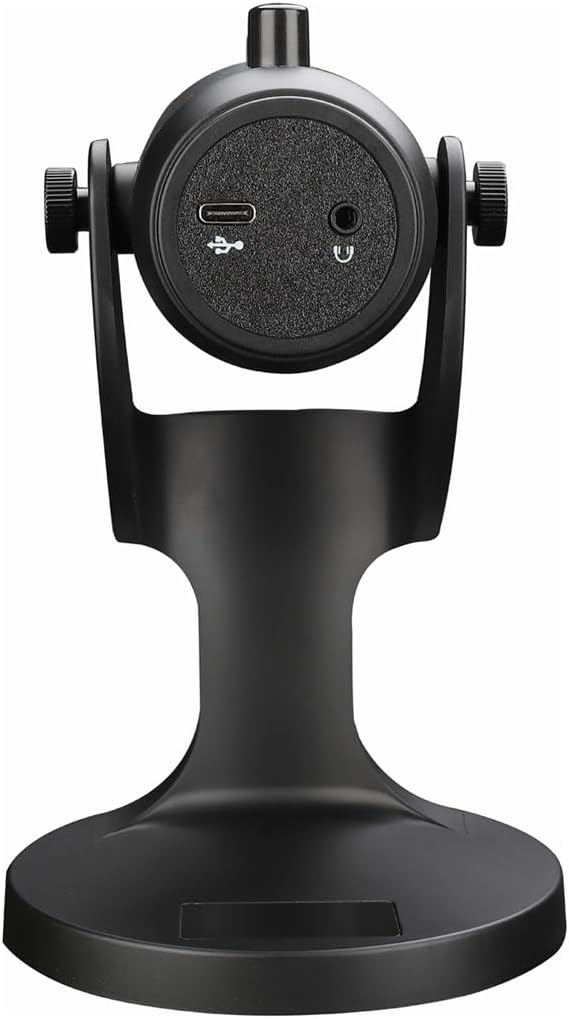
Kuva 2.1: Takaosa view of the havit GK59 Gaming Microphone, highlighting the USB-C port for data and power, and the 3.5mm headphone jack for monitoring.
After connecting, ensure the microphone is selected as the default input device in your system's sound settings or your gaming/streaming software.
3. Käyttöohjeet
3.1 Perusohjaimet
The havit GK59 features intuitive controls located on the front of the microphone body:
- Mykistyspainike: Press to mute or unmute the microphone. An indicator light will typically show the mute status.
- MIC +/- Buttons: Adjust the microphone input sensitivity (gain). Press '+' to increase, '-' to decrease.
- VOL +/- -painikkeet: Adjust the headphone output volume for monitoring. Press '+' to increase, '-' to decrease.
- ECHO +/- Buttons: Adjust the echo effect level. Press '+' to increase, '-' to decrease.
Kuva 3.1: Yksityiskohtainen view of the microphone's control panel, including the mute button, microphone gain, volume, and echo adjustment buttons.
3.2 Adjusting Microphone Position
The microphone is equipped with an adjustable stand, allowing you to optimize its position for best sound capture and comfort.
- Gently hold the microphone body and the base of the stand.
- Tilt the microphone forward or backward to achieve the desired angle. The stand's design helps reduce vibration and abnormal sounds during use.
- Position the microphone approximately 6-12 inches (15-30 cm) from your mouth for optimal voice clarity.

Figure 3.2: The havit GK59 microphone demonstrating its adjustable tilt feature on the stand, designed for anti-vibration.
4. Huolto
4.1 Puhdistus
Mikrofonin suorituskyvyn ja ulkonäön ylläpitämiseksi:
- Disconnect the microphone from its power source before cleaning.
- Pyyhi ulkopinnat pehmeällä, kuivalla liinalla.
- Älä käytä nestemäisiä puhdistusaineita, aerosoleja tai liuottimia, sillä ne voivat vahingoittaa pintaa tai sisäisiä osia.
4.2 Varastointi
When not in use, store the microphone in a cool, dry place away from direct sunlight and extreme temperatures. Protect it from dust and moisture.
5. Vianmääritys
If you encounter issues with your havit GK59 Gaming Microphone, please refer to the following table for common problems and solutions:
| Ongelma | Mahdollinen syy | Ratkaisu |
|---|---|---|
| No sound input from microphone | Mikrofonia ei ole liitetty kunnolla Incorrect input device selected Mikrofoni mykistetty | Varmista, että USB-kaapeli on kytketty kunnolla. Check system sound settings and select GK59 as input. Press the Mute button on the microphone to unmute. |
| Hiljainen mikrofonin äänenvoimakkuus | Microphone gain too low System input volume too low | Press the 'MIC +' button on the microphone. Adjust input volume in your system's sound settings. |
| Vääristynyt tai epäselvä ääni | Microphone gain too high Mikrofoni liian lähellä suuta Ympäristön melu | Press the 'MIC -' button on the microphone. Säädä mikrofonin asentoa (6–12 cm suusta). Vähennä taustamelua ympäristössäsi. |
| No headphone monitoring sound | Kuulokkeita ei ole kytketty Headphone volume too low | Ensure headphones are plugged into the 3.5mm jack. Press the 'VOL +' button on the microphone. |
6. Tekniset tiedot
Below are the technical specifications for the havit GK59 Gaming Microphone:
| Ominaisuus | Erittely |
|---|---|
| Merkki | havit |
| Mallinumero | GK59 |
| Yhteystekniikka | USB, 3.5 mm Jack (Auxiliary) |
| Suositellut käyttötavat | Pelaaminen |
| Napainen kuvio | Yksisuuntainen |
| Mikrofonin muototekijä | Handheld (with desktop stand) |
| Tuotteen paino | 429 grammaa |
| Impedanssi | 250 ohmia |
| Signaali-kohinasuhde | 18 dB |
| Ääniääni | 18 desibeliä |
| Virtalähde | Johdollinen sähkökäyttöinen (USB:n kautta) |
| Yhteensopivat laitteet | Gaming Consoles, PCs |
| Tuotteen mitat (PxLxK) | 5.59 x 4.92 x 9.06 tuumaa |
| Väri | Musta |
7. Takuu ja tuki
7.1 Takuutiedot
The havit GK59 Gaming Microphone comes with a standard manufacturer's warranty. Please refer to the warranty card included in your product packaging or visit the official havit websivustolta tarkemmat takuuehdot.
7.2 Asiakastuki
For technical assistance, troubleshooting not covered in this manual, or warranty claims, please contact havit customer support through their official channels. You can find more information and contact details on the havit-kauppa Amazonissa tai heidän virkamiehensä websivusto.